


Email is not going anywhere. Despite the explosion of social media DMs, Slack channels, and messaging apps, email remains the most reliable way to reach someone directly. According to MailerLite’s 2025 benchmarks, the average email open rate across all industries sits at 43.46% — a figure that social platforms can only dream about competing with. Email marketing also generates between $36 and $42 for every $1 spent, making it one of the highest-ROI communication channels available.
Yet, finding the right email address for the right person remains one of the most common challenges facing sales professionals, recruiters, journalists, marketers, and job seekers alike. You know exactly who you want to reach. You just don’t have their email. And sending a message to the wrong address — or worse, an address that no longer exists — wastes your time, hurts your sender reputation, and gets you no closer to your goal.
This guide solves that problem. It walks you through 11 proven methods — both free and paid — that people are actively using in 2026 to find verified email addresses. Whether you’re trying to reach a startup founder, a developer, a journalist, or a business decision-maker, at least one of these methods will work for your situation. Each method includes a clear explanation of how it works, who it works best for, and an honest look at its strengths and limitations. The guide also covers the legal side of email prospecting and, critically, how to verify every address before you hit send.
Before You Start — What Information Do You Already Have?
Before jumping straight into tools and tactics, it’s worth spending sixty seconds on the most overlooked step in email finding: understanding what information you already have. The method that works best for you depends almost entirely on your starting point.
- You have a full name and a company name. This is the best-case scenario. You can use a dedicated email finder tool (Method 1), guess the company email pattern (Method 6), or search the company’s website directly (Method 4). The combination of name and domain narrows everything down to a very manageable search.
- You have a name and a LinkedIn profile URL. Start with a LinkedIn Chrome extension (Method 2), which is purpose-built for this exact scenario. If the extension comes up empty, try Method 7 (Twitter/X search) or Method 9 (AI as a research accelerator) to locate additional context about where they work.
- You have just a domain or company name. Use a domain search inside any email finder tool to pull a list of all publicly known email addresses associated with that domain. From there, you can identify the company’s email format and apply it to the specific person you’re targeting.
- You have a name but no company. This is the hardest scenario. Start with Google Search operators (Method 3) and social profile scanning (Method 4). Twitter/X (Method 7) works well for public figures, freelancers, and creators who don’t have a company domain.
- You’re trying to reach a software developer. Go straight to GitHub (Method 8). Developers often commit to public repositories under their personal email addresses, making this one of the most direct and underused methods available.
Knowing your starting point before choosing a method saves you time and significantly increases your success rate.
Is It Legal to Find Someone’s Email Address?
This is the question most guides skip entirely — and the one that matters most if you’re doing outreach at any kind of scale.
The short answer is: finding and using someone’s email address is legal in most jurisdictions, but only when done correctly and ethically. The rules differ depending on where you are, where your recipient is, and whether you’re targeting a business email or a personal one.
The CAN-SPAM Act (United States) governs commercial email in the US. Under CAN-SPAM, you are allowed to email someone without prior consent, as long as every email includes your physical address, a clear identification that it is an advertisement, and a working unsubscribe mechanism. Critically, CAN-SPAM applies to B2B email as well as B2C — there is no business-to-business exemption. Violations carry penalties of up to $53,088 per email, and the FTC actively enforces this. In August 2024, the FTC issued a $2.95 million fine — the largest in CAN-SPAM history — to a well-funded Silicon Valley company for sending marketing emails without working unsubscribe links.
GDPR (European Union) takes a stricter approach. Under GDPR, email addresses are classified as personal data and require a lawful basis for processing. For B2B cold email, the most commonly used legal basis is “legitimate interests,” which allows outreach to professionals when your message is relevant to their role and you conduct a formal Legitimate Interests Assessment (LIA). However, GDPR fines are not theoretical — European data protection authorities issued a record €1.76 billion in fines in 2022 alone. For outreach targeting EU residents, ensuring compliance is not optional.
CASL (Canada) is among the strictest anti-spam laws globally. Unlike CAN-SPAM, Canada’s legislation generally requires prior express or implied consent before sending a commercial email. If your target audience includes Canadians, you need to understand CASL’s implied consent rules carefully before reaching out.
Business email vs. personal email is a meaningful distinction under GDPR. A business email address (e.g., john.doe@company.com) may be treated differently from a personal Gmail account, with the former often qualifying under legitimate interests for relevant professional outreach. When in doubt, lean toward business email addresses and clearly relevant messaging.
Three rules that apply everywhere:
- Your message must be relevant to the person you’re contacting
- You must honor unsubscribe requests immediately
- You should never purchase email lists from third parties without verifying that the data was collected legally
None of this means you cannot engage in email prospecting — millions of professionals do so legally every single day. It means that how you find addresses and how you use them both matter.
The 11 Best Methods to Find Someone’s Email Address
Method 1 — Use a Dedicated Email Finder Tool (Best for Scale & Accuracy)
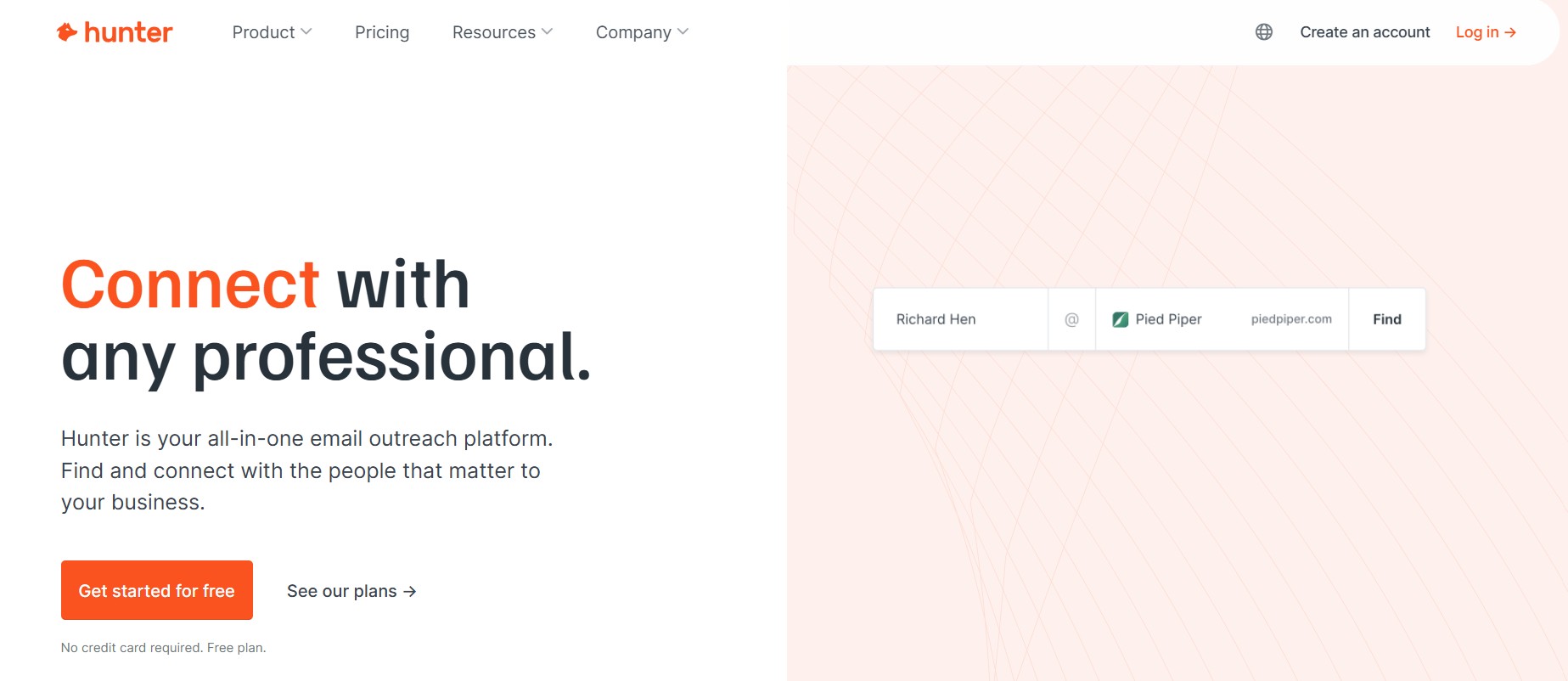
Dedicated email finder tools are the gold standard for professional prospecting. They work by cross-referencing a person’s name and company domain against large databases of publicly indexed email addresses and applying intelligent pattern matching to surface the most likely verified address.
How it works: You input a person’s first name, last name, and employer domain (e.g., company.com). The tool searches its database, checks public sources, and returns the most likely email address along with a confidence score and verification status. Many tools also support bulk searches — uploading a CSV of names and domains to find hundreds of addresses at once.
Top tools to consider in 2026:
- Hunter.io — One of the most widely used tools in this category. Hunter has a database of over 100 million professional email addresses and returns a confidence score alongside each result. An independent 90-day test found its domain search returned accurate results for roughly 87% of companies tested. The free plan includes 25 searches and 50 verifications per month. Paid plans start at $49/month (Starter) for 500 email searches.
- Snov.io — Offers email finding alongside a built-in CRM, email warm-up tools, and LinkedIn prospect finding. A strong option for teams that want an all-in-one outreach stack.
- VoilaNorbert — A straightforward email finder with a simple interface. Offers pay-as-you-go pricing, making it accessible for low-volume needs.
- Apollo.io — A larger B2B database platform with a generous free tier. Well-suited for sales teams that need both contact data and engagement tools.
- Skrapp — Purpose-built for LinkedIn prospecting, particularly strong for extracting emails from LinkedIn profiles in bulk.
Step-by-step walkthrough using Hunter.io:
- Go to hunter.io and create a free account
- Navigate to the “Email Finder” tool
- Enter the target’s first name, last name, and their company domain
- Review the returned email address, confidence score, and source URLs
- Run the address through Hunter’s built-in Email Verifier before using it in any outreach
Free vs. paid: Hunter’s free plan allows 25 searches per month, which works for occasional one-off lookups. For regular prospecting, the Starter plan at $49/month provides 500 searches and 1,000 verification credits.
Best for: B2B sales prospecting, lead generation at scale, any use case where you have a list of names and company domains.
✅ Pros:
- Fast, automated, and scalable
- Returns a confidence score that tells you how reliable the result is
- Many tools also offer bulk search and CRM integration
- GDPR-compliant tools document the public sources where each email was found
❌ Cons:
- Free tiers are limited; costs scale up quickly for high-volume use
- Coverage gaps exist for small, new, or niche companies with limited online presence
- Catch-all domains (which accept all mail) can produce addresses marked as “risky” rather than fully verified
- Tools rely on publicly indexed data, which means recently changed email addresses may lag behind
Method 2 — LinkedIn + Chrome Extension (Best for B2B Prospecting)
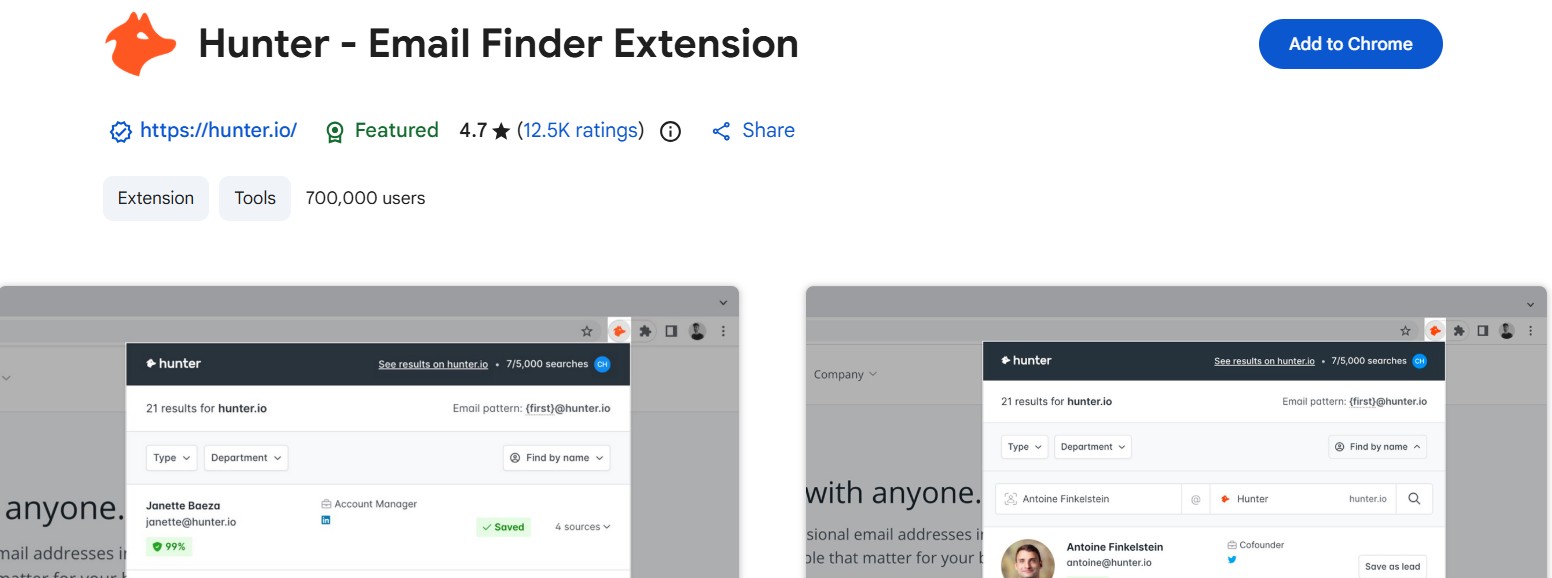
LinkedIn is home to over one billion professional profiles, but it deliberately keeps email addresses hidden behind its messaging system. That’s where LinkedIn email finder extensions come in. These browser tools sit on top of LinkedIn profiles and surface the contact’s email address — often in a single click — by querying the extension’s backend database in real time.
How it works: After installing a Chrome extension, you navigate to any LinkedIn profile. The extension recognizes the profile page and displays a button or panel to reveal the contact’s email address. The result is pulled from the extension’s database of publicly sourced professional emails, cross-referenced with the LinkedIn profile data.
Top LinkedIn Chrome extensions:
- Hunter Chrome Extension — Surfaces email addresses when browsing LinkedIn profiles or company websites. Free users get access to 25 searches/month, matching the web app.
- Skrapp Chrome Extension — Builds prospect lists directly from LinkedIn searches, saving contacts and their email addresses simultaneously.
- Saleshandy Connect — Works directly on LinkedIn profile pages and LinkedIn Sales Navigator, making it especially powerful for SDRs working from saved lead lists.
- Apollo Chrome Extension — Pulls email, phone, and company data from LinkedIn profiles with a robust free tier.
Bulk extraction with LinkedIn Sales Navigator: For recruiters and sales teams running high-volume prospecting, LinkedIn Sales Navigator combined with a compatible Chrome extension allows bulk extraction. You build a filtered lead list inside Sales Navigator (by role, company size, industry, location) and then use the extension to enrich those leads with email addresses in batches.
Free vs. paid: Most LinkedIn email finder extensions offer a free tier of 50–150 searches per month. For anything beyond casual use, paid plans range from roughly $25 to $99/month depending on volume.
Best for: B2B sales development representatives (SDRs), recruiters, and anyone already working their way through LinkedIn as their primary prospecting tool.
✅ Pros:
- Frictionless — works inside your existing LinkedIn workflow without exporting data first
- Highly targeted, since you’re prospecting from a platform already filtered by role, company, and seniority
- Many extensions also capture phone numbers, company size, and other enrichment data
❌ Cons:
- LinkedIn has historically pushed back on automated scraping; some extensions have faced legal pressure
- Email coverage is not 100% — many profiles will return no email, especially for senior executives who guard their contact information
- Requires a LinkedIn account and, for best results, a Sales Navigator subscription (starting at approximately $99/month)
Method 3 — Google Search Operators (Best Free Method)
Google indexes an enormous amount of publicly available information, including email addresses that appear on resumes, press releases, academic papers, company bios, and personal websites. With the right search strings, you can surface emails that no tool has scraped — because they exist on pages that were indexed publicly but not catalogued by email finder databases.
How it works: Google’s advanced search operators let you construct highly targeted queries that narrow results to specific domains, specific file types, or specific phrases. Combining these operators with a person’s name and employer creates a search that can surface their email address directly in the results.
Effective search strings to use in 2026:
Search for a specific format of email related to a person:
"firstname lastname" "@company.com"
Search for emails on a company’s own website:
site:company.com "email" "firstname"
Search for the person’s name alongside an email mention on any page:
"firstname lastname" "email" OR "contact" "@"
Search for their name in publicly available PDFs (conference speaker bios, academic papers, media kits):
"firstname lastname" filetype:pdf "@company.com"
Search for their name on press release sites where business emails are routinely published:
"firstname lastname" site:prnewswire.com OR site:businesswire.com
When Google finds emails: Google tends to index emails when they appear on static web pages — team pages, author bios, speaker pages, press releases, academic papers, and online directories. Emails buried inside contact forms, member portals, or dynamically generated pages will not appear in search results.
Best for: One-off searches, journalists tracking down a source, researchers trying to contact academics, anyone who prefers not to sign up for a paid tool.
✅ Pros:
- Completely free, no signup required
- Surfaces emails that paid databases may not have indexed
- Works for any type of email address, not just corporate ones
❌ Cons:
- Slow and manual — not suitable for bulk prospecting
- Only finds addresses that have been published publicly online
- Requires patience and experimentation with different query formats
- No built-in verification — anything you find still needs to be checked
Method 4 — Check the Company Website & Social Profiles (Fastest Free Method)
Before reaching for any tool or operator, spend two minutes checking the most obvious places. A surprising number of email addresses are published in plain sight — on company websites and across social profiles — and many prospectors skip past them entirely in their rush to use more sophisticated methods.
Where to look on company websites:
- The
/aboutor/teampage, where individual bios often include a direct contact - The
/contactor/contact-uspage, which may list specific department or individual emails rather than just a generic form - Blog author bylines, where contributors frequently link to a personal email or social profile
- Press and media pages, where a PR contact’s email is almost always published
- The website footer, where founders and small business owners sometimes list their personal email
Where to look on social profiles:
- LinkedIn: Click “Contact Info” on any profile. Connections who have chosen to share their email can have it visible there.
- Twitter/X: The bio field is limited to 160 characters, but a significant number of founders, freelancers, and creators include their email there. Check the pinned tweet as well.
- Facebook: Under the About section of personal profiles, some users list a contact email under “Contact and Basic Info.”
- Instagram: Creator and business accounts often include a contact email button directly on their profile.
Spotting disguised emails: Some people and companies deliberately obscure their email from bots by writing it in text format rather than as a clickable link. Look for variations like name [at] company [dot] com or name(at)company.com. These are still usable — simply convert them back to standard format.
Best for: Finding email addresses for founders, small business owners, journalists, bloggers, academics, and anyone who maintains a robust personal or company web presence.
✅ Pros:
- Completely free and instant
- High accuracy — a published email is almost certainly still active
- No tools, extensions, or accounts required
❌ Cons:
- Only works if the person has publicly shared their email, which many professionals deliberately avoid
- Does not scale — not practical for finding dozens of contacts
- Corporate professionals at large companies rarely list personal emails publicly
Method 5 — Subscribe to Their Newsletter (Underrated Hack)
This is one of the most underused tactics in the email finder playbook, and it works particularly well for a specific type of target: creators, bloggers, solopreneurs, SaaS founders, and independent consultants who run their own newsletters.
Why this works: When someone sends a newsletter, the email your inbox receives contains metadata in the header that includes the sender’s From address and, critically, the Reply-To address. Many newsletter senders — especially individual creators — configure their newsletter tool to send from or reply to a personal email address rather than a generic noreply@ or platform address. That personal address is your contact.
Step-by-step:
- Find the person’s newsletter sign-up form. Check their website, Twitter/X bio, or LinkedIn profile — most active newsletter writers promote their list prominently.
- Subscribe using a real email address.
- Wait for the welcome email or first newsletter to arrive.
- Open the email and look at the From field. In most email clients, clicking on the sender’s name reveals the actual sending address behind the display name.
- Check the Reply-To field as well. In Gmail, click the three-dot menu on any email and select “Show original” to see the full header, including the Reply-To address.
- If the address shown is a noreply or a platform address (e.g.,
campaigns@mailchimp.com), reply to the email directly. Many creators have their newsletter tools set to forward replies to their personal inbox, which means a thoughtful reply may prompt them to respond from their personal address.
Who this works best for:
- Substack authors, who almost always receive replies at their personal email
- Independent consultants and coaches who run small-list newsletters
- SaaS founders doing founder-led marketing through a personal newsletter
- Bloggers and content creators who use ConvertKit, MailerLite, or similar tools
Best for: Reaching individual creators, thought leaders, and entrepreneurs where the newsletter is their primary audience-building channel.
✅ Pros:
- Completely free
- The address you find is almost always active — they use it to send emails regularly
- You’re already on their radar by being a subscriber, which makes cold outreach feel warmer
❌ Cons:
- Only works for people who run a newsletter
- Many larger newsletters are sent from a no-reply platform address with replies managed by a team
- Requires time — you need to wait for at least one email after subscribing
Method 6 — Guess the Email Pattern + Verify (Best When You Have Name + Domain)
Every company uses a consistent format for its employee email addresses. Once you know the pattern, you can construct a probable email address for any person at that company — and verify it before sending. This method requires no paid tools (though a verification tool is essential) and works reliably for mid-sized to large companies that have multiple staff members with publicly listed emails.
Step 1 — Identify the company’s email format:
Start by looking for any email address that’s already publicly available for the company. Check the team page, press releases, author bios, or job listings. Common patterns include:
firstname@company.com(e.g., sarah@company.com)firstname.lastname@company.com(e.g., sarah.jones@company.com)firstlast@company.com(e.g., sarahjones@company.com)f.lastname@company.com(e.g., s.jones@company.com)flastname@company.com(e.g., sjones@company.com)
Hunter.io’s Domain Search tool also shows you the email pattern it has detected for any given company domain — a useful shortcut if you’re using that platform.
Step 2 — Generate variants with an email permutator:
If you’re unsure of the pattern, use a free email permutator tool (several exist online) to generate all plausible combinations of a person’s name and domain. This gives you a list of 8–12 possible addresses.
Step 3 — Verify before sending:
This step is non-negotiable. Sending to an unverified guessed address risks a hard bounce, which damages your sender reputation. Use a free or low-cost verifier (Hunter’s Email Verifier, ZeroBounce, or NeverBounce) to check which variant is valid without actually sending an email. A valid SMTP response from the server confirms the mailbox exists.
Best for: Reaching specific individuals at known companies when you already have one or two publicly available email addresses to identify the pattern.
✅ Pros:
- Free (if you already know the pattern)
- Highly effective for large companies where the pattern is consistent
- Verification tools prevent wasted sends
❌ Cons:
- Does not work for small companies or solo operators who may not follow a standard pattern
- Verification tools cannot always confirm addresses on catch-all domains
- Risk of accidental contact with the wrong person if the pattern yields a valid but incorrect address
Method 7 — Twitter/X Profile & Advanced Search (Best for Founders & Creators)
Twitter/X has become a primary networking platform for startup founders, independent researchers, journalists, open-source developers, and content creators — many of whom are far more reachable through this channel than through traditional corporate directories. And a significant portion of them share their email address directly on the platform.
Check the bio first:
This is the fastest step and succeeds far more often than most people expect. Go to the person’s Twitter/X profile and read the bio carefully. Many founders and freelancers include their email directly (e.g., hello@name.com) or link to a personal website that lists it. Also check the pinned tweet, which is frequently used to share contact information or link to a newsletter sign-up that reveals an email.
Use Twitter/X Advanced Search:
Twitter’s advanced search (accessible at twitter.com/search-advanced) allows you to search within a specific account’s tweets for terms like “email” or “contact.” This is useful for accounts that have tweeted their email address at some point in the past but don’t currently display it in their bio. Try these search strings:
from:@username email— searches all tweets from that account containing the word “email”from:@username "at" "dot"— catches disguised email addresses written in text format
Who shares emails on Twitter/X:
- Early-stage startup founders doing founder-led sales
- Freelancers and independent consultants actively seeking clients
- Open-source contributors and developers
- Journalists who publish their contact for source tips
- Academics who are active on the platform
Best for: Reaching founders, journalists, creators, and anyone with a significant public presence on Twitter/X.
✅ Pros:
- Free and instant
- Works for personal and professional email addresses
- Tweets are indexed by Google, so a Google search combining
site:twitter.com "@username" "email"can surface older mentions
❌ Cons:
- Only works if the person actively uses Twitter/X and has shared contact details at some point
- Requires reading through tweet history, which can be time-consuming for prolific accounts
- Twitter’s search functionality has become less reliable in recent years following platform changes
Method 8 — GitHub Commit History Hack (Best for Finding Developer Emails)
This is the most technically specific method in this guide, and it is uniquely effective for one audience: software developers. When a developer makes a commit to a public GitHub repository, that commit is recorded in the repository’s history along with the email address associated with their Git configuration at the time. By accessing the raw patch file of any commit, you can read that email directly — even if the developer has not listed any contact information on their profile page.
How it works, step by step:
- Navigate to the developer’s GitHub profile and find a public repository where they have made commits. Personal projects and actively maintained open-source contributions are ideal, as the developer is more likely to have committed under their actual email rather than GitHub’s privacy-masked noreply format.
- Click on the repository and navigate to the “Commits” tab.
- Locate a commit made by the target developer. Click on the commit to open the commit detail page.
- Look at the URL in your browser. It will follow the format:
https://github.com/USERNAME/REPONAME/commit/COMMIT_HASH - Add
.patchto the end of that URL:https://github.com/USERNAME/REPONAME/commit/COMMIT_HASH.patch - The page will reload showing the raw patch file, which includes a
From:field at the top containing the developer’s email address.
Important caveat — GitHub’s noreply privacy setting: GitHub allows developers to enable email privacy in their account settings. When this setting is enabled, GitHub automatically replaces their real email with a masked noreply address in the format ID+USERNAME@users.noreply.github.com. If you encounter this format, the real email is not accessible through this method. According to GitHub’s documentation, this noreply format was introduced in July 2017 for accounts created after that date, and adoption has grown significantly since. However, many developers — particularly those who set up their Git configuration years ago and haven’t updated it — still commit under their real addresses.
An important note on forked repositories: This method only works on commits that the developer actually made. If a developer has forked a repository but never made their own commits, their contact information will not appear in the commit history.
Best for: Technical recruiters sourcing developers, open-source project maintainers trying to contact contributors, and anyone needing to reach a specific engineer or developer.
✅ Pros:
- Free and requires no tools
- Surfaces personal email addresses that would never appear in B2B databases
- Works for any developer with publicly committed code
❌ Cons:
- Does not work for developers who have enabled GitHub’s email privacy setting
- Requires the developer to have made actual commits (not just starred or forked repositories)
- The email address found may be a personal one rather than a work address
- Use with discretion — these addresses were captured as part of an open-source workflow, not explicitly shared for outreach
Method 9 — Use AI Tools Strategically (Best as a Research Accelerator)
Artificial intelligence tools have generated a lot of excitement around their potential to find email addresses, but it’s important to be honest about what they can and cannot do. AI language models like ChatGPT and Claude do not have access to real-time databases of email addresses. They cannot “look up” someone’s email. Asking an AI to give you someone’s email directly will produce either a fabricated result (which will bounce) or an honest acknowledgment that it doesn’t know.
Where AI is genuinely useful is as a research accelerator — helping you think through the search process, craft better queries, and identify places you might not have thought to look.
Practical ways AI tools add value in email finding:
- Identifying email format patterns: Paste a few known email addresses from a company into an AI tool and ask it to identify the pattern. It can quickly determine whether the company uses
first.last@,firstlast@, or another format. - Generating smart search queries: Ask an AI to help you construct Google search operator strings for a specific person. For example: “Help me write a Google search to find the email address of [Name], who works at [Company] as [Role].” A well-prompted AI will return several targeted query variations.
- Brainstorming where to look: If you’re stuck, describe the person to an AI (their role, industry, and online presence) and ask where they might publicly share contact information. The AI can surface ideas — such as checking a specific professional directory, a podcast they’ve appeared on, or an industry association where they’re listed — that you may not have considered.
- Writing outreach emails after you find the address: Once you have a verified email, AI tools are highly effective for drafting personalized cold outreach that increases the likelihood of a response.
What AI cannot do:
- It cannot access live databases or real-time information about specific individuals
- Any specific email address an AI “suggests” should be treated as a guess and verified before use — never send directly to an AI-generated address without running it through a verifier
- It cannot access private or non-public information
Best for: Supplementing other methods, building smarter search strategies, and drafting outreach copy after the email has been verified through another method.
✅ Pros:
- Free (with standard access to major AI tools)
- Helps less experienced prospectors think through the search systematically
- Saves time by generating multiple search query variations at once
❌ Cons:
- Cannot directly find or confirm email addresses
- Any address it suggests must be verified independently before use
- Risk of acting on a hallucinated result if verification is skipped
Method 10 — Ask Mutual Connections or Network Directly
Every other method in this guide involves finding an email address on your own. This method involves simply asking. It sounds obvious, and yet it’s consistently underused — perhaps because it feels less “scalable” or because people assume it’s awkward to ask. In reality, a warm introduction from a mutual connection not only gets you the email address but also significantly increases the likelihood that your message will be read and responded to.
Why warm introductions outperform cold outreach: The typical cold email reply rate in 2025–2026 is approximately 3.43% across platforms, according to Instantly’s Benchmark Report analyzing billions of cold email interactions. A warm introduction, where the person receiving your email has been told to expect it, can increase that rate dramatically — because you’ve borrowed social proof from the mutual connection.
How to ask well:
The key is making it easy and low-friction for the person you’re asking. A bad request is long, vague, and puts pressure on the intermediary. A good request is short, specific, and gives the person something easy to say yes to.
- On LinkedIn: Navigate to the profile of the person you want to reach. Click “Connections” to see who you share in common. Reach out to the mutual connection with a concise note: explain who you’re trying to reach, why, and ask if they’d be comfortable making an introduction or sharing the contact’s preferred email.
- In Slack communities and industry groups: Many professional communities have introduction or networking channels specifically designed for this purpose. A brief post explaining who you’re looking to reach and why is often answered within hours.
- At conferences and events: If you’re attending the same industry event as the person, a brief in-person conversation to exchange contact information is more effective than any digital method.
- By directly reaching out on LinkedIn: If you have no mutual connections, a well-crafted LinkedIn message asking for their email or preferred contact method is a legitimate and often effective approach — especially if you explain clearly and concisely why you want to reach them.
Best for: Any situation where relationship quality matters — partnership conversations, investment discussions, high-stakes sales, or reaching very senior professionals who screen cold outreach aggressively.
✅ Pros:
- A warm introduction dramatically increases response rates compared to cold contact
- Builds your professional network as a byproduct
- Feels natural and respectful to the person being contacted
❌ Cons:
- Slow — depends on mutual connection availability and responsiveness
- Not scalable for volume prospecting
- Requires an existing network with overlap to the person you’re trying to reach
Method 11 — Install a Browser Extension for On-Page Discovery
Browser extensions designed for email discovery work differently from the LinkedIn-specific tools covered in Method 2. These are general-purpose extensions that passively identify and surface email addresses as you browse any website — not just LinkedIn. They sit in your browser toolbar and activate whenever you visit a page where someone’s email address can be detected or inferred from the domain.
How extensions work passively: When you visit a company website, the extension queries its backend database in real time, returning any email addresses it has indexed for that domain. When you’re on a LinkedIn profile, it does the same. Some extensions also scan the page’s source code for any email addresses that have been hard-coded into the HTML — including addresses that don’t appear visibly on the page.
Top browser extensions in 2026:
- Hunter Chrome Extension — Works on company websites and LinkedIn profiles. Displays all known emails for the domain you’re currently visiting. Credit usage is shared with your Hunter account.
- Skrapp Extension — Focused on LinkedIn. Builds lead lists in bulk from search results pages.
- Clearbit Connect (now acquired by HubSpot) — Works inside Gmail to reveal information about the sender’s company and find contact emails for people at the same organization.
- Apollo.io Chrome Extension — Works on LinkedIn and company websites, pulling email, phone, job title, and company data simultaneously.
Free vs. paid credit limits: Nearly every extension offers a free tier, typically 50–150 lookups per month. Beyond those limits, usage draws from the extension’s paid plan. Extension credits are usually shared with the same account’s web platform, so they are not a separate pool.
Best for: Sales professionals who browse multiple company websites and LinkedIn profiles daily and want email addresses surfaced automatically without leaving their current tab.
✅ Pros:
- Passive and frictionless — no separate workflow required
- Works across multiple websites, not just LinkedIn
- Displays confidence scores and verification status in real time
❌ Cons:
- Coverage depends entirely on the extension’s database, which may not include small companies or uncommon domains
- Credit limits are shared with the web platform, so heavy extension use can burn through a plan’s monthly allocation faster than expected
- Some extensions have faced scrutiny for data collection practices — review the privacy policy before installing
Always Verify Before You Send — The Step Everyone Skips
Finding an email address is only half the job. Before you send anything to any address found through any method in this guide, you need to verify it. This is the step that most people skip — and the one that causes the most damage.
Sending emails to invalid or non-existent addresses produces hard bounces. Hard bounces signal to internet service providers (ISPs) that you are not maintaining your contact data properly, which lowers your sender reputation score. A lower sender score means more of your future emails — including to valid, engaged recipients — land in spam. According to email verification benchmark data, a bounce rate above 5% will hurt your sender reputation, and a rate above 20% may cause your email service provider to suspend your account entirely. The industry benchmark for healthy email deliverability is keeping hard bounces below 1% and total bounces below 2%.
Email lists also decay over time. Research consistently shows that approximately 22–28% of B2B email addresses become invalid each year as people change jobs, get promoted, or have their accounts closed. This means an email list that was 100% accurate twelve months ago may have a decay rate of nearly a quarter of its contacts today.
What email verification checks:
A professional email verifier runs an address through multiple layers of validation before giving you a result:
- Syntax validation — Checks that the address is properly formatted (e.g., no missing
@or illegal characters) - Domain verification — Confirms the domain exists and has mail exchange (MX) records configured
- SMTP handshake — Connects to the recipient’s mail server and checks whether the specific mailbox exists, without actually sending an email
- Catch-all detection — Identifies domains that are configured to accept all incoming mail (making individual mailbox existence impossible to confirm)
- Risk flagging — Identifies spam traps, disposable email addresses, and abuse-prone accounts
Recommended verification tools:
- Hunter Email Verifier — Built into the Hunter platform. Independent benchmarks have identified Hunter as a top performer for enterprise domain verification, with strong accuracy even on complex corporate mail setups. The free plan includes 50 verifications per month.
- ZeroBounce — Claims 99.6% accuracy on most email providers. Offers a free tier of 100 verifications per month. Includes additional features like spam trap detection, blocklist monitoring, and Activity Data (which shows how recently an address was active). Serves over 500,000 customers worldwide.
- NeverBounce — Claims 97% accuracy and integrates directly with major email platforms and CRMs for automatic list cleaning. Pricing starts at $8 per 1,000 verifications.
Understanding the result: Verification tools return a status for each address:
- Valid — The mailbox exists and is configured to receive mail. Safe to send.
- Invalid — The mailbox does not exist. Do not send.
- Catch-all — The domain accepts all mail; individual mailbox status cannot be confirmed. Treat as risky.
- Unknown — The server did not respond or the result is inconclusive. Proceed with caution.
The rule of thumb: Never run an outreach campaign to any list — regardless of how recently you built it — without a verification pass first. For active prospecting lists, re-verify every one to three months.
Which Method Should You Use?
| Method | Best For | Free? | Speed | Accuracy |
|---|---|---|---|---|
| 1. Email Finder Tool | Bulk B2B outreach | Partial (limited free tier) | Fast | High |
| 2. LinkedIn + Extension | B2B single contacts | Partial (limited free tier) | Fast | High |
| 3. Google Operators | One-off searches | Yes | Medium | Medium |
| 4. Company Website / Social | Founders, small biz | Yes | Fast | High (if found) |
| 5. Newsletter Trick | Creators, bloggers | Yes | Medium | High (if found) |
| 6. Pattern + Verify | Known company contacts | Yes (verifier may cost) | Medium | Medium–High |
| 7. Twitter/X Search | Founders, freelancers | Yes | Fast | Medium |
| 8. GitHub Commit Hack | Developers only | Yes | Medium | Medium–High |
| 9. AI Tools | Research acceleration | Yes | Medium | Low (unverified) |
| 10. Mutual Connections | Warm outreach | Yes | Slow | High |
| 11. Browser Extension | Passive daily discovery | Partial (limited free tier) | Fast | High |
What to Do If You Still Can’t Find the Email
Not every search succeeds. Some people deliberately keep their contact information off the internet, and that’s a choice worth respecting. But before you give up entirely, consider a few additional steps.
Send a LinkedIn message asking for their preferred contact. A short, direct message that explains who you are, what you’d like to discuss, and asks for the best way to reach them by email is both professional and effective. Many people respond to LinkedIn messages precisely because they can screen them before deciding whether to share their email.
Use the company contact form with a specific note. A generic contact form submission is easy to ignore. One that names the specific person you’re trying to reach, explains the purpose of your message, and asks for it to be forwarded is more likely to get through. Include a subject line in the message body even if the form doesn’t have one.
Try the general company email (info@, hello@, contact@) with a specific subject line. General inboxes are often monitored by someone who can forward your message to the right person. Use a specific subject line that names the individual you’re trying to reach and explains why you’re contacting them.
Respect the signal. If someone’s contact information is entirely absent from every public source, their professional network, and their company’s public-facing channels, that’s information in itself. The most effective outreach is always sent to people who are reasonably reachable — not to those who have made a deliberate choice to limit their accessibility.
FAQs
How do I find someone’s email address by their name for free?
Start with Google search operators, combining their full name with their employer’s domain (e.g., "firstname lastname" "@company.com"). Also check their company’s team page, their LinkedIn “Contact Info” section, and their Twitter/X bio. If they run a newsletter, subscribing and checking the From address is another free option. These methods require more effort than paid tools but cost nothing.
What’s the most accurate email finder tool in 2026?
Hunter.io, Apollo.io, and ZeroBounce are consistently ranked among the most accurate. In independent benchmark testing, Hunter showed strong performance on both standard and enterprise domains. Apollo offers a larger overall database. The right choice depends on your use case: Hunter is best for straightforward email finding; Apollo for all-in-one sales prospecting; ZeroBounce specifically for verification and deliverability management.
How can I find someone’s Gmail address specifically?
Finding a personal Gmail address is significantly harder than finding a corporate one. Email finder databases are built primarily around professional addresses tied to company domains, not personal Gmail accounts. Your best options are Google search operators (searching for their name combined with @gmail.com), checking their public social profiles and website bios, and the newsletter subscription method if they run a personal newsletter.
Is there an email address directory I can search?
There is no single comprehensive directory covering all email addresses — email is a decentralized system by nature. The closest equivalents are B2B email databases like Hunter, Apollo, ZoomInfo, and Lusha, which index professionally published contact data. These databases work well for business email addresses but have limited coverage of personal emails and are not exhaustive for any specific domain.
How do I find a professional’s email on LinkedIn?
LinkedIn does not publicly display email addresses for most users. To find emails from LinkedIn profiles, use a compatible Chrome extension such as Hunter, Skrapp, Saleshandy, or Apollo. Alternatively, if you are first-degree connections with the person, check their “Contact Info” section — some users choose to display their email there for connections.
How do I verify if an email address is still active?
Use a dedicated email verification tool rather than sending a test email. Free options include Hunter’s Email Verifier (50 verifications/month on the free plan), and ZeroBounce (100 verifications/month on the free plan). These tools perform SMTP-level verification — checking with the recipient’s mail server whether the mailbox exists — without sending an actual email. A “Valid” result means the address is active and deliverable.
Can I find someone’s personal email address (not their work email)?
Finding personal email addresses (Gmail, Yahoo, Outlook personal accounts) is considerably harder than finding business addresses. Most email finder tools are built for professional prospecting and do not index personal accounts. The methods most likely to succeed for personal emails are the newsletter subscription trick (for creators who send newsletters from personal accounts), Twitter/X profile and search, Google search operators, and the GitHub commit method (for developers who commit under a personal address).
What’s the best email finder Chrome extension?
The strongest options in 2026 are Hunter, Apollo, and Saleshandy. Hunter is best for general use across websites and LinkedIn. Apollo provides richer data including phone numbers and company intelligence alongside the email. Saleshandy is particularly strong for LinkedIn Sales Navigator workflows. Most offer a free tier of 50–150 lookups per month — test one before committing to a paid plan.