


- Sales development representatives who have cold email lists and want to layer LinkedIn touchpoints on top of their email sequences
- Recruiters who receive job applications via email and want to review a candidate’s LinkedIn profile before scheduling a call
- Growth marketers who want to retarget their email subscriber list with LinkedIn ad campaigns
- Agencies enriching client CRM data to enable multichannel outreach campaigns
- Sales managers who want every contact in their CRM to have a verified LinkedIn URL attached
The good news is that there are reliable methods that work in 2026 — even though some older techniques have stopped functioning or have become less dependable. This guide walks through three of the most effective approaches in clear, practical detail, explaining not just what to do but why each method works, when it’s the right tool to reach for, and what to expect in terms of results.
Whether you’re doing a single one-off lookup for a specific contact or trying to enrich a list of thousands of email addresses at scale, there’s a method here that fits your situation.
Key Takeaways
- LinkedIn’s native search can find profiles by email — but only when the address exactly matches the one used at registration
- Google’s
site:linkedin.com/inoperator is free, fast, and surprisingly powerful for individual lookups - Data enrichment platforms and Google Sheets formulas handle bulk matching at scale with 60–80% match rates on B2B lists
- Business email addresses (with a company domain) match far better than personal Gmail or Yahoo addresses
- Once you have LinkedIn URLs, they unlock multichannel outreach that consistently outperforms single-channel email alone
Why Connecting Email Data to LinkedIn Profiles Matters in 2026
Before diving into the methods themselves, it’s worth spending a moment on the strategic reason why so many professionals are trying to solve this problem in the first place — because it directly affects how you’ll want to use the results.
Email and LinkedIn are the two dominant channels for professional B2B outreach. On their own, each has significant limitations. Cold email sequences — even well-written, well-targeted ones — typically generate reply rates in the range of 2–5%. LinkedIn outreach in isolation requires finding contacts manually, which doesn’t scale well. But when the two are combined into a coordinated multichannel sequence, the numbers improve dramatically.
Multichannel sequences that use both email and LinkedIn touchpoints in a coordinated pattern consistently outperform single-channel approaches by 30–50% on reply rates, according to data from multiple B2B sales studies. The reason is partly psychological: a prospect who sees your name in their LinkedIn notifications and in their email inbox perceives you as more present, more credible, and more worth responding to than someone who has only appeared in one channel.
LinkedIn messages, when you’re connected with someone, also have dramatically higher open rates than cold email — in the range of 85–95% vs. cold email’s 20–35%. That differential makes LinkedIn an incredibly valuable supplement to any email outreach effort.
| Who Needs LinkedIn URLs from Emails | The Core Problem They’re Solving | The Outcome They’re After |
|---|---|---|
| SDRs with email lists | Email-only sequences have low reply rates | Add LinkedIn touchpoints to boost replies |
| Recruiters with candidate emails | Resumes don’t show full professional profile | Verify background, activity, and trajectory |
| Growth marketers | Email subscribers aren’t matched to ad audiences | LinkedIn-matched retargeting campaigns |
| Agencies enriching client lists | Client CRM lacks LinkedIn URL fields | Deliver fully enriched prospect records |
| Sales managers | CRM contacts are one-dimensional | Enrich every contact with LinkedIn presence |
| Event marketers | Registrant emails have no profile context | Post-event follow-up on LinkedIn |
The challenge isn’t knowing that you want LinkedIn profiles — it’s knowing how to get them when all you have is an email address. That’s exactly what the three methods below address.
3 Methods Compared Side by Side
Each method serves a different set of circumstances. The right choice depends on how many email addresses you’re working with, how much time you have, your technical comfort level, and whether you have budget for a paid tool. Here’s how they stack up before diving into the detail of each one.
| # | Method | Best For | Speed | Cost | Scale | Accuracy |
|---|---|---|---|---|---|---|
| 1 | LinkedIn’s Own Search | Individual lookups | Medium | Free | Low | High when matched |
| 2 | Google Search | Individual lookups | Fast | Free | Low | High for unique names |
| 3 | Enrichment Tools & Sheets | Bulk at scale | Automated | Free / Paid | High | 60–80% match rate |
The first two methods require no tools, no accounts, and no budget — making them ideal for occasional one-off lookups. The third method requires a bit of setup but transforms the process into something that scales to thousands of records with minimal manual effort.
LinkedIn does actually allow you to search for someone using their email address — but the way it works is less obvious than most people expect, and it comes with significant limitations that are worth understanding before you rely on it.
Option A: Searching via “My Network”
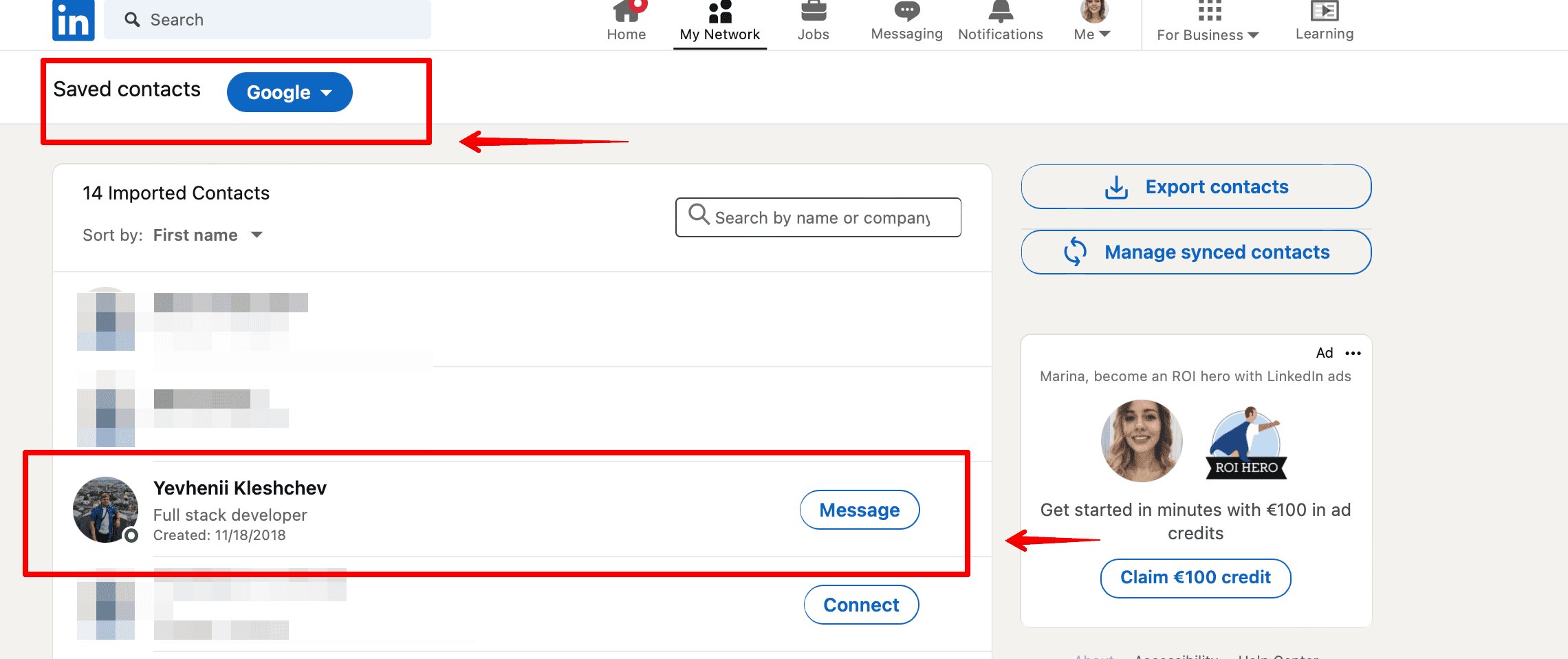
LinkedIn’s email search is tucked inside the “My Network” section of the platform, not in the main search bar. The main search bar at the top of LinkedIn is designed for keyword, name, company, and job title searches. For email-based lookups, you need to go to a different part of the interface entirely.
Navigate to “My Network”
Click the “My Network” icon in the top navigation bar — it’s the icon that looks like two people side by side. This section shows your pending connection requests and people LinkedIn thinks you might know.
Look for the “More options” or email search field
Within My Network, look for the option to invite connections by email address. LinkedIn periodically updates its interface, so the exact label may vary — it’s sometimes called “Invite by Email” or appears as part of the connection suggestion section.
Enter the email address
Type the email address into the field. LinkedIn will search its database for an account registered to that exact email address. If a match exists, it will present the corresponding profile. If no match appears, the person either doesn’t have a LinkedIn account or registered with a different email.
Review and verify the result
If LinkedIn returns a match, review the profile to confirm it’s the right person — cross-reference company, job title, and location against any information you already have about the contact. Then note the LinkedIn URL from the browser address bar.
This method only succeeds when the email address you have is the exact same address the person used to create their LinkedIn account. In practice, this is often not the case. Many professionals have separate personal and work email addresses, and their LinkedIn profile may be registered to their personal Gmail rather than the corporate email on your contact list. If no match appears, don’t assume the person doesn’t have LinkedIn — try Method 2 or 3 instead.
Option B: Decoding the Email Address Itself
Even when LinkedIn’s direct email search returns nothing, the email address you have is still a source of valuable information. Most professional email addresses follow predictable naming formats that reveal the person’s name — and that name is exactly what you need to search LinkedIn manually.
| Email Format | Information Available | LinkedIn Search Strategy |
|---|---|---|
john.smith@company.com |
Full first + last name + company domain | Search “John Smith” + filter by company name |
j.smith@company.com |
First initial + last name + company | Search “Smith” + filter by company, check all results |
john@company.com |
First name + company domain only | Search first name + company — may return multiple results requiring manual verification |
jsmith@company.com |
Possible initials + last name + company | Search “Smith” + company, look for J-initial first names |
12345@company.com |
No name information — numeric ID format | Cannot derive LinkedIn profile from email format alone |
When the email format gives you a full name and company domain, you can construct a LinkedIn search with high precision. Go to LinkedIn’s main search bar, enter the full name, then use the “People” filter and add the company name as an additional filter. In most cases, this narrows results to just one or two candidates that can be verified quickly.
This approach is entirely free and requires no tools, but it does involve manual work for each contact. For occasional lookups it’s perfectly efficient — for lists of 50 or more, you’ll want Method 3.
How to Find Someone on LinkedIn with Email Using Google Search
Google indexes publicly visible LinkedIn profiles, which means you can use Google’s search engine as a powerful lookup layer between an email address and a LinkedIn profile. This method is completely free, requires no accounts or tools, and works surprisingly well — especially when the email address contains a full name.
The key is a specific Google search operator called site: — this operator tells Google to only return results from a specific website. Combining it with linkedin.com/in (the URL path that all LinkedIn personal profiles use) creates a targeted LinkedIn profile search engine inside Google itself.
The Core Google Search Formula
site:linkedin.com/in john.smith@acmecorp.com
site:linkedin.com/in "john smith" "acme corp"
site:linkedin.com/in "john smith" "head of marketing" "acme"
Open Google and construct your search
Go to google.com and type your search query. Start with the site:linkedin.com/in operator followed by either the email address directly or the name you’ve derived from it. Use quotation marks around the full name to force Google to find both terms together.
Add company information to narrow results
After the name, add the company name (derived from the email domain or your existing contact information). This dramatically narrows the results, especially for common names. For example, searching for “John Smith” alone might return thousands of LinkedIn profiles — adding “Acme Corporation” typically reduces that to just one or two.
Review the search results
Google returns LinkedIn profile pages that match your query. Each result shows the person’s name, current job title, location, and a snippet from their LinkedIn summary. You can usually confirm from the search result page alone whether you’ve found the right person — without even clicking through to LinkedIn.
Click through to verify and capture the URL
Click the LinkedIn result to open the profile. Confirm the person’s identity by checking their current company, job title, location, and profile photo against what you know about the contact. Once confirmed, copy the profile URL from the browser address bar — this is the LinkedIn URL you need.
Advanced Google Search Operators for LinkedIn Lookups
| Operator | Example | What It Does |
|---|---|---|
site:linkedin.com/in |
site:linkedin.com/in john smith |
Restricts results to LinkedIn personal profile pages only — eliminates company pages, group pages, and all non-profile LinkedIn content |
Quotation marks " " |
"john smith" "acme corp" |
Forces both phrases to appear exactly as written — reduces false positives significantly |
Minus operator - |
site:linkedin.com/in "john smith" -"john smithson" |
Excludes specific results — useful when a name variation keeps appearing in results |
| Title keyword | site:linkedin.com/in "john smith" "VP of sales" |
Narrows results by job title — highly effective when you know the person’s role |
| Location keyword | site:linkedin.com/in "john smith" "new york" |
Adds geographic filter — useful when names are common and geography is known |
When Google Search Works Best
This method produces excellent results in specific circumstances and less reliable results in others. Understanding those conditions helps you get faster outcomes.
| Situation | Google Search Effectiveness | Why |
|---|---|---|
| Email contains full first + last name | Excellent | Name + company creates a highly specific search query |
| Person has a distinctive name | Excellent | Few results, easy to identify the right profile |
| Person has an active LinkedIn presence | Excellent | Google indexes active, regularly updated profiles more prominently |
| Very common name (John Smith) | Moderate | Multiple results require additional filtering by title or location |
| Email contains only first name | Moderate | Less precise — more manual review required |
| Email is numeric or ID-based | Poor | No name information available to build a meaningful query |
| Person has minimal LinkedIn activity | Poor | Google may not have indexed a sparse or rarely-updated profile |
If your first search returns too many results, don’t immediately give up — add more context. Try adding the person’s city, their specific job title if you know it, or a keyword from the company domain. Each additional term narrows the field considerably. Three well-chosen search terms will almost always get you to the right profile.
When you have more than a handful of email addresses to process, manual methods stop making sense. Running individual Google searches for 500 contacts isn’t just tedious — it’s also inconsistent, prone to error, and hard to track. This is where data enrichment tools and Google Sheets formula approaches come into their own.
These solutions are designed specifically for converting large email lists into enriched contact records that include verified LinkedIn URLs, job titles, company data, and more — all without requiring you to touch a single result manually.
How Data Enrichment Platforms Work
Data enrichment platforms maintain large, regularly updated databases of professional contact records that are built by aggregating data from multiple sources — including public web data, corporate directories, social profiles, and third-party data partnerships. When you submit an email address, the platform searches its database for a matching record and returns whatever verified data it holds on that person.
| Step | What the Platform Does | Output |
|---|---|---|
| 1 | Receives your email address as input | — |
| 2 | Searches its database for a record matching that email | — |
| 3 | Verifies and cross-references the match for accuracy | — |
| 4 | Returns the matching record’s professional data | LinkedIn URL, name, title, company, location, phone |
| 5 | Reports match confidence or verification status | Match rate summary for the full batch |
A good enrichment platform transforms a raw email list from something like this:
- john.smith@techcorp.com
- sarah.jones@b2bsoftware.io
Into something like this:
- john.smith@techcorp.com → John Smith | VP of Sales | TechCorp | linkedin.com/in/johnsmithtechcorp | New York, NY
- sarah.jones@b2bsoftware.io → Sarah Jones | Head of Marketing | B2B Software | linkedin.com/in/sarahjones | San Francisco, CA
That transformation — from a one-dimensional email address to a fully enriched professional record — is what makes coordinated multichannel outreach possible at scale.
What to Look For in an Email Enrichment Tool
| Feature | Why It Matters | What to Ask the Vendor |
|---|---|---|
| Database size | Larger databases produce better match rates, especially for niche industries or smaller companies | How many verified records do you have? |
| Data recency | Stale databases return wrong titles, old companies, or defunct contacts | How frequently is data refreshed? |
| LinkedIn URL specificity | You need the actual profile URL — not just a name match | Does enrichment return the full LinkedIn profile URL? |
| Bulk lookup capability | Individual lookups don’t scale — you need CSV upload or API | What’s the process for uploading a list of 1,000 emails? |
| GDPR compliance | Essential if you’re processing data of EU/UK citizens | What is your documented lawful basis for data processing? |
| Free tier or trial | Lets you test accuracy on your specific list type before committing | Can I test 50 records before purchasing? |
| CRM integration | Avoids manual re-entry by pushing enriched data directly to your CRM | Do you integrate with HubSpot / Salesforce / Pipedrive? |
The Google Sheets Formula Approach
For teams who prefer to work inside spreadsheets and want a lightweight, low-cost approach to bulk lookups, Google Sheets formulas offer a clever way to generate LinkedIn search links automatically from a column of email addresses.
The core idea is to use spreadsheet formulas to extract the name components embedded in email addresses and then construct LinkedIn-targeted Google search URLs for each one. Instead of typing each search manually, you get a column of clickable search links — one per email — that you can work through quickly.
Step-by-Step Formula Setup
Set up your Google Sheet
Create a new Google Sheet. Put your list of email addresses in Column A, starting from row 2 (with a header in A1 labeled “Email”).
Extract the first name from the email (Column B)
Use this formula to pull the text before the first period in the email address — which is typically the first name:
=LEFT(A2, FIND(".", A2)-1)
Extract the last name (Column C)
This formula extracts the text between the first period and the @ symbol — typically the last name:
=MID(A2, FIND(".", A2)+1, FIND("@", A2)-FIND(".", A2)-1)
Extract the company domain (Column D)
Pull the company name from the domain portion of the email address:
=MID(A2, FIND("@", A2)+1, FIND(".", A2, FIND("@", A2))-FIND("@", A2)-1)
Build the LinkedIn search URL (Column E)
This formula combines everything into a single clickable Google search link targeting LinkedIn profiles:
=HYPERLINK("https://www.google.com/search?q=site:linkedin.com/in+%22"

&LEFT(A2, FIND(".", A2)-1)

&"+"

&MID(A2, FIND(".", A2)+1, FIND("@", A2)-FIND(".", A2)-1)

&"%22", "Find LinkedIn Profile")
Click each generated link and capture the result
Each cell in Column E becomes a blue hyperlink reading “Find LinkedIn Profile.” Click it to open the Google search results for that contact. Copy the top LinkedIn profile URL into Column F. You can work through a list of 100 contacts in 20–30 minutes this way — far faster than constructing each search manually.
These formulas assume a firstname.lastname@company.com email format. They won’t work correctly for emails formatted as initials (j.smith@), first-name-only (john@), or numeric IDs. For those formats, fall back to Method 1 or a dedicated enrichment platform.
Comparing Enrichment Approaches by Use Case
| Tool Type | Best For | Typical Cost | Technical Skill Required |
|---|---|---|---|
| Browser extension | Individual lookups while browsing LinkedIn or reviewing emails | Free tier + paid credits | None |
| Web application (CSV upload) | Small-to-medium batch enrichment (10–1,000 contacts) | Credit-based or monthly subscription | Minimal |
| API integration | Fully automated bulk enrichment inside existing workflows | Usage-based pricing | Developer-level |
| Google Sheets add-on | Bulk lookups within a spreadsheet workflow | Subscription or credits | Low — point and click |
| Sheets formula approach | Semi-automated lookups for teams on tight budgets | Free | Low — basic formula knowledge |
GDPR and Compliance Considerations
If you’re processing email data of people based in Europe — or if you work for any organization that has European customers or employees — data protection regulations apply to how you collect, store, and use this information. This isn’t a technicality to overlook; it’s a genuine operational requirement.
| Region | Key Regulation | Key Consideration for Email Enrichment |
|---|---|---|
| European Union | GDPR | Enrichment platform must document its lawful basis; processing must serve a legitimate professional purpose |
| United Kingdom | UK GDPR | Same principles as EU GDPR — documented lawful basis required |
| United States | CAN-SPAM, CCPA | Less restrictive — but California contacts have specific rights; opt-out mechanisms must be honoured |
| Global | Varies | Always review the enrichment vendor’s privacy policy and data source documentation before processing |
3 Real-World Use Cases — Which Method Fits Your Situation
The three methods above each have their natural home. Here’s how each one plays out in the most common real-world professional scenarios, so you can match the right approach to your specific situation.
The Scenario
A sales development representative has a list of 500 email addresses from a webinar registration or inbound lead form. Their email sequences are running but generating reply rates of only 2–3%. Adding LinkedIn touchpoints could realistically push that to 8–15%.
The Challenge
Processing 500 individual Google searches or LinkedIn lookups manually would take days and introduce significant error. The SDR needs a reliable, scalable method that works within their existing workflow.
The Best Method
Method 3 — a data enrichment platform that accepts CSV uploads. Upload the 500 emails, receive back a matched list with LinkedIn URLs, current titles, and company data. Then import the enriched list directly into a LinkedIn automation tool for the coordinated sequence. The manual effort is minimal; the result is a fully built multichannel campaign.
Expected Outcome
A well-maintained B2B email list targeting mid-senior professionals in tech or marketing should return a 60–75% LinkedIn match rate — meaning 300–375 LinkedIn profiles found from a 500-contact list. Each matched profile feeds directly into the outreach sequence, warming the relationship across both channels simultaneously.
The Scenario
A recruiter has received 200 job applications via email. Applicants provided their email and a resume attachment — but most didn’t include their LinkedIn URL. The recruiter wants to review each candidate’s LinkedIn profile alongside their resume before deciding who to interview.
The Challenge
Manually searching LinkedIn for 200 names could work, but many names are common, and without a reliable matching mechanism there’s risk of reviewing the wrong person’s profile — which wastes time or, worse, leads to incorrect evaluations.
The Best Method
A combination of Methods 1 and 3. For candidates whose email addresses reveal full names and company history (especially if they’re currently employed), Google search (Method 2) or a quick enrichment tool lookup (Method 3) will surface the correct profile quickly. For 200 applications, a Google Sheets formula approach with the HYPERLINK formula generates search links for all of them at once, allowing the recruiter to work through verification efficiently.
Expected Outcome
A richer candidate evaluation process where the recruiter can view both the submitted resume and the LinkedIn profile side by side — reviewing career trajectory, professional activity, mutual connections, and skill endorsements. This typically reduces time spent on video calls with mismatched candidates by allowing better pre-screening.
The Scenario
A B2B marketing agency receives a client’s CRM export containing 1,000 contact records with email addresses. The client wants to run a LinkedIn outreach campaign targeting the same audience — but the CRM has no LinkedIn URL field populated for any contact.
The Challenge
LinkedIn automation tools require valid LinkedIn profile URLs to function. Without them, there’s no campaign. The agency needs to match all 1,000 emails to LinkedIn profiles as efficiently as possible — and the client expects a high match rate that justifies the enrichment cost.
The Best Method
Method 3 — a professional data enrichment platform with bulk CSV upload capability. Upload the 1,000-contact export, run the enrichment job, and receive back matched records including LinkedIn URLs, verified current titles, company sizes, and industry classifications. The enriched data feeds directly into the LinkedIn campaign tool, with all personalization tokens (first name, company, title) pre-populated.
Expected Outcome
A fully enriched prospect list with LinkedIn URLs for 600–800 of the 1,000 contacts (60–80% match rate), ready to import directly into a LinkedIn outreach sequence. The client gets a campaign-ready list in hours rather than days, with professional data quality that makes personalization credible rather than generic.
What to Do After You Find the LinkedIn Profile
Finding the LinkedIn URL is step one. Knowing how to use it effectively is what turns a list of profile links into actual business outcomes — meetings booked, candidates engaged, pipeline built. Here’s the downstream workflow that maximizes the value of the data you’ve collected.
Step 1 — Organize Your Enriched Data
Before importing anything into an outreach tool, ensure your spreadsheet or CRM is structured properly. A clean data structure makes everything downstream easier — from import mapping to campaign personalization to follow-up tracking.
A well-structured contact record after enrichment should contain: email address, first name, last name, current company, current job title, LinkedIn URL, location, and any additional enrichment data like company size or industry. Each field becomes available for personalization in your outreach sequences.
Step 2 — Import Into Your Outreach Tool
Most LinkedIn automation tools accept CSV imports with a LinkedIn URL column. When preparing your import file, ensure the LinkedIn URL is formatted correctly — it should be the full URL including https://www.linkedin.com/in/ followed by the profile identifier. Truncated or incorrectly formatted URLs will fail to import.
During the import process, map your spreadsheet columns to the corresponding fields in the outreach tool: LinkedIn URL, first name, company name, and job title are the minimum set for useful personalization. Additional fields like industry or company size can be used for campaign segmentation — sending different message variants to different audiences within the same list.
Step 3 — Build a Coordinated Multichannel Sequence
The real power of having both an email address and a LinkedIn URL for the same contact is the ability to run a coordinated sequence across both channels simultaneously. Here’s a sequence structure that consistently performs well for B2B outreach:
| Day | Channel | Action | Purpose |
|---|---|---|---|
| Day 0 | Profile view (warmup) | Create initial awareness — many people check who viewed their profile | |
| Day 1 | Follow the profile | Second visibility touchpoint before connecting | |
| Day 2 | Connection request + personalized note | Establish direct LinkedIn connection — keep note short and relevant | |
| Day 3 | First cold email | Reference the LinkedIn connection — “I also just sent you a connection on LinkedIn” | |
| Day 5 | Welcome DM if connected | First direct message after connection is accepted | |
| Day 8 | Follow-up email — different angle | New value proposition or case study | |
| Day 10 | Value message or shared resource | Provide useful content — article, insight, or relevant data point | |
| Day 14 | Third email — soft CTA | Direct but low-pressure ask for a brief conversation | |
| Day 18 | Comment on their recent post (if any) | Genuine engagement that doesn’t feel like outreach | |
| Day 21 | Final breakup email | “Closing your file” framing — often generates late replies |
Step 4 — Configure Campaign Safety Parameters
When running LinkedIn outreach at any scale, it’s essential to configure appropriate daily action limits. LinkedIn monitors account activity and may restrict accounts that perform unusually high volumes of connection requests or messages in a short period. Working within safe daily limits protects your LinkedIn account and keeps your outreach sustainable over time.
Smart reply detection is equally important — ensure your outreach tool is set to pause automated sequences the moment a prospect replies. Nothing damages a prospect relationship faster than receiving an automated follow-up after they’ve already engaged personally.
Tips for Improving Your LinkedIn Profile Match Rate
Regardless of which method you use, not every email address will successfully map to a LinkedIn profile. But there’s quite a bit you can do to maximize the percentage that do match — and understanding what drives match rates helps you set realistic expectations before you start.
Factors That Affect Match Rate
| Factor | Impact on Match Rate | Insight |
|---|---|---|
| Email type (business vs personal) | High | Business emails with company domains match far better than Gmail/Yahoo — company info aids matching even when email isn’t registered on LinkedIn |
| Database recency of your email list | High | Lists older than 2–3 years have high rates of job changes and email address turnover — newer lists match better |
| Seniority of contacts | Medium-High | C-suite, VP, and director-level professionals have the highest LinkedIn presence and activity rates |
| Industry | Medium | Tech, sales, marketing, and finance have the highest LinkedIn penetration globally; traditional industries (manufacturing, agriculture) have lower rates |
| Geography | Medium | US, UK, Western Europe, and Australia have the highest LinkedIn user density; Southeast Asia and LATAM are growing but lower density |
| List hygiene (bounce rate) | Medium | A list with 20%+ invalid/bounced addresses will show proportionally lower match rates — clean first |
Practical Steps to Improve Your Results
Clean your list before enrichment. Remove invalid, bounced, or malformed email addresses before running any lookup. A dirty list wastes your enrichment credits on contacts that will never match anything, and the bounce rate in your email output is a good proxy for how many records are likely to fail enrichment too.
Prioritize business email addresses. If you have a mixed list of business and personal email addresses for some contacts, always run enrichment on the business domain address first. The company information embedded in the domain (@company.com) gives enrichment tools additional matching signals beyond just the email itself.
Segment by seniority before enriching. If budget is a consideration, run enrichment on your most senior contacts first — C-suite, VP, and director-level individuals have the highest LinkedIn presence and will return the highest match rates. This approach ensures you spend your enrichment credits where they’re most likely to succeed.
Use multiple enrichment sources for the same list. Different enrichment platforms have different strengths for different industries and geographies. A platform that covers US tech professionals well might have weaker coverage for European finance contacts. Running your unmatched records through a second platform often recovers an additional 10–20% of contacts that the first platform missed.
Fall back to name-plus-company search for unmatched contacts. For contacts that don’t return a direct enrichment match, use whatever name information the email address suggests and run a manual Google search (Method 2) or LinkedIn search (Method 1) as a fallback. Even recovering 50% of your unmatched contacts manually can significantly improve your overall effective match rate.
A well-maintained B2B email list targeting mid-to-senior professionals in LinkedIn-heavy industries like technology, sales, and marketing should return a 60–80% match rate. Lists with older data, personal email addresses, or targeting industries with lower LinkedIn penetration (manufacturing, construction, healthcare administration) will typically fall in the 35–55% range. This is normal — don’t treat a 65% match rate as a failure; it’s a solid baseline.
Frequently Asked Questions
Can LinkedIn tell when you’ve searched for someone by email?
Is it legal to find LinkedIn profiles from email addresses?
What’s the best free method to find a LinkedIn profile from an email?
site:linkedin.com/in operator combined with name information derived from the email address is the most reliable free method for individual lookups. It requires no tools, no accounts, and no credit card — and it’s surprisingly effective for email addresses that contain a full name and company domain. For emails like john.smith@company.com, a Google search of site:linkedin.com/in "john smith" "company" will typically return the correct profile as the first result within seconds.Why doesn’t LinkedIn search return results when I enter an email?
What match rate should I expect from email-to-LinkedIn enrichment?
Can I find LinkedIn profiles from personal email addresses like Gmail or Yahoo?
john.smith85@gmail.com, your best option is to attempt a direct LinkedIn email search (Method 1) or, if the email provides a name, try a Google search using the name alone — though the lack of company context will make verification harder. Business emails with company domains produce dramatically better results across all three methods.