


If you have spent any time on LinkedIn, you have noticed those small numbers sitting next to people’s names — 1st, 2nd, 3rd. Most people glance past them without a second thought. But these numbers are not decorative. They are one of the most strategically important features on the entire platform, shaping who you can message, how much of their profile you can see, and how far your professional network actually reaches.
Miss this, and LinkedIn becomes little more than a digital résumé sitting in a drawer. Understand it, and the platform transforms into a precision networking tool where you can map warm paths to prospects, hiring managers, collaborators, and decision-makers you previously thought were out of reach.
This guide walks through every connection degree in full — what each one means, what you can actually do at each level, the platform limits that govern your outreach in 2026, and the tactics that turn a scattered network into a consistent source of opportunities. Whether you are a job seeker, a sales professional, a recruiter, or simply someone who wants to get more out of LinkedIn, everything you need is here.
The Quick Answer: What Do These Numbers Actually Mean?
Before diving deep, here is the short version. LinkedIn assigns a degree to every member profile you encounter based on how many steps separate you from that person in the network.
- 1st degree — You are directly connected. You sent them a request and they accepted, or vice versa.
- 2nd degree — You are not directly connected, but you share at least one mutual 1st-degree connection.
- 3rd degree — You are two steps removed. They are connected to your 2nd-degree connections.
- Out of Network — No visible connection path exists between you and this person.
Think of it as concentric circles radiating outward from your profile. You sit at the centre. Your 1st-degree connections form the ring immediately around you. Their connections — who are not also yours — form the next ring outward. And those people’s connections create the outermost ring before the network fades to strangers.
Here is how each degree compares at a glance:
| Feature | 1st Degree | 2nd Degree | 3rd Degree | Out of Network |
|---|---|---|---|---|
| Free direct message | ✅ Yes | ❌ No | ❌ No | ❌ No |
| Send connection request | N/A (already connected) | ✅ Yes | ✅ Yes | ✅ Sometimes |
| InMail (Premium only) | N/A | ✅ Yes | ✅ Yes | ✅ Yes |
| Full profile visibility | ✅ Yes | ✅ Mostly | ⚠️ Partial | ❌ Very limited |
| See mutual connections | N/A | ✅ Yes | ✅ Yes | ❌ No |
| Tag in posts | ✅ Yes | ❌ No | ❌ No | ❌ No |
| Skill endorsements | ✅ Yes | ❌ No | ❌ No | ❌ No |
| Message via shared Group | ✅ Yes | ✅ Yes | ✅ Yes | ✅ Yes |
How LinkedIn’s Degree System Works (And Why It Exists)
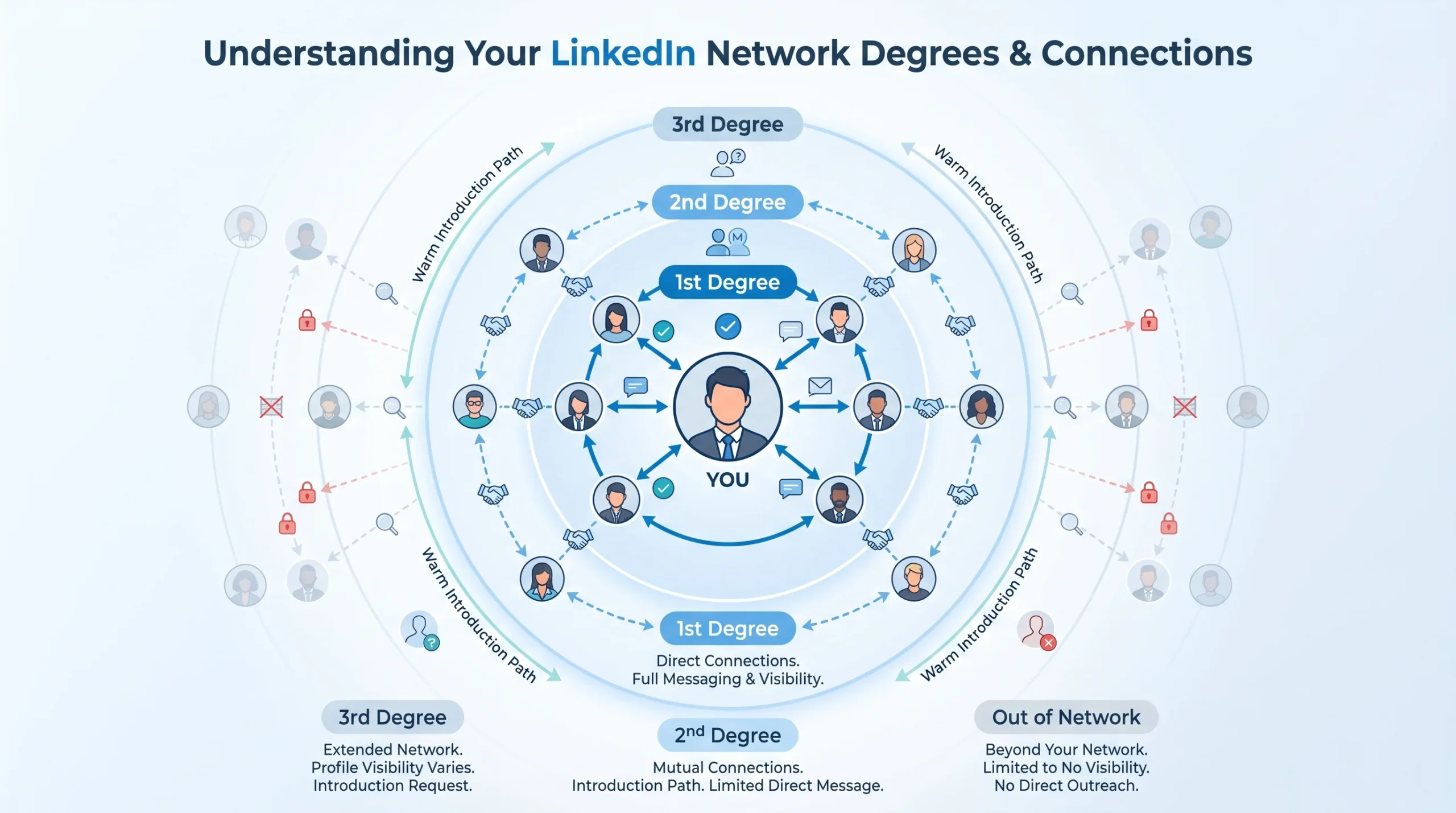
LinkedIn’s degree system is not arbitrary — it is built around a core principle: professional trust decreases as social distance increases. The closer someone is to you in the network, the more context and credibility already exists between you. A 2nd-degree connection shares a mutual contact with you, which is essentially a warm introduction waiting to happen. A 3rd-degree connection is further out but still theoretically reachable through your extended network. Beyond that, you are effectively cold-calling in a professional context.
This hierarchy shapes everything about how LinkedIn works as an outreach tool. The platform deliberately limits what you can do with people outside your immediate circle — restricting messaging, hiding contact details, and reducing profile visibility — for two reasons. First, to prevent spam and protect its members from unsolicited outreach. Second, to encourage meaningful connection-building rather than mass collection of contacts.
For users, understanding this system is the foundation of any serious LinkedIn strategy. Your access level — who you can message, how much of their profile you can read, and whether LinkedIn’s algorithm surfaces you to them — changes at every degree. Treating each degree as a distinct data layer, with its own rules and tactics, is what separates passive scrollers from people who genuinely build pipeline and opportunity through the platform.
1st-Degree Connections — Your Direct Inner Circle
What Makes Someone a 1st-Degree Connection?
A 1st-degree connection is someone with whom you have a direct, mutually accepted connection on LinkedIn. Either you sent them a connection request and they accepted, or they sent one to you and you accepted. The relationship is bilateral — both parties agreed to connect.
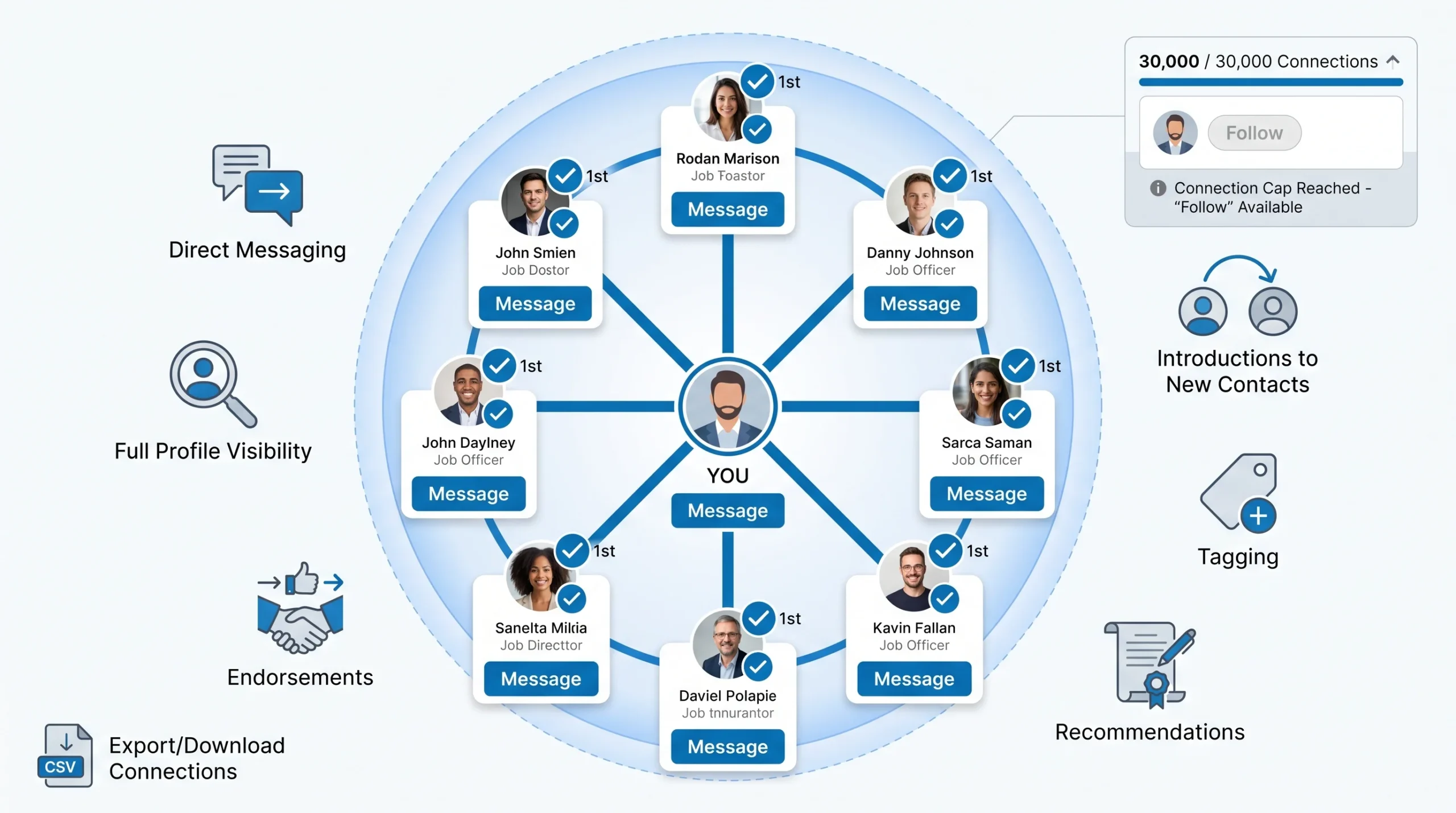
You can identify a 1st-degree connection by the “1st” badge that appears next to their name in search results and on their profile. On their profile page itself, you will see a “Message” button rather than a “Connect” button, which is the clearest signal of your direct access to them.
It is worth noting the difference between your Connections tab and your Network tab on LinkedIn. Your Connections tab (accessible at linkedin.com/mynetwork/invite-connect/connections/) shows only your 1st-degree connections. Your Network tab is broader and includes followers, group members, and people you may know — do not confuse the two.
What You Can Do With 1st-Degree Connections
1st-degree connections come with the highest level of access on the platform. Here is what becomes available once someone is in your direct network:
- Send unlimited direct messages — No InMail credits are needed. You can message any 1st-degree connection directly through LinkedIn’s inbox, subject to weekly messaging limits.
- Full profile visibility — You can see their complete work history, education, skills, and any contact information they have chosen to share, including email address or phone number.
- Activity in your feed — Their posts, comments, likes, and shares appear in your LinkedIn feed, keeping you naturally informed about what they are working on and engaged with.
- Tag them in posts and comments — You can mention them using the @ symbol in your own content, which notifies them and can spark engagement.
- Skill endorsements — You can endorse their listed skills, and they can endorse yours, which adds credibility to both profiles.
- Recommendations — You can write a formal written recommendation for their profile, and they can do the same for you.
- Introductions — They can introduce you to their own connections, serving as a bridge into your 2nd-degree network.
The 30,000 Connection Cap — What Happens When You Hit It
LinkedIn places an absolute ceiling on the number of 1st-degree connections any account can hold. Once you reach 30,000 connections, your profile automatically switches from showing a “Connect” button to a “Follow” button, and you can no longer send or receive new connection requests. This cap applies to every account type, whether free or paid.
The good news is that follower counts are not capped. Even at 30,000 connections, your audience can continue to grow through follows, which means your content can still reach a large audience even if your direct connection roster is full.
There is also a relatively newer option worth knowing: even before hitting the 30,000 cap, LinkedIn allows users to set the “Follow” button as primary on their profile. This is useful for thought leaders, executives, or prolific content creators who want to grow an audience without managing connection requests from everyone.
How to Find and Export Your 1st-Degree Connections
Finding your full list of 1st-degree connections is straightforward:
- Navigate to
linkedin.com/mynetwork/invite-connect/connections/to see the full list. - Use the search bar within your connections to filter by name, company, or location.
- To export your connection data, go to Settings & Privacy > Data Privacy > Get a copy of your data, and select “Connections.” LinkedIn will email you a CSV file with your connections’ names, email addresses (where shared), companies, positions, and connection dates.
Periodically auditing your connection list is a good habit. Removing irrelevant or inactive connections keeps your feed clean and your engagement metrics healthier, which in turn affects how LinkedIn’s algorithm treats your content.
2nd-Degree Connections — Friends of Friends (Your Warmest Leads)
What Makes Someone a 2nd-Degree Connection?
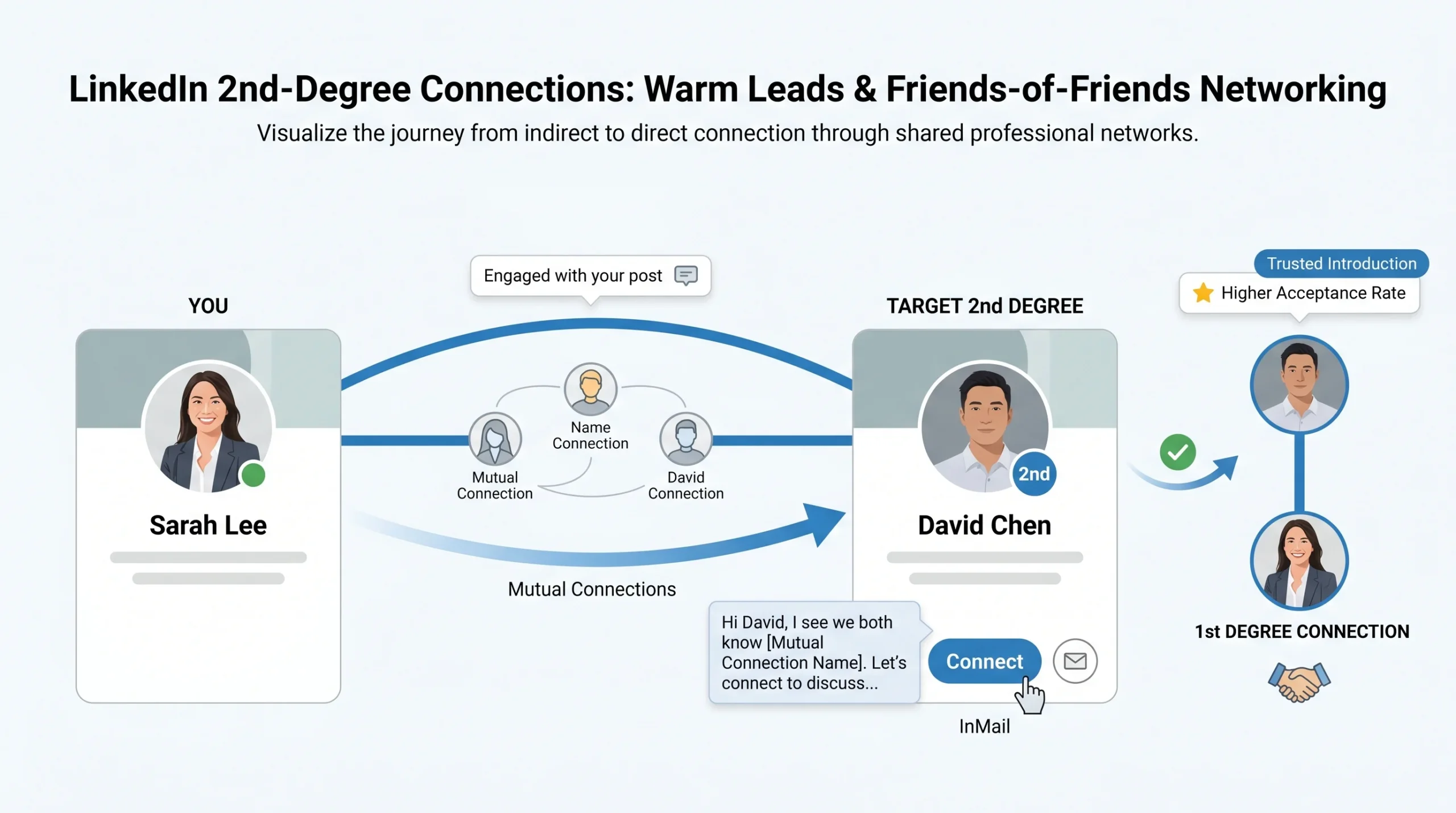
A 2nd-degree connection is someone who is directly connected to one or more of your 1st-degree connections, but who is not directly connected to you. They are the “friends of friends” of professional networking. LinkedIn marks them with a “2nd” badge in search results and on their profiles.
What makes 2nd-degree connections particularly valuable is the mutual connection visibility LinkedIn provides. When you visit a 2nd-degree connection’s profile, LinkedIn shows you exactly which of your shared connections you have in common. This is a built-in icebreaker — you immediately have a concrete reference point and a potential warm introduction path before you have even said a word to this person.
Research consistently shows that 2nd-degree connections are significantly more likely to accept connection requests and respond to messages than 3rd-degree or out-of-network contacts. The reason is simple: shared social proof. When someone sees that you are already connected to a person they know and trust, your credibility is borrowed from that mutual relationship.
What You Can Do With 2nd-Degree Connections
Your access with 2nd-degree connections is meaningful but requires an extra step compared to 1st-degree:
- View their profile — In most cases, you can see a 2nd-degree connection’s full profile, including their job history, education, and skills. Some users restrict their visibility through privacy settings, so occasionally you may see only a partial view.
- Send a connection request — You can click the “Connect” button on their profile to send an invitation. You have the option to add a personalized note, which significantly increases the likelihood of acceptance.
- Use InMail (Premium accounts) — If you have a LinkedIn Premium subscription, you can send an InMail to a 2nd-degree connection without waiting for them to accept a connection request first.
- Message through shared Groups — If you are both members of the same LinkedIn Group, you can send them a message through the group without needing to be directly connected.
- Upgrade them to 1st degree — Once a 2nd-degree connection accepts your connection request, they immediately become a 1st-degree connection, unlocking direct messaging and all other 1st-degree privileges.
How to Turn a 2nd-Degree Connection Into a 1st-Degree Connection
Converting a 2nd-degree contact into a direct connection is one of the highest-leverage actions on LinkedIn. Here is how to do it well:
- Review their profile thoroughly before reaching out — Look at their recent posts, their work history, their listed skills, and any mutual connections you share. This research will directly inform your outreach message.
- Write a personalized connection note — Generic messages like “I’d like to add you to my professional network” are consistently ignored. Reference something specific: a piece of content they published, a shared industry challenge, a mutual connection, or a concrete reason you want to connect. Free accounts can include up to 200 characters in a connection note; Premium accounts get 300 characters.
- Name the mutual connection when relevant — If you share a strong mutual connection, mention them (with permission if the relationship warrants it). “I noticed we’re both connected to [Name] at [Company]” immediately frames you as trusted rather than random.
- Engage with their content first — Before sending a request, leave a thoughtful comment on one of their recent posts. This puts your name in their notifications and makes your subsequent connection request feel familiar rather than cold.
- Send the request when they are active — A green dot next to someone’s profile photo indicates they are online at that moment. Requests sent when someone is active on the platform have a higher chance of immediate review and acceptance.
3rd-Degree Connections — The Edge of Your Reachable Network
What Makes Someone a 3rd-Degree Connection?
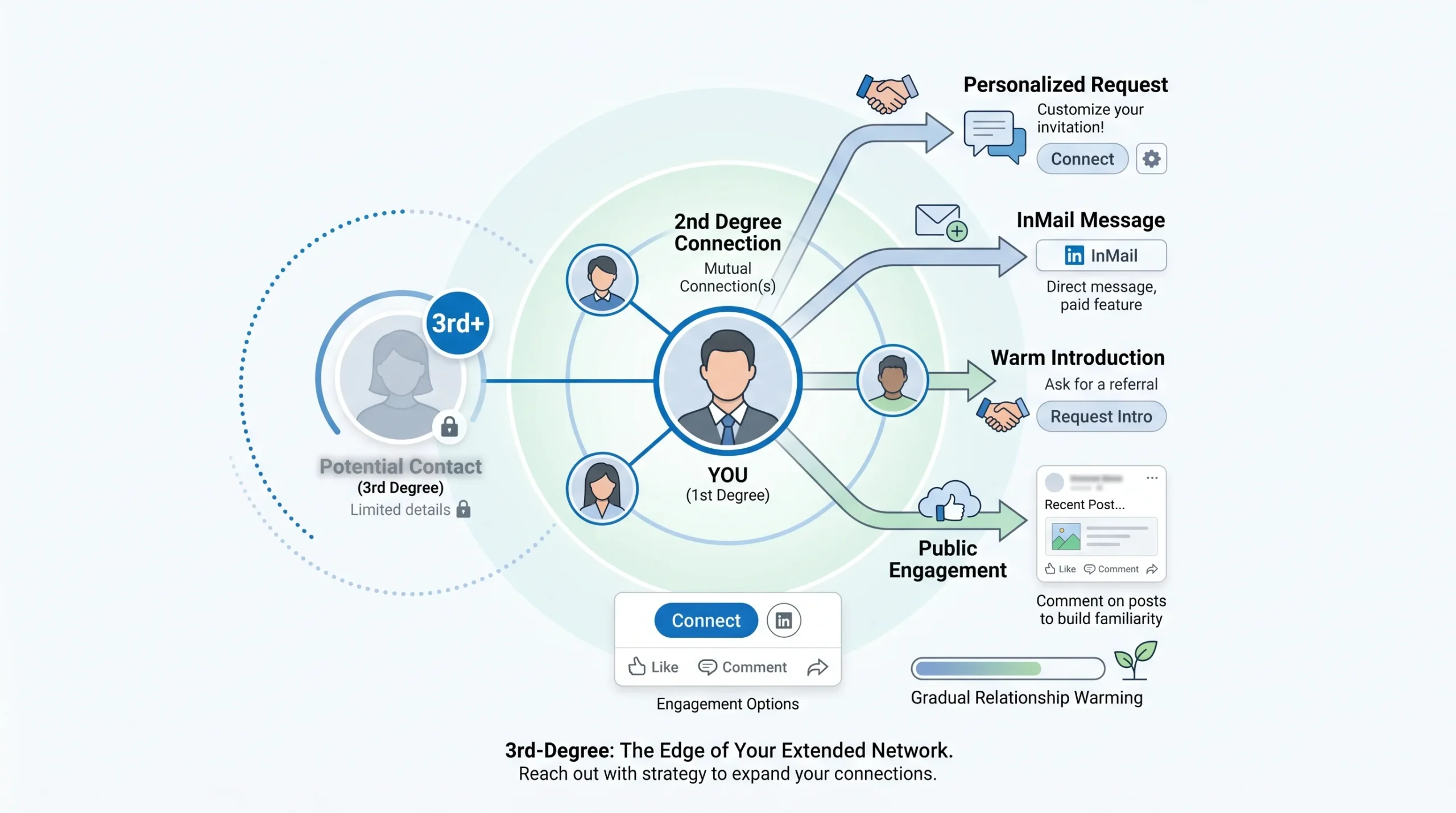
A 3rd-degree connection is someone who is connected to your 2nd-degree connections. In practical terms, they are two steps removed from you — you know someone who knows someone who knows them. LinkedIn marks them with a “3rd” badge in search results and on their profiles.
You may also notice LinkedIn occasionally displays “3rd+” instead of plain “3rd.” Despite looking like a separate category, LinkedIn uses both labels to mean the same thing: this person is at least three degrees removed from you. If you click through from a search result showing “3rd+” to the actual profile, it will often display as simply “3rd.”
Profile visibility at the 3rd-degree level is notably restricted. LinkedIn often shows only the person’s name, headline, and general location — detailed work history, contact information, and full profiles are frequently hidden. Some 3rd-degree users also have their messaging settings restricted, though connection requests and InMail are generally still available.
What You Can Do With 3rd-Degree Connections
At this level, your options narrow but are not eliminated:
- Send a connection request — You can still click “Connect” on most 3rd-degree profiles. The button is always present for standard users, though it can occasionally be hidden on profiles with specific privacy settings.
- Send InMail (Premium required) — If you hold a LinkedIn Premium, Sales Navigator, or Recruiter account, you can send an InMail directly to a 3rd-degree connection without waiting for a connection request to be accepted.
- Engage with their public content — If their posts are publicly visible, you can like and comment on their content. This is often the lowest-friction entry point into their awareness.
- Message through shared Groups or Events — If you and the 3rd-degree contact are members of the same LinkedIn Group, or if you both attended the same LinkedIn Event, you may be able to send them a direct message through that shared context.
- Cannot tag them in posts — Until they accept your connection request and become a 1st-degree connection, you cannot tag them using the @ symbol in posts or comments.
How to Reach a 3rd-Degree Connection
Reaching someone three degrees away requires a more deliberate approach than connecting with a 2nd-degree contact. Here are the most effective methods:
- Send a direct connection request with a compelling note — Even at the 3rd-degree level, a personalized, specific connection note dramatically improves your acceptance rate. Explain briefly who you are, why you want to connect, and what value the connection offers to them — not just to you.
- Use InMail for high-value targets — If the person is a key decision-maker, senior leader, or an ideal prospect who receives many connection requests daily, InMail often performs better than a standard connection request. InMails land directly in their inbox alongside regular messages, rather than in the connection request queue.
- Request a warm introduction from a shared 1st-degree connection — If you and this 3rd-degree person share a mutual 1st-degree connection, ask that mutual contact to introduce you. A warm introduction converts a cold 3rd-degree contact into a warm one immediately, and it is the highest-trust entry point available.
- Engage with their public content first — Comment substantively on a post they have published. A thoughtful comment that adds to the discussion positions you as knowledgeable and interested, not just another person seeking to extract value. After two or three meaningful engagements, your subsequent connection request will carry genuine social warmth.
Out of Network — LinkedIn Members Beyond Your 3rd Degree
Out-of-network members are LinkedIn users who fall completely outside your 1st, 2nd, and 3rd-degree network. There is no visible connection path between you and these individuals. On the platform, they typically appear only as “LinkedIn Member” — their name, photo, headline, and most profile information are hidden or obscured.
This level of restriction is LinkedIn’s most aggressive privacy barrier. It exists to protect users from random cold outreach and to preserve the quality of interactions on the platform.
Your options for reaching out-of-network members are limited but not zero:
- InMail (Premium required) — If you hold any LinkedIn Premium subscription, you can send an InMail to an out-of-network member whose profile allows it.
- Shared Groups or Events — If you are both members of the same LinkedIn Group, or both registered attendees of the same LinkedIn Event, LinkedIn opens a limited messaging channel between you even without a connection.
- Open Profiles — This is the most powerful workaround and is covered in detail in the strategy section below. Open Profile users are Premium members who have specifically enabled free messaging from anyone on LinkedIn, regardless of connection degree.
If none of these options apply, you are effectively at a dead end within LinkedIn’s native tools. The only path forward is to grow your network until you develop a mutual connection with this person — bringing them into your 3rd or 2nd-degree network — or to find them through an external channel.
The Full Comparison: What Each Degree Allows You to Do
The table below provides a comprehensive feature-by-feature comparison across all connection levels. Use this as a reference when planning your outreach approach for any given prospect or contact.
| Feature | 1st Degree | 2nd Degree | 3rd Degree | Out of Network |
|---|---|---|---|---|
| Free direct message | ✅ Yes | ❌ No | ❌ No | ❌ No |
| Send connection request | N/A | ✅ Yes | ✅ Yes | ✅ Sometimes |
| InMail (Premium only) | N/A | ✅ Yes | ✅ Yes | ✅ Yes |
| Full profile visibility | ✅ Yes | ✅ Mostly | ⚠️ Partial | ❌ Very limited |
| See mutual connections | N/A | ✅ Yes | ✅ Yes | ❌ No |
| Tag in posts/comments | ✅ Yes | ❌ No | ❌ No | ❌ No |
| Skill endorsements | ✅ Yes | ❌ No | ❌ No | ❌ No |
| Written recommendations | ✅ Yes | ❌ No | ❌ No | ❌ No |
| Message via shared Group | ✅ Yes | ✅ Yes | ✅ Yes | ✅ Yes |
| Message via shared Event | ✅ Yes | ✅ Yes | ✅ Yes | ✅ Yes |
| Contact info (if shared) | ✅ Yes | ❌ No | ❌ No | ❌ No |
| Open Profile free message | N/A | ✅ Yes | ✅ Yes | ✅ Yes |
LinkedIn Connection Limits You Need to Know (2026)
Most guides on LinkedIn connection degrees skip this section entirely, which is a significant oversight. Knowing the degree system is only half the picture — understanding the platform’s limits tells you how fast you can actually act on that knowledge. Exceed these limits and LinkedIn will throttle your account, reducing what you can do and in severe cases suspending your access altogether.
Weekly Connection Request Limits
LinkedIn does not publish its connection limits officially, but based on verified platform behaviour in 2025 and into 2026, the following figures represent safe operating ranges:
- Free accounts — Approximately 80–100 connection requests per week. It is safer for free users to stay under 80 to avoid triggering restrictions. Free accounts are also limited to just 5–10 personalized connection notes per month, which is a critical constraint for quality outreach.
- Premium accounts (Career and Business) — Up to 100 connection requests per week, with the added benefit of unlimited personalized notes (up to 300 characters each, versus 200 characters for free users).
- Sales Navigator accounts — Between 150 and 250 connection requests per week, depending on account standing and Social Selling Index (SSI) score. Users with a strong SSI above 65 and an acceptance rate above 40% typically reach the higher end of this range.
LinkedIn’s limit operates on a rolling 7-day window, not a fixed calendar week. If you send your first connection request of the cycle on a Wednesday at 2:00 PM, your limit resets exactly seven days later — Wednesday at 2:00 PM — not on Monday. This is an important detail for anyone scheduling outreach campaigns.
Message Limits by Account Type
LinkedIn also caps the volume of messages you can send, even to your 1st-degree connections:
- Free accounts — Approximately 100 messages per week.
- Paid accounts — Approximately 150 messages per week.
- Standard LinkedIn messages to 1st-degree connections have an 8,000-character limit — plenty of space, though shorter messages consistently outperform longer ones in response rates.
- Connection request notes — Up to 200 characters for free accounts; up to 300 characters for Premium accounts.
InMail Credits by Plan
InMail is LinkedIn’s paid messaging system that allows you to contact members outside your 1st-degree network without a connection request. Here is how credits break down by subscription type:
- Free accounts — 0 InMail credits. Free users cannot send InMail.
- Premium Career — 5 InMail credits per month.
- Premium Business — 15 InMail credits per month.
- Sales Navigator Core — 50 InMail credits per month.
- Recruiter Lite — 25 Open Profile InMails per week (separate from standard InMail credits).
InMail credits are refunded when the recipient replies within 90 days, which makes crafting compelling InMail messages financially worthwhile — a reply earns your credit back. InMails sent to Open Profile users are always free and do not consume credits regardless of account type.
One important data point worth knowing: according to LinkedIn’s own learning materials, InMails carry an average response rate of 18–25%, compared to cold emails’ average of approximately 3%. This makes InMail credits considerably more valuable than most users treat them.
What Happens If You Exceed the Limits?
LinkedIn’s response to limit violations is graduated and escalates with repeat offences:
- First warning — LinkedIn shows a popup notification when you have hit your weekly connection request limit. The platform begins monitoring your account more closely.
- Reduced limits — If your acceptance rate drops below approximately 30%, or if multiple users click “I don’t know this person” on your requests, LinkedIn’s algorithm tightens your weekly limit further — sometimes down to 20–30 requests per week for flagged accounts.
- Temporary restriction — Continued violations after a first warning result in a temporary block on sending connection requests, typically lasting a few days to one week.
- Account suspension — Repeated or severe violations can result in an indefinite restriction that requires LinkedIn Support to manually review your account, a process that typically takes 3–7 business days and may require government-issued ID verification.
To protect your account health: keep your pending invitation queue below 700, maintain an acceptance rate above 30%, and avoid sudden spikes in activity that look automated.
Following vs. Connecting — What’s the Difference?
Following and connecting are two distinct actions on LinkedIn that many users conflate. Understanding the difference helps you choose the right approach for every person you want to engage.
Connecting is a mutual, bilateral relationship. Both parties agree to connect, and once the request is accepted, both gain full 1st-degree access to each other — direct messaging, profile visibility, content in the feed, and the ability to tag each other in posts. LinkedIn members who are connected to each other appear in each other’s “Connections” tab.
Following is a one-way relationship. When you follow someone, their public posts and updates appear in your LinkedIn feed — but you do not appear in their connections, and you cannot message them directly unless they also follow or connect with you. Followers are part of your broader network, but they do not carry the privileges of a direct connection.
LinkedIn shows followers and connections separately. A person might have 500 direct connections but 15,000 followers — meaning their content reaches a much larger audience than their bilateral network suggests.
When to follow instead of connect:
- When you want to learn from a thought leader, executive, or content creator without the expectation of a reciprocal relationship.
- When your connection request might seem presumptuous — following first lets you engage with their content over time, warming the relationship before you reach out.
- When you are researching a company or competitor and want to monitor their leadership’s posts without creating a formal connection.
When connecting is better than following:
- When you need direct messaging access.
- When you want to appear in their “Connections” tab, increasing your social proof and visibility to their network.
- When you intend to introduce this person to others or to leverage your mutual connection status in future outreach.
LinkedIn also allows you to make the “Follow” button your primary call to action on your profile rather than “Connect,” even before reaching the 30,000 connection cap. This is useful for users who receive high volumes of connection requests and prefer to manage audience growth through a follow model instead.
How to Strategically Expand Your Network Across All Three Degrees
Start With a Profile That Earns Connections
Before sending a single connection request, your profile needs to do its job. Every person who receives your outreach will visit your profile within seconds of reading your message — what they find there either validates their decision to connect or gives them a reason to ignore you.
- Profile completeness signals credibility. LinkedIn’s algorithm actively rewards complete profiles with higher visibility in search results. Fill in every section: headline, About, work experience with descriptions, education, skills, and at least one featured item.
- Your headline is your first impression. It appears next to your name in every search result, connection request, and message notification. Make it specific and value-forward rather than just your job title.
- Your banner and About section do passive networking. These are prime real estate for communicating who you help, what you do, and why someone should connect with you. Treat them like a landing page, not a placeholder.
- Recent activity matters. When someone visits your profile after receiving your connection request, they will scroll down to see your recent posts and comments. An active, engaged profile with recent substantive content dramatically increases your acceptance rate.
- A professional photo increases connection acceptance. Profiles with a clear, professional headshot consistently outperform those without one across all outreach metrics.
Write Connection Requests That Actually Get Accepted
The connection request note is one of the most underutilised tools on LinkedIn. Most people either send no note at all or send a generic placeholder that immediately signals low effort. Here is the difference in practice:
- Bad example: “Hi, I’d like to add you to my professional network.”
- Good example: “Hi Sarah — I saw your post on scaling sales teams at Series B startups. We’re working through a similar challenge at [Company], and I’d love to exchange ideas. Would you be open to connecting?”
The good example does three things: it references something specific (their post), it establishes relevance (shared challenge), and it makes a clear, low-pressure ask. It takes an extra 45 seconds to write and significantly outperforms the generic version in acceptance rates. Keep your note within the character limits — 200 characters for free users, 300 for Premium — and make every word count.
Use the “Waterfall” Strategy to Grow Exponentially
One of the most powerful and underappreciated network-growth dynamics on LinkedIn works like this: every time you convert a 2nd-degree connection into a 1st-degree connection, all of their connections — who were previously 3rd-degree contacts to you — automatically move one degree closer. They become your 2nd-degree connections. This means a single accepted connection request can open up hundreds of new warm leads overnight.
The strategic implication is clear: prioritise 2nd-degree connections over 3rd-degree outreach. 2nd-degree contacts are more likely to accept your request (because of the mutual connection), and converting them creates an exponential expansion of your 2nd-degree pool for future targeting. Methodically working through your 2nd-degree network — rather than spraying connection requests randomly — is the fastest compound-growth strategy available within LinkedIn’s native tools.
Leverage LinkedIn Groups for Cross-Degree Messaging
LinkedIn Groups are one of the platform’s most overlooked features, and for outreach purposes, they are exceptional. When you and another LinkedIn member belong to the same Group, LinkedIn opens a limited direct messaging channel between you — regardless of your connection degree. This means you can message a 2nd, 3rd, or even out-of-network member simply by sharing a Group with them, without spending a connection request or InMail credit.
Groups let you message members without sending connection requests, which also means they do not count against your weekly connection request limit. To use this effectively:
- Join 5–10 active Groups in your target industry or niche. Look for groups with recent posts and visible member engagement rather than just large membership counts.
- Engage before you message. Post or comment in the group first to establish a visible presence. A member is far more likely to respond to a group message from someone they have seen participating than from a stranger.
- Keep group messages concise and contextual. Reference the group as the common thread — “I noticed we’re both members of [Group Name] and thought you’d be worth connecting with given your work in [area].”
Use LinkedIn Events to Build Warm Connections
LinkedIn Events function similarly to Groups for outreach purposes: attending the same event creates a shared context that softens cold outreach into something much warmer. Attendees of the same event can message each other through the event page, and the shared experience provides an immediate conversation opener.
- Before the event — Browse the attendee list and identify people you want to connect with. Send connection requests in advance, referencing the event: “I noticed we’re both attending [Event Name] next week — would love to connect.”
- During the event — Engage with the event’s LinkedIn feed by posting observations or asking questions. This raises your visibility among all attendees organically.
- After the event — Follow up with people you identified or interacted with. The event is your icebreaker: “Great to see your comment during [Event Name] — I wanted to follow up on [specific topic].”
Ask for Warm Introductions Through 1st-Degree Connections
The warm introduction is the single highest-trust entry point into a new professional relationship, and it is drastically underused on LinkedIn. When a mutual connection introduces you to a 3rd-degree target, you are no longer a stranger — you carry the social proof of someone they already trust.
Here is how to ask for an introduction without being awkward:
- Be specific about who you want to meet and why. Do not send a vague “Can you introduce me to anyone in marketing?” Instead, identify the specific person and give your contact a concrete reason to make the ask: “I noticed you’re connected to [Name] at [Company]. I’m exploring opportunities in that space and think a 15-minute conversation would be mutually valuable. Would you be comfortable making an introduction?”
- Make it easy for your contact to say yes. Offer to draft the introduction message yourself so your contact only needs to forward it. This removes the friction of them having to craft something from scratch.
- Follow up with gratitude. After the introduction is made, whether or not it leads to anything, thank your contact directly. This keeps the relationship strong and makes future requests easier.
Engage With Content Before You Connect
Content engagement is the lowest-barrier, highest-warmth entry point into someone’s awareness on LinkedIn. When you leave a thoughtful comment on a 2nd or 3rd-degree person’s post, your name appears in their notifications. If your comment adds genuine insight rather than just saying “Great post!” — you create a positive first impression before you have ever sent them a message.
Do this consistently over a few days or weeks with a high-priority target, and your connection request will land in front of someone who already recognises your name. The conversion from stranger to warm prospect happens passively, through the content feed, with no connection requests spent.
Separately, track job changes and professional milestones through LinkedIn’s notification system. When a 1st-degree connection changes roles, celebrates a work anniversary, or receives a promotion, LinkedIn prompts you to acknowledge it. These moments are natural, non-intrusive reconnection triggers — a quick congratulatory message costs nothing and reopens a dormant relationship.
Message Open Profiles for Free (No Credits Needed)
Open Profiles are one of LinkedIn’s most powerful — and most overlooked — features for outreach beyond your network. An Open Profile is a setting available to LinkedIn Premium users who have chosen to allow anyone on LinkedIn to send them a free message, regardless of connection degree. You do not need InMail credits to message an Open Profile user, and there is no limit on how many Open Profile messages you can send.
You can send unlimited free InMails to Premium users with Open Profiles — no connection request needed and no credits consumed.
To identify whether a profile is Open:
- Visit their LinkedIn profile.
- If a “Message” button appears even though you are not connected (and you do not have a Premium subscription), the person has an Open Profile enabled.
- Premium users will see a yellow or highlighted indicator on certain profiles confirming Open Profile status.
This is particularly valuable when targeting senior decision-makers who receive dozens of connection requests per day and may be slow to accept them — an Open Profile message lands directly in their inbox alongside their regular messages, without waiting in a connection request queue.
Conclusion
LinkedIn’s degree system — 1st, 2nd, 3rd, and out of network — is not a passive background feature. It is the structural backbone of everything that happens on the platform. It determines who you can reach, how you can reach them, and how much effort each connection requires. Understanding it is the difference between using LinkedIn reactively and using it with genuine strategic intent.
Your 1st-degree connections are your most accessible and highest-value contacts — the people you can message freely, leverage for introductions, and engage with directly. Your 2nd-degree connections are your warmest prospects: people who share mutual contacts with you and are statistically far more likely to respond to your outreach than cold contacts. Your 3rd-degree connections represent the outer edge of your warm network, reachable with the right approach — a compelling InMail, a shared group, a warm introduction, or patient content engagement. Beyond that, Open Profiles and shared events create access even where no connection path exists.
The platform’s weekly limits and account rules are not obstacles — they are guardrails that force quality over volume, which in the long run produces better outcomes anyway. Work within them deliberately, protect your account health, and approach each degree with the appropriate tool and tone.
The professionals who get the most out of LinkedIn are not the ones with the largest connection counts. They are the ones who understand exactly where they stand in relation to every person they want to reach — and who know precisely what move to make next.
Frequently Asked Questions
What are 1st, 2nd, and 3rd-degree connections on LinkedIn?
LinkedIn’s degree system represents how many steps separate you from another member in the professional network. A 1st-degree connection is someone you are directly connected with — you have both agreed to connect. A 2nd-degree connection is someone connected to one of your 1st-degree connections, but not directly to you. A 3rd-degree connection is someone connected to your 2nd-degree connections — two steps removed from you. Each degree determines what you can see on their profile and how you can contact them.
Can I message a 2nd or 3rd-degree connection without Premium?
Not directly through LinkedIn’s standard messaging system. To message a 2nd or 3rd-degree connection without a Premium account, your options are: send a connection request and wait for them to accept (at which point they become 1st-degree and you can message freely), message them through a shared LinkedIn Group, or connect through a shared Event. If they have an Open Profile enabled, you can message them for free even without Premium — but you do need to be on the platform and navigate to their profile to send the message.
What does “3rd+” mean on LinkedIn?
“3rd+” appears next to some profiles in LinkedIn search results and means that this person is three or more degrees removed from you — outside your 2nd-degree network and beyond. Functionally, “3rd+” and “3rd” are treated the same way by the platform. If you click through from a search result showing “3rd+” to the actual profile, the badge on the profile itself will typically display as simply “3rd.” Both indicate the same level of restricted visibility and the same outreach options: connection request or InMail.
Can people see if I view their LinkedIn profile?
Yes, with some nuance depending on account type. If you have a free LinkedIn account with standard privacy settings, people whose profiles you visit will see your name, headline, and profile photo in their “Who Viewed Your Profile” section. If you switch to Private Mode (available to free and Premium users under Settings & Privacy > Visibility > Profile Viewing Options), you can browse profiles anonymously — but you lose the ability to see who viewed your own profile. LinkedIn Premium users can see a full, extended list of who viewed their profile in the past 90 days, while free users see only the past 5 viewers.
How do I cancel a sent connection request?
To withdraw a connection request you have already sent: go to My Network in the top navigation bar, then click Manage (near the top of the page), then select Sent from the invitations section. From there, you will see all your pending outgoing requests, and you can click Withdraw on any you want to cancel. LinkedIn does impose a cool-down period — once you withdraw a request to a specific person, you may have to wait up to three weeks before you can send them another connection request.
Do LinkedIn connection requests expire?
Yes. LinkedIn connection requests that have not been accepted, declined, or withdrawn will automatically expire after 6 months. After this point, the invitation is retracted, and you can send another request to the same person if you choose. It is good practice to periodically review your sent invitations and withdraw any that have been pending for more than a few weeks, particularly if the person has been active on LinkedIn and has simply not responded — a large backlog of unanswered requests can negatively affect your account’s health metrics.
What is LinkedIn’s connection limit?
There are two distinct limits to be aware of. First, the total connection cap: LinkedIn limits every account to a maximum of 30,000 1st-degree connections, regardless of subscription type. Once you hit this ceiling, your profile switches to showing a “Follow” button instead of “Connect,” and you cannot send or accept new connection requests. Second, the weekly request limit: most accounts can send approximately 80–100 connection requests per week (free users should stay under 80 for safety; Sales Navigator users can reach 150–250). LinkedIn adjusts this limit dynamically based on your account health, Social Selling Index score, and acceptance rate.
What is the difference between connecting and following on LinkedIn?
Connecting is a mutual, bilateral relationship — both parties agree to connect, and both gain full 1st-degree access, including direct messaging, full profile visibility, and content in each other’s feeds. Following is a one-way action — you choose to see someone’s public posts in your feed, but you do not become a 1st-degree connection, and you cannot message them directly unless they also connect with you. Followers are part of your broader LinkedIn network but are separate from your connections list. A user can accumulate unlimited followers even after hitting the 30,000 connection cap.
Can I connect with someone who is “out of network”?
Yes, in most cases — though it may require Premium features. Out-of-network members are those completely outside your 3rd-degree range. Your options for reaching them include: sending a connection request directly if their privacy settings allow it (LinkedIn will often show a “Connect” or “Follow” button even on out-of-network profiles), sending an InMail if you hold a Premium account, messaging them through a shared LinkedIn Group or Event if one exists, or messaging them if they have an Open Profile enabled. Growing your own 1st-degree network — particularly by converting 2nd-degree connections — progressively brings previously out-of-network members into your 3rd or 2nd-degree range over time.