


Most LinkedIn company pages are quiet. A logo, a three-line description, and a post from eighteen months ago about a product update nobody read. Then the same companies wonder why LinkedIn “doesn’t work” for them.
Learning how to create a LinkedIn company page is the easy part. Five minutes and it exists. What takes thought is building one that actually does something: earns credibility with cold prospects, gets found in search, and feeds your pipeline instead of sitting there as a box you checked. This guide covers every step of the setup, the settings most people never touch, and the strategy that separates a page that converts from one that collects dust.
What You Need Before You Create a LinkedIn Company Page
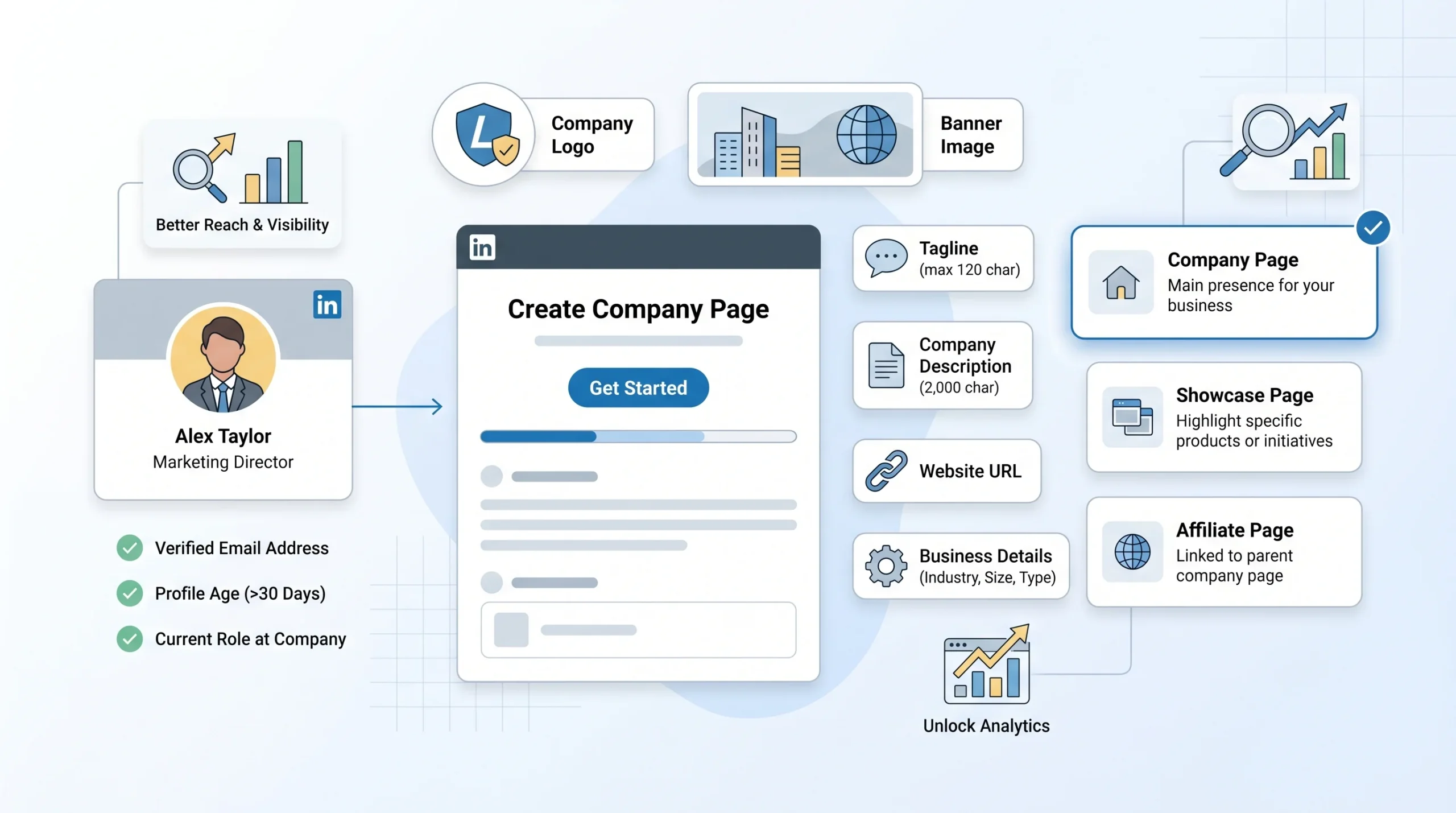
Before you open LinkedIn and click “Create,” get three things sorted. Missing any of them leads to a half-finished page, a mismatch between your profile and your business, or a credibility gap that is harder to fix after the fact.
LinkedIn Account Requirements
Your LinkedIn company page is tied to your personal LinkedIn account. You cannot create a page without one, and LinkedIn actively checks that your personal profile reflects a real professional identity before granting page creation access.
Specifically, LinkedIn requires:
- A personal account in good standing: Any history of spam violations, restricted activity, or account flags can block page creation.
- A profile at least 7 days old with a confirmed email address attached to it.
- A profile that reflects your actual role at the company: LinkedIn cross-references the company name in your personal experience section with the page you are trying to create. If your profile says “Freelance Consultant” and you are trying to create a page for a company called Meridian Technologies, expect friction. Update your personal experience section first.
Assets to Prepare Before You Click “Create”
Walking into the setup without your assets ready means you will publish an incomplete page, and first impressions with LinkedIn’s algorithm work the same way as they do with people: a page without a logo and cover image gets significantly less distribution than a complete one. LinkedIn’s own documentation confirms that pages with complete information get up to 30% more weekly views than incomplete pages.
Prepare these before you start:
- Company logo: Minimum 300×300 pixels. Square crop. PNG with a transparent background is preferred because it renders cleanly on both light and dark LinkedIn interfaces. Do not upload a logo with a white background box around it.
- Cover image: 1128×191 pixels. LinkedIn crops cover images on mobile differently than desktop. Keep any critical text or visual elements centered and away from the far left and right edges, which get clipped on smaller screens.
- Company description: The full description field allows up to 2,000 characters. Write this before you open the setup form, not inside it. The first 156 characters of your description are what appear in LinkedIn search results and Google snippets, so write those first 156 characters as if they are a meta description, because functionally they are.
- Website URL: Have it ready. Add UTM parameters to it before you paste it in, so you can track LinkedIn-sourced traffic in Google Analytics separately from other referral sources. A simple UTM like
?utm_source=linkedin&utm_medium=organic&utm_campaign=company-pagetakes thirty seconds to add and gives you data you will actually use. - Company size, industry, and founding year: LinkedIn uses industry selection for algorithm-based content distribution and for ad targeting. Choose the most accurate option, not the one that sounds most impressive.
- Tagline: 120 characters maximum. This appears under your company name across LinkedIn. Treat it as a hook for a cold visitor, not a mission statement. “Helping B2B SaaS teams book more meetings through LinkedIn outreach” is more useful than “Innovating the future of enterprise sales.”
Page Types and Which One You Actually Need
LinkedIn offers three types of pages: Company Pages, Showcase Pages, and Affiliate Pages. Most businesses need a Company Page. The confusion comes from Showcase Pages, which LinkedIn positions as a way to spotlight specific products, initiatives, or audience segments under a parent Company Page.
Here is the practical distinction:
- Company Page: Your primary brand presence. All businesses start here.
- Showcase Page: A sub-page linked to your Company Page, built for a specific product line or audience segment. Useful once your main page has traction and you need to speak to distinctly different audiences with different content. Not useful as a starting point.
- Affiliate Page: Used when multiple legally separate companies share a brand relationship. Rarely relevant unless you are managing a franchise or holding company structure.
The mistake people make is creating a Showcase Page before they have a functioning Company Page. A Showcase Page with no parent company behind it sends exactly zero credibility signals to a prospect checking your business before responding to an outreach message.
How to Create a LinkedIn Company Page Step-by-Step for 2026
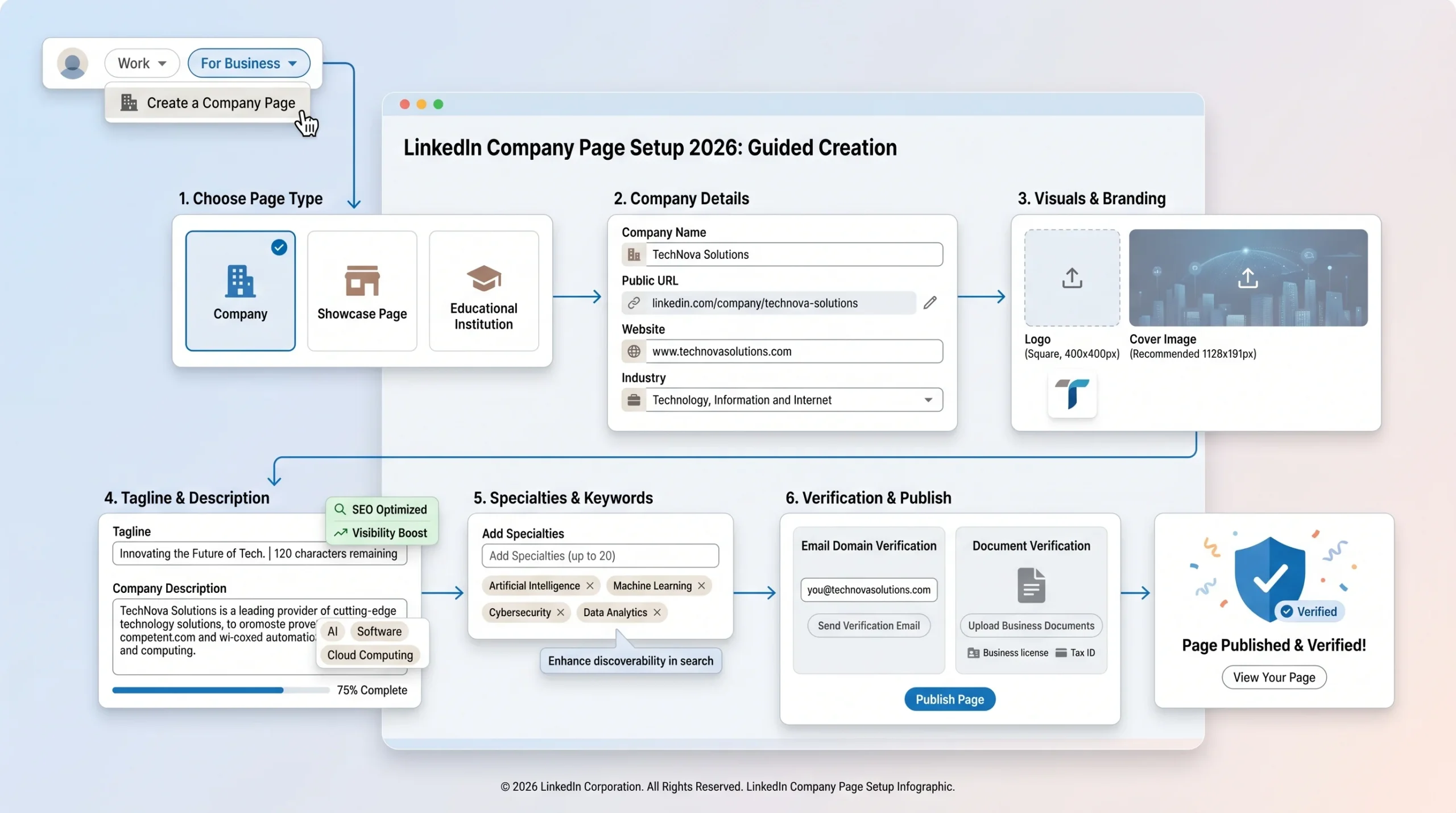
The actual creation process is straightforward, but there are decision points inside it that most guides skip entirely. Here is the full walkthrough with the context you need to make the right call at each step.
Navigating to Page Creation
Log in to LinkedIn with your personal account. In the top navigation bar, click the grid icon labeled “Work” or “For Business” (LinkedIn updates its navigation layout periodically, but this icon has remained consistent). Scroll to the bottom of the dropdown and select “Create a Company Page.”
You will be presented with the four page type options: Company, Showcase Page, Educational Institution, and Government Agency. Select “Company.”
One thing worth noting here: the page type you select at creation cannot be changed later without deleting the page and starting over. If you are a consulting firm and select “Educational Institution” thinking it fits your coaching offers, you are building on the wrong foundation. Choose Company unless you are literally a school or government entity.
Filling in Page Details
The setup form asks for four pieces of information upfront:
- Company name: Use the exact legal name or your primary DBA (doing business as) name. LinkedIn indexes company names for search, and inconsistency between your page name, your website, and your employees’ profiles confuses both the algorithm and the people searching for you.
- LinkedIn public URL: This is the URL that becomes
linkedin.com/company/your-url-here. Choose carefully. LinkedIn limits how many times you can change this URL, and changes break any external links pointing to your old URL. Use your brand name in lowercase with hyphens separating words. Avoid adding the year or location unless your brand name genuinely requires it. - Website URL: Paste your prepared UTM-tagged URL here.
- Industry: LinkedIn uses this for two distinct purposes. First, it feeds the algorithm that distributes your content to followers and potential followers with industry-matched interests. Second, it is a targeting parameter in LinkedIn Campaign Manager. If you run ads later, your industry selection affects which audiences you can reach and which audiences reach you organically.
Page Identity Section
Once the basic details are in, LinkedIn moves you to the identity section, where you upload your logo and write your tagline.
- Logo upload: After uploading, LinkedIn shows you a preview. Check it at the small size (the thumbnail that appears in search results and feed posts) not just the large size. Logos that look clean at 300×300 pixels sometimes become unreadable at 50×50 pixels. If your logo includes a wordmark and an icon, consider using only the icon for the LinkedIn logo upload.
- Tagline: This is 120 characters. It appears in search results, on your page header, and on the “Company” sections of your employees’ profiles. Write it for the cold visitor who has never heard of you. Specificity outperforms cleverness here. “LinkedIn outreach automation for lead gen agencies” is more useful than “Where pipeline meets possibility.”
Description and Details
The description field is where most pages waste their biggest opportunity.
LinkedIn gives you 2,000 characters. The first 156 characters appear in search snippets, both inside LinkedIn search and in Google. Write those first 156 characters as a standalone sentence that includes your primary keyword and your core value proposition.
A weak opening: “We are a team of passionate professionals dedicated to delivering excellence in B2B solutions.”
A stronger opening: “Dealsflow is a LinkedIn outreach automation platform that helps lead gen agencies and SDR teams book more meetings using AI that handles the full conversation, not just the first message.”
After the first 156 characters, you have room to go deeper. Use the remaining space to cover who you help, what problem you solve, what makes your approach different, and what the reader should do next. End with a soft CTA pointing to your website or a specific resource.
The Specialties field sits below the description. LinkedIn allows up to 20 specialties, and they are indexed as keywords. Most pages use three to five generic ones like “Sales” and “Marketing.” Treat these like keyword tags and fill all 20. Include the specific phrases your ICP would search: “LinkedIn lead generation,” “outbound sales automation,” “B2B appointment setting,” “SDR enablement.” These terms show up in LinkedIn’s search algorithm and in the “People Also Viewed” sections that surface related companies.
Publishing and Verification
After filling in all fields, click “Create Page.” LinkedIn will publish your page immediately and take you to the admin view.
Your page is live but unverified. LinkedIn’s verification badge (a small blue or gold checkmark depending on account type) confirms that a page represents a legitimate organization. To apply for verification:
- Go to your page admin panel and click “Verify” in the left navigation.
- LinkedIn uses two verification methods: email domain verification (fastest) or document verification (slower but available if domain verification fails).
- For email verification, LinkedIn sends a code to an email address at your company domain. If you do not have a company email domain yet, document verification using business registration documents is the alternative path.
The verification badge matters for outbound specifically. When a prospect receives a connection request or message from someone at your company and checks the page, an unverified page with no badge reads as less credible than a verified one. It is a small signal, but in outbound, small signals stack.
LinkedIn Company Page Settings You Should Configure Before Your First Post
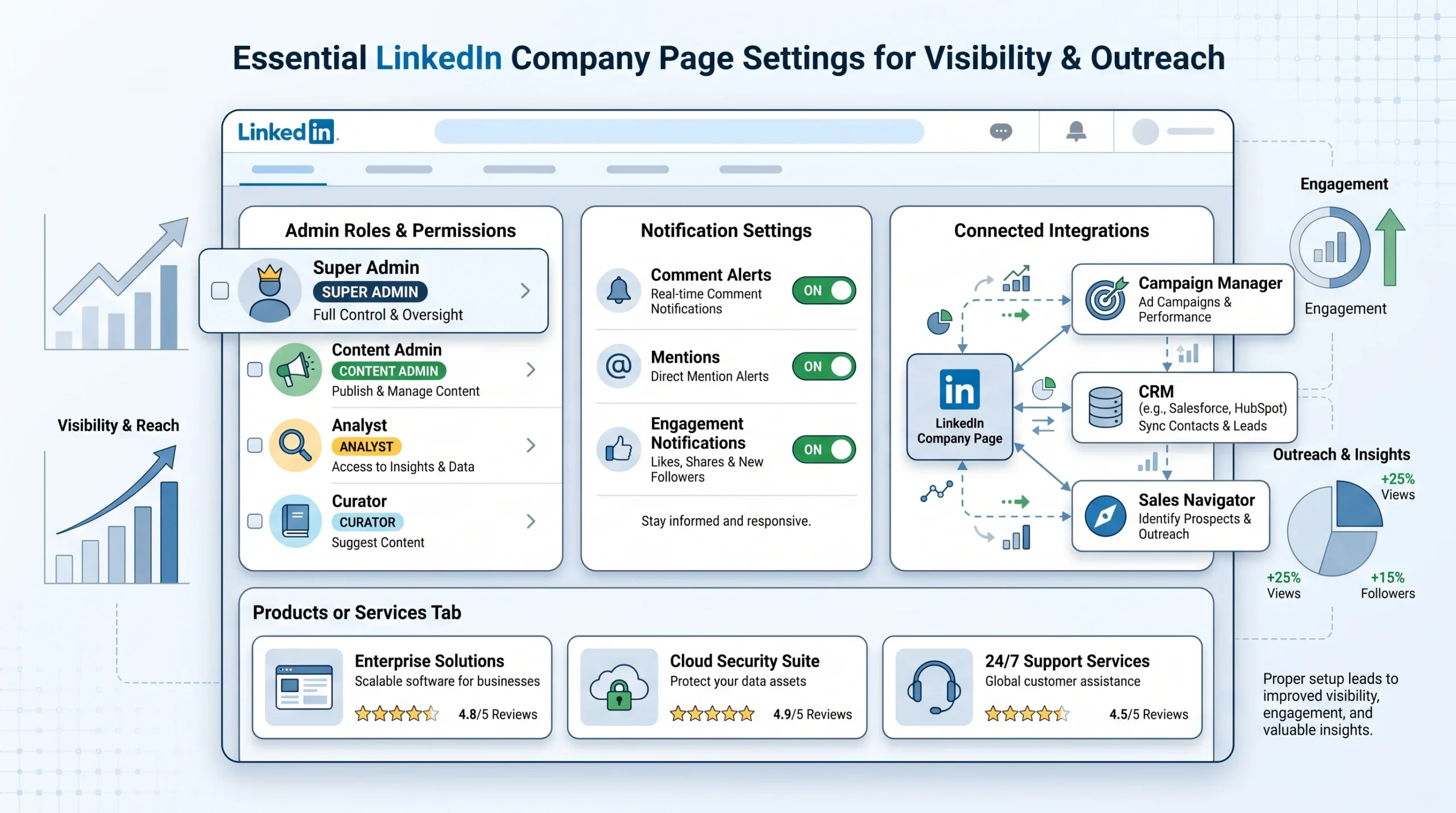
Most people publish their page and immediately start thinking about content. The settings layer gets skipped. That is a mistake, because several settings directly affect who can manage the page, how you get notified of engagement, and what data you can pull for outbound targeting.
Admin Roles and Permissions
LinkedIn offers five admin roles for company pages: Super Admin, Content Admin, Curator, Analyst, and Sponsored Content Poster.
Here is what each role actually does in practice:
- Super Admin: Full access to everything, including deleting the page, changing admin roles, and accessing billing for paid features. Give this role to the fewest people possible. One or two maximum.
- Content Admin: Can create and publish posts, respond to comments, and access page analytics. This is the right role for marketing managers and content team members.
- Curator: Can suggest content for the page but cannot publish directly. Useful for team members you want contributing ideas without giving them publishing access.
- Analyst: Can view page analytics only. No publishing access. Right for team members or clients who need reporting visibility without the ability to change anything.
- Sponsored Content Poster: Can boost existing page posts as ads but cannot create organic content. Relevant if you have a paid media specialist who is not part of your content team.
The mistake SDR teams make is giving sales reps Super Admin access so they can “post occasionally.” The right call is Content Admin if they are posting, or Analyst if they just need to see how the page is performing.
To add an admin: go to your page admin panel, click “Settings,” then “Manage admins,” and add by name or email. The person must already be connected to the page admin on LinkedIn, or LinkedIn will prompt them to follow the page before the role can be assigned.
Page Notifications and Activity Settings
LinkedIn sends page notifications for mentions, new followers, comments on posts, and reactions. By default, many of these are turned off or set to low-frequency digests.
Go to “Settings” and then “Notifications” to configure this. Turn on real-time notifications for comments and mentions specifically.
Here is why this matters beyond staying informed: LinkedIn’s algorithm measures response time on company page comments as an engagement signal. Pages that respond to comments within a few hours see better organic reach on subsequent posts than pages where comments sit unanswered for days. This is consistent with how LinkedIn’s own help documentation describes the signals that affect content distribution.
Connected Apps and CRM Integrations
Two integrations are worth configuring immediately after setup:
- LinkedIn Campaign Manager: Link your page to a Campaign Manager account even if you are not running ads yet. This connection enables retargeting audiences built from page visitors and post engagers, which you will want available when you are ready to run paid campaigns. The connection takes two minutes to set up in Campaign Manager under “Account Assets.”
- Sales Navigator integration: If your sales team uses Sales Navigator, page activity data feeds into account-level insights inside the tool. When a prospect’s company follows your page or an employee at that company engages with your content, Sales Navigator surfaces that as an account signal. This is direct outbound intelligence, and it only flows if your page and your Sales Navigator seats are connected to the same LinkedIn organization.
Linked Products and Services
LinkedIn added a dedicated Products tab to company pages that sits alongside the Home, About, and Posts tabs. Many businesses ignore it. This is a mistake for B2B companies.
The Products tab lets you list your core offerings with descriptions, media, and review links. LinkedIn displays this tab prominently when visitors are in a research or evaluation mode, which is exactly when buyers land on your page after receiving outreach. A fully populated Products tab answers the “what exactly do they do?” question without the visitor having to leave LinkedIn.
For services businesses, the Services Marketplace listing is a separate but related feature. It places your company in LinkedIn’s services directory and makes you discoverable to buyers actively searching for specific service categories. Set it up under “Settings” and then “Service pages.” This is especially relevant for agency-type businesses where buyers search LinkedIn for providers before posting a job or RFP.
How to Optimize Your LinkedIn Company Page to Actually Get Found
A company page that exists but does not get found is just an empty room. LinkedIn company page optimization covers two distinct channels: LinkedIn’s internal search engine and Google. Both matter, and they respond to slightly different signals.
LinkedIn SEO Basics
LinkedIn indexes company pages across four primary fields: company name, tagline, about/description, and specialties. The weight is roughly in that order, with company name carrying the most authority and specialties carrying the least but still contributing.
The practical implication:
- Company name field: Do not stuff keywords into your company name. LinkedIn has prohibited keyword stuffing in company names since at least 2021, and pages that do it get suppressed. Your actual company name goes here.
- Tagline: This is the highest-value keyword field after the name. Include your primary keyword or a close variant here. If you help B2B companies with LinkedIn outreach, “LinkedIn outreach automation for B2B sales teams” is a keyword-rich tagline that also communicates value.
- First sentence of description: Google’s crawler treats this as the meta description equivalent. LinkedIn’s internal search also weights this sentence heavily because it is the first indexable content after the name and tagline.
- Specialties: Think of these as your keyword tags. The full list of 20 is available for a reason. Use them all with phrases your ICP would type into LinkedIn search.
For Google indexing specifically: LinkedIn company pages are indexed by Google and regularly appear in branded search results. When someone types your company name into Google, your LinkedIn page often appears on the first page alongside your website. The description and the specialties are the two fields Google reads most closely from a LinkedIn page.
Cover Image Strategy
The cover image is the largest visual real estate on your page. Most company pages waste it with either a stock photo of people shaking hands or a plain brand-color background with a logo repeated from the profile photo.
High-performing cover images for B2B company pages share a few characteristics:
- A clear value proposition in text: Not your tagline verbatim, but a specific statement about the outcome you deliver. “Book more meetings with less manual outreach” communicates more than “The future of sales automation.”
- Social proof if you have it: A client logo strip, a G2 rating badge, or a specific metric (“Trusted by 500+ B2B sales teams”) works well. If you do not have established social proof yet, a product screenshot or a visual that represents your process is a better choice than a stock image.
- Mobile-safe layout: LinkedIn crops cover images on mobile to a taller aspect ratio than desktop, cutting off the top and bottom. Keep your key visual elements in the center third of the image vertically. Test how your cover image renders on a mobile device before publishing it.
The About Section as a Landing Page
The About section, which includes your full description and the company details, functions as a landing page for cold visitors. Most people who land on your page from a cold outreach message have one question: “Is this company legitimate and relevant to me?” The About section answers both.
A description structured around problem, solution, proof, and CTA converts better than a mission-vision-values format. Here is why: the mission-vision-values structure is written for people who already care about your company. A cold prospect does not care about your mission. They care about whether you can solve their problem.
Structure the description like this:
- Opening sentence (the search snippet): State who you help and what you do. Include your primary keyword. Make it specific.
- The problem: One to two sentences on the pain your buyer experiences. Be specific enough that they recognize themselves.
- Your solution: What you do differently. Not a feature list. The outcome your approach produces.
- Proof: A specific metric, a client result, or a named customer if you have permission to reference them.
- CTA: Where to go next. Website link, a specific resource, or a request to follow the page for ongoing content.
Specialties as Keywords
LinkedIn’s Specialties field is the most underused optimization lever on a company page. You have 20 slots. Each specialty is a searchable keyword phrase. Most pages use five generic ones.
The right approach is to populate all 20 with phrases that combine what you do with who you serve and how. For a LinkedIn outreach automation company, this might include terms like: “LinkedIn lead generation,” “B2B outbound sales,” “SDR automation,” “appointment setting,” “multi-account LinkedIn management,” “sales outreach sequences,” “LinkedIn prospecting,” “lead gen agency tools.”
If you are unsure which phrases to include, use LinkedIn search itself as a research tool. Type in phrases your buyers would use and see which companies rank. Check their Specialties sections. Use that as a baseline and build from it with terms specific to your own positioning.
The Featured Section and Pinned Posts
LinkedIn allows you to pin a featured post at the top of your page’s Posts tab and to add featured links in the About section. Use both deliberately.
The featured/pinned post should be your highest-value piece of content: a case study, a piece of original research, a video that explains your approach, or a lead magnet. Not your most recent post, unless that post happens to be your best.
The featured links in the About section are direct traffic drivers. Use them to point to your homepage, a specific product page, or a lead capture asset. LinkedIn users click these links when they are actively evaluating your company, which makes them higher-intent clicks than most other traffic sources.
LinkedIn Company Page Content Strategy: What to Post and When
The most common LinkedIn content advice is “post consistently.” That is accurate but incomplete. The LinkedIn algorithm in 2026 rewards specific behaviors, and understanding them changes what you post, not just how often.
What LinkedIn’s Algorithm Rewards in 2026
LinkedIn has been public about several algorithm signals through official documentation and their engineering blog. The signals that matter most for company pages currently are:
- Dwell time: How long someone spends viewing your post before scrolling past. Posts that make people stop and read or watch for more than a few seconds get more distribution than posts that get a quick like and a scroll.
- Saves: When someone saves your post, LinkedIn treats it as a strong positive signal. Saves outperform likes in the algorithm because they indicate the viewer found the content worth keeping, not just worth acknowledging.
- Comments that generate replies: A comment thread where multiple people respond to each other signals genuine engagement. Single comments with no replies count less. This means content that asks a real question, presents a real debate, or surfaces a real contradiction in conventional wisdom generates more algorithmic reach than content that receives polite one-word affirmations.
- Engagement from outside your follower base: When someone who does not follow your page engages with your content, LinkedIn interprets that as a signal that the content has broad appeal and distributes it further. This is why content that sparks discussion in comments from people outside your immediate audience compounds faster than content that only resonates with your existing followers.
Content Types That Work for B2B Company Pages
Not all content formats perform equally. Based on what LinkedIn has published about its algorithm and consistent patterns observed across B2B company pages with high engagement rates, these formats outperform others:
- Native documents (carousels): PDF uploads that display as swipeable slides inside the LinkedIn feed. These generate high dwell time because the viewer has to interact with the content to consume it. A carousel explaining a framework, walking through a case study, or breaking down a data set performs consistently well for B2B audiences.
- Native video: Video uploaded directly to LinkedIn, not a YouTube or Vimeo link. LinkedIn suppresses external links in the feed because they take people off the platform. Native video plays inline and gets preferential distribution. Video length between 30 seconds and 3 minutes performs best for company pages, according to LinkedIn’s own creator resources.
- Thought leadership posts from employee profiles, reposted to the page: Company pages have lower organic reach per post than personal profiles. An employee with 2,000 connections posting the same content will often reach more people than the company page. The strategy is to publish on employee profiles first and then reshare from the company page, not the reverse.
- Data-driven posts: Posts that present original data, a specific benchmark, or a counter-intuitive finding get shared and saved more than opinion posts. If you have proprietary data from your platform or customer base, turning it into a post is one of the highest-ROI content activities available to a B2B company page.
Posting Frequency and Timing
LinkedIn’s own recommendation for company pages is three to five posts per week. This is consistent with what the LinkedIn Marketing Solutions blog has published on organic reach for business pages.
Timing recommendations based on LinkedIn’s data:
- Best days: Tuesday, Wednesday, and Thursday. LinkedIn traffic drops noticeably on Friday afternoons and weekends.
- Best times: 8 to 10 a.m. and 12 to 1 p.m. in your primary audience’s timezone. These windows align with when professionals check LinkedIn before starting work and during lunch.
One thing most guides do not tell you: LinkedIn penalizes inconsistency more than it rewards high volume. A page that posts five times a week for a month and then goes silent for two weeks loses distribution momentum faster than a page that posts three times a week consistently. The algorithm favors pages that signal reliable activity over pages that burst and disappear.
Employee Advocacy as a Reach Multiplier
Employee advocacy is the single most underused reach mechanism for company pages. When employees share or reshare company content, it extends the reach beyond the company page’s follower base to each employee’s personal network.
LinkedIn allows company page admins to send “Notify employees” alerts for specific posts. When you publish a post you want amplified, use this feature immediately after publishing. The first hour of engagement is the window where LinkedIn decides how broadly to distribute the content. Employee engagement in that window has an outsized effect on total reach.
The right way to ask employees to engage: be specific. “Hey, I just posted our Q1 benchmark report on the company page, it would help if you commented with your take on the findings” is more effective than “please like our latest post.” People respond to specific asks with a reason. They ignore generic requests.
One consistent finding across B2B companies with active LinkedIn pages: a single reshare from an employee with 3,000 to 5,000 connections often delivers two to five times the impressions of the original company page post. Multiply that by ten employees doing it consistently, and the company page becomes a content distribution hub rather than a content endpoint.
Using Company Page Analytics to Improve
LinkedIn provides a full analytics dashboard for company pages under the “Analytics” tab in the admin view. Most page admins look at impressions and follower count and stop there.
The more useful metrics:
- Follower demographics: LinkedIn shows you the job titles, seniority levels, industries, and company sizes of your page followers. If your ideal customer is a VP of Sales at a 50-200 person B2B SaaS company and your follower demographics show that you are mostly attracting entry-level marketers at large enterprises, your content is reaching the wrong people. This tells you to adjust either your content topics or your employee advocacy targets.
- Content analytics by format: LinkedIn breaks down clicks, impressions, and engagement rate by individual post. Over time, this shows you which content formats drive website clicks versus which formats drive impressions and comments but no off-platform action. For pipeline purposes, posts that drive clicks matter more than posts that generate likes.
- Visitor analytics and company insights: This is the metric almost no one talks about, and it is one of the most useful signals available for outbound teams. LinkedIn shows you aggregate data on which companies are visiting your page. If employees at Salesforce, HubSpot, or a target account you have been trying to reach start appearing in your visitor data, that is a warm signal worth acting on. Those companies have shown interest in your brand. They become priority targets for outbound sequences.
LinkedIn Company Page for Lead Generation: Connecting the Page to Your Pipeline
A page that looks good but does not generate pipeline is a cost center. The connection between LinkedIn company page setup and actual revenue is more direct than most people realize, but it requires intentionality at each stage.
Your Page as Social Proof for Outbound Campaigns
Every outbound sequence that includes LinkedIn touchpoints is implicitly pointing prospects toward your company page. When an SDR sends a connection request, a portion of prospects will check the company page before accepting or responding. LinkedIn’s own research has found that buyers visit a company’s LinkedIn page before making contact or responding to outreach.
What a prospect sees when they visit your page determines whether your SDR’s message gets a response or a delete. A page with a professional logo, a clear value proposition in the tagline, recent posts (at least something from the last 30 days), and a verified badge reads as credible. A page with no activity since 2023, a missing cover image, and a description that starts with “We are passionate about driving synergy” reads as a red flag.
The page and the outbound sequence are not separate. They are the same system. SDR leaders who think about page quality as a conversion lever for their outreach treat it differently than teams who treat the page as a marketing task.
LinkedIn Follower List as a Warm Prospect Signal
When someone follows your LinkedIn company page, they are expressing interest in your brand without the commitment of booking a call or filling out a form. It is a soft signal, but it is a signal.
LinkedIn does not allow you to export your follower list natively through the standard interface. However, Sales Navigator’s account-level insights surface engagement data from company pages at the account level. If multiple employees at a target company are following your page or engaging with your content, Sales Navigator flags that account as showing elevated interest.
Tools like Clay can also layer LinkedIn data with other intent signals to help sales teams prioritize outreach based on who is engaging with their brand before they have been contacted. The follower signal alone is weak. Combined with content engagement data and website visit data, it becomes a meaningful early-stage buying signal worth routing to your outbound sequences.
Sponsored Content and Thought Leader Ads
Organic reach from a company page has a ceiling, especially early when your follower base is small. Paid amplification removes that ceiling for the content that has already proven itself organically.
The most cost-effective approach for B2B companies:
- Boost high-performing organic posts: When a post outperforms your average engagement rate, use the Boost feature to amplify it to a targeted audience. You are putting budget behind content that has already demonstrated it resonates, which is a better bet than running ads on content that has not been tested.
- Thought Leader Ads: This is LinkedIn’s highest-performing ad format as of 2026, based on LinkedIn’s own published benchmarks and widely reported results from agencies running LinkedIn campaigns. Thought Leader Ads allow you to sponsor content published on an employee’s personal profile, so it runs with the employee’s name and face rather than the company logo. Personal content outperforms brand content on LinkedIn at every engagement metric. Click-through rates on Thought Leader Ads consistently outperform standard Sponsored Content by a measurable margin.
For companies early in their paid LinkedIn journey, $500 to $1,000 per month focused on one content type (either boosted posts or Thought Leader Ads, not both simultaneously) gives you enough data to see what moves the needle before expanding spend.
Lead Gen Forms on Company Pages
LinkedIn’s Lead Gen Forms attach to Sponsored Content and allow prospects to submit their information without leaving LinkedIn. The form pre-fills using the prospect’s LinkedIn profile data: name, email, job title, company name, and company size are all populated automatically.
This pre-fill mechanic is why LinkedIn Lead Gen Forms convert at rates significantly higher than standard landing page forms for equivalent offers. Industry benchmarks from LinkedIn and third-party agencies put Lead Gen Form conversion rates at two to three times higher than equivalent off-platform landing pages, primarily because removing manual form-filling friction reduces drop-off.
For company pages, Lead Gen Forms are available only on paid campaigns. But the setup connects directly back to your page: the form is associated with your company page identity, and the leads flow into Campaign Manager where you can download them or connect them to your CRM via LinkedIn’s native integrations or tools like Zapier.
Where Outreach Automation Fits
The company page does not replace outreach. It amplifies it. The prospect who has seen your content, followed your page, or visited your page before receiving a connection request from your SDR is not a cold lead. They are a warm one, and they should be treated differently.
SDR teams running LinkedIn outreach at scale who use company page engagement as a signal to warm-score prospects before sequencing them see higher connection acceptance rates and higher reply rates than teams who treat every prospect the same regardless of prior brand exposure. A prospect who engaged with your page content is already a step ahead in the buyer’s journey.
If your team is using a tool that can incorporate LinkedIn engagement signals into prospect prioritization, those signals belong at the top of your scoring model. Arlo AI, Dealsflow’s outreach engine, scores prospects by warmth (Hot, Warm, Neutral, Cold) and can factor in engagement signals so that sequences are calibrated to where each prospect actually sits, not where your SDR assumes they are.
Conclusion
A LinkedIn company page is not a deliverable. It is infrastructure. The companies that get results from LinkedIn treat the page as a live asset that needs a strong foundation (the setup), the right configuration (the settings), active maintenance (the content), and a clear connection to their pipeline motion (the lead gen strategy).
The single most actionable thing you can do right now: go to your company description and read the first 156 characters out loud. If those characters do not clearly state who you help and what you do in plain language, rewrite them today. That is the first thing a cold prospect reads, the first thing Google indexes, and the first place where most pages lose the attention they spent outreach budget trying to earn.
FAQs
1. How long does it take to create a LinkedIn company page?
The basic setup, covering company name, URL, logo, description, and industry, takes approximately 15 to 30 minutes if you have your assets prepared. A fully optimized page, with a complete About section, cover image, Specialties filled out, and all admin settings configured, takes two to three hours. The creation itself is fast; the optimization is where the time investment goes.
2. Do I need a personal LinkedIn account to create a company page?
Yes. LinkedIn requires a personal account in good standing to create a company page. The personal account is linked to the page as the primary Super Admin. Your personal profile must have a verified email address and be at least seven days old. If your personal profile does not reflect your actual role at the company, update the experience section before attempting to create the page.
3. How many admins can a LinkedIn company page have?
LinkedIn does not publish a hard limit on the number of admins a company page can have. In practice, pages can have multiple admins across all five role types: Super Admin, Content Admin, Curator, Analyst, and Sponsored Content Poster. The recommendation is to limit Super Admin access to one or two people, since Super Admins can delete the page and change other admins’ roles.
4. What is the difference between a LinkedIn company page and a showcase page?
A company page is your primary brand presence on LinkedIn. A showcase page is a sub-page linked to a company page, designed to spotlight a specific product, service line, or audience segment. Showcase pages cannot exist independently; they require a parent company page. For most businesses, the right starting point is a company page. Showcase pages become relevant when you have a functioning main page and need to speak to distinct audiences with fundamentally different content.
5. How do I get the verified badge on my LinkedIn company page?
LinkedIn offers verification through two methods. The first is email domain verification, where LinkedIn sends a code to an email address at your company’s domain, and you enter it to confirm ownership. This is the fastest path. The second is document verification, where you submit official business registration documents. LinkedIn reviews these manually, which takes longer. To start the process, go to your page admin panel and click “Verify” in the left navigation.
6. How often should a company post on LinkedIn?
LinkedIn’s own published recommendation for company pages is three to five posts per week. Consistency matters more than volume. A page that posts three times per week every week maintains distribution momentum better than a page that posts ten times in one week and then disappears for two weeks. The algorithm penalizes posting gaps, so a sustainable cadence beats an aggressive one you cannot maintain.
7. Can I see who visits my LinkedIn company page?
LinkedIn provides aggregate visitor data in the page analytics dashboard. You can see total visitor counts, unique visitors, and demographic breakdowns (industry, job function, seniority, and company size) of your visitors. LinkedIn does not show you individual visitor names unless they engage with your content or follow your page. For account-level visitor intelligence (which companies are visiting, not which individuals), Sales Navigator provides this data at the account level for its subscribers.
8. How do I add employees to my LinkedIn company page?
Employees add themselves to a company page by updating the “Company” field in their personal LinkedIn experience section to match your page’s name. LinkedIn automatically recognizes the match and associates them with the page. To grant employees admin roles (so they can post or view analytics), go to “Settings,” then “Manage admins,” and add them by name or email. They must be a first-degree connection of a current page admin or follow the page before a role can be assigned.
9. Does having a LinkedIn company page help with SEO?
Yes, in two ways. First, LinkedIn company pages are indexed by Google and commonly appear in branded search results when someone types your company name. The page description and specialties are the fields Google reads most closely. Second, LinkedIn has high domain authority (consistently rated above 90 on Ahrefs), which means a fully optimized company page can rank on the first page of Google for branded queries even for companies with no established website authority.
10. How do I use my LinkedIn company page for lead generation?
The most direct path runs through three mechanisms. First, use the page as social proof to support outbound sequences: warm prospects check your page before responding to a connection request, so a professional and active page improves reply rates. Second, use LinkedIn Campaign Manager to run Lead Gen Form campaigns connected to your page, which convert at two to three times the rate of equivalent off-platform forms. Third, monitor page visitor analytics and follower engagement data to identify accounts showing interest, then route those accounts to outbound sequences as warm prospects.