


Your LinkedIn feed is supposed to surface deals, conversations, and content that actually moves your work forward. When a company you have no interest in keeps appearing between those signals, it stops being noise and starts being friction. Maybe it is a competitor whose posts you do not want cluttering your thinking. Maybe it is an ex-employer whose updates you have no reason to see anymore. Maybe it is a company that follows you around with sponsored posts that have nothing to do with your work.
Whatever the reason, knowing how to block a company on LinkedIn is a practical skill. The problem is that LinkedIn’s interface is genuinely confusing here. Block, unfollow, and mute are three different actions with three different outcomes, and the platform does not go out of its way to explain which one does what. Most people pick one at random, wonder why it did not fully solve the problem, and give up. This guide breaks down exactly what each option does, walks through the steps on both desktop and mobile, covers what happens to ads from a blocked company, and answers the question that nobody else seems to address: what does the company actually see after you block them?
Block vs. Unfollow vs. Mute on LinkedIn: What’s Actually Different
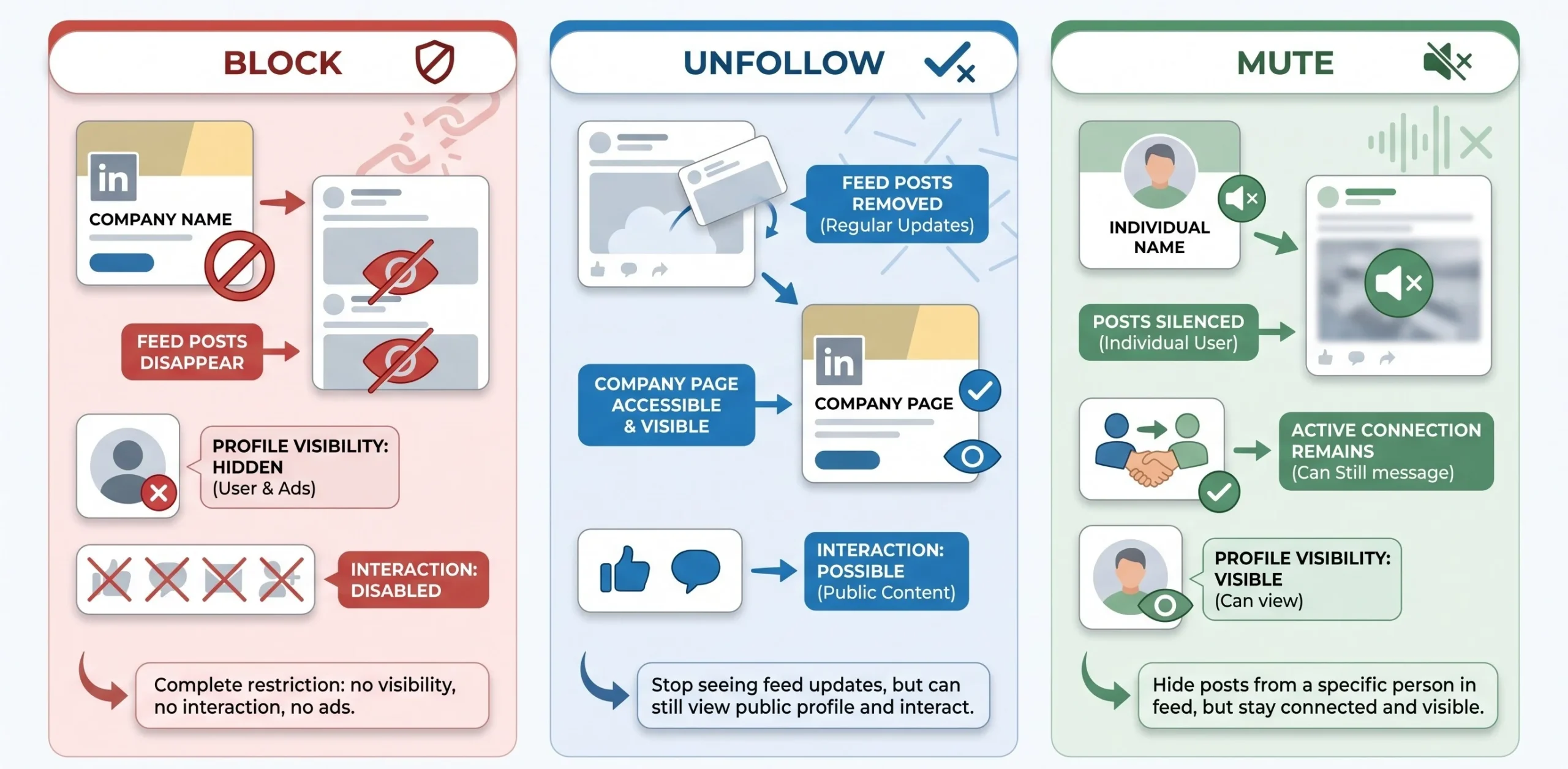
Before touching any settings, it is worth spending a minute on what these three actions actually do. They are not variations of the same thing. They address different problems, and picking the wrong one means you will still have the problem you started with.
What Blocking a Company Does
Blocking a company page on LinkedIn is the most complete action you can take. Here is what changes when you block a company:
- Their content disappears from your feed entirely. Organic posts, updates, and job postings from that company page stop appearing.
- Your profile is removed from their analytics. If you had previously visited their page, that visit is wiped from their visitor data. Future visits from your account are invisible to them.
- You stop appearing in their suggested audience data. LinkedIn’s “People Also Viewed” and similar recommendation surfaces will not route your profile toward that company.
- Sponsored posts from that company are suppressed on the organic side, though this has limits (covered in full in a section below).
- You can no longer follow or interact with their page until you manually unblock them.
Blocking is the right call when your concern is visibility, not just feed cleanliness. If you do not want a company’s page to have any record that you exist, block iloclks the tool.
What Unfollowing Does (and Why It’s Often Enough)
Unfollowing a company page is a lighter action. It solves a feed problem without changing any underlying relationship signals.
- Their organic posts stop appearing in your LinkedIn feed. This is immediate and applies to all content types: updates, articles, job postings.
- The company page remains fully visible to you. You can still visit it, see their content if you go directly to the page, and interact with posts if you choose to.
- The company retains visibility into your profile. If you visit their page, that visit still counts in their analytics. Your profile still shows up in their data.
- Your connections at that company are completely unaffected. If you know people who work there, those connections, conversations, and mutual interactions continue as normal.
- You can still interact with their content if you visit directly. Unfollowing only removes them from your feed. It does not prevent you from engaging with their posts.
Unfollow is the right call when the problem is feed volume, not privacy. If you simply do not want to see a company’s posts every day but have no issue with them seeing your profile, unfollow handles it cleanly without any of the permanence of a block.
What Muting Does (and When It Applies)
This is where a lot of people get tripped up. Muting on LinkedIn applies to individual people, not company pages. There is currently no “mute company” option that sits between unfollow and block for company pages specifically.
- Muting silences a person’s posts in your feed without removing the connection or sending any notification.
- The muted person cannot tell they have been muted. The action is invisible to them.
- Muting an employee at a company is not the same as removing the company from your feed. If five people at the same company are active posters and you want to stop seeing their content, you would need to mute each one individually, or unfollow the company page separately.
The practical distinction: use mute when the issue is a specific person’s content. Use unfollow or block when the issue is the company page itself.
Which One Should You Actually Use?
The right action depends on what you are trying to solve:
- You want the company to stop seeing your profile activity → Block the company page.
- You are tired of seeing their posts in your feed but have no privacy concern → Unfollow the company page.
- You want to stop seeing a specific person’s posts from that company → Mute that individual.
- You want to stop their ads specifically → Hide individual ads using the ad opt-out option (detailed in a section below).
- You want to stop everything: posts, ads, profile visibility → Block the company page and opt out of their ads separately.
How to Block a Company on LinkedIn (Desktop, Step-by-Step)
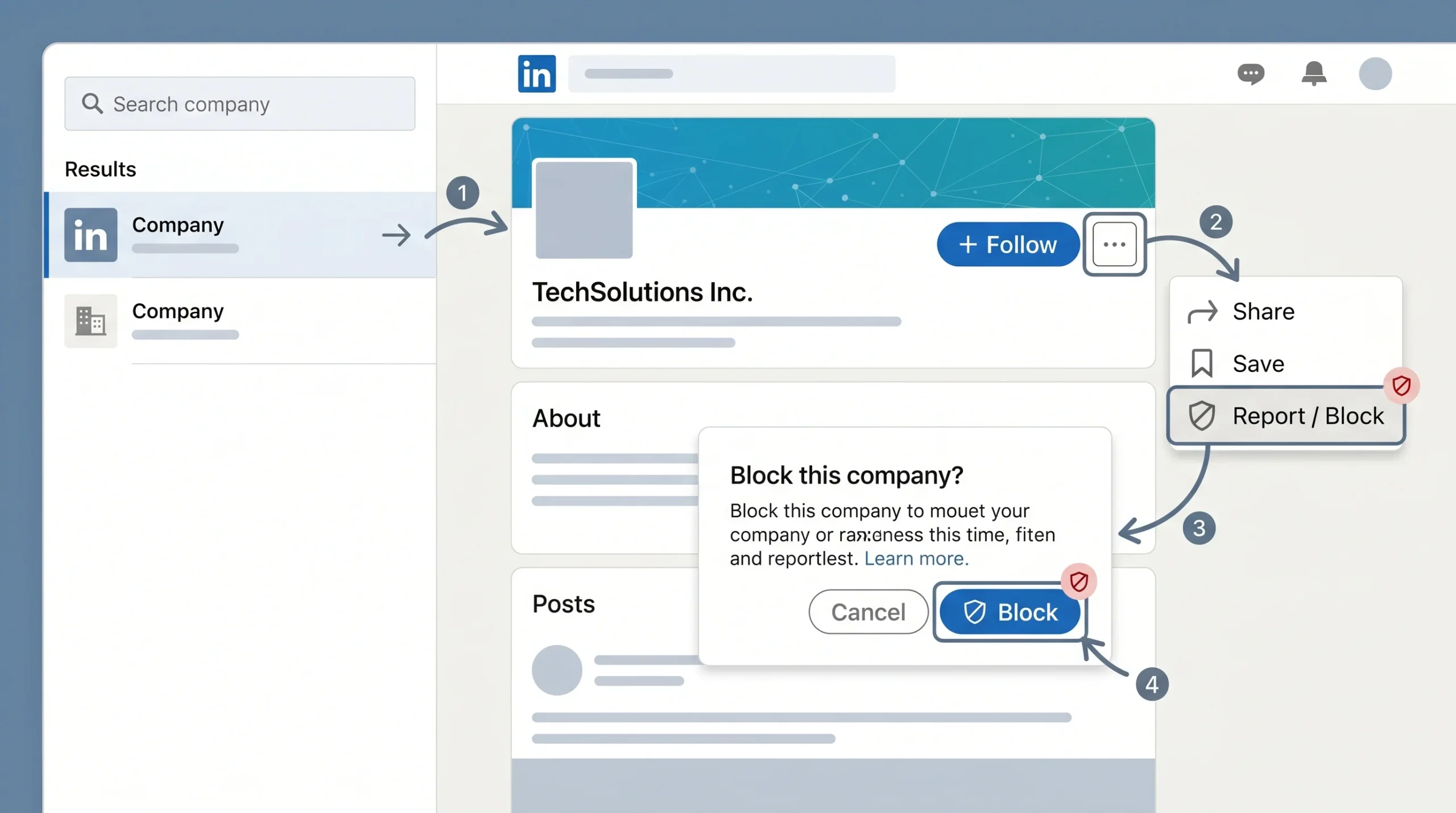
LinkedIn’s desktop interface is the most reliable place to manage company blocks. The navigation path is consistent across browsers, and the options are easier to find than on the mobile app.
Finding the Company Page
There are two ways to reach a company page on desktop, and the right one depends on your starting point.
- Using the search bar: Type the company name into the LinkedIn search bar at the top of any page. In the results, click “Companies” in the filter options on the left sidebar to narrow results to company pages only. Click the company name to go to their page.
- From a post in your feed: If you are seeing a post from the company in your feed and want to block them from there, click the company name directly in the post. This takes you to their company page.
One thing worth knowing: LinkedIn’s block function applies to company pages, not to individual employee accounts. If the company you want to block only has individual people posting under personal profiles (with no company page), you would need to block each person individually. Most established companies have a company page, but smaller operations sometimes do not.
The Block Action on Desktop
Once you are on the company’s LinkedIn page:
- Locate the “More” button in the header section of the company page. It appears near the “Follow” and “Visit website” buttons, typically as a row of three dots or labeled “More.”
- Click “More” to open a small dropdown menu.
- Select “Report / Block” from the dropdown options.
- A modal window appears with multiple options. Choose “Block [Company Name]” from the list.
- Confirm the action. LinkedIn shows a confirmation prompt asking if you are sure. Click “Block” to finalize.
The modal that appears when you click “Report / Block” includes both reporting and blocking options. You are not reporting the company by choosing to block them. These are separate actions within the same menu. Clicking block alone does not file any report with LinkedIn.
What Happens Immediately After
The effects are not delayed:
- Feed behavior: Posts from that company page stop appearing in your feed within minutes. You do not need to refresh or change any settings.
- Profile visibility: Your profile is removed from their page analytics. Future visits from your account will not register.
- No notification is sent. LinkedIn does not alert the company that they have been blocked. The action is silent from their perspective.
LinkedIn does not show you an ongoing confirmation that the block is active. If you want to verify, you can use the search bar to find the company. Their page will still appear in search results, but when you visit it, you will see a message indicating you have blocked this page, with an option to unblock.
How to Block or Remove a Company on LinkedIn Mobile (iOS and Android)
The mobile app follows a similar logic to desktop but the navigation is different enough that people get lost. Both iOS and Android use a three-dot menu structure, but the exact placement and labeling varies.
iOS (LinkedIn App)
On the LinkedIn iOS app, blocking a company page works as follows:
- Search for the company using the search icon at the top of the home tab. Tap “See all results” if the company does not appear immediately, then filter to “Companies.”
- Open the company page by tapping the company name.
- Tap the three-dot icon in the upper-right corner of the company page header. On some versions of the app, this appears as three horizontal dots. On others, it may be labeled “More.”
- Tap “Report or Block” from the options that slide up.
- Select “Block [Company Name]” from the next screen.
- Tap “Block” to confirm in the final confirmation prompt.
The block takes effect immediately. The three-dot icon is the key thing to look for. It sits in the header area of the company page, near the top of the screen, not inside any post or feed item.
Android (LinkedIn App)
On Android, the path is nearly identical:
- Search for and navigate to the company page using the search bar.
- Tap the three-dot icon (or “More” button) in the company page header.
- Select “Report or Block” from the dropdown.
- Choose “Block [Company Name]” and confirm.
The main difference between iOS and Android is cosmetic: the three-dot icon may appear in slightly different positions depending on your device screen size and the version of the LinkedIn app installed. On some Android devices, the menu icon appears at the very top right of the screen rather than within the company page header specifically. If you do not see it immediately, scroll up on the company page to make sure the header is fully visible.
Troubleshooting: When You Can’t Find the Block Option
A few scenarios where the block option might not appear as expected:
- Showcase pages vs. main company pages: LinkedIn allows companies to create “Showcase Pages,” which are sub-pages tied to a main company page. The block option on a Showcase Page may route differently than on the main company page. If you want to block the company entirely, navigate to the main company page rather than a Showcase Page.
- LinkedIn A/B tests its UI regularly. The position of the three-dot menu, the exact labels used (“Report / Block” vs. “Report or Block”), and the flow of the confirmation modal can differ based on which UI version LinkedIn has pushed to your account. If the option is not where this guide describes, look for any icon that says “More” or shows three dots on the company page header.
- Use mobile browser as a fallback: If the LinkedIn mobile app is not showing the block option clearly, open your phone’s browser, go to linkedin.com, log in, and navigate to the company page from there. The browser version of LinkedIn on mobile follows the same path as the desktop version and tends to be more consistent.
How to Remove a Company From Your LinkedIn Feed Without Blocking
Not every situation calls for a full block. If the issue is purely that a company’s posts are cluttering your feed and privacy is not a concern, there are several lighter options that solve the problem without any of the permanence.
Unfollow a Company Page
Unfollowing stops a company’s posts from appearing in your feed without blocking them or affecting any other part of your LinkedIn relationship with that company.
There are two ways to unfollow:
- From your feed: When one of their posts appears, click the three-dot icon in the upper-right corner of that post. A menu appears with the option “Unfollow [Company Name].” Click it. The post disappears immediately and their future posts stop appearing in your feed.
- From their company page: Navigate to the company page directly. If you currently follow them, you will see a “Following” button in the header. Click it and LinkedIn will ask you to confirm that you want to unfollow. Confirm, and the button changes to “Follow” to indicate you are no longer following them.
The result in both cases is the same: their organic posts stop appearing in your feed. The company page remains visible, your profile remains visible to them, and any connections you have with their employees are unaffected.
Use “Improve My Feed” Settings
LinkedIn has a built-in feed preferences panel that gives you some control over what appears in your feed at a category level. It is not a replacement for unfollowing or blocking specific companies, but it is worth knowing about.
- Access path: Go to Settings and Privacy, then select “Data Privacy” from the left sidebar, then look for “Feed preferences” or “Improve your feed.”
- What it controls: You can indicate topics and types of content you want to see more or less of. You can also review and manage the people and pages you follow from this panel.
- What it does not control: It does not give you a company-by-company block or mute list. It is a broad preference signal to LinkedIn’s algorithm, not a precise filter.
Use this as a secondary tool alongside unfollowing specific companies. If you unfollow a company and still seem to see their content through shared posts or tagged mentions, adjusting your feed preferences can help reduce the frequency.
Managing LinkedIn Notifications From a Company
Feed control and notification control are separate systems on LinkedIn. You can stop a company’s posts from appearing in your feed while still receiving notifications about them (or vice versa).
- To turn off notifications from a company page: Go to the company page and look for the notification bell icon near the “Follow” button. Click it and select “None” to stop receiving notifications from that page. This applies to notifications about their new posts, job listings, and updates.
- This is separate from unfollowing. You can follow a company, receive no notifications from them, and still see their posts in your feed. Or you can unfollow them (stopping feed posts) while keeping notifications on if you have a specific reason to.
For most people, turning off notifications from a company page is a step they take in addition to unfollowing, not instead of it.
Hiding Individual Posts Without Unfollowing
If you want to train LinkedIn’s algorithm to show you less from a specific company without fully unfollowing them, hiding individual posts is a real option.
- Click the three-dot icon on any post from the company.
- Select “Hide this post.” LinkedIn then asks why you are hiding it, with options like “Not relevant” or “I don’t want to see this.”
- Choose the most accurate reason. LinkedIn uses this signal to adjust what it shows you from that source and from similar sources.
Each hidden post is a data point. Over time, consistently hiding posts from a specific company does reduce how often LinkedIn surfaces their content, because you are actively signaling disinterest to the algorithm. It is slower and less reliable than unfollowing, but it is useful when you want to stay technically following a company (perhaps because you want to keep the option to engage occasionally) while reducing their presence in your day-to-day feed.
Does Blocking a Company on LinkedIn Stop Their Ads?
This is where things get more complicated. Blocking a company page and stopping their paid ads are two different systems on LinkedIn, and a lot of people discover this the hard way after blocking a company and then seeing their sponsored post appear in the feed two days later.
Organic Posts vs. Sponsored Content: Different Systems
LinkedIn’s organic content system (the posts a company publishes to their followers and the wider feed) runs through the company page and LinkedIn’s content algorithm. When you block a company page, you are cutting off access to this system. Their organic posts stop reaching you.
LinkedIn’s advertising system works differently. Sponsored content is delivered through LinkedIn’s Campaign Manager and ad network. When an advertiser runs a campaign, they target audiences based on criteria like job title, industry, company size, and seniority. Your membership in those targeting criteria is what causes you to see their ad, not your relationship to their company page. Blocking a company page removes you from their organic reach but does not automatically remove you from their ad targeting pool.
This means: yes, you can block a company and still see their sponsored posts. It is not a bug or an oversight on your part. It is how LinkedIn’s two systems are separated.
How to Actually Stop Seeing a Company’s Ads
There is a direct opt-out path for specific advertisers:
- When you see a sponsored post from the company, click the three-dot icon in the upper-right corner of that post.
- Select “Hide this ad” from the dropdown menu.
- LinkedIn then asks for a reason. You will see an option along the lines of “I don’t want to see ads from [Company Name].” Select that specific option.
- This sends a direct opt-out signal to LinkedIn’s ad delivery system for that specific advertiser.
Doing this in combination with blocking the company page gives you the most complete suppression available. The block handles organic content; the ad opt-out handles paid content.
Managing Ad Preferences in LinkedIn Settings
LinkedIn also gives you account-level controls over how your data is used for ad targeting. These are broader than a single advertiser opt-out.
- Access path: Go to Settings and Privacy, then select “Advertising Data” from the sidebar.
- What you can control here: You can turn off LinkedIn’s ability to use your activity data (posts you engage with, companies you view) for targeting. You can also opt out of interest-based ad targeting.
- What this does not do: It does not block a specific company from running ads against your demographic segment. LinkedIn’s targeting allows advertisers to reach audiences based on profile attributes (industry, title, seniority) that exist on your profile. Opting out of activity-based targeting reduces one input but does not eliminate the possibility of seeing ads from a company you have blocked.
The combination of hiding specific ads, opting out at the ad preference level, and blocking the company page is the most thorough approach currently available within LinkedIn’s controls.
What the Company Sees (and Doesn’t) After You Block Them
This is the question that matters most for anyone blocking a company for privacy or competitive reasons, and it is the one that almost no resource addresses directly. Here is what actually changes from the company’s side.
Their Page Analytics
LinkedIn company pages have access to analytics that show visitor data, follower demographics, and content performance. When you block a company:
- Your past profile visits are removed from their analytics history. If you visited their page last week, that visit disappears from their visitor data.
- Future visits from your account are invisible to them. You can still go to their page (for example, to check if they are hiring or to monitor a competitor), but those visits will not register in their analytics.
- Past interactions on their posts remain. If you liked, commented on, or shared a post from that company before blocking them, those interactions stay on the post. LinkedIn does not retroactively remove your engagement from their published content. The company will still see that someone interacted with those posts, and depending on their analytics setup, your name may still be associated with those historical engagements. Blocking prevents future visibility, not past record.
Their Employee Connections
This is important for anyone in sales or business development who has contacts at a company they want to block.
- Blocking the company page has no effect on your connections with individual employees. Your first-degree connections at that company remain connected to you. You can still message them, they can still message you, and all existing conversation history stays intact.
- Your mutual interactions with employees in the feed are also unaffected. If you comment on a post from someone who works at the blocked company, that interaction proceeds normally. The block applies to the company page, not to the people employed there.
This distinction matters practically. If you are a sales professional who wants to stop a competitor’s company page from tracking your activity but you also have a contact at that company you want to keep warm, you can block the page without disrupting that relationship.
Can They Tell You’ve Blocked Them?
LinkedIn does not notify a company page when it is blocked. There is no alert, no email to the page admin, and no visible indicator on the page that they have been blocked by any specific user. From the company’s perspective, your profile simply stops appearing in their data. They cannot distinguish between “this person blocked us” and “this person stopped visiting our page.” The block is completely silent.
Conclusion
LinkedIn gives you more control over your feed and your visibility than most people actually use. The three levers available (blocking, unfollowing, and hiding ads) are distinct tools, and knowing which one fits your situation saves you from applying a heavy-handed fix to a light problem or a light fix to something that actually needs a full block.
If you care about a company not tracking your profile visits, block the page. If you just want their posts out of your day, unfollow. If their ads are the problem, hide the ad directly and use the advertiser opt-out. And if you are dealing with all three at once, run through each step in order: block the page, opt out of their ads from a sponsored post, and adjust your feed preferences to back it up.
Go to one company cluttering your feed right now and use the steps in this guide. A cleaner feed means better signal on the accounts and conversations that actually matter to your pipeline.
Frequently Asked Questions
1. Can I block a company on LinkedIn without them knowing?
Yes. LinkedIn does not notify a company page when it is blocked by a user. There is no alert sent to the page administrators, no visible flag on the page, and no way for the company to see a list of users who have blocked them. The block is silent. From the company’s perspective, your profile simply stops appearing in their analytics and their content stops reaching you.
2. Does blocking a company on LinkedIn affect my connections with their employees?
No. Blocking a company page only affects your relationship with that page, not with any individuals who work there. Your first-degree connections at the blocked company remain connected to you. Existing conversations continue, messages still go through, and any mutual interactions in the broader feed are unaffected. The block applies to the company page specifically.
3. What’s the difference between blocking and unfollowing a company on LinkedIn?
Blocking removes you from the company’s analytics, stops their organic posts from reaching your feed, and prevents them from seeing your profile visits. Unfollowing only stops their posts from appearing in your feed. With unfollowing, the company can still see your profile visits, and your profile remains visible in their page analytics. Use unfollowing when the issue is feed clutter; use blocking when the issue is privacy or profile visibility.
4. How do I stop seeing a specific company’s ads on LinkedIn?
When you see a sponsored post from that company, click the three-dot icon in the upper-right corner of the post and select “Hide this ad.” LinkedIn will then prompt you with a reason. Choose the option that says you do not want to see ads from that specific advertiser. This sends a direct opt-out signal to LinkedIn’s ad system for that company. This step is separate from blocking the company page.
5. Can a blocked company still see my LinkedIn profile?
No. Once you block a company page, your profile is removed from their past visitor analytics and future visits from your account are invisible to them. They will not see your profile in their page visitor data, and LinkedIn will not surface your profile to them through “People Also Viewed” or similar recommendation features. Past interactions on their posts (likes, comments) may retain your association in historical records, but ongoing visibility is cut off.
6. How do I unblock a company on LinkedIn if I change my mind?
Use the LinkedIn search bar to find the company page. You can still search for and visit pages you have blocked. When you land on the page, you will see a notice indicating the page is blocked, with an option to unblock. Click “Unblock” and confirm. The unblock takes effect immediately. Their posts will not automatically reappear in your feed unless you also choose to follow the page again.
7. Will blocking a company remove my past likes or comments on their posts?
No. Blocking a company page does not retroactively remove any engagement you left on their content before blocking. If you liked or commented on a post before blocking, that engagement stays on the post. The company may still be able to see that engagement in their historical post analytics. Blocking only stops future visibility and interaction, not past record.
8. Can I block a company page from my LinkedIn mobile app?
Yes. On both iOS and Android, navigate to the company page using the search function, tap the three-dot icon in the company page header, select “Report or Block,” and then choose “Block.” The steps are identical across both platforms, with minor visual differences depending on your device and the version of the LinkedIn app installed. If the option is not immediately visible, scroll up to make sure the full page header is showing.
9. Does hiding posts from a company have the same effect as blocking them?
No. Hiding individual posts is a feed signal, not a block. When you hide a post, you are telling LinkedIn’s algorithm to show you less content of that type. Over time, consistently hiding a company’s posts does reduce how frequently they appear in your feed. However, the company can still see your profile, their content still technically reaches your account, and the suppression is gradual rather than immediate. Blocking is immediate and complete; hiding posts is iterative and partial.