


Most LinkedIn portfolios are uploaded and never seen. Not because LinkedIn buries them, but because most people put the right content in the wrong place, with no framing, no caption strategy, and no sense of what a profile visitor actually does when they land on a page. They click, they scroll for about 45 seconds, and they leave. If your portfolio does not stop them in those first few moments, it does not exist.
Knowing how to add a portfolio to your LinkedIn profile is not just about finding the right button to click. It is about understanding where on the page that content lives, which format actually renders cleanly on mobile, what your caption needs to say to make a stranger take an action, and how to order your pieces so they tell a story instead of just filling a section. This guide covers all of it, end to end, including what belongs in your portfolio based on your role, the mistakes that make profiles look amateur, and how to optimize the whole thing so LinkedIn search actually surfaces your work.
Why Your Portfolio Placement on LinkedIn Matters More Than the Work Itself
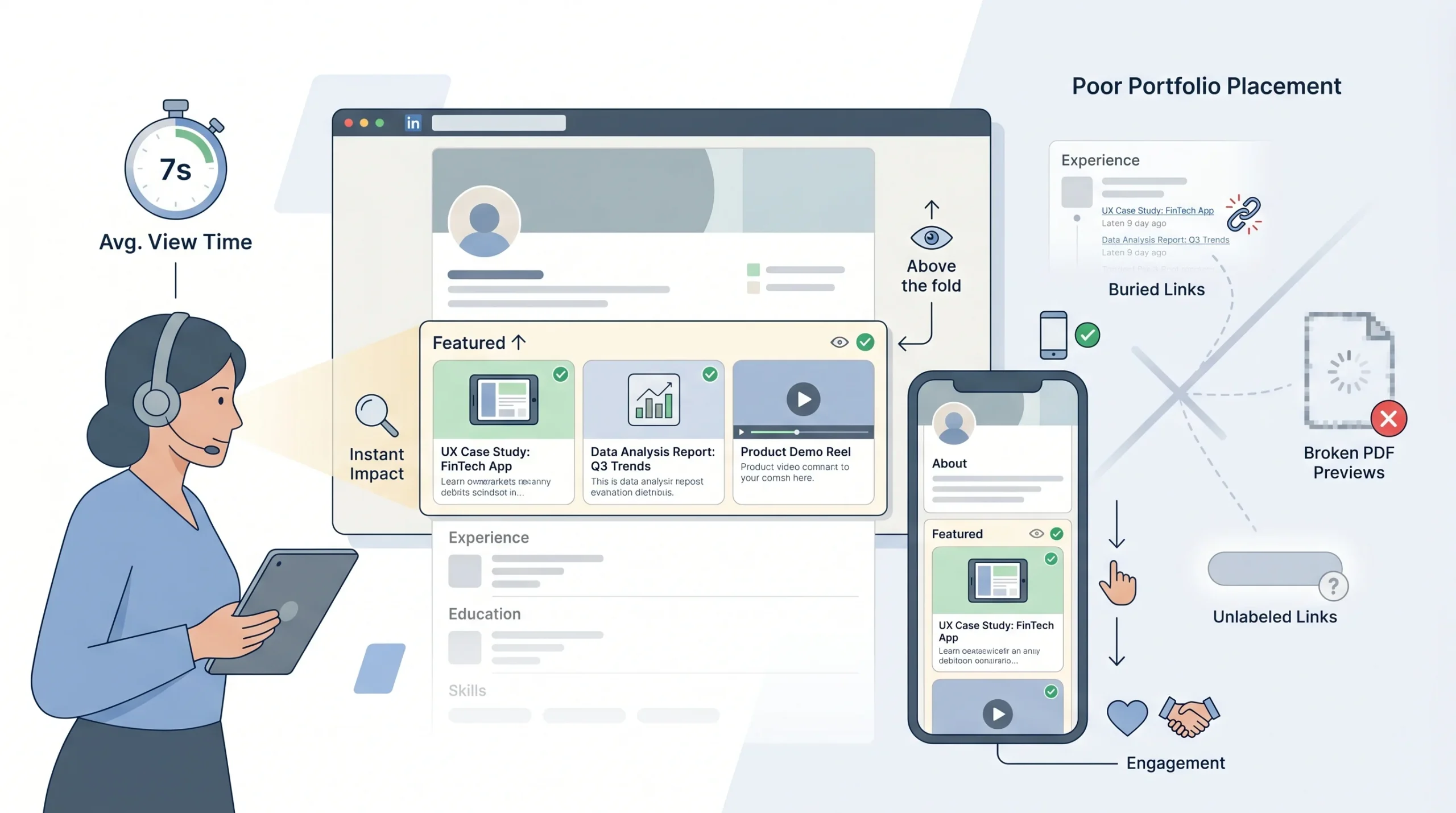
Most people spend hours curating the right work samples and about four minutes deciding where to put them. That order needs to flip. Placement determines whether your portfolio is seen at all. Even a weak piece of work in the right spot will outperform strong work buried where visitors never scroll.
How LinkedIn Surfaces Profiles and What Sections Recruiters and Buyers Actually See
LinkedIn profiles load in a specific sequence, and where your Featured section sits relative to that sequence changes significantly based on whether someone is viewing on desktop or mobile. On desktop, the Featured section typically loads in the third visible block after the intro card and the About section, which puts it above the fold for most screen sizes. On mobile, which accounts for the majority of LinkedIn browsing, the Featured section often drops further down the page, below the About section and sometimes below the first Experience entry depending on how populated those sections are.
The practical implication: a profile visitor who does not scroll past the first two sections will never see your portfolio at all. According to LinkedIn’s own data published in their talent insights documentation, recruiters spend an average of 76 seconds reviewing a profile during initial consideration. Buyers and prospects spend even less. This means the Featured section earns its role only when your About section is written to pull people down the page, not to summarize what your resume already says.
The Cost of Doing It Wrong
Poor placement and poor formatting do not just reduce visibility. They actively create a bad impression. A recruiter or potential client who sees a broken PDF thumbnail, a generic filename as a caption, or a 48-page slide deck with no context will not assume the problem is technical. They will assume the problem is you.
- Portfolios buried in Experience bullets: Most visitors do not expand individual job entries. The media attachments in Experience entries are valuable, but they sit behind a click that most people do not take. Relying on this alone means your best work is invisible.
- PDFs that do not render on mobile: LinkedIn supports PDF uploads, but heavy files with complex formatting frequently fail to load cleanly on mobile browsers. A thumbnail that shows a white screen with a loading spinner is worse than no portfolio at all.
- A single link in the About section with zero context: Dropping a Behance or portfolio site URL in the About section without a setup line does very little. Visitors need to know what they are clicking to before they click it. An unlabeled link at the bottom of a paragraph gets ignored at roughly the same rate as no link at all.
The Three Places You Can Add a Portfolio to Your LinkedIn Profile (And Which One to Use)
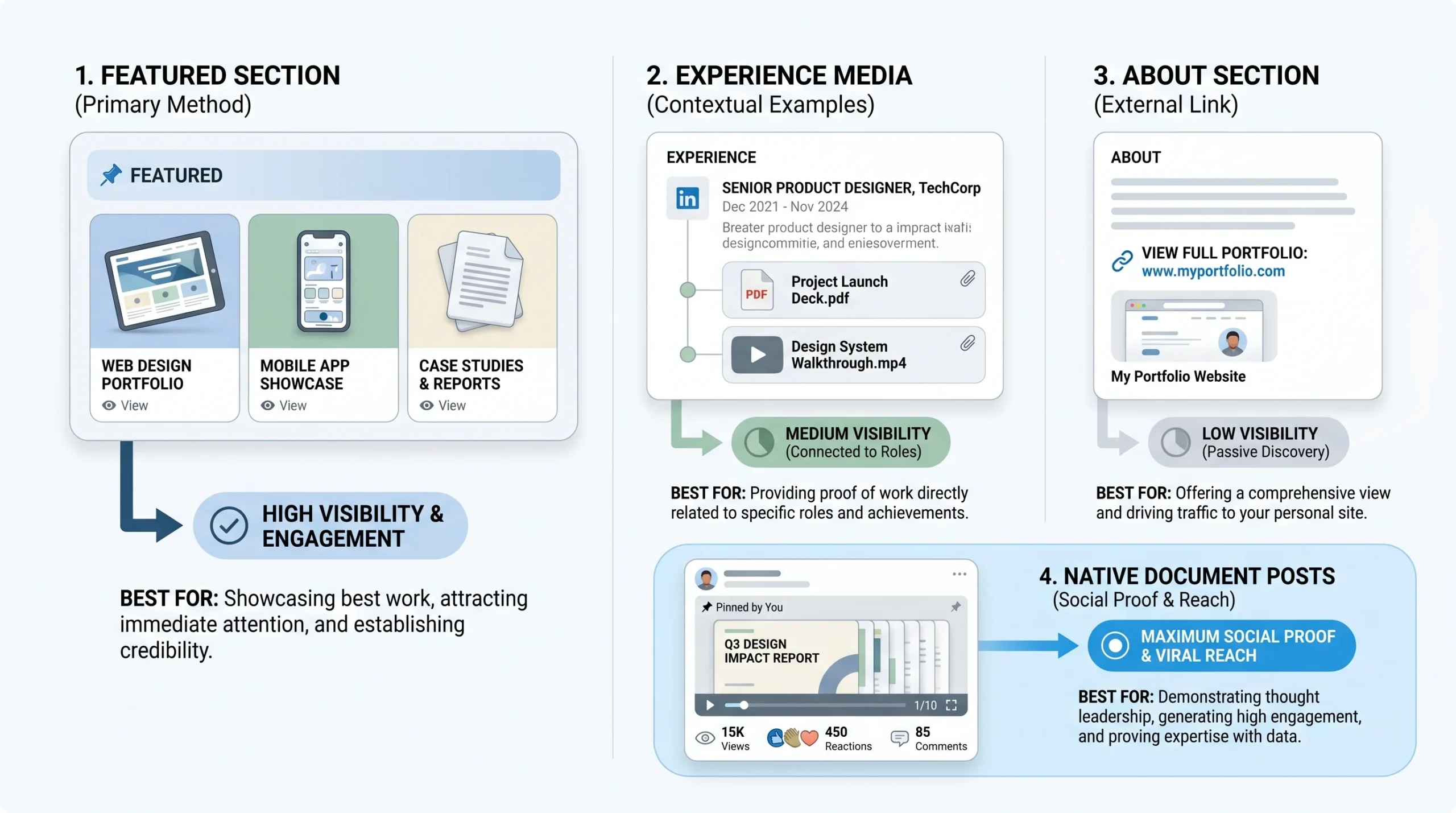
LinkedIn gives you multiple places to surface portfolio work, but they are not equal, and they are not interchangeable. Using the wrong one for your situation is one of the most common profile mistakes professionals make. Here is a direct breakdown of each option, what it does well, and when to use it.
The Featured Section (Primary Method)
The Featured section is the best place to add a portfolio to your LinkedIn profile for most professionals. It sits high on the page, renders visual previews, supports multiple content types, and lets you control the order in which pieces appear.
How to access it:
- Go to your LinkedIn profile
- Scroll to the Featured section (if it is not visible, click the “Add profile section” button and select “Featured” under the Recommended category)
- Click the “+” icon to add a new item
- Choose between a link, a media file, or an existing LinkedIn post
What file types work:
- PDF documents (recommended for case studies, decks, and written samples)
- Images in JPEG or PNG format
- MP4 video files
- External URLs (linking to a hosted portfolio, a published article, or a YouTube demo)
Caption character limits: LinkedIn allows up to 1,000 characters for Featured section item descriptions and up to 255 characters for the title field. Most visitors read the title and the first two lines of the description before deciding whether to click. Write those two lines as if they are the only two lines that exist.
Who should use this as their primary method:
- Freelancers and consultants who want buyers to see proof of work before reaching out
- Creative professionals (designers, writers, videographers) where the work is visual
- Job seekers who want to differentiate themselves from candidates with identical resumes
- Sales professionals who want their profile to do selling work between conversations
What to pin first: Lead with the piece that shows the clearest outcome, not the most impressive process. A before-and-after brand identity comparison beats a process walkthrough. A one-page case study with a revenue result beats a beautifully formatted capabilities document. The first item in your Featured section is what most visitors will click on or judge the section by, even if they click nothing.
The Media Attachments in Experience (Secondary Method)
Every individual job or project entry in your Experience section has a media attachment option. You can add images, documents, links, and videos directly to a specific role. This is the right choice when the work is inseparable from the context of where it was done.
How to add media to an Experience entry:
- Go to your profile and click the edit pencil on the relevant Experience entry
- Scroll to the bottom of the edit panel and click “Add media”
- Upload a file or paste a link
- Add a title and description
When this method outperforms the Featured section:
- The work belongs to a specific employer or client engagement and needs that context to make sense
- You want to show career progression across multiple roles, with each role having supporting evidence
- The work is confidential at a company level but sharable in summarized form (e.g., a results summary without client-identifying details)
Format guidance: Keep files under 5 MB where possible for faster loading. PDFs with clean single-column layouts render more reliably than complex multi-column documents. Avoid uploading raw PowerPoint files (.pptx format) as media attachments; the rendering is inconsistent and the thumbnail preview is often blank or distorted. Convert decks to PDF before uploading.
External Links in the About Section (Supplementary Method)
Adding a link to your portfolio site, Behance page, Notion portfolio, or Dribbble profile in the About section is a useful supplementary tactic, not a standalone strategy. The About section is text-heavy and most visitors skim it. A bare URL at the bottom of a paragraph earns very few clicks.
When this method adds value:
- You have a full portfolio site that houses more work than LinkedIn’s Featured section can practically hold
- You want to drive visitors to a site where you control the full experience (no LinkedIn distractions, no competitor ads)
- You are a developer or engineer and your GitHub profile is itself the portfolio
How to write the one-line setup that actually drives clicks:
Do not just paste the URL. Write one sentence that tells the visitor exactly what they will find and why it is worth their time. For example: “Full case studies with results data, client testimonials, and process breakdowns are on my site below.” That sentence gives the visitor a reason to click before they see the link.
Why this alone is not enough: The About section does not have the visual weight of the Featured section. It does not show thumbnails or previews. For most visitors, a link buried in a paragraph reads as an afterthought, even when it is not. Use it, but pair it with a strong Featured section.
LinkedIn Native Document Posts Pinned to Featured
This is the method most people miss entirely, and it is one of the most effective options available. LinkedIn allows you to post a PDF or carousel document as a regular post to your feed. Once that post exists, you can pin it directly to your Featured section. The advantage is that your Featured section item now shows not just the document itself, but also its engagement metrics: how many views, reactions, and comments it received.
Why this works:
- Social proof is built in. A case study PDF with 4,000 views and 80 reactions carries more weight than the same PDF uploaded without context.
- Document posts on LinkedIn generate, on average, significantly higher organic reach than text-only posts, according to data from LinkedIn’s internal creator research shared in their 2023 Content Strategy Benchmarks report. This means your portfolio piece gets seen by your network before it even sits in your Featured section.
- The post format lets people comment, which creates a feedback loop and keeps the content visible in feeds over time.
How to do it: Post the document as a native LinkedIn post. Wait for it to accumulate some engagement (a few days to a week is enough). Then go to your Featured section, click “+”, select “Posts”, and find and pin that specific post.
How to Add a Portfolio to Your LinkedIn Profile, Step by Step
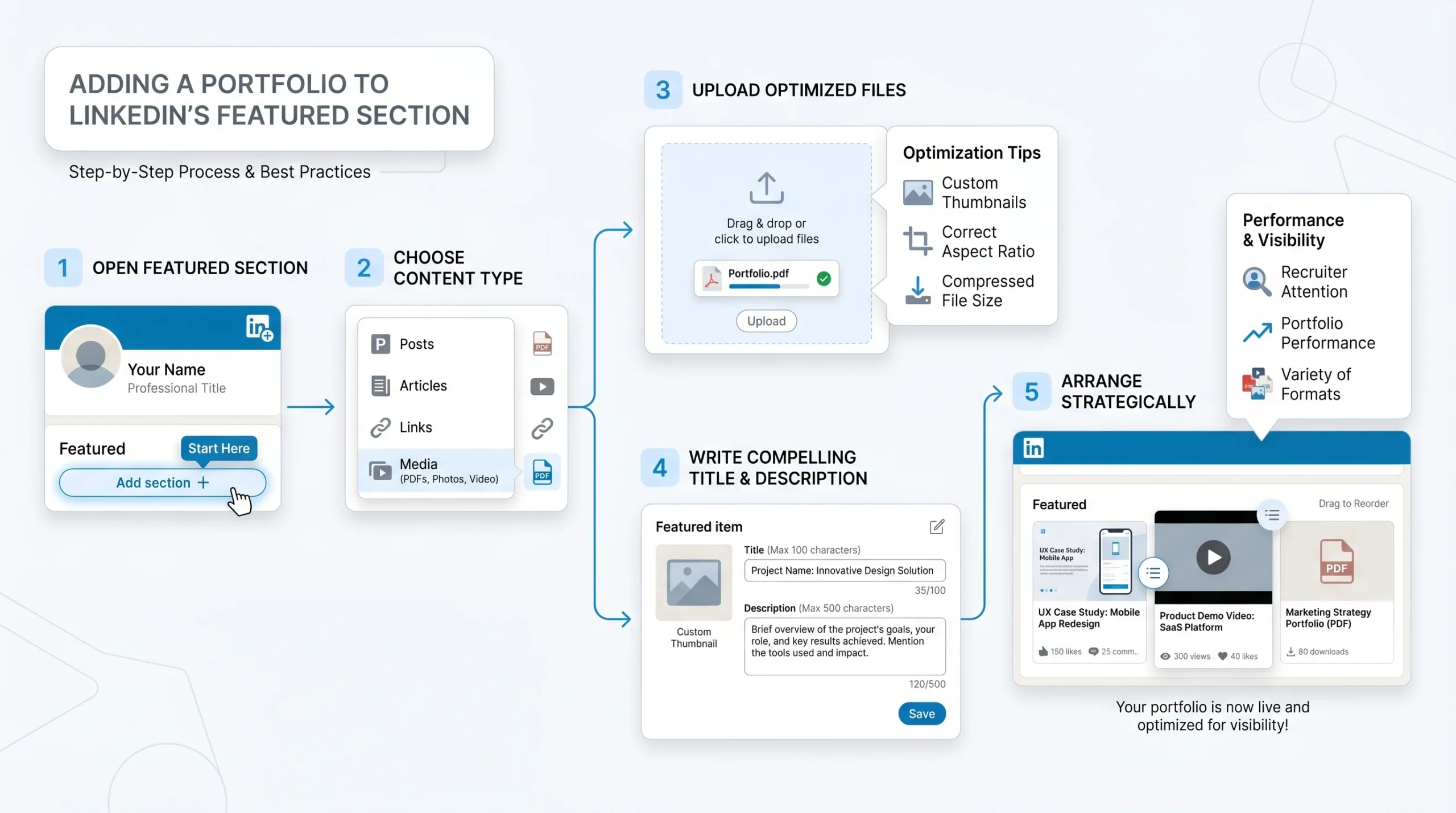
Now that you know where to put your portfolio, here is the exact process for doing it correctly in the Featured section, which is the primary method for most professionals.
Step 1: Go to Your Profile and Open the Featured Section
- On desktop: click your profile photo or name to open your profile, then scroll until you see the Featured section. If it is not visible, click “Add profile section” (the button appears below your intro card), go to “Recommended”, and select “Add featured”.
- On mobile (iOS and Android): tap your profile icon, tap “View Profile”, scroll to where the Featured section should appear. If it is absent, tap the “Add section” button and follow the same path.
Once the Featured section is visible, click or tap the “+” icon to begin adding a new item.
Step 2: Choose the Right Content Type
LinkedIn’s Featured section gives you three content type options when you click “+”:
- Links: Use these when you are pointing to an external portfolio site, a published article, a YouTube video, or any hosted content. LinkedIn will pull a preview image from the URL automatically, though you can override the image by uploading your own thumbnail.
- Media: Use this when you are uploading a file directly, including PDFs, images, or video files. This is the right choice for case studies, slide decks, writing samples, design files, and project documentation that you want to host directly on LinkedIn.
- Posts: Use this to pin an existing LinkedIn post (including document carousel posts) to your Featured section. This is the best option when you want the social proof of engagement metrics to show alongside the content.
Choose based on where your best content already lives and what format it is in, not based on which option is easiest to use.
Step 3: Upload and Format
When uploading media directly:
- File size: LinkedIn accepts files up to 100 MB for video and up to 300 MB for documents, but large files load slowly on mobile connections. Keep PDFs under 10 MB and videos under 50 MB for reliable performance.
- Formats that render properly: PDF, MP4, JPEG, PNG. These four formats consistently produce clean thumbnails and reliable loading across both desktop and mobile.
- Formats to avoid: Raw .pptx files often generate blank or distorted thumbnails. .docx files rarely render usefully as portfolio previews. If your work lives in these formats, export to PDF before uploading.
- Thumbnail quality: For link uploads, LinkedIn auto-generates a thumbnail from the linked page. If that thumbnail is low quality or irrelevant, create a custom 1200×628 pixel image and upload it as the preview. This single change significantly improves click rates on Featured section items.
Step 4: Write the Caption That Converts
The title and description of each Featured section item are not optional fields you fill in with the document name. They are the pitch. A visitor who sees your Featured section decides in about two seconds whether to click based on the thumbnail and the title. The description gives them the reason to follow through after they click.
Formula for the description field:
[What the work is] + [What problem it solved or what result it produced] + [What the visitor should do next]
Example for a designer: “Brand identity system built for a SaaS company transitioning from seed to Series A. Covers logo, type system, color architecture, and the full component library. If you’re scaling a product and your brand is still held together with duct tape, send me a message.”
Example for a sales professional: “One-page results summary from a six-month outbound campaign in the HR tech space. 28% connection acceptance rate, 14% reply rate, 11 meetings booked per month from a single LinkedIn account. Happy to walk through the approach.”
Example for a writer: “SEO article written for a B2B cybersecurity company. Ranked in the top three for its primary keyword within 90 days and drove 1,200 organic visits in the first month. Available to write on technical topics that most content writers avoid.”
The caption is where most people leave performance on the table. Do not waste it.
Step 5: Order Your Featured Items Deliberately
LinkedIn displays Featured section items in the order you arrange them, and you can drag and drop to reorder at any time. Order matters because most visitors look at the first item and make a judgment before scrolling through the rest.
- Put your highest-signal piece first: The piece that shows the clearest result, the most recognizable client, or the most relevant type of work for your target audience goes first. Not your personal favorite. The one that makes the right person stop.
- Mix formats where you have them: If you have a PDF case study, a video demo, and a link to a published article, spread them out rather than stacking three PDFs in a row. Variety signals range. It also prevents the section from looking like a document dump.
- Think about the story the sequence tells: A recruiter or buyer who scrolls through all five items should walk away with a coherent picture of what you do and what results you produce. If the items feel random or disconnected, the impression is that your experience is random and disconnected.
What to Actually Put in Your LinkedIn Portfolio (By Role)
Knowing the mechanics of how to add a portfolio to your LinkedIn profile is the easy part. Knowing what to put there is harder, and it is where most people make the same mistake: they upload everything instead of the right things.
The rule is simple. One strong piece of work that proves a specific result will outperform six mediocre samples that prove nothing in particular. The goal is not to show the full range of everything you have ever done. It is to give the right person enough evidence to reach out.
Designers and Creatives
For designers, the LinkedIn portfolio should do one thing above all else: show the outcome of the work, not just the aesthetic of it.
- What works best: Before-and-after comparisons that show what the brand or product looked like before your involvement and what it looked like after. Final deliverables in context (logo on a product, UI in a screen mockup, identity applied to packaging). Short process videos (60 to 90 seconds) that walk through a project from brief to delivery.
- What to avoid: Work-in-progress files, rough concept explorations, or anything that requires a paragraph of explanation before the viewer knows what they are looking at. If someone cannot understand what the work is within three seconds of seeing the thumbnail, it should not be in your Featured section.
- Caption guidance: State the client type, the deliverable, and one concrete outcome. “Visual identity for a fintech startup that raised $4M Series A three months after the rebrand” is a caption that creates context. “Logo design project 2024” is not.
Writers and Content Marketers
For writers, the instinct is to link to published articles and let the work speak for itself. The problem is that a link to a blog post tells a recruiter or editor nothing about whether the piece performed.
- What works best: Published articles where you can attach a result to the caption (organic traffic numbers, social shares, backlinks earned, leads attributed). PDFs of writing samples formatted cleanly so they are readable without leaving LinkedIn. Screenshot-based posts showing Google Search Console data for a piece you wrote.
- The caption does the work: A link to a 2,000-word article on cloud security is anonymous without context. The same link with a caption that reads “Technical deep-dive on zero-trust architecture that ranked number one for its primary keyword within 60 days and drove 3,400 visits in the first quarter” is immediately legible to anyone hiring content.
- What to avoid: Links to pieces that no longer exist, articles on platforms that have since changed (thin content from content mills, guest posts on sites that were later penalized). If you cannot verify the link still works and the piece still looks good, do not include it.
Sales Professionals and SDRs
Sales profiles are where LinkedIn portfolios are most underused. Most salespeople put their quota attainment in a bullet point in their Experience section and call it a day. That is a missed opportunity.
- What works best: A one-page PDF results summary from a campaign, quarter, or specific outreach program. Key metrics to include: connection acceptance rate, reply rate, meetings booked, pipeline generated, close rate if attributable. A short video (90 seconds to two minutes) walking through an outreach approach or explaining how you structured a sequence that outperformed the team average. A case study document covering one deal from initial contact to close, with the steps taken, the objections handled, and the result.
- Why this matters for LinkedIn outreach professionals specifically: A well-structured results document in your Featured section does more credibility-building work than any written claim in your About section. A buyer or hiring manager who can see actual outreach metrics, stated clearly and honestly, will trust your profile far more than one that says “results-driven sales professional” in the headline.
- Format guidance: Keep the document to one or two pages. Use a clean layout with numbers prominently displayed. If you cannot share specific client names, anonymize and note that the data is from real campaigns with client permission. Specificity builds trust. Vagueness destroys it.
Developers and Engineers
Developer portfolios on LinkedIn are frequently either absent or unhelpfully minimal (a GitHub link with no context). Neither works.
- What works best: A link to a GitHub profile with a caption that describes the most relevant pinned repository and what problem it solves. A short screen-recorded product demo video (two to three minutes) walking through something you built, narrated. A one-page architecture overview PDF for a system you designed, showing scale, stack decisions, and tradeoffs.
- Context is everything: “Here is my GitHub” tells no one anything useful. “Open-source CLI tool for automating Kubernetes namespace cleanup, used by 400+ developers, 1.2k GitHub stars” gives a technical hiring manager something to evaluate immediately.
- What to avoid: Code screenshots without explanation, repositories that are empty or have a single commit, links to projects that are no longer maintained or that require proprietary access to understand.
Consultants and Freelancers
For consultants and freelancers, the LinkedIn portfolio is often the first thing a potential client sees before deciding whether to send a message. The standard here is higher than for job seekers, because the bar for trust is different. An employer hiring internally has HR, references, and an interview process. A client deciding to pay an invoice has only your profile.
- What works best: Client outcome documents, with permission, that describe the engagement, the approach, and the measurable result. Testimonials formatted as clean one-page PDFs with the client’s name, company, and a specific statement about what changed as a result of working together. One tight, detailed case study is worth more than six vague project summaries.
- One strong case study beats six mediocre samples every time: This is not an exaggeration. A freelance consultant who shows a single case study with a named client, a clear problem statement, a described process, and a quantified outcome will get more inbound inquiries than one who posts eight generic project thumbnails with captions that say “Brand project for a retail client.”
- Confidentiality: If you cannot name the client, say so and explain why. “Results from an engagement with a Fortune 500 healthcare company (name withheld per NDA)” is honest and still credible. Blank captions or vague descriptions are not.
LinkedIn Portfolio Mistakes That Kill Your Credibility
A bad portfolio entry does not just fail to help. It actively signals that you are not paying attention to your own profile, which raises the question of what else you are not paying attention to. These are the mistakes that come up repeatedly across profiles, and each one is fixable in under ten minutes.
- Uploading a 45-page pitch deck as a portfolio piece with no context: A 45-page deck with no caption explanation is not a portfolio item. It is a test of how bored a visitor is willing to get. If you want to use a deck, extract the three most compelling slides, turn them into a PDF, and add a caption that tells the viewer what the deck was for and what the outcome was.
- Using generic filenames as the caption: “Final_Portfolio_v3.pdf”, “CaseStudy_FINAL2.pdf”, “Resume_Updated_March.pdf”. These captions appear when someone uploads a file and does not bother to write a title. They tell the visitor nothing and suggest the uploader did not care enough to spend thirty seconds on the copy. Always replace the auto-populated filename with a real title.
- Adding every piece of work ever produced instead of the three best: LinkedIn’s Featured section supports up to five pinned items. That is not a target. It is a ceiling. Two excellent, well-captioned, outcome-focused pieces will create a stronger impression than five pieces of varying quality. Curate aggressively.
- Linking to a portfolio website that is broken, outdated, or password-protected: If you have a portfolio site linked from LinkedIn, check it monthly. Expired domains, broken image paths, and password-protected pages are common, and every one of them creates a dead end that reflects poorly on you. A broken link is worse than no link.
- No visible result anywhere: “Here is a design I made” and “Here is an article I wrote” are not portfolio captions. They are descriptions of what the file contains. The caption needs to tell the visitor what the work accomplished. If you genuinely cannot attach a result to a piece of work, consider whether that piece is the right one to lead with.
- Mobile-untested uploads: The majority of LinkedIn browsing happens on mobile. A PDF that looks clean on a 27-inch monitor and renders as a wall of tiny unreadable text on a phone is effectively useless for mobile visitors. Before finalizing any upload, open your own LinkedIn profile on your phone and look at each Featured section item. If it does not render clearly, reformat the file.
How to Optimize Your LinkedIn Portfolio for Search and Profile Visitors in 2026
Adding strong portfolio pieces is one step. Making sure the right people find your profile and actually land on those pieces is the other step. The two are connected, and most guides stop before covering either one.
Keywords in Captions and Titles
LinkedIn search does index the text content of Featured section item titles and descriptions. This means the words you use in your captions are not just for human readers; they also determine whether your profile surfaces when someone searches for a specific type of professional or skill set.
- Include your primary role-relevant keywords in at least one Featured section item title. A UX designer’s portfolio item titled “Mobile App Redesign for E-commerce” will index for terms like “UX designer”, “mobile app design”, and “e-commerce UX” in ways that a title like “Project 2024” will not.
- Do not stuff keywords into captions in a way that reads unnaturally. LinkedIn’s search algorithm penalizes keyword stuffing in the same way Google does. Write for the human reader first, and let the keywords sit where they fit naturally.
- Think about what your target employer, client, or buyer would actually search. A freelance data analyst whose ideal client is a Series B SaaS startup should use words like “SaaS analytics”, “growth metrics”, and “data visualization” in their captions, not generic terms like “data analysis projects”.
Updating Your Portfolio Signals Recency
LinkedIn’s algorithm uses profile activity as a signal when deciding which profiles to surface in search results and in “People You May Know” and “Who’s Viewed Your Profile” recommendations. Updating your Featured section, which counts as a profile edit, is one of the actions that contributes to this activity signal.
- A quarterly review cadence works for most professionals: every three months, swap out the weakest Featured section item for a stronger or more recent one, update at least one caption to reflect newer results, and reorder based on what you most want leads or recruiters to see first.
- This is not about posting constantly or manufacturing activity. It is about keeping your profile from going stale. A Featured section with items from 2022 tells a visitor that you have not thought about your profile in three years, even if your actual work is current.
How to Use LinkedIn Analytics to See What Visitors Are Clicking
LinkedIn provides profile view data and, for accounts with Creator Mode enabled, more detailed analytics on post and section engagement. These analytics show you how many people viewed your profile, how they found it (search, feed, recommendations), and which posts you have pinned to Featured are getting attention.
- To access profile analytics: go to your profile on desktop and click “Analytics” (the button appears below your intro card). This shows you profile views over time, search appearances, and post impressions if you have Creator Mode on.
- Use this data to answer one question: which Featured section items are getting clicks, and which ones are not? If you have a PDF that no one is opening, it is either in the wrong position, has a weak caption, or is not relevant to the people finding your profile. Change the caption first, reposition second, replace last.
- Creator Mode, available to any LinkedIn account, unlocks deeper analytics including follower growth, content reach, and audience demographics. If you are using LinkedIn actively for business development or job search, enabling it is worth the two-minute setup.
Conclusion
The non-obvious insight in all of this: adding a portfolio to your LinkedIn profile is not about completeness or volume. It is about putting one or two pieces of work that prove the right outcome in front of the right person in the 45 seconds they will spend on your page. The Featured section is the tool. The caption is the pitch. The order you place things in is the strategy. None of it matters if your work samples are formatted for a format that breaks on mobile, captioned with a filename, or buried under a wall of text in your About section that nobody finished reading.
Open your LinkedIn profile right now and go to the Featured section. Look at each item and ask one question about every single one: does this caption state a result, name a relevant client type, or tell a visitor what to do next? If the answer is no, rewrite the caption before doing anything else. That one change, on the item that is already there, will do more for your profile’s performance than adding three new pieces without fixing the copy.
Frequently Asked Questions
How do I add a portfolio to my LinkedIn profile?
Go to your LinkedIn profile and scroll to the Featured section. If it is not visible, click “Add profile section”, go to “Recommended”, and select “Add featured”. Once the section is open, click the “+” icon and choose to add a link, upload media (PDF, image, or video), or pin an existing LinkedIn post. Add a descriptive title and a caption that explains what the work is and what result it produced.
Where is the Featured section on LinkedIn?*
The Featured section appears on your LinkedIn profile below the About section on desktop. On mobile, it typically loads after the About section and before your Experience entries, though this can vary depending on how much content is in each section. If you do not see it, you may need to add it manually via the “Add profile section” button.
What file types can I upload to LinkedIn as portfolio samples?
LinkedIn’s Featured section accepts PDF documents, JPEG and PNG image files, and MP4 video files as direct uploads. For external content, you can add any public URL as a link, and LinkedIn will generate a preview image from the page. Raw PowerPoint (.pptx) and Word (.docx) files are technically uploadable but render inconsistently, especially on mobile. Converting them to PDF before uploading produces more reliable results.
Can I add a portfolio link in the LinkedIn About section?
Yes. You can paste any URL directly into your About section text, and LinkedIn will display it as a clickable link. However, a standalone link in the About section with no setup copy generates few clicks. Write one sentence before the link that tells visitors what they will find and why it is relevant to them. This alone significantly improves click-through compared to a bare URL.
How many items can I pin in the LinkedIn Featured section?
LinkedIn currently allows up to five pinned items in the Featured section. You can include any combination of links, uploaded media files, and pinned posts, up to that limit. You are not required to fill all five slots. Two to three well-chosen, well-captioned items will create a stronger impression than five items of uneven quality.
Does adding a portfolio to LinkedIn help with job search?
Yes, for candidates who use it correctly. Recruiters consistently report that profiles with Featured section content stand out from profiles that have only text entries. The difference is not just aesthetic. A case study, a results summary, or a writing sample with clear outcomes gives a recruiter something concrete to evaluate beyond job titles and bullet points. According to LinkedIn’s own research shared in their Talent Solutions documentation, profiles with complete Featured sections receive more InMail responses than incomplete ones.
What should a freelancer put in their LinkedIn portfolio?
A freelancer’s LinkedIn portfolio should prioritize client outcomes over process or aesthetics. The most effective items are: a client case study with a named result (even if the client name is withheld), a testimonial formatted as a clean one-page PDF, and a sample of the deliverable type you are best at and most want to be hired for. One strong case study with a quantified outcome will generate more inbound inquiries than a broad collection of diverse work samples without context.
Can I add a Behance or Dribbble link to LinkedIn?
Yes. You can add an external URL pointing to your Behance, Dribbble, or any other hosted portfolio platform directly to your Featured section as a link. LinkedIn will pull a preview image from the page. For Behance and Dribbble specifically, the previews tend to be clean and recognizable. Add a caption that tells visitors what they will find there and what type of work you want them to see first, since both platforms contain work across multiple categories and styles.
How do I add media to a LinkedIn experience entry?
Open your LinkedIn profile and click the edit (pencil) icon on the specific Experience entry you want to update. In the editing panel, scroll to the bottom and click “Add media”. You can upload a file or add a URL link. After uploading, add a title and brief description. This media attachment will then appear as a clickable thumbnail within that specific job entry when visitors expand it.
Is the LinkedIn Featured section visible to everyone or only connections?
By default, the Featured section is visible to all LinkedIn members, including people you are not connected with, provided your profile visibility is set to “Public” or “All LinkedIn members”. You can adjust your overall profile visibility in your Privacy Settings. If your profile is set to be visible only to your connections, your Featured section will follow the same restriction and will not appear to non-connections.
How often should I update my LinkedIn portfolio?
A quarterly review is the practical standard for most professionals. Every three months, remove the weakest or most outdated item, replace it with something more recent or more relevant, and update at least one caption to reflect newer results or a changed focus. Profile edits, including Featured section updates, contribute to the activity signals LinkedIn uses when deciding whose profiles to surface in search and recommendation features.
What is the difference between LinkedIn media uploads and external links in the Featured section?
Media uploads host the file directly on LinkedIn’s servers. External links point to content hosted elsewhere. Media uploads load within LinkedIn and allow visitors to view the content without leaving the platform, which typically produces higher completion rates. External links drive traffic to another site, which can be valuable if you want visitors to explore a full portfolio or take a specific action on your own domain. Use media uploads for self-contained pieces (a case study PDF, a writing sample, an image). Use external links for hosted content that is better experienced on its own platform (a published article, a product demo video on YouTube, a Notion portfolio).
Can I add a video to my LinkedIn portfolio?
Yes. LinkedIn’s Featured section accepts MP4 video uploads directly. You can also link to a video hosted on YouTube, Vimeo, or any public URL, and LinkedIn will generate a preview image. For uploaded videos, LinkedIn recommends a maximum file size of 5 GB, though files under 50 MB load significantly faster on mobile connections. Short-form videos in the 60 to 180 second range tend to perform best as portfolio items, since longer videos require more viewer commitment than most profile visitors will give.
Why is my uploaded PDF not showing correctly on LinkedIn?
PDF rendering issues on LinkedIn are most commonly caused by one of three things: a file size that exceeds LinkedIn’s rendering limits (keep PDFs under 10 MB for reliable performance), complex multi-column layouts that compress poorly at thumbnail size, or embedded fonts that are not standard across systems. To fix this: reduce the file size by compressing images within the PDF, simplify the layout if possible, and embed all fonts before exporting. After re-uploading, check the rendering on both desktop and mobile before assuming it is fixed.
Does LinkedIn index the content of my Featured section for search?
LinkedIn’s search algorithm indexes the text content of Featured section item titles and descriptions. This means the words in your captions and titles contribute to how your profile surfaces when someone searches for specific skills, roles, or types of work. Using role-relevant keywords naturally in your Featured section captions, without forcing or stuffing them, can improve your profile’s visibility in LinkedIn search results for the terms most relevant to your work.