


Changing your email on LinkedIn sounds like it should take two minutes. For most people, it does. But enough things can go wrong along the way that it’s worth knowing exactly what you’re doing before you start clicking around.
Here’s the situation a lot of people find themselves in. They signed up for LinkedIn years ago using a work email from a company they no longer work at. Or a college email that got deactivated after graduation. Or a personal email they’ve basically abandoned and don’t check anymore. Now they’re locked into a LinkedIn account that’s sending notifications to an inbox they can’t access, and login becomes a problem the moment LinkedIn decides to send a verification code somewhere they can’t reach.
That’s the frustrating version. There’s also just the normal version, where someone gets a new email and wants to update their LinkedIn to match. New job, new domain, new personal address, whatever the reason. Simple enough situation. But LinkedIn’s settings layout isn’t always obvious, the confirmation emails don’t always arrive immediately, and the process of making a new email the “primary” address has a few steps people miss.
There’s also the locked-out version, which is genuinely stressful. Someone tries to log in and realizes their registered email no longer exists, they never set up a phone number backup, and now they’re on LinkedIn’s help page trying to figure out how to verify identity through a process that feels like it was designed to test patience. That version is harder. But it’s solvable.
This post covers all three versions. The simple update when you have full access. The steps for making sure your new email becomes the primary one so LinkedIn actually sends important stuff there. And the recovery path when you’ve lost access to the registered email entirely. Plus everything that can go wrong, the common errors, the things LinkedIn doesn’t tell you upfront, and the settings to double-check after you’ve made the change so you don’t end up back in the same situation six months later.
By the end of this, changing your LinkedIn email should be genuinely straightforward. Let’s get into it.
Why People Need to Change Their Email on LinkedIn
Before getting into the how, it’s worth understanding all the situations where this comes up, because the solution varies slightly depending on which one you’re dealing with.
Old work email. This is probably the most common scenario. Someone used their company email to sign up. They left that job. The company deactivated the email. Now that address doesn’t exist anymore, and LinkedIn is still pointing to it. If they haven’t added a backup email or phone number, logging in after a password reset becomes a problem because the verification code goes nowhere.
College or university email. A lot of people built their early LinkedIn profile using a student email. Those expire after graduation, sometimes immediately, sometimes a year or two later. If you didn’t update your LinkedIn email before it expired, you’re in the same situation as the old work email problem.
Email provider switch. Moving from Yahoo to Gmail, from an ISP email to a Google Workspace address, from a personal account to a new personal account. Totally normal, and LinkedIn needs to be updated just like everything else.
Privacy or spam reasons. Some people used a main personal email to sign up years ago and have been getting LinkedIn spam to that inbox ever since. They want to move LinkedIn to a separate address they check less often, or to a more private address that isn’t tied to everything else they do online.
Getting locked out. The most stressful one. The registered email no longer exists or is inaccessible, LinkedIn is asking for a verification code, and there’s no phone number on file either. This is a full account access problem, not just an email update.
All of these have solutions. The first four are fairly quick. The last one takes more work.
How to Change Email on LinkedIn When You Have Full Account Access
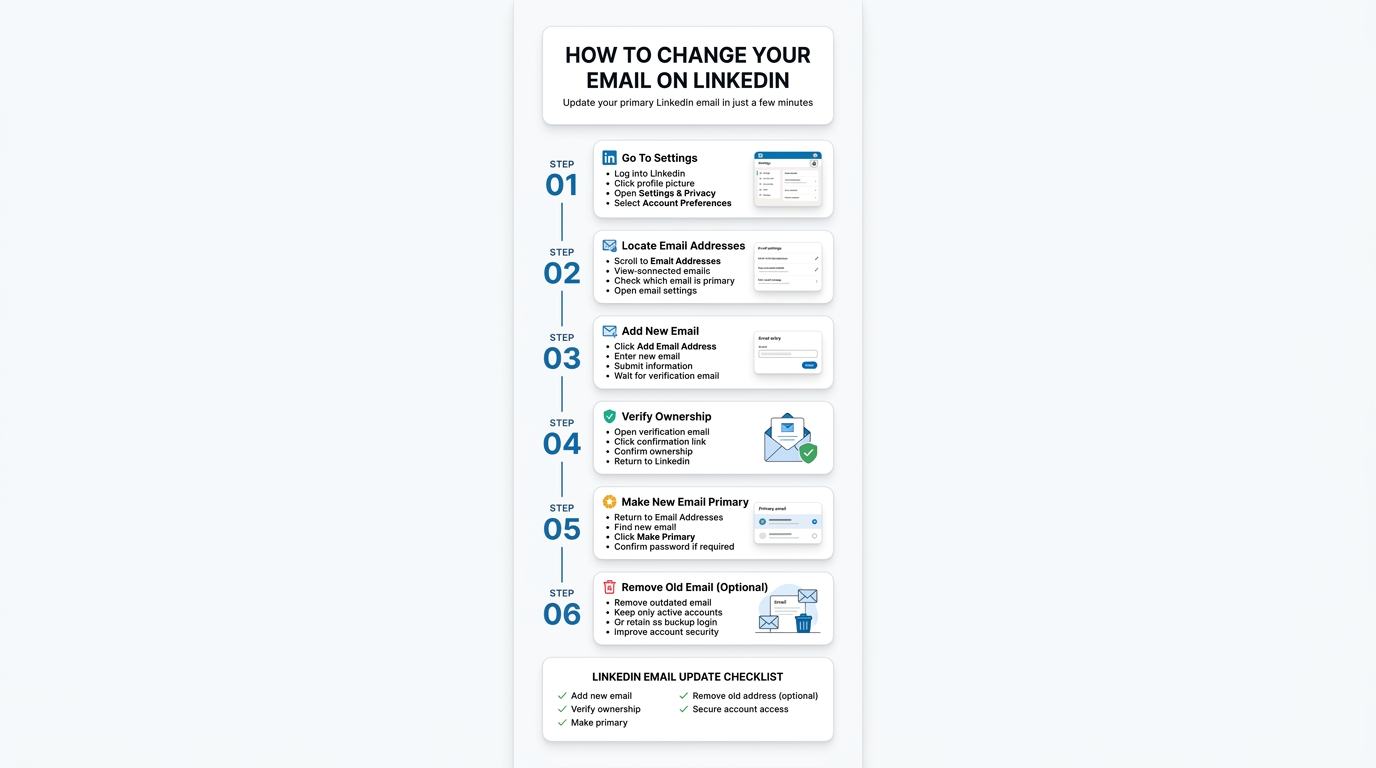
This is the standard process. You’re logged in, you can access your current email, and you just want to update to a new one.
Step 1: Go to Settings on Desktop
Log into LinkedIn on a desktop browser. The desktop version is easier for this because the settings layout is cleaner than mobile.
Click your profile picture in the top right corner. Select Settings & Privacy from the dropdown. You’ll land on the settings page.
In the left sidebar, you should be on Account preferences by default. If not, click it.
Step 2: Find the Email Address Section
Scroll down the Account preferences page until you see Email addresses. Click on it. This opens a panel showing all email addresses currently associated with your account, and which one is set as primary.
Step 3: Add Your New Email Address
Click Add email address. Type in the new email you want to use. LinkedIn will send a confirmation email to that new address.
Go check that inbox. Find the LinkedIn email (check spam if it doesn’t show up within a few minutes) and click the confirmation link inside it. This verifies that you own that email address and that it’s now associated with your LinkedIn account.
Step 4: Set the New Email as Primary
This is the step most people miss. Adding a new email doesn’t automatically make it your primary one. You have to set it manually.
Go back to the Email addresses section in LinkedIn settings. You’ll now see your new email listed alongside your old one. There will be a Make primary option next to the new address. Click it.
LinkedIn will ask you to confirm, possibly with a password re-entry. Confirm it. Your new email is now the primary address, which means it’s where login confirmations, password resets, and important account notifications go.
Step 5: Remove the Old Email (Optional but Recommended)
Once your new email is set as primary, you can remove the old one. There’s a Remove option next to non-primary addresses. If the old email is dead or you don’t want it connected to your account anymore, remove it.
If you want to keep it as a backup login option, leave it there. LinkedIn lets you have multiple emails on one account, and logging in with any of them works as long as they’re still confirmed.
How to Change Email ID in LinkedIn Using the Mobile App
The mobile process is the same logic but slightly different navigation. Here’s how it looks on iOS or Android.
On the LinkedIn App (iOS and Android)
- Open LinkedIn and tap your profile picture in the top left corner.
- Tap the Settings gear icon (top right of the slide-out menu).
- Tap Account preferences.
- Under the Account section, tap Email addresses.
- Tap Add email address and enter your new email.
- Check that email’s inbox for the confirmation link from LinkedIn and click it.
- Return to the Email addresses section in LinkedIn settings.
- Tap Make primary next to your newly confirmed email.
- Confirm when prompted.
- Optionally tap Remove next to the old email to unlink it.
One thing to note on mobile: sometimes the confirmation email from LinkedIn lands and the link opens in a browser rather than inside the app. That’s fine, it still confirms the address. Just make sure you’re logged in to the correct LinkedIn account in that browser before clicking the link if you manage multiple accounts.
How to Change Email on LinkedIn When You’ve Lost Access to the Registered Email
This is where things get harder. The registered email is gone, you can’t receive the verification code LinkedIn is trying to send, and you’re stuck. Here’s what to try in order.
First: Try Logging in With Phone Number
If you ever added a phone number to your LinkedIn account, use it. On the login page, enter your phone number instead of email. LinkedIn will send a verification code by SMS. This gets you back in, and then you can follow the standard steps above to update your email.
If you never added a phone number… yeah, it’s trickier.
Second: Try a Google or Apple Sign-In
If you connected your LinkedIn account to a Google or Apple account, you can log in through that even if you can’t access your old email. On the LinkedIn login page, look for “Sign in with Google” or “Sign in with Apple.” If your account was ever linked to one of those, this will work.
Third: Use LinkedIn’s Account Recovery
LinkedIn has an account recovery flow for situations where you can’t access your registered email. Here’s how to get to it.
Go to the LinkedIn login page. Click Forgot password. Enter your old email address (the inaccessible one). On the next screen, look for a link that says something like “I don’t have access to this email” or “Need more help?” This takes you into the identity verification path.
LinkedIn’s identity verification process can include:
- Uploading a government-issued ID to prove you’re the account owner
- Answering security questions if you set any up
- Verifying through a phone number you may have had on file even if you forgot about it
The process isn’t fast. LinkedIn’s support response time for identity verification cases is typically several business days. But it works for most people who can verify their identity properly.
Fourth: Contact LinkedIn Support Directly
If the recovery flow doesn’t work, go to LinkedIn’s Help Center and submit a support request. Look for the “Sign in and account access” category and choose the option about not being able to access your account.
Be ready to provide your full name, the email address you registered with, your approximate location when you signed up, details about your profile (job history, connections, any details that prove you’re the account owner), and potentially a government ID.
LinkedIn support is not the fastest in the world. Honestly, be patient. Most cases do get resolved, it just takes a few days to a few weeks depending on volume.
Problems When Changing Your LinkedIn Email
Look, the process usually goes smoothly. But here are the things that trip people up.
Confirmation Email Not Arriving
You’ve added the new email address, LinkedIn says it sent a confirmation, and nothing shows up. Check the spam folder first. If it’s not there after 10 minutes, go back to LinkedIn settings, find the unconfirmed email address in the Email addresses section, and click Resend verification email.
If it still doesn’t arrive, there might be a deliverability issue between LinkedIn’s servers and your email provider. Try adding linkedin.com to your allowed senders list, or try temporarily using a Gmail address to confirm it works, then switch to your preferred email.
This Email Is Already Associated With Another Account
This one is annoying. If LinkedIn says your new email is already in use, it means there’s another LinkedIn account registered to that email address, maybe an old account you forgot about, or someone else set one up with your address at some point.
You have two options. Either log into that other account (try the password reset flow for it) and remove your email from it, or contact LinkedIn support and explain the situation. LinkedIn can investigate duplicate accounts and help you sort it out.
Can’t Find the “Make Primary” Option
This happens when the new email hasn’t been confirmed yet. LinkedIn won’t let you make an unconfirmed email primary. You need to confirm it by clicking the link in the verification email first. Once confirmed, the Make primary option appears.
Password Reset After Email Change Goes to Wrong Address
If you just changed your primary email and then try to reset your password, make sure you’re entering the new primary email on the password reset page. LinkedIn resets to whatever email you enter, not automatically to your primary address. Enter the wrong one and the reset link goes to the wrong place.
What to Check After Changing Your LinkedIn Email
Once the email is updated and set as primary, do a quick audit of a few things so you don’t end up in a mess later.
Notification Settings
LinkedIn sends a lot of emails. Job alerts, connection requests, messages, weekly digest, LinkedIn Learning recommendations, all of it. Now that your primary email has changed, check that the notifications you actually want are going to the right place. Go to Settings > Notifications > Email notifications and review what’s turned on. This is also a good time to turn off anything you don’t want.
Connected Apps and Integrations
If you use any apps or services that connect to your LinkedIn through OAuth (sign in with LinkedIn), check whether those need to be updated. Usually they don’t because they’re linked to your account ID rather than your email, but it’s worth confirming.
Calendar and CRM Integrations
Some people have LinkedIn connected to their calendar or a CRM tool. If any of those use your email for matching or syncing, update them to reflect the new email.
Third-Party Logins Using LinkedIn
If you signed into any other platform using “Sign in with LinkedIn,” those connections are tied to your LinkedIn account, not your email address. They should continue working without changes.
Your Resume and External Profiles
If you have your LinkedIn URL or contact information on your resume, website, or other public profiles, and you had your old email listed anywhere publicly, update those. Not because it affects your LinkedIn account, but because people trying to reach you at that old address won’t get through.
Can You Have Multiple Email Addresses on One LinkedIn Account
Yes. LinkedIn allows multiple email addresses on a single account. They don’t all need to be confirmed to exist in the list, though only confirmed ones can be set as primary.
This is actually useful. Keeping both a personal and work email on your LinkedIn account means you can log in with either, and you won’t get locked out if one email becomes inaccessible. It’s a simple safety net that most people don’t set up until after they’ve had a problem.
To add a second email as a backup, just follow the same steps above: go to Email addresses in Account preferences, click Add email address, confirm it, and leave it there as a secondary address.
How to Change Email ID in LinkedIn Without Losing Account Data
Short answer: changing your email doesn’t affect your account data at all. Your connections, messages, posts, endorsements, recommendations, profile history, none of it changes. Email address is just the login credential and the destination for notifications.
The only risk to account data is if you accidentally create a new account instead of updating the existing one. Some people, when they can’t figure out how to update their existing email, just create a brand new LinkedIn account with their new email. That’s a significant mistake. You lose your entire connection network, your history, your recommendations, everything. Always update the email on your existing account, never start fresh unless your old account is completely unrecoverable.
LinkedIn Email Change and Account Security
Changing your email is also a good moment to review your overall account security. A few things worth doing at the same time.
Update your password. If you’ve been using the same password for years, change it. LinkedIn had a major data breach back in 2012 that exposed hundreds of millions of credentials, and a secondary breach in 2021 where scraped data from 700 million profiles was circulated. If your password is old and hasn’t been changed since those events, it’s worth refreshing regardless.
Turn on two-step verification. This is under Settings > Sign in & security > Two-step verification. With this on, logging in requires both your password and a code sent to your phone or an authenticator app. It means even if someone has your email and password, they can’t get in without also having your phone.
Review active sessions. Under Settings > Sign in & security > Where you’re signed in, you can see all devices currently logged into your LinkedIn. If you see anything unfamiliar, sign out of it remotely.
Changing LinkedIn Email When You Use LinkedIn Premium or Sales Navigator
There’s nothing special about the email change process for Premium or Sales Navigator users. The steps are identical. Your subscription stays active regardless of which email is set as primary.
One thing to watch: if your Premium or Sales Navigator is billed through a work email or a corporate account, make sure your billing contact information is also updated if needed. The billing email might be separate from your login email depending on how your account was set up. Check under Settings > Subscriptions > Manage billing to see what email is on file for billing purposes.
How Long Does It Take for LinkedIn Email Change to Take Effect
Immediately, for the most part. Once you confirm the new email and set it as primary, that’s your active login email. Password reset links and account notifications start going to the new address right away.
The confirmation email from LinkedIn usually arrives within a minute or two. Sometimes it takes up to 10 minutes. If it hasn’t arrived in 15 minutes, check spam and then use the resend option.
There’s no processing delay, no waiting period, no need to log out and log back in (though doing so to test the new login is a reasonable idea).
How to Change LinkedIn Email If You Signed Up Through Google or Apple
Some people signed up for LinkedIn by clicking “Continue with Google” or “Continue with Apple” instead of creating a separate email/password login. In that case, your LinkedIn account is tied to your Google or Apple account, not directly to an email address in the traditional sense.
To add a direct email address to this type of account, go to Settings > Account preferences > Email addresses and add an email there. You’ll confirm it the same way. This lets you log in with both the Google/Apple method and directly with an email and password.
To change which Google or Apple account is connected, go to Settings > Sign in & security > Google or Apple connection and manage it from there.
Conclusion
Changing your LinkedIn email isn’t complicated when you know the actual steps. Add the new email, confirm it, make it primary, remove the old one if you want. Done.
The problems come from not knowing the process in advance, missing the “make primary” step, or finding out too late that the registered email is gone. That’s why the time to add a backup email to your LinkedIn account is right now, before you need it. Not after you’ve changed jobs, not after your college email expires, not after you’re locked out.
Ten minutes in your settings today saves a much longer support conversation six months from now.
Frequently Asked Questions
How do I change my email on LinkedIn if I no longer have access to my old email?
Use LinkedIn’s account recovery flow. On the login page, click Forgot password, enter your old email, and look for the option that says you don’t have access to it. LinkedIn will walk you through identity verification. You can also try logging in with a phone number (if you added one) or a connected Google or Apple account.
Can I change my LinkedIn email without logging in?
Not through normal settings. If you can’t log in, you need to use the account recovery path or contact LinkedIn support directly.
Will changing my email affect my LinkedIn connections or profile?
No. Your email address is just a login credential and notification destination. All your profile data, connections, messages, and history stay completely intact.
How long does LinkedIn’s confirmation email take to arrive?
Usually within 2 to 5 minutes. Check spam if it’s not in your inbox. If it still doesn’t arrive after 10 to 15 minutes, use the Resend verification email option in LinkedIn settings.
Can I have two email addresses on one LinkedIn account?
Yes. LinkedIn supports multiple email addresses on one account. Only one can be primary at a time, but all confirmed emails can be used to log in.
What if LinkedIn says my new email is already in use?
It means another LinkedIn account is registered to that email. You’ll need to either log into that other account and remove the email, or contact LinkedIn support to resolve the conflict.
Do I need to change my email on LinkedIn if I just changed jobs?
Not necessarily, but it’s a good idea if your account was registered with your old work email and that email is being deactivated. Add your personal email as a backup immediately if you haven’t already, so you don’t get locked out.
Will LinkedIn notify my connections if I change my email?
No. Email address changes are private. Your connections don’t see any notification about it.
Can I change my LinkedIn email on mobile?
Yes, through Settings > Account preferences > Email addresses in the LinkedIn app. The process is the same as desktop.
Does changing my LinkedIn email affect LinkedIn Premium billing?
No, the subscription continues regardless. But if your billing email is different from your login email, check your billing settings separately to make sure invoices and receipts are going where you want them.
What if I signed up with Google and want to switch to a regular email login?
Add an email address through Settings > Account preferences > Email addresses, confirm it, and set a password through the Sign in & security section. Once done, you can log in with email and password in addition to (or instead of) Google.