


LinkedIn has 1 billion+ users. But not all of them actually want to be there.
Some people are done with job hunting. Some got a job and never looked back. Some are sick of the endless stream of hustle-porn posts, fake motivational quotes, and recruiters sliding into their DMs with roles that are nothing like what they do. And honestly? Some people just want their data back.
Whatever the reason, at some point you open LinkedIn and think: why am I still on this thing?
And that’s when the problem starts. Because LinkedIn doesn’t exactly roll out the red carpet when you want to leave. The delete button isn’t front and center. The process is buried inside settings menus that feel like they were designed by someone who really, really hoped you’d give up halfway through. It’s not an accident. Platforms don’t want you to leave. LinkedIn is no different.
But here’s the thing: you have two very different options. You can permanently delete your account, which wipes everything. Your profile, your connections, your messages, your endorsements, all of it. Gone. Or you can temporarily deactivate it, which basically puts your account in hibernation. Your data stays, LinkedIn just hides you from search results and other users while you’re away.
The choice matters. A lot of people delete when they meant to deactivate, and then panic when they realize their 11 years of connection history is gone. Other people deactivate when they actually need to delete, and their data keeps sitting on LinkedIn’s servers doing nothing useful.
So before you click anything, read this. This is a step-by-step breakdown of how to delete LinkedIn account permanently, how to deactivate it temporarily, what actually happens to your data afterward, and the stuff LinkedIn doesn’t tell you upfront.
Why People Want to Know How to Delete LinkedIn Account in 2026
Let’s talk about what’s actually driving people to search this.
The volume of “how to delete LinkedIn account” searches has been climbing year over year. Part of that is just more people joining and then realizing it’s not for them. But a bigger part of it is that LinkedIn has changed a lot in the last few years, and not everyone likes where it went.
The feed used to be mostly professional updates. Job changes, company news, industry stuff. Now it’s a mix of that plus life advice from people you’ve never met, humble brags dressed up as failure stories, viral posts that have nothing to do with work, and an algorithm that seems to reward loud opinions over actual expertise. A lot of professionals feel like LinkedIn stopped being a professional network and started being something more like Facebook with a suit on.
Then there’s the privacy angle. LinkedIn collects a lot of data. Your work history, your location, your browsing behavior on the platform, who you interact with, what you search for. Some people hit a point where that trade-off doesn’t feel worth it anymore. Especially if they’re not actively job hunting.
There’s also the mental health thing. Comparison culture is real on LinkedIn. Seeing someone get promoted for the 4th time, seeing a former colleague raise a $10M Series A, seeing a peer win an award you didn’t even know existed. It can mess with your head. Some people choose to log off not because LinkedIn is bad, but because it’s bad for them right now.
And then there are more specific cases. People changing careers and not wanting their old professional identity following them around. People who went freelance and don’t want former employers finding them easily. People dealing with harassment or unwanted contact. People in sensitive roles where public professional profiles are a security concern.
All of these are completely valid reasons. And the process to actually do it should be simple. So here’s exactly how it works.
Temporary Deactivation vs Permanent Deletion: What’s the Actual Difference
Before you do anything, get clear on this.
Deactivation is reversible. When you deactivate, LinkedIn hides your profile from search results and from other members. Nobody can find you, nobody can message you, nobody sees your activity. But your account still exists. All your connections, messages, profile information, and activity history is sitting there waiting. Log back in anytime and everything comes back, just like you left it.
Deletion is permanent. When you delete, LinkedIn schedules your account for removal. There’s a 20-day grace period where you can cancel if you change your mind. After that, it’s gone. Your connections lose the connection. Your recommendations disappear. Your posts vanish. Any LinkedIn certifications or learning history tied to your account goes with it. There is no undoing this once the grace period passes.
Here’s a practical way to think about it: deactivation is like locking your apartment and going on a long trip. Deletion is like selling the apartment, throwing away the furniture, and giving back the keys.
If you’re burned out, taking a break, or just need space from the platform, deactivate. If you’re done for good, have privacy concerns, or just want a clean break with no going back, delete.
Most people should probably try deactivating first. But if you’re set on the permanent option, keep reading.
How to Temporarily Deactivate Your LinkedIn Account (Step by Step)
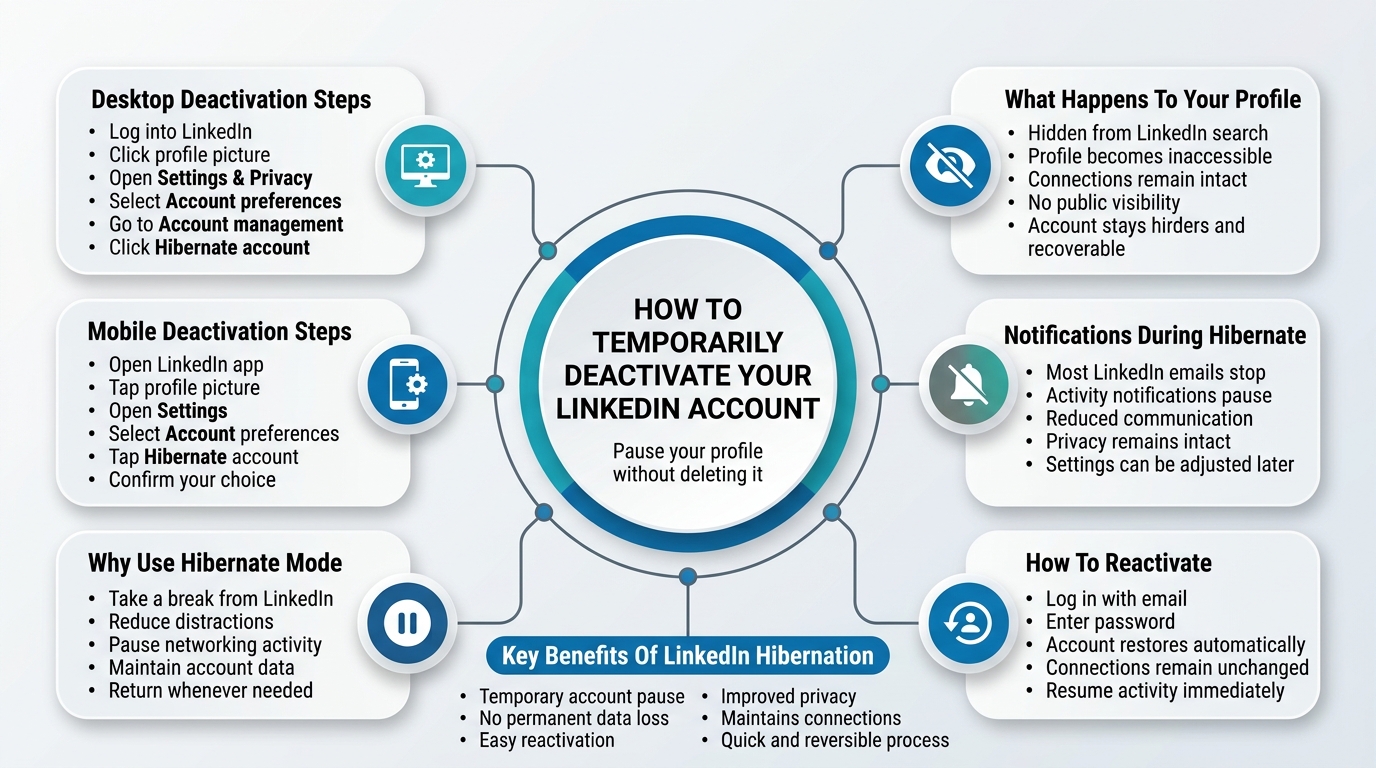
LinkedIn actually made deactivation reasonably easy compared to deletion. Here’s how to do it.
On Desktop (Browser)
- Log into your LinkedIn account.
- Click your profile picture in the top right corner.
- Select Settings & Privacy from the dropdown menu.
- On the left sidebar, click Account preferences.
- Scroll down to find the Account management section.
- Click Hibernate account.
- LinkedIn will ask you why you want to hibernate. Pick a reason from the list, or select “Other.”
- Click Hibernate account again to confirm.
Done. Your account is now hidden. You won’t appear in searches. Nobody can visit your profile. Your connections don’t get notified.
On Mobile (iOS or Android)
- Open the LinkedIn app and tap your profile picture in the top left.
- Tap the Settings gear icon.
- Tap Account preferences.
- Scroll to Account management and tap Hibernate account.
- Choose your reason and confirm.
What Happens After Deactivation
Your profile disappears from LinkedIn search within about 24 to 48 hours. Your connections can still see that you’re connected, but they can’t view your profile. If someone searches your name, you won’t show up.
You won’t receive any email notifications from LinkedIn while hibernated, unless you specifically go into notification settings and change that.
To reactivate, just log back in with your email and password. Everything restores immediately. No action required beyond logging in.
How to Permanently Delete LinkedIn Account (Complete Guide)
This is the one people get wrong most often. Not because it’s complicated, but because LinkedIn makes it just uncomfortable enough that a lot of people bail halfway through or end up in the wrong menu.
Here’s the clear path.
How to Permanently Delete LinkedIn Account on Desktop
- Log into LinkedIn on a browser (desktop version is easier for this).
- Click your profile picture or the Me icon at the top right.
- Select Settings & Privacy.
- In the left sidebar, go to Account preferences.
- Scroll all the way down to Account management.
- Click Close account.
- You’ll see a page asking why you want to close your account. This isn’t optional, you have to select a reason. Pick the one that’s closest to your situation.
- LinkedIn will show you what you’ll lose: your connections, messages, premium benefits if applicable, and profile data. Read it.
- Enter your account password to confirm.
- Click Close account.
How to Permanently Delete LinkedIn Account on Mobile
- Open LinkedIn and tap your profile photo.
- Tap the settings gear.
- Tap Account preferences.
- Scroll to Account management and tap Close account.
- Select your reason.
- Enter your password and confirm.
The 20-Day Grace Period
Here’s something important. After you click Close account, LinkedIn doesn’t delete your data immediately. You have a 20-day window to change your mind. If you log back in during those 20 days, your account gets reactivated automatically.
After the 20 days, deletion is processed. LinkedIn says it can take up to 30 days after the grace period for your data to be fully removed from their systems. Some data tied to legal or compliance requirements may be retained longer, but your public profile, connections, and posts will be gone.
So from the moment you hit delete to the moment your data is completely gone, you’re looking at roughly 30 to 50 days total in a typical case.
What Actually Gets Deleted When You Delete Your LinkedIn Account
People assume everything disappears immediately. It doesn’t work exactly like that.
Here’s what goes away after deletion:
Your profile. Name, photo, headline, work history, education, skills, all of it. Gone from public search and LinkedIn’s platform.
Your connections. Anyone connected to you loses the connection. They don’t get notified about why.
Your messages. Your sent and received messages disappear from your inbox. However, the people you messaged may still see those conversations in their own inboxes, depending on LinkedIn’s data practices. This is an important nuance.
Your posts and activity. All articles you wrote, posts you shared, comments you made get removed. If you had a post that was performing well or content you want to save, export it first (more on that below).
Recommendations written and received. Both the ones you gave to others and the ones others gave to you. The people you recommended will lose that recommendation from their profile.
LinkedIn Learning history. If you completed LinkedIn Learning courses, that history goes away. If you have certificates you need, download them before deleting.
Premium benefits. If you’re on a paid plan, your subscription ends. Make sure you cancel the paid plan first to avoid getting charged another month.
What Doesn’t Get Deleted Immediately
Your data in LinkedIn’s backend systems doesn’t vanish the second you click the button. LinkedIn retains certain data for legal compliance, security, and operational purposes. They’re legally obligated to be somewhat vague about exactly how long and what’s retained, but their privacy policy says this clearly: some data may persist after account closure.
If you want a record of your data before deleting, use LinkedIn’s data export feature. You can find it under Settings & Privacy > Data privacy > Get a copy of your data. Request a full archive, download it, and then proceed with deletion.
Before You Delete: Things to Do First
Seriously, do these before you hit the delete button.
Download Your Data
Go to Settings > Data privacy > Get a copy of your data. Select “Want something in particular?” and check all the boxes, or just request everything. LinkedIn will email you a download link within 24 hours. This archive includes your connections list, messages, profile data, and activity history.
That connections list is gold if you’ve been on LinkedIn for years. It has names, email addresses, and connection dates. Export it to a spreadsheet and you have a contact list you actually own, independent of LinkedIn.
Save Your Recommendations
If someone wrote you a strong recommendation, save it. Screenshot it, copy the text into a doc, whatever. Once you delete, it’s gone from the platform and they’d have to rewrite it from scratch if you ever wanted it again.
Notify Key Connections
If there are specific people who only have your LinkedIn to reach you, send them your email or phone before you go. A simple message like “Hey, closing my LinkedIn soon, here’s how to reach me” takes five minutes and saves a lot of reconnection headaches later.
Cancel Any Premium Subscriptions
This is easy to forget. If you’re on LinkedIn Premium, LinkedIn Sales Navigator, or Recruiter, cancel those subscriptions first. If you delete the account with an active paid subscription, you may not get a refund and LinkedIn’s support for billing issues post-deletion is, let’s say, not their strongest feature.
Go to Settings > Subscriptions > Manage Premium account, and cancel from there before closing the account.
Update Other Logins That Use LinkedIn
Some apps and websites let you sign in with LinkedIn. If you’ve done that anywhere, either set up a separate login method or stop using those services before deleting. You’ll lose access to any account that uses LinkedIn for authentication.
Problems People Run Into When Trying to Delete or Deactivate
Look, this process isn’t always smooth. Here are the real issues people hit.
“I Can’t Find the Close Account Option”
This happens when people are navigating the wrong version of the settings page. LinkedIn’s UI changes regularly, and sometimes the path is slightly different depending on whether you’re on mobile, desktop, or a premium account. The most reliable approach: go directly to linkedin.com/psettings/account-preferences on a desktop browser. If you’re on mobile and can’t find it, switch to a desktop browser.
“LinkedIn Is Asking Me to Cancel Premium First”
Yeah, this can happen. If you have an active premium subscription, LinkedIn sometimes blocks or complicates account closure until you cancel the subscription. Go cancel Premium first, then come back and close the account.
“I Deleted My Account But It’s Still Showing Up in Google”
This is a Google cache issue, not a LinkedIn issue. Google caches pages for weeks. After LinkedIn removes your profile, it can take anywhere from a few days to a few weeks for Google to recrawl and deindex the page. If it bothers you, you can request removal through Google’s Remove Outdated Content tool. Search for it in Google’s help pages.
“I Keep Getting Logged Back In and My Account Reactivated”
This happens when you have the LinkedIn app on your phone logged in. Opening the app or tapping a notification can automatically log you back in and reactivate your account during the grace period. Uninstall the app and delete any saved passwords for LinkedIn in your browser before closing the account.
What Happens to Your LinkedIn URL After Deletion
Your custom LinkedIn URL, something like linkedin.com/in/yourname, becomes available again after deletion. LinkedIn doesn’t permanently reserve it. Someone else can potentially claim that URL down the line.
If your LinkedIn URL was on your resume, business cards, or published anywhere online, update those. After deletion, anyone clicking that link will hit a page saying the profile doesn’t exist, which looks odd.
Does Deleting LinkedIn Account Delete Your Email From Their Database
Short answer: no, not completely.
LinkedIn stores data beyond just your profile. Your email address, engagement history, and behavioral data are tied to multiple systems. When you delete your account, the public-facing parts disappear. But LinkedIn retains certain data for compliance and fraud prevention purposes.
If you want to go further and request data deletion under privacy laws like GDPR (if you’re in the EU or UK) or CCPA (if you’re in California), you can submit a formal data erasure request. Go to LinkedIn’s Privacy & Data page before deleting, or email them after deletion to request full erasure under applicable law.
This won’t get you 100% data removal either. Some data LinkedIn is legally required to retain. But it’s the closest you can get.
LinkedIn Account Deletion vs Deactivation: Quick Comparison
Here’s the side-by-side so you don’t have to hunt for it.
| Feature | Deactivation (Hibernate) | Permanent Deletion |
|---|---|---|
| Reversible | Yes, log back in anytime | No, after 20-day grace period |
| Profile visible | Hidden | Removed |
| Connections retained | Yes | No |
| Messages retained | Yes | No |
| Data on LinkedIn servers | Yes | Partial, gradually removed |
| Time to take effect | 24-48 hours | 20-day grace + 30 days processing |
| Costs anything | No | No |
Should You Delete or Deactivate? Honest Take
Nope, there’s no universal right answer here.
If you’re burned out on LinkedIn or just need a break from the feed and the notifications, deactivate. Give yourself a few months. If you come back and feel better about it, great. If you never actually miss it, then delete properly.
If privacy is your concern, deleting is better than deactivating. A hibernated account still exists, still has your data, and is one login away from being fully active again. Deletion at least gets your public profile off the platform.
If you’re mid-career and still in a field where LinkedIn actually matters for networking and job opportunities, think before you permanently delete. A 500+ connection network with recommendations and endorsements takes years to build. You can always come back after a break, but rebuilding from zero is genuinely annoying.
If you’re changing careers entirely or moving into something where LinkedIn isn’t relevant to your industry, delete and don’t look back.
Conclusion
LinkedIn is a tool. That’s it. A tool that works really well for some people in some seasons of their career, and doesn’t work at all for others.
If it’s helping you, keep using it. If it’s not, you don’t owe it anything.
The process of leaving doesn’t have to be complicated once you know what you’re doing. Deactivate if you need a break and want the option to come back. Delete if you want a clean exit and you’re not looking back. Either way, export your data first, cancel any paid subscriptions, save the stuff that matters, and then make your move.
One thing worth saying plainly: a lot of people stay on platforms way longer than they should because leaving feels like a bigger deal than it actually is. Your professional reputation doesn’t live on LinkedIn. It lives in the work you do, the relationships you build, and how you show up for people. None of that disappears when you close an account.
So yeah, if you’ve been sitting on this decision for months, reading this was probably the last thing you needed before deciding. Do the export, cancel Premium if you have it, and follow the steps above.
Honestly, the hardest part is just starting. The rest takes about ten minutes.
Frequently Asked Questions
Can I recover my account after permanent deletion?
You have 20 days to change your mind. Log back in within that window and your account reactivates. After 20 days, deletion is processed and there’s no recovery option. LinkedIn’s support cannot restore a fully deleted account.
Will my connections know I deleted my account?
They won’t get a notification. But they’ll notice if they try to view your profile or send you a message. They’ll see a generic message saying the profile no longer exists or the connection has been removed, depending on how they access it.
What happens to LinkedIn messages I sent after I delete my account?
The messages disappear from your inbox. But the person you messaged may still be able to see them in their own inbox, showing the sender as a deleted account. LinkedIn’s data handling on this isn’t perfectly transparent, but generally the messages don’t vanish from the recipient’s end.
Can I delete LinkedIn without knowing my password?
Not directly through the standard process, which requires password confirmation. If you’ve forgotten your password, use the forgot password feature to reset it first, then proceed with deletion.
How long does it take for LinkedIn to fully delete my data?
The account closure starts the 20-day grace period. After that, LinkedIn processes the deletion which takes up to 30 days. Some backend data retained for legal compliance may persist longer, but your public profile and user-visible data should be gone within 50 days of initiating deletion.
Does deleting LinkedIn affect my Facebook or Google login?
Only if you used LinkedIn to sign in somewhere. If you used “Sign in with LinkedIn” for any third-party service, you’ll lose access to that service through LinkedIn. Sort out alternative login methods before deleting.
Can I delete my LinkedIn account from the mobile app?
Yes. The option is under Settings > Account preferences > Account management > Close account on both iOS and Android. The steps are the same as desktop, just smaller screen.
What happens to LinkedIn Learning certificates after deletion?
They’re tied to your account and will no longer be accessible through LinkedIn after deletion. Download any certificates you need before closing your account.
Is there a way to pause LinkedIn without deactivating it?
Not officially. Your options are hibernate (deactivation) or keeping the account active. You can turn off all email notifications and uninstall the app to reduce LinkedIn’s presence in your life without fully deactivating.
Can I delete just my data and keep the account?
Not a full wipe while keeping the account active. You can manually delete posts, remove your profile photo, clear out your work history, and opt out of data uses in privacy settings, but LinkedIn retains some data as long as the account exists. Full data removal requires account deletion.