


Your LinkedIn account stops working. You try to log in and get a wall of text about “unusual activity” or “your account has been restricted.” Or worse, you get in and see messages you never sent, connection requests you never made, or your email and phone number have been changed to something you don’t recognize. That’s not a glitch. That’s either LinkedIn flagging your account for policy reasons, or someone got in and started doing damage.
Both situations feel the same in the first 10 minutes: panic. But they’re actually pretty different problems with different fixes. A restricted account means LinkedIn itself put a hold on it, usually because something looked suspicious, spammy, or policy-violating, whether you did it or not. A hacked account means someone else got access and either locked you out or is quietly using it while you still think you’re in control.
Knowing how to recover a LinkedIn account the right way, whether it’s restricted or compromised, makes the difference between getting back in within 24 hours or spending two weeks sending support tickets into a void. This article covers both scenarios completely. You’ll get the exact steps, the order to do them, what LinkedIn actually looks at when reviewing your case, and the things that make people’s recovery attempts fail. No vague “contact support” advice. Just the actual process.
Why LinkedIn Restricts Accounts: What’s Actually Triggering It
Before you can fix a restricted account, you need to know why LinkedIn locked it in the first place. Because if you appeal without addressing the actual reason, they’ll just restrict it again.
The Three Most Common Restriction Triggers
Automation tools and scraping behavior. This is the biggest one. If you’ve used any third-party tool that automates LinkedIn activity, like Dux-Soup, PhantomBuster, Meet Alfred, Expandi, or similar software, LinkedIn’s bot detection almost certainly flagged your account. LinkedIn has gotten much sharper about detecting non-human interaction patterns since 2024. Too many profile views per hour, connection requests sent faster than humanly possible, or message templates sent at scale, all of these get picked up. Even some Chrome extensions that “enhance” LinkedIn functionality can trigger restrictions.
The frustrating part is that even tools marketed as “LinkedIn-safe” can cause restrictions. LinkedIn doesn’t officially approve any automation tool. If you get restricted and you’ve been using any automation software, that’s almost definitely why.
Sending too many connection requests that got ignored or reported. LinkedIn tracks your connection request acceptance rate. If you send 200 requests and 180 of them just sit there, or worse, people mark them as spam, your account gets flagged. There’s no official number LinkedIn publishes, but based on what’s widely reported by LinkedIn users and community threads, sending more than 100 requests per week with a low acceptance rate puts you at serious risk. Some accounts have been restricted at much lower volumes when the spam-report rate was high.
Profile flagged as fake or incomplete. LinkedIn restricts accounts they suspect aren’t real people. No profile photo, a brand-new account, no work history, and suddenly connecting with 300 people in a week looks like a bot. If your account is relatively new or sparse, any spike in activity will look suspicious.
When LinkedIn Restricts You by Mistake
Yeah, this happens. False positives are real. Someone at your company set up automation that LinkedIn detected and multiple accounts got flagged. You logged in from a new device or unusual location and triggered a security check that escalated to a restriction. Your account got reported by someone (possibly a competitor or someone you declined to connect with), and LinkedIn’s system acted on it before a human reviewed it.
If you genuinely haven’t done anything against LinkedIn’s User Agreement, the appeal process still works, but you need to be specific and clear about that. “I didn’t do anything wrong” with no supporting detail gets dismissed. More on how to write a good appeal coming up.
How to Recover a Restricted LinkedIn Account (Step-by-Step)
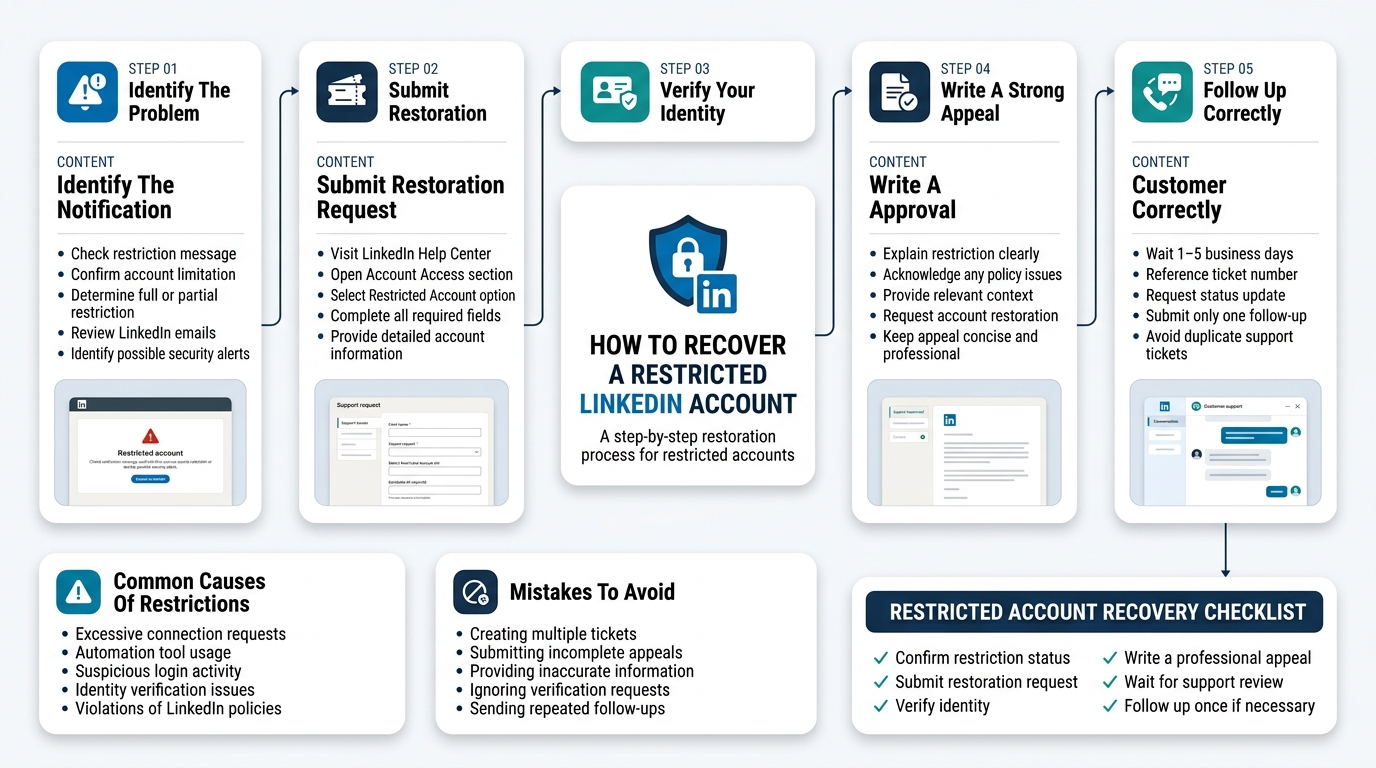
This is the practical section. Follow the steps in this order. Don’t skip ahead to submitting a ticket if you haven’t done the earlier steps first.
Step 1: Confirm It’s Actually a Restriction (Not a Hack)
When you try to log in to a restricted account, LinkedIn shows you a message that says something like “Your account has been restricted” or “We’ve limited your access” with an option to appeal. If you can still log in but some features are blocked, like you can’t send messages or your profile isn’t visible, that’s a partial restriction, also called a soft restriction.
If you can’t log in at all and didn’t get a restriction notice, check your email for a message from LinkedIn about a security concern or account suspension. If you got nothing and your password just isn’t working, skip to the hacked account section because there’s a good chance someone changed your credentials.
Step 2: Submit the Account Restoration Request
Go to linkedin.com/help and search for “restricted account.” LinkedIn has a specific form for account restorations. The direct path as of 2026 is: Help Center, then “Account Access,” then “Restricted or Suspended Account.”
Fill out the form completely. Don’t leave anything blank. The form asks for your name, email, and a description of the issue. In the description, be specific: when the restriction happened (date and time if you know it), what you were doing on LinkedIn before it happened, and whether you used any third-party tools. If you used automation tools, be honest about it, but explain you’ve stopped using them. Trying to hide this backfires because LinkedIn already knows.
Step 3: Verify Your Identity
LinkedIn almost always asks for identity verification during the appeal process for restricted accounts. This means uploading a government-issued ID, like a passport or driver’s license. The name on the ID needs to match your LinkedIn profile name exactly. If there’s a mismatch, that creates a delay.
LinkedIn states they delete uploaded IDs after verification. But if you’re uncomfortable with this step, there’s no workaround. It’s required for most account restorations involving a full restriction.
Step 4: Write an Appeal That Actually Works
This is where most people mess up. They send a one-line message saying “please restore my account” and then wonder why it takes forever. LinkedIn’s support team handles a massive volume of requests. Your appeal needs to give them a clear reason to act quickly.
A good appeal structure looks like this:
- State your name and the email on the account in the first sentence.
- Confirm you’ve received the restriction notice and the date it happened.
- If you violated a policy (even unintentionally), acknowledge it specifically. “I was using a browser extension called X that automated connection requests. I have removed it and will not use automation tools again.”
- If you believe it’s a false positive, explain why clearly. “I logged in from a new device while traveling, which may have triggered a security flag. I have not used any automation tools and have not violated LinkedIn’s User Agreement.”
- Ask specifically for account restoration, not just “help.”
Keep it under 200 words. Long appeals don’t get better outcomes. Clear ones do.
Step 5: Follow Up (The Right Way)
LinkedIn’s support response time for account restrictions averages 1 to 5 business days. If you haven’t heard back in 5 business days, follow up once. Don’t send the same message again. Reference your original ticket number, confirm your account details, and ask for a status update.
Sending multiple tickets for the same issue actually slows things down because it creates duplicate cases that support staff have to sort through. One follow-up after 5 days is reasonable. Sending 10 tickets in 3 days is not.
How to Recover a Hacked LinkedIn Account When You’re Locked Out
A hacked LinkedIn account is a different situation. Someone else has your password, and if they’re smart about it, they’ve already changed the email address on the account so you can’t use normal password recovery. Here’s how to handle it.
Step 1: Try Password Reset Immediately
Go to linkedin.com and click “Forgot password?” Enter the email address associated with your account. If that email still receives LinkedIn’s reset email, use it now. Change your password immediately. Then check your account settings to see if anything was changed: email address, phone number, connected apps, active sessions.
If the reset email goes to an old email you can no longer access, or if the hacker changed the email address, the standard reset won’t work. You need the next step.
Step 2: Use “I No Longer Have Access to This Email”
On LinkedIn’s sign-in page, click “Forgot password?” then enter your old email. On the next screen, there should be a link that says “I no longer have access to this email address.” Click that. LinkedIn will ask for alternative verification, usually a phone number linked to the account or an identity verification process.
If the phone number was also changed, you’ll need to go to LinkedIn’s Help Center and submit a compromised account report. Look for “I think my account was hacked” in the Help Center. LinkedIn has a dedicated path for compromised accounts that’s separate from the restriction appeal process.
Step 3: Report the Account as Compromised
At linkedin.com/help, there’s a form specifically for compromised accounts. You’ll need to provide your name, the email address you used when you created the account, and any details you have about when the hack happened. LinkedIn uses this information to verify account ownership and initiate a forced password reset that bypasses the current compromised email.
This process takes longer than a standard password reset, typically 2 to 7 business days, because LinkedIn needs to manually verify your ownership before handing back access. The more identifying information you can provide (your original sign-up email, approximate account creation date, previous phone numbers), the faster this goes.
Step 4: Check Where the Breach Came From
Once you’re back in your account, don’t just change your password and move on. Figure out where the breach happened. Go to Settings and Privacy, then Sign In and Security, then “Where you’re signed in.” You’ll see a list of devices and locations. Terminate all sessions except the one you’re currently using.
Then check if your email address and password combination is in any known data breach. Sites like haveibeenpwned.com let you check your email against public breach databases. If LinkedIn credentials showed up in a previous data breach and you were using the same password elsewhere, that’s how the attacker got in. Change every account that uses the same password.
Step 5: Lock Down Your Account Before the Hacker Acts Further
If you’re back in your account but the hacker is still active (you can see active sessions you don’t recognize), move fast:
First, change your password to something completely new, at least 16 characters, generated by a password manager like 1Password or Bitwarden.
Second, change the email address on the account to one the attacker doesn’t have access to.
Third, turn on two-factor authentication immediately. Go to Settings and Privacy, then Sign In and Security, then “Two-step verification.” Use an authenticator app like Google Authenticator or Authy instead of SMS. SIM-swapping attacks can intercept SMS codes. An authenticator app generates codes locally on your device and is much harder to compromise.
Fourth, check your messages and connection requests for anything the hacker sent or accepted. If they sent spam or scam messages to your connections, reach out to those connections directly and let them know. This protects your relationships and your professional reputation.
What LinkedIn Support Actually Looks At When Reviewing Your Case
A lot of recovery attempts fail not because LinkedIn won’t help, but because the person submitting the request gives LinkedIn too little information to act on. Here’s what actually matters on their end.
Account Ownership Signals
LinkedIn verifies that you’re the real owner of the account before restoring access or making any changes. The signals they look at include: how long the account has been active, whether the name matches a government ID, the email address history on the account, and previous successful logins from your devices.
If your account is years old with a clear activity history and you submit an appeal with a matching government ID, your case is pretty straightforward. If your account is 3 months old, has minimal activity, and was suddenly very active right before the restriction, LinkedIn’s team is going to be more cautious and the review takes longer.
Policy Violation History
If your account has been restricted or warned before, that history exists. LinkedIn support can see prior violations. A second restriction for automation after a first warning almost never gets reversed quickly. The appeal needs to show not just “I want my account back” but “I understand what happened and here’s what I’ve changed.”
The Language and Specificity of Your Appeal
This one matters more than people realize. Appeals that clearly show the person understands why the restriction happened, or clearly and credibly explains why they believe it was a mistake, get processed faster. Vague appeals get deprioritized. Support staff are triaging a lot of tickets. Clear, specific, well-organized appeals stand out.
Don’t write like you’re angry. Don’t threaten to cancel your premium subscription. Don’t claim you’re a huge LinkedIn influencer and demand priority treatment. None of that helps. Write like a professional who had something go wrong and wants to resolve it properly.
How to Prevent Your LinkedIn Account From Being Restricted or Hacked Again
Getting back into your account is one thing. Keeping it safe after that is another.
Stop Using Automation Tools Entirely (Or Use Them Very Carefully)
LinkedIn’s Terms of Service are clear: you’re not allowed to use automated tools to perform actions on LinkedIn. The phrase they use is “scraping, crawling, or any form of automated data collection or interaction.” If you’ve been using any tool that automates connection requests, messages, profile visits, or endorsements, you’re violating these terms.
If your business depends on LinkedIn outreach, the safer approach in 2026 is to use LinkedIn Sales Navigator’s built-in tools, which are LinkedIn’s own approved system for outreach at scale. It’s not cheap, it starts at around $99 per month, but it works within LinkedIn’s rules.
If you’re using a tool that claims to be “LinkedIn-safe,” check when that claim was last updated. LinkedIn updates its bot detection regularly. A tool that was safe in 2022 may not be in 2026.
Use an Authenticator App, Not SMS, for Two-Factor Authentication
SMS-based 2FA has a known weakness called SIM swapping, where an attacker convinces your phone carrier to transfer your number to their SIM card. Once they have your number, they can receive your 2FA codes. This sounds complicated but it happens, and LinkedIn accounts with valuable professional networks are targets.
Google Authenticator, Authy, and Microsoft Authenticator all generate time-based codes locally on your device. Even if someone has your password, they can’t get in without the physical device running the authenticator. Enable this at Settings and Privacy, then Sign In and Security, then “Two-step verification.”
Use a Unique Password for LinkedIn
If your LinkedIn password is also used on other sites, any breach of those sites exposes your LinkedIn account too. This is called credential stuffing, and it’s one of the most common ways professional accounts get compromised. A password manager makes unique passwords for every site effortless. You only need to remember one master password. 1Password, Bitwarden (which is free), and Dashlane all work well.
Check Your Connected Apps
Go to Settings and Privacy, then Data Privacy, then “Other applications.” This shows every third-party app that has access to your LinkedIn account. Revoke access for anything you don’t actively use. Old integrations from apps you haven’t opened in years are unnecessary attack surfaces.
Watch Your Activity Volume
Even without automation tools, human behavior on LinkedIn can look suspicious if it spikes suddenly. If you suddenly send 150 connection requests in one day after months of low activity, LinkedIn may flag it. Keep your activity consistent. If you want to scale up outreach, do it gradually over days, not all at once.
Conclusion
Getting back a restricted or hacked LinkedIn account is genuinely fixable in most cases. The key is knowing which type of problem you’re dealing with, following the right path for that problem, and giving LinkedIn’s support team what they actually need to act on your case. Most people who stay locked out are either appealing through the wrong process or submitting appeals that are too vague to act on.
Once you’re back in, the setup work takes maybe 15 minutes: new unique password, authenticator app for two-factor authentication, revoke old connected apps, and check for any lingering sessions you don’t recognize. Do that now and the odds of needing to figure out how to recover your LinkedIn account a second time drop significantly.
Frequently Asked Questions
How long does it take to recover a restricted LinkedIn account?
Most restricted account appeals are reviewed within 1 to 5 business days. Cases involving identity verification can take up to 7 business days. If you haven’t received a response after 5 business days, follow up once with your original ticket number. Accounts with prior violations or more complex cases may take longer.
How do I know if my LinkedIn account was hacked or just restricted?
A restricted account usually lets you log in but blocks certain features, or shows a restriction notice with an appeal option. A hacked account typically results in a failed login, a changed email address, or unusual activity you didn’t perform, like messages sent to your connections or new connection requests you didn’t make. If you can’t log in and didn’t receive a restriction notice from LinkedIn, check for a password-change email you didn’t initiate.
Can LinkedIn permanently delete my account for repeated violations?
Yes. LinkedIn can and does permanently close accounts that repeatedly violate their User Agreement. This is most common with accounts that repeatedly use automation tools after being warned. A permanent closure is different from a restriction. There is no appeal path for a permanently closed account, though you can create a new one as long as you comply with LinkedIn’s terms.
What if I can’t verify my identity because my name doesn’t match my ID?
LinkedIn requires the name on your government ID to match your profile name. If you use a professional name, nickname, or maiden name on LinkedIn that differs from your legal name, this creates a problem. Contact LinkedIn support and explain the discrepancy before uploading ID. In some cases they’ll accept supporting documentation like a social security card or professional license that bridges the name difference.
Does LinkedIn notify my connections when my account is hacked?
LinkedIn doesn’t automatically notify your connections if your account was compromised. You should reach out to connections yourself if the hacker sent messages from your account. This protects them from any scams the hacker may have run and protects your professional reputation.
How to recover a restricted LinkedIn account if the appeal is denied?
If your appeal is denied, you’ll receive a message explaining why. Read it carefully. Most denials come with a reason, like a specific policy violation or inability to verify identity. You can resubmit an appeal with the specific issue addressed. If identity was the problem, resubmit with clearer documentation. If the denial is about a policy violation, acknowledge it directly and explain what’s changed.
Is it possible to recover a LinkedIn account without access to the original email?
Yes, but it takes more steps. On the password reset page, use “I no longer have access to this email address.” LinkedIn will try to verify your identity through an alternate method, like a phone number on the account. If that’s also inaccessible, you’ll need to submit a compromised account report through the Help Center with as much identifying information as possible.
Why does LinkedIn keep restricting my account even after I appeal?
Repeated restrictions almost always mean the underlying behavior that triggered the first restriction is still happening. Check for browser extensions that interact with LinkedIn, any automation software running in the background, and your connection request volume. If you’re using LinkedIn Sales Navigator for outreach, verify your activity falls within their usage policies too.
Can someone hack a LinkedIn account just from my email address?
Not directly, no. Your email address alone isn’t enough to take over a LinkedIn account because they’d also need either your password or access to your email inbox to complete a password reset. The risk comes from password reuse: if your email-password combo was exposed in a data breach elsewhere, that same combination may work on LinkedIn. Check haveibeenpwned.com to see if your email has appeared in known breaches.
What happens to my LinkedIn Premium subscription if my account gets restricted?
Your Premium subscription stays active during a restriction. If the account is restored, you retain access to all your Premium features. LinkedIn doesn’t refund subscription fees during the restriction period, though some users have reported getting a credit by contacting LinkedIn billing support after restoration. If your account is permanently closed, the subscription ends.
How do I report someone who hacked my LinkedIn account for illegal activity?
If the hacker used your account to commit fraud, scam your connections, or engage in other illegal activity, document everything. Take screenshots of messages sent from your account that you didn’t write, connection requests made without your knowledge, and any responses from your connections who were targeted. After recovering your account, you can submit a detailed report to LinkedIn and, if financial fraud was involved, to your local cybercrime unit or the FBI’s Internet Crime Complaint Center (IC3) in the US.