


Passwords are the kind of thing you don’t think about until something goes wrong. And something always goes wrong eventually.
Maybe you typed your LinkedIn password so many times over the years that it’s just muscle memory at this point, and now you’re trying to log in on a new laptop and your fingers don’t know what to do without the keyboard they’re used to. Maybe you got an email from LinkedIn saying there was suspicious activity on your account and you need to update your credentials immediately. Maybe you’ve been using the same password since 2014 and it’s the same one you use for five other accounts and you just read about a data breach and suddenly feel a low-grade panic you can’t shake. Or maybe you just forgot it completely, you’re locked out, and the clock is ticking because you need to message someone on LinkedIn before an opportunity closes.
All of these are real situations that happen to real people constantly. LinkedIn has over a billion registered users. A significant chunk of them are locked out of their accounts or operating on weak, old passwords right now and don’t realize how easy the fix is.
Here’s what makes LinkedIn password issues a bit more complicated than some other platforms. LinkedIn had a major security breach in 2012 where 6.5 million passwords were leaked. Then in 2016, it came out the breach was actually way bigger: 117 million email and password combinations were circulating on the dark web. Then in 2021, data from around 700 million LinkedIn profiles was scraped and sold online. That’s not three reasons to panic. It’s three reasons to treat your LinkedIn account security seriously and understand exactly how to manage your password when the time comes.
There are three distinct situations this post covers. First: you’re already logged in and want to change your password proactively because it’s old, weak, or you’re just doing a security cleanup. Second: you’ve forgotten your password and need to reset it through your registered email. Third: you’re locked out and don’t have easy access to the email on file either, which is where things get trickier but still very fixable.
Each situation has a different process. Each one is covered here with actual step-by-step instructions, not vague summaries. There are also sections on what makes a strong LinkedIn password, how to use two-factor authentication to make this the last time you’re stressed about account security, and the common things that go wrong during the reset process so you know how to handle them when they come up.
By the end of this, you’ll have full access to your account and a setup that’s significantly more secure than whatever you had before. Let’s get into it.
Why LinkedIn Password Issues Are More Common Than People Think
Before getting into the methods, it’s worth understanding why this happens so often. Because it’s not just forgetfulness. There are structural reasons why LinkedIn accounts end up with password problems more than other platforms.
LinkedIn is a platform a lot of people don’t log into every day. Unlike email or social media apps that pull you back constantly, LinkedIn is the kind of place people visit when they’re job hunting, when someone sends them a message, or when they want to post something. Weeks or months can go by without a login. When you finally do try to get in, the password is gone from memory.
Then there’s the old work email problem. A lot of people registered their LinkedIn with a work email from a previous job. That job ended, the email got deactivated, and now password resets are going to an inbox that doesn’t exist anymore. So it’s not just a forgotten password, it’s a forgotten password plus an inaccessible recovery email. That combination is where people really get stuck.
And then there’s the security angle. LinkedIn specifically recommends changing your password if you haven’t done so since 2016, because of the data breach mentioned above. A lot of accounts are still running on credentials that were compromised years ago. If your LinkedIn password is the same as something else in your online life, that’s a risk worth fixing today, not later.
So yeah, password issues on LinkedIn happen for a lot of reasons. Here’s how to solve each one.
Method 1: How to Change Password of LinkedIn When You’re Already Logged In
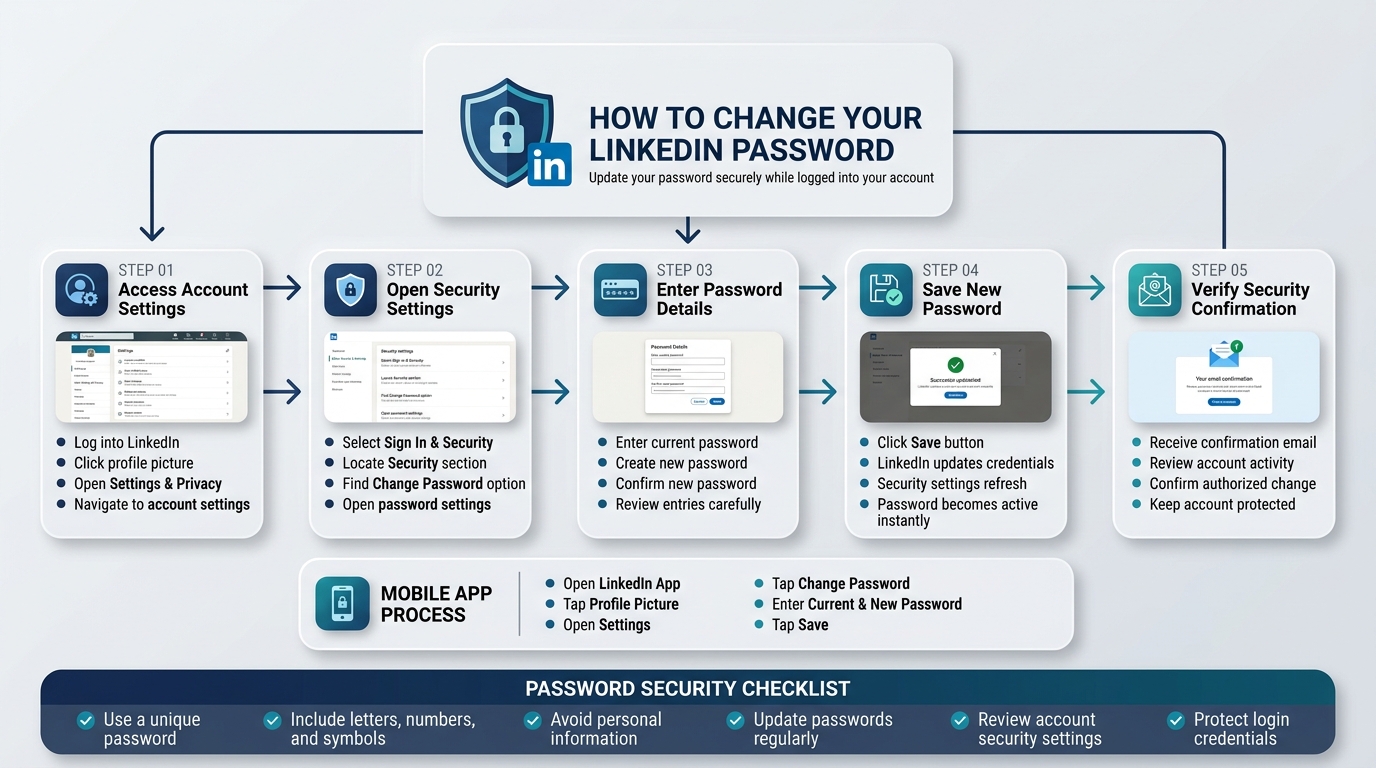
This is the simplest version. You’re in, everything’s working, and you want to update your password for security reasons or just because it’s been a while.
On Desktop (Browser)
- Log into LinkedIn on a browser. Desktop is easier for settings navigation.
- Click your profile picture in the top right corner.
- Select Settings & Privacy from the dropdown.
- In the left sidebar, click Sign in & security.
- Under the Security section, click Change password.
- You’ll see three fields: your current password, your new password, and a confirmation field for the new password.
- Fill in all three fields.
- Click Save.
Done. Your password is updated immediately. LinkedIn will send a confirmation email to your registered address letting you know the change was made.
On Mobile (iOS and Android)
- Open the LinkedIn app and tap your profile picture in the top left.
- Tap the Settings gear icon.
- Tap Sign in & security.
- Tap Change password.
- Enter your current password, then your new password twice.
- Tap Save.
That’s the whole thing. Two minutes, start to finish.
What to Do If You Don’t Know Your Current Password (But You’re Still Logged In)
This happens more than you’d think. Someone is logged into LinkedIn on their phone, the app kept them signed in automatically, but they genuinely don’t know what password was set. When LinkedIn asks for the current password in the change password flow, they’re stuck.
The fix here is to use the forgot password flow, which we’ll cover in Method 2, even if you’re currently logged in. You can initiate a password reset from your registered email without logging out, and then come back in with the new password. More on that below.
Method 2: How to Reset LinkedIn Password When You’ve Forgotten It
You’re on the login page, LinkedIn is asking for your password, and you don’t have it. This is the most common scenario. Here’s the full process.
Step-by-Step: LinkedIn Password Reset via Email
- Go to linkedin.com or open the LinkedIn app.
- On the login page, click or tap Forgot password? (it’s below the Sign in button).
- LinkedIn will ask for your email address or phone number. Enter whichever you have access to.
- Click Find account.
- LinkedIn will find your account and ask how you want to reset: via email or via phone (SMS). Choose whichever is accessible right now.
- Check your inbox (or SMS) for the reset message from LinkedIn. It usually arrives within 2 to 3 minutes.
- Click the reset link in the email (or enter the code from the SMS).
- You’ll land on a page where you create a new password.
- Enter your new password, confirm it, and save.
- Log in with your new password.
The reset link in the email expires after a certain period, usually around 15 to 30 minutes. If you don’t use it in time, just go back to the Forgot password page and request a new one.
If the Reset Email Doesn’t Arrive
Check spam first. LinkedIn’s password reset emails occasionally get flagged. If it’s not there after 5 minutes, check spam.
If it’s not in spam either, it’s worth trying these things in order:
Make sure you entered the right email address on the reset page. It’s easy to type a version of your email that has a typo, especially on mobile.
Try requesting the reset again. Sometimes there’s a slight delay or the first request didn’t go through properly.
If you have multiple email addresses on your LinkedIn account, try entering a different one. LinkedIn will find your account with any confirmed email address.
If none of those work, try the phone number option instead of email, assuming you added a phone number to your account at some point.
Resetting LinkedIn Password on Mobile App
The process on mobile is the same flow but through the app:
- Open LinkedIn and tap Sign in.
- Tap Forgot password?
- Enter your email or phone number.
- Choose your reset method.
- Follow the link or enter the code.
- Set a new password and log in.
One thing to watch on mobile: when you tap the reset link in an email, it might open in a browser rather than directly in the LinkedIn app. That’s fine. Just make sure you complete the password reset in that browser session and then open LinkedIn fresh.
Method 3: How to Reset LinkedIn Password Without Access to Registered Email
This is the hard version. The registered email is gone, the phone number isn’t set up or isn’t accessible, and you’re locked out. This happens most often when someone’s old work email or school email was deactivated and it was the only recovery option on the account.
It’s solvable. Just takes a bit more effort.
Step 1: Try Every Email You Might Have Used
On the LinkedIn forgot password page, try every email address you might have registered with. Old work emails, school emails, any personal addresses you had years ago. LinkedIn will tell you if it finds an account for each one. Sometimes people have the right email but forget which address they used to sign up.
Step 2: Try Phone Number Login
Go to the login page and look for the option to sign in with your phone number instead of email. If you ever added a mobile number to your LinkedIn account, even years ago, this works. LinkedIn sends an SMS verification code and you’re in.
Step 3: Use Google or Apple Sign-In
If you signed up for LinkedIn through a Google or Apple account, or ever connected one, you can log in through that method even without your email and password. On the login page, look for “Sign in with Google” or “Sign in with Apple” and try whichever is relevant.
Step 4: LinkedIn’s Identity Verification Path
If none of the above work, LinkedIn has an account recovery process for situations where you can’t access your registered contact information. Here’s how to get to it:
- Go to the Forgot password page and enter your registered email.
- On the next screen, look for a link that says something like “I don’t have access to this email” or “Try another way” or “Get more help.”
- This takes you into LinkedIn’s identity verification flow.
LinkedIn’s identity verification can include uploading a government-issued ID to prove you’re the account owner. This is the path for people who are completely locked out with no other recovery options.
Be prepared for this to take time. LinkedIn’s support team handles a lot of these requests. Response times are typically 3 to 10 business days. Submit the request with as much detail as possible: your full name as it appears on the profile, the email address you registered with (even if it’s inaccessible now), your approximate location, details about your profile like job history and connections, and the government ID they request.
Step 5: Contact LinkedIn Support Directly
If the identity verification flow doesn’t seem to be moving forward, you can also submit a direct support request through LinkedIn’s Help Center. Go to the Help Center, look for “Sign in and account access,” and select the option about not being able to access your account. Describe the situation clearly and include as many identifying details about your account as you can.
LinkedIn support isn’t the fastest. But they do resolve these cases. The key is providing enough verification details that they can confirm you’re the legitimate account owner.
What Makes a Strong LinkedIn Password
Since you’re setting or changing a password right now, it’s worth getting it right. A lot of people create a “new” password that’s just a minor variation of an old one, like adding a “1” at the end or capitalizing the first letter. That’s not actually better security.
A strong password for LinkedIn in 2026 should be:
At least 12 characters long. LinkedIn’s minimum requirement is lower, but 12+ is where passwords start being genuinely hard to crack with common tools.
A mix of uppercase and lowercase letters, numbers, and symbols. The more variety, the harder to brute-force.
Not a word that exists in any dictionary. Dictionary attacks are a real thing. “Sunshine2024!” is weaker than it looks.
Not used anywhere else. This is the one most people skip. If your LinkedIn password is the same as your email password, your banking password, or any other important account, a breach on any of those platforms exposes all of them. LinkedIn’s 2016 breach is a perfect example: the credentials from that breach were used to try to log into other services automatically because so many people reuse passwords.
Not personally identifiable. No birthdays, pet names, spouse’s name, or anything that someone who knows you could guess.
The practical way to handle this: use a password manager. Tools like 1Password, Bitwarden (free), Dashlane, or the built-in password manager in Chrome or Safari will generate a random, strong password and remember it for you. You never have to type it or remember it. The password can be something like “K9#mVpL2xW!nQ7” and it doesn’t matter because the manager fills it in automatically.
If you’re not using a password manager, now is genuinely the time to start. It solves the password problem permanently instead of just for today.
How to Set Up Two-Factor Authentication After Changing Your Password
Changing your password is good. Adding two-factor authentication (2FA) is better. Together they make your account significantly harder to break into, even if someone somehow gets hold of your password.
With 2FA enabled, logging into LinkedIn requires both your password and a code sent to your phone or generated by an authenticator app. No code, no access. Even with the correct password.
Setting Up 2FA on LinkedIn
- Go to Settings & Privacy.
- Click Sign in & security in the left sidebar.
- Find Two-step verification and click Set up.
- LinkedIn will ask how you want to receive verification codes. Options typically include SMS (text message to your phone), an authenticator app (like Google Authenticator, Microsoft Authenticator, or Authy), or a backup code.
- Choose your preferred method. Authenticator apps are more secure than SMS because they don’t rely on your phone carrier’s network.
- Follow the setup steps for your chosen method.
- LinkedIn will ask you to verify with a code to confirm everything is working.
- Save your backup codes somewhere safe in case you lose access to your phone.
After this is set up, every time you log in from a new device or after a session expiry, LinkedIn will ask for a code in addition to your password. It adds about 10 seconds to the login process. Worth it.
Problems During LinkedIn Password Reset (And How to Fix Them)
Look, the process is usually smooth. But here are the things that trip people up.
The Reset Link Expired
Reset links have a limited validity window. If you clicked it too late, the link is dead. Just go back to the Forgot password page and request a new one. Don’t reuse the old link.
LinkedIn Says My Email Isn’t Recognized
A few possibilities. You entered a typo in the email address. You used a different email to sign up than you think you did. Or your account was deactivated or deleted at some point.
Try different email addresses you might have used. If you genuinely have no idea which email is registered, and you know your account exists because you can see your public LinkedIn profile, there’s a field on the forgot password page where you can enter your name or username. Try that.
I Got the Reset Email But the Link Doesn’t Work
Try copying the link from the email and pasting it directly into a browser instead of clicking it. Sometimes email clients mangle links. If the link is broken or expired, request a new reset email.
My New Password Is Being Rejected
LinkedIn has minimum requirements for passwords. It needs to be at least 6 characters (though you should aim for much longer). It can’t be the same as your current password. It can’t be a previously used password in some cases. If it’s being rejected, try a longer, more complex password.
LinkedIn Is Asking for Verification Every Time I Log In
This usually means LinkedIn flagged something unusual about your login activity, or 2FA is enabled. If 2FA is on, that’s expected. If it’s not, LinkedIn may be treating your device as unrecognized. Make sure you’re checking the box that says “Remember this device” if you’re on a personal device you use regularly.
The Password Reset SMS Never Arrived
Check that your phone number is correct in your account settings. Make sure your phone has signal. Carrier delays can happen occasionally. Wait a few minutes and request the code again. If it consistently doesn’t arrive, switch to the email reset option.
How to Change LinkedIn Password if You Signed Up Through Google or Apple
Some LinkedIn accounts don’t have a traditional email/password login because they were created using “Continue with Google” or “Continue with Apple.” In that case, there’s no LinkedIn-specific password to change or reset.
Logging in happens through Google or Apple’s authentication. If you want to log in with a separate LinkedIn password instead, here’s how to set one up:
- While logged in through Google or Apple, go to Settings & Privacy.
- Click Sign in & security.
- Look for Password and click Set password (it shows “Set” instead of “Change” because you don’t have one yet).
- LinkedIn will send a reset link to your registered email.
- Follow that link to create a new password.
- Now you can log in either with your Google/Apple account or with your email and LinkedIn password.
If you want to change or reset your Google or Apple account password, that happens outside of LinkedIn entirely, through Google’s or Apple’s respective account settings.
LinkedIn Password Security: What You Should Do Right Now
Since you’re already thinking about passwords, here’s a quick checklist of things worth doing today, not just when a problem comes up.
Change your password if it’s from before 2016. The breach data from LinkedIn’s 2016 incident is still circulating. If your password predates that, it might be out there.
Add a backup phone number to your LinkedIn account. Go to Settings > Sign in & security > Phone numbers. A phone number means you have an extra recovery option if you ever lose email access.
Add a second email address. Settings > Account preferences > Email addresses. A backup email means you’re not locked out if your primary email becomes inaccessible.
Turn on two-factor authentication. Steps are above. Do it now while you’re in the settings.
Check active sessions. Settings > Sign in & security > Where you’re signed in. Look for any devices or locations you don’t recognize. If you see something unfamiliar, click “End session” for it.
Start using a password manager. Pick one, import your LinkedIn credentials, and let it generate a new strong password for you. Bitwarden is free. 1Password is $3/month. Both are excellent.
How Long Does a LinkedIn Password Reset Take
The actual process: less than 5 minutes if everything goes smoothly. Click forgot password, get the email, click the link, set a new password, done.
The waiting time: the reset email from LinkedIn usually arrives within 1 to 3 minutes. Occasionally up to 10 minutes if their email system is slow. If it’s been 15 minutes and nothing has arrived, check spam and then request a new one.
For the identity verification path (when email access is lost): the initial request takes a few minutes to submit. LinkedIn’s response typically takes 3 to 10 business days. This is the slow part, but it’s outside your control once the request is submitted.
Conclusion
Password problems feel urgent when they happen. Locked out of your account, staring at a login screen, trying to remember if it was “LinkedIn2019” or something slightly different. It’s annoying. But it’s fixable, usually in under five minutes.
The three methods in this post cover every version of the problem. Already logged in and want to update it, go through settings. Forgot it completely, the forgot password flow handles it fast. Lost access to the registered email too, LinkedIn’s recovery path takes longer but gets you there.
What’s worth saying plainly: most LinkedIn password headaches are preventable. Not with complicated security setups or technical knowledge. Just three simple things. A backup email address on the account, a phone number in the settings, and two-factor authentication turned on. That’s it. Those three things together mean you can recover access under basically any circumstance without a stressful support ticket.
The people who end up locked out for days are almost always the ones who had a single recovery option, usually an old work email, and lost access to it without a backup in place.
So yeah, fix the immediate problem with the steps above. Then spend 10 minutes on the security checklist. Add the backup email, add the phone number, turn on 2FA, and consider a password manager if you’re still keeping passwords in your head or in a notes app somewhere.
Frequently Asked Questions
How do I reset my LinkedIn password if I forgot it?
Go to the LinkedIn login page, click “Forgot password,” enter your registered email or phone number, and follow the reset link or SMS code that LinkedIn sends you. The whole process takes under 5 minutes if you have access to your registered email or phone.
How to change password of LinkedIn when already logged in?
Go to Settings & Privacy > Sign in & security > Change password. Enter your current password, then your new password twice, and save. If you don’t know your current password but you’re still logged in, use the forgot password flow to reset it instead.
How long does the LinkedIn password reset link stay valid?
LinkedIn’s reset links expire after a short window, typically 15 to 30 minutes. If you didn’t use it in time, go back to the forgot password page and request a fresh link.
What if the LinkedIn password reset email never arrives?
Check your spam folder first. Then try requesting a new reset email. Make sure you entered the correct email address. Try an SMS reset instead if you have a phone number on file. If nothing works, contact LinkedIn support.
Can I reset my LinkedIn password without access to my email?
Yes, if you have a phone number on file you can reset via SMS. If you used Google or Apple to sign in, use that. If none of these are available, LinkedIn has an identity verification process where you can submit a government ID to recover access.
How often should I change my LinkedIn password?
There’s no magic number. A more practical approach is: change it if you think it’s been compromised, if you’re reusing it across other accounts, or if you haven’t changed it since before 2016. Using a strong unique password and enabling 2FA is more important than changing it on a schedule.
Will LinkedIn notify me if someone else changes my password?
Yes. LinkedIn sends an email confirmation to your registered address any time a password change happens. If you receive one of these emails and you didn’t initiate it, change your password immediately and review your account for unauthorized activity.
What if I’m locked out and LinkedIn support isn’t responding?
Keep the support ticket open and wait. LinkedIn’s support response times for account recovery cases can be several business days. Make sure your initial request included your full name, registered email, profile details, and any identification LinkedIn asked for. Adding more detail to a support ticket can speed things up.
Does changing my LinkedIn password log me out of other devices?
Yes. LinkedIn logs out all active sessions on other devices when you change your password. You’ll need to log back in on each device with the new password. This is actually a useful security feature if you’re changing your password because you suspect unauthorized access.
Can I use the same password I used before on LinkedIn?
LinkedIn generally prevents you from immediately reusing your most recent password. For security reasons, you should avoid reusing old passwords anyway. Use a password manager to generate a genuinely new, random password.