


LinkedIn automation is one of those things people either swear by or get burned by. There’s no middle ground. You either figured out the right tool, the right settings, the right volume, and you’re booking 20 to 30 qualified calls a month on autopilot. Or you set something up without reading the fine print, ran it too hot, and woke up one morning to a LinkedIn restriction notice sitting in your inbox.
LinkedHelper has been in this space since 2017. That’s longer than most LinkedIn automation tools have managed to survive without either shutting down or getting mass-banned. People keep using it. People keep recommending it. But the reviews online are all over the place, ranging from “this tool changed my outreach game” to “my account got flagged after two weeks.” So which is it? The answer, honestly, is both, and it depends entirely on how you use it.
This LinkedHelper review covers everything you actually need to know before spending money on it: what the tool does, what works, what doesn’t, how the pricing breaks down, how safe it actually is in 2026, and whether the user experience is worth the learning curve. No fluff. No affiliate bias. Just what the tool is and whether it fits what you’re trying to do.
What LinkedHelper Actually Does: A LinkedHelper Review of the Core Features
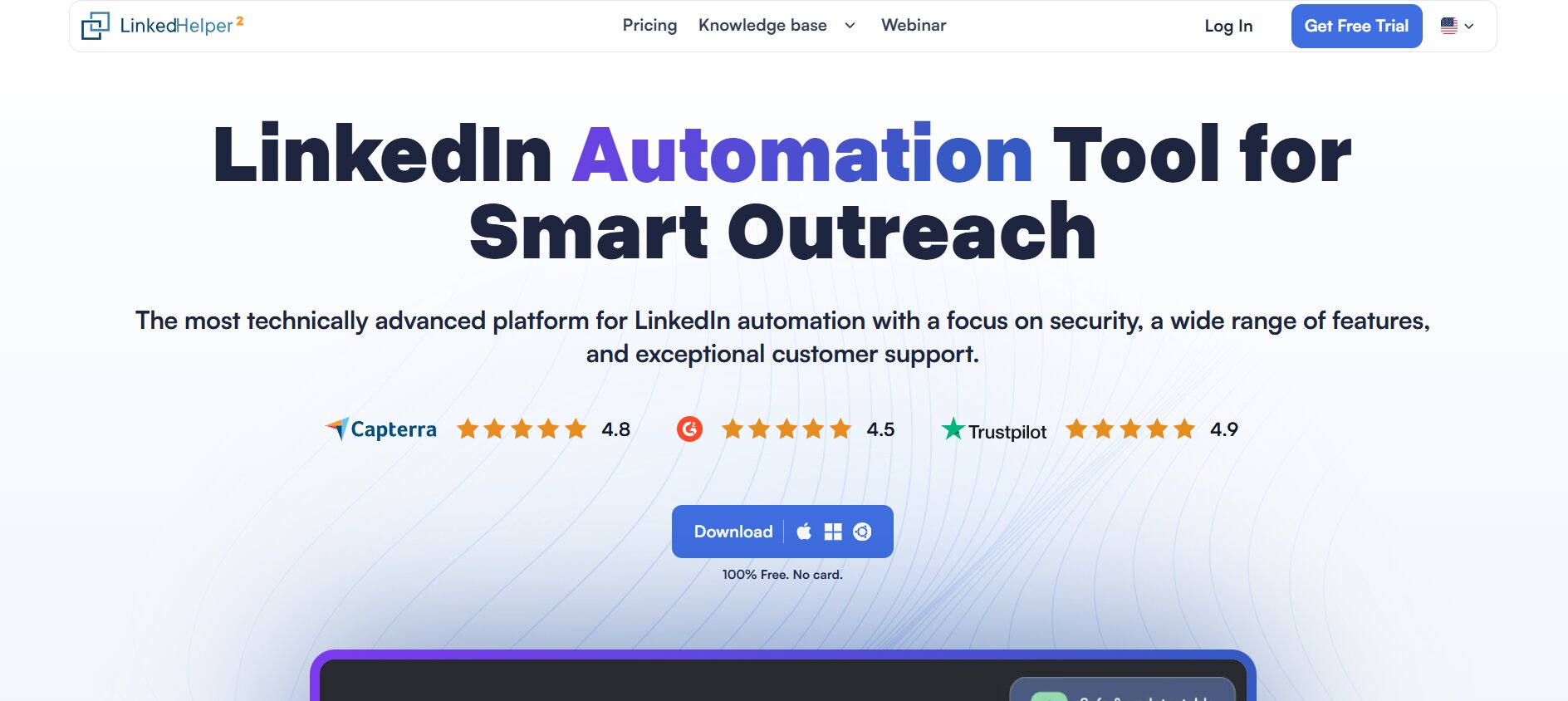
LinkedHelper is a LinkedIn automation tool that runs as a desktop application. Unlike browser-based tools like Phantombuster or cloud tools like Expandi, LinkedHelper installs on your computer and operates through its own built-in browser. That distinction matters a lot for safety, and we’ll get into why in the next section.
The core use case is simple: you want to connect with a specific audience on LinkedIn, send them a sequence of messages without doing it manually, and ideally turn some of those conversations into meetings or customers. LinkedHelper automates that entire workflow.
Connection Request Automation
This is the bread and butter. You build a list of people you want to reach, set up a connection request message (or send without a note, which actually converts better in many niches), and LinkedHelper sends those requests at human-like intervals.
The “human-like intervals” part is worth understanding. LinkedHelper adds randomized delays between actions. So instead of firing off 100 connection requests in 10 minutes the way a poorly configured script would, it staggers them over several hours with varying wait times. This is one of the core things that separates it from amateur automation setups.
You can build your target lists from LinkedIn search results, Sales Navigator searches, group members, event attendees, or people who engaged with a specific post. That last one, post engagers, is underused. If someone commented on a thought leadership post in your niche, they’re already warm. Connecting with them converts at a much higher rate than cold search results.
Message Sequences and Drip Campaigns
After someone accepts your connection, LinkedHelper can automatically start a follow-up message sequence. You set the timing, the messages, and the logic. If someone replies at step 2, they exit the sequence. If they don’t, they get step 3 after X days.
This is where LinkedHelper genuinely stands out versus simpler tools. You can build logic-based sequences that branch depending on whether someone replied, whether they visited your profile, or whether they accepted within a certain time window. It’s not as visual as something like a Klaviyo flow for email, but the underlying functionality is more flexible than most LinkedIn tools offer.
The message templates support personalization variables: first name, company name, job title, and a few others pulled from their LinkedIn profile. Nothing revolutionary, but it works cleanly without the broken variable issues you see in some cheaper tools.
Profile Visitor and Endorsement Features
LinkedHelper can auto-visit profiles from your target list, which triggers LinkedIn’s “X people viewed your profile” notification. It’s a soft touch. Some people check who visited them and reach out on their own. It’s a warm-up play before your connection request and it works better in B2B niches where people pay attention to profile views.
The auto-endorse feature is… fine. It endorses your connections’ skills automatically. This is a reciprocity play, some people endorse back, some accept your future connection requests more readily because they recognize your name. Honestly, this one’s a stretch. Don’t build your strategy around it.
CRM and Contact Management
LinkedHelper has a built-in CRM that lets you tag contacts, add notes, track where people are in your funnel, and filter your list by various attributes. For a standalone automation tool, it’s surprisingly decent. You can mark contacts as “lead,” “customer,” or any custom tag you define.
It also exports contact data to CSV, which makes it easy to push records into a real CRM like HubSpot or Pipedrive once someone becomes a genuine lead. The integration isn’t native (there’s no two-way sync), but the export is clean and consistent.
Auto-Withdrawal of Pending Requests
This one matters more than people realize. LinkedIn looks at your pending connection request ratio. If you’ve sent 500 requests and 400 are still pending, that’s a signal that your targeting or messaging is off, and LinkedIn may interpret it as spam behavior. LinkedHelper can automatically withdraw requests that have been pending for more than X days (you set the threshold). Keeping your pending queue clean is a basic hygiene practice that too many users skip.
LinkedHelper Review: How Safe Is It for Your LinkedIn Account in 2026?
The safety question is the first thing most people ask, and the honest answer is: safer than most alternatives, but not risk-free, and the risk you carry depends almost entirely on your settings.
Why Desktop-Based Is Safer Than Cloud-Based
LinkedHelper runs through its own built-in browser on your machine. When you use a cloud-based LinkedIn automation tool, LinkedIn can see that your activity is coming from an IP address that doesn’t match your usual login location or device. That’s a red flag their system watches for. LinkedHelper’s desktop architecture means activity appears to come from your machine, your IP, your usual digital fingerprint.
This is not a guarantee of safety. LinkedIn’s detection systems in 2026 are more sophisticated than they were even two years ago. They look at behavioral patterns, timing, volume, consistency, and a bunch of signals we don’t have full visibility into. But the desktop approach removes one of the most obvious detection vectors.
The Volume Problem
Most accounts that get restricted aren’t caught because of the tool they used. They’re caught because of the volume they ran. LinkedIn’s informal threshold for connection requests is around 100 per week for newer accounts and up to 200 per week for established, active accounts with a history of normal usage. When people push 50 to 100 requests per day, they’re asking for trouble.
LinkedHelper’s default settings are conservative, but users can override them. And a lot of people do, because they want results fast. That’s how accounts get flagged. The tool isn’t the problem. The settings the user chose are the problem.
Stick to 20 to 30 connection requests per day. Space your messages. Don’t run the tool 24 hours straight. Let it operate during realistic business hours. These aren’t arbitrary restrictions; they’re what makes the difference between a tool that works long-term and an account that gets restricted after three weeks.
LinkedIn’s Policy Reality
LinkedIn prohibits third-party automation. Full stop. There’s no version of this where you’re definitively “safe” in a policy sense. LinkedHelper operates in a gray zone, like most automation tools do. The practical question is whether you can use it in a way that flies under the radar long enough to get value from it.
Based on community reports across Reddit, Facebook groups, and product review platforms like G2, users running conservative volumes with LinkedHelper rarely report account restrictions. Users running aggressive campaigns report problems at a much higher rate. The correlation is obvious.
If your LinkedIn account is your primary business development channel and a restriction would seriously hurt your pipeline, run conservative volumes, use the warm-up period when starting with a new account, and don’t run the tool during periods when you’re also doing heavy manual LinkedIn activity.
LinkedHelper Pricing: What You Actually Pay and What You Get
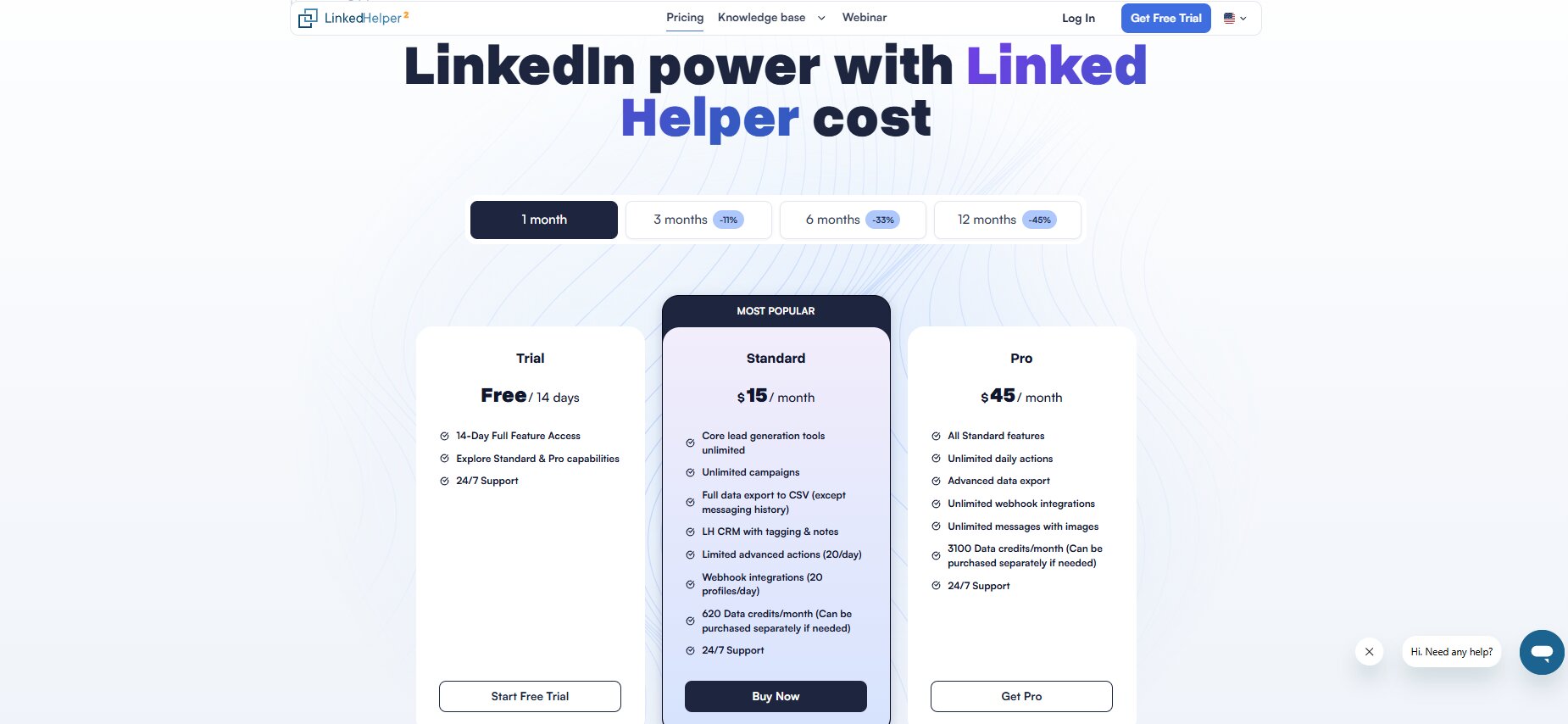
LinkedHelper uses a subscription model with two main tiers. There’s no free plan but there is a 14-day free trial with no credit card required, which is genuinely useful for testing the tool before committing.
Standard Plan: $15/month
The Standard plan covers the core automation features: connection requests, message sequences, profile visits, endorsements, auto-withdrawal of pending requests, and the built-in CRM. For most individual users running personal outreach campaigns, this is enough.
The limitation at Standard is that you don’t get access to some of the more advanced campaign features, particularly around conditional logic in sequences and certain list-building options. For straightforward connect-and-message workflows, though, you won’t hit that ceiling often.
Pro Plan: $45/month
The Pro plan unlocks multi-step campaigns with conditional branching, the ability to manage multiple LinkedIn accounts from one interface, advanced filtering, and priority customer support. If you’re running outreach for a team, managing client accounts, or need the conditional logic features for complex sequences, this is where you need to be.
$45/month is not cheap for a single tool, but compared to the cost of manual outreach time, it’s not expensive either. If the tool generates even one qualified lead per month that converts, it pays for itself. That’s the math you should run before dismissing the price.
Per-Account Pricing Note
One thing to know: LinkedHelper charges per LinkedIn account. If you’re managing three accounts (common for agencies or sales teams), you’re paying the subscription fee times three. There are multi-seat arrangements, but pricing isn’t publicly listed for those. You’d need to contact their team.
For solo users, this is fine. For agencies managing 10+ client accounts, the cost adds up and you should compare this against alternatives like Expandi or Dripify before committing.
User Experience: Setting Up LinkedHelper Without Losing Your Mind
LinkedHelper is not a plug-and-play tool. That’s not a complaint, it’s just accurate. The feature depth that makes it useful also means there’s a real setup process. New users who expect to download it and start sending messages in 10 minutes usually end up frustrated.
Installation and Initial Setup
LinkedHelper 2 (the current version, launched after LinkedHelper 1 was deprecated) installs as a standalone desktop application on Windows or Mac. The installation is straightforward. You log in with your LinkedIn credentials inside the tool’s browser, not your main Chrome or Firefox browser.
The first thing most people mess up is trying to run campaigns immediately on a fresh installation without any warm-up. If your LinkedIn account hasn’t had automation on it before, start slow. Run profile visits and endorsements for the first week before touching connection requests. Let the system establish a baseline of activity before you scale up.
Campaign Builder: Powerful but Dense
The campaign builder is where most of the complexity lives. You create campaigns, define your target audience (via LinkedIn search URL, Sales Navigator URL, or uploaded CSV), set your message sequence, configure delays, and define your daily limits.
The interface is functional rather than pretty. It’s clearly built by developers who prioritized capability over UX polish. The campaign setup requires you to understand how the features connect to each other, which takes a few hours of real usage to get comfortable with.
The documentation and YouTube tutorials LinkedHelper provides are actually solid. Better than most tools at this price point. If you get stuck, the answers are usually in their docs or their active Facebook community group (LinkedHelper Official User Group has over 15,000 members as of 2026).
The Support Experience
Support is ticket-based via email. Response times vary. Some users report replies within a few hours; others wait 24 to 48 hours. There’s no live chat on the Standard plan. Pro plan users get priority support, which makes a real difference if you’re troubleshooting a blocked campaign at a critical time.
The community group is often faster than official support for common questions. If you hit an error message or a feature question that’s not in the docs, search the group first. Someone has almost certainly already figured it out.
What Works Well Day-to-Day
Once configured, LinkedHelper runs in the background while you work. You set it, check it once or twice a day, and it handles the volume. The CRM tagging system is genuinely useful for staying on top of who’s responded and who needs follow-up. The auto-withdrawal feature for pending requests is something you set once and forget, and it keeps your account metrics clean without any manual effort.
The CSV export is clean and maps well to HubSpot field names, which saves time when pushing leads downstream.
What’s Genuinely Annoying
The UI for editing existing campaigns is clunkier than it should be. Making changes to a live campaign requires pausing it, navigating through several screens, making your edit, and restarting. Not a dealbreaker, but it slows you down when you want to iterate quickly.
There’s no native A/B testing for message copy. You can manually create two campaigns with different messages and compare results yourself, but the tool doesn’t do split testing for you. If message optimization is a big part of your workflow, you’ll miss this.
The built-in browser occasionally behaves differently from a normal browser session, which can cause issues with certain LinkedIn features or cause the tool to need a re-login more frequently than you’d like. This happens more on some systems than others.
LinkedHelper vs Alternatives: How It Stacks Up in 2026
Fair question. The LinkedIn automation space has a few real players and they’re not interchangeable.
LinkedHelper vs Expandi
Expandi is cloud-based, which means you don’t need to keep a desktop running for it to work. That’s a real convenience advantage. But cloud-based means a different IP from your usual location, which adds detection risk. Expandi also costs $99/month per account, more than double LinkedHelper Pro. LinkedHelper wins on price. Expandi wins on convenience.
LinkedHelper vs Dripify
Dripify is cloud-based and has a cleaner UI. Its campaign builder is more visual and easier for new users to pick up. But the feature depth doesn’t match LinkedHelper at the $39/month price point. For simple connect-and-follow-up workflows, Dripify is genuinely easier to use. For complex multi-step conditional sequences, LinkedHelper has more flexibility.
LinkedHelper vs Phantombuster
Phantombuster is a different animal. It runs “phantoms” (individual automation scripts) for a huge range of tasks across multiple platforms, not just LinkedIn. It’s more technical and requires more setup. LinkedHelper is more purpose-built for LinkedIn outreach workflows, which makes it faster to get a campaign running. Phantombuster is better if you need cross-platform automation. LinkedHelper is better if LinkedIn is your primary channel.
Conclusion
LinkedHelper is a solid tool. Not perfect, not magic, but genuinely useful if you treat it like a system rather than a shortcut.
The users who get burned are almost always the ones who downloaded it, cranked up the volume, and expected results without reading how it works. The ones who get consistent pipeline from it are the ones who set conservative limits, wrote decent messages, and let it run steadily over weeks and months.
Here’s the real takeaway from this LinkedHelper review: the tool does what it promises. It automates the repetitive parts of LinkedIn outreach without requiring you to babysit every connection request and follow-up message. At $15 to $45 per month, it costs less than an hour of a freelancer’s time. If it books you even one qualified conversation a month, the math works.
The 14-day free trial with no credit card is a legitimate offer. Start there. Build one simple campaign: a targeted connection request sequence to 20 people a day in your niche. Run it for two weeks. See what replies look like. That’s all you need to decide if it fits your workflow.
LinkedIn outreach works when you show up consistently to the right people with the right message. LinkedHelper just removes the manual drag from that process. Use it sensibly and it earns its place.
Frequently Asked Questions
Is LinkedHelper safe to use with a LinkedIn account?
LinkedHelper is one of the lower-risk options in the LinkedIn automation space because it uses a desktop-based architecture that mimics normal user behavior more convincingly than cloud tools. That said, no LinkedIn automation tool is completely safe since LinkedIn explicitly prohibits third-party automation in its terms. Your actual risk level depends on the volume you run. Users staying under 30 connection requests per day with realistic message delays rarely report account restrictions.
How much does LinkedHelper cost in 2026?
LinkedHelper costs $15/month for the Standard plan and $45/month for the Pro plan. Both are billed per LinkedIn account. There’s a 14-day free trial that doesn’t require a credit card, which is enough time to test the core features before committing.
Does LinkedHelper work with Sales Navigator?
Yes. LinkedHelper integrates with LinkedIn Sales Navigator and can use Sales Navigator search results to build your target audience. This is one of the most valuable combinations because Sales Navigator’s search filters let you get very specific about your targeting, which means better reply rates and less wasted automation volume.
Can LinkedHelper send messages to people you’re not connected with?
Not directly via regular message. On LinkedIn, you can only send direct messages to first-degree connections unless you have InMail credits (through LinkedIn Premium or Sales Navigator). LinkedHelper can send connection requests with a note, which is the message before the connection. After someone connects, it can send follow-up messages. Some users combine it with InMail outreach, but that’s separate from the automation tool itself.
How many connection requests can you safely send with LinkedHelper per day?
The conservative answer is 20 to 30 per day for most accounts. Accounts with a longer history of active LinkedIn usage can sometimes push 40 to 50 without issues, but the ceiling varies by account. If your account is less than 6 months old or has been inactive, start at 10 to 15 per day and increase gradually over 4 to 6 weeks.
What happens if LinkedIn detects LinkedHelper activity?
Typically LinkedIn starts with a soft restriction: you may get a CAPTCHA prompt, a request to verify your phone number, or a temporary limit on connection requests. In more serious cases, the account can be fully restricted or permanently banned. Most soft restrictions can be reversed by stopping all automation, responding to LinkedIn’s verification steps, and allowing the account to rest for 2 to 4 weeks before restarting at a lower volume.
Does LinkedHelper require the computer to be running?
Yes. Because it’s a desktop application, your computer needs to be on and LinkedHelper needs to be open for campaigns to run. This is a real limitation if you travel or share a single machine. Some users run it on a dedicated old laptop or a virtual machine to get around this. Cloud-based tools like Expandi or Dripify don’t have this requirement.
Can you use LinkedHelper to manage multiple LinkedIn accounts?
Yes, but each account requires its own subscription. LinkedHelper Pro allows you to switch between accounts within the interface, but the billing is per account. For agencies managing client accounts, this cost can add up quickly. Make sure you calculate the per-account cost when comparing it to other tools.
What’s the difference between LinkedHelper 1 and LinkedHelper 2?
LinkedHelper 1 was the original Chrome extension version. It was deprecated after LinkedIn changed its security measures in ways that made extension-based tools much riskier. LinkedHelper 2 is a standalone desktop application with its own built-in browser, which is what’s available now. If you see any reference to the Chrome extension version, it’s outdated. Only LinkedHelper 2 is currently supported.
Is LinkedHelper worth it for someone just starting LinkedIn outreach?
Honestly, yes, but only if you’re willing to spend 3 to 5 hours properly configuring it and understanding what the settings do. If you want something that works out of the box with minimal setup, Dripify might be a better starting point. But if you’re going to do LinkedIn outreach at any real volume for more than a couple of months, LinkedHelper’s deeper feature set and lower price point make it worth learning. The free trial removes the financial risk, so the only investment to test it is your time.
Can LinkedHelper personalize outreach messages beyond just first name?
Yes. LinkedHelper supports variables for first name, last name, company name, position/job title, and a few others pulled from the LinkedIn profile. You can also use custom variables if you upload a CSV with additional data columns. The personalization isn’t as dynamic as some email tools, but it covers the core fields that matter for LinkedIn outreach.