


If you use LinkedIn for outreach, recruiting, or sales, you have almost certainly felt the friction of a limit kicking in at the worst possible moment. A connection request goes undelivered. A message bounces back with a warning. Your search results suddenly thin out. What feels like a platform glitch is almost always a deliberate restriction — and in 2026, those restrictions are tighter, smarter, and harder to recover from than they were even two years ago.
LinkedIn’s algorithm no longer applies a single flat cap to everyone. It evaluates your account’s reputation daily, predicts the likelihood that your outreach will be welcomed, and dynamically adjusts what you are allowed to do. Understanding that system — not just the raw numbers — is the difference between building a pipeline and getting quietly throttled into irrelevance.
This guide covers every LinkedIn limit that matters in 2026: the exact numbers by account type, how each limit works, what triggers a restriction, and how to operate at full capacity without putting your account at risk.
Why LinkedIn Has Limits — and Why They’re Getting Stricter Every Year

Before diving into the specific numbers, it helps to understand what LinkedIn is actually trying to accomplish with its limit system — because that understanding shapes every practical decision you make on the platform.
The Platform’s Three Official Reasons for Limits
LinkedIn has publicly acknowledged three reasons it enforces activity limits. First, the platform restricts accounts that send a high volume of invitations in a short period of time. Second, it restricts accounts with high rejection rates — meaning invitations that are frequently ignored or marked as spam. Third, it restricts accounts that show signs of automation use, particularly patterns that do not match natural human behavior.
These three triggers are not equal in weight. A high rejection rate is arguably the most damaging signal you can send, because it tells LinkedIn’s algorithm that your outreach is unwelcome. Volume alone, if spread across normal business hours and matched with reasonable acceptance rates, is far less likely to trigger a penalty than a low acceptance rate at any volume.
How LinkedIn Has Tightened Limits From 2020 to 2026
The trajectory here is clear and consistent. Weekly connection request caps that sat comfortably above 200 in 2020 had narrowed to a 100–150 band by 2022, and had tightened further to an 80–120 band by late 2024 following a platform-wide restriction update. Profile view limits, which did not formally exist as a tracked metric five years ago, now matter and are actively monitored. InMail credit allocations and messaging limits have remained relatively stable since 2022, but LinkedIn’s detection systems for unusual message patterns have become significantly more sophisticated. The direction of travel is consistently toward fewer allowed actions, not more — and every 12–18 months, another tightening cycle occurs.
How LinkedIn’s AI Now Predicts Whether Your Requests Will Be Accepted — and Adjusts Your Limit Accordingly
This is the part of LinkedIn’s limit system that most guides miss entirely. LinkedIn’s algorithm now assesses what can be described as a “probability of acceptance” for each account. If the platform’s AI predicts, based on your targeting history, profile quality, and past acceptance rates, that your requests are likely to be ignored or marked as spam, it proactively lowers your limit before you even hit it. Conversely, if you have a sustained high acceptance rate, the algorithm extends more trust to your account and allows a higher volume of outreach. The practical implication is significant: your stated limit is not a fixed ceiling. It is a dynamic number that moves up or down based on the quality of your activity, not just the quantity.
LinkedIn Connection Request Limits in 2026
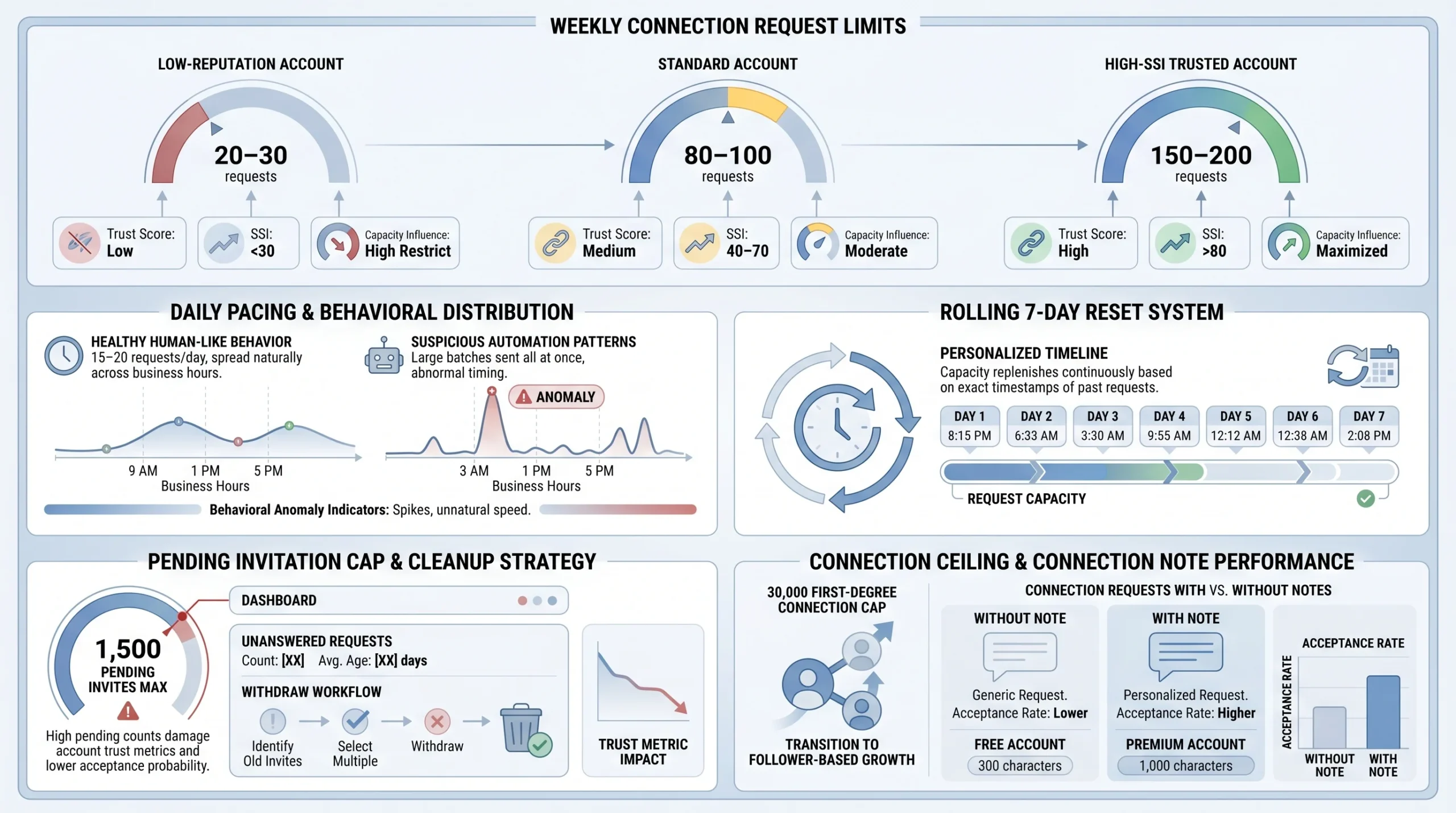
Connection requests are the most discussed and most misunderstood LinkedIn limit. Here is everything you need to know, from the weekly cap to the pending invitation ceiling.
The Weekly Connection Request Limit (and Why It’s Not a Fixed Number)
Most LinkedIn accounts operate within a weekly connection request range of 80 to 100 requests. This is not an officially published figure — LinkedIn does not publicly disclose its limits — but it is consistent with observed behavior across thousands of accounts tracked through 2025 and into 2026.
The figure is not fixed because it is reputation-dependent:
- Standard range: ~80–100 per week for free and most Premium accounts
- High-SSI, high-acceptance accounts: Up to 150–200 per week for accounts with strong Social Selling Index scores (above 65–70) and consistent acceptance rates above 40%
- Flagged or low-reputation accounts: As low as 20–30 per week for accounts that have received prior restrictions, have low acceptance rates, or show bot-like activity patterns
A new account with no content history and an incomplete profile might be effectively blocked after sending just 30 requests, while an established thought leader with high engagement and a strong track record can send upward of 200 requests without triggering a warning.
Daily Connection Request Limits
LinkedIn does not publish a daily connection request limit separately from the weekly cap. In practice, the safe daily pace for most accounts is 15–20 requests per day, distributed across business hours. Sending all of your weekly allocation on a single Monday morning is one of the clearest signals of automation that LinkedIn’s system monitors for. Natural human networking behavior is spread out — and LinkedIn’s algorithm knows that. Distributing 15–20 requests per day across normal working hours is the behavioral pattern that keeps your account in good standing.
How the Rolling 7-Day Reset Works
This is one of the most commonly misunderstood aspects of LinkedIn’s connection limit system. The reset is not tied to a fixed day of the week — it is a rolling 7-day window. When you send your first connection request on a Wednesday at 2:00 PM, your limit resets exactly seven days later, on the following Wednesday at 2:00 PM. The same rolling logic applies to any subsequent request. This means there is no universal “Monday reset” as is often stated in older guides. Your reset time is personal to your account’s activity history.
The Pending Invitation Cap
Separate from the weekly sending limit, LinkedIn caps the number of pending (unanswered) connection requests you can have outstanding at any one time at approximately 1,500. Once you reach this ceiling, you cannot send new requests until you withdraw existing ones. The best practice is to withdraw pending invitations that are older than two to three weeks. If someone has not accepted a connection request in that timeframe, they are statistically unlikely to accept it at all, and leaving thousands of ignored requests sitting in your queue actively harms your acceptance rate metric — which, as noted above, is one of the primary signals LinkedIn uses to set your dynamic limit.
The 30,000 Connection Ceiling
LinkedIn caps first-degree connections at 30,000 for all account types. Once you reach this ceiling, you cannot send or accept new connection requests. People can still follow your profile — up to a separate follower limit — but you cannot add them as connections. Many high-profile LinkedIn users who reach this ceiling shift their primary presence strategy toward followers rather than connections, since follower counts are not capped at 30,000.
Connection Request Note Character Limits
When sending a personalized connection request note, free LinkedIn accounts are limited to 200 characters. Premium account holders can use up to 300 characters. One important nuance worth noting: data from 2026 outreach analytics consistently shows that connection requests sent without a note achieve a higher average acceptance rate — approximately 27% — compared to requests sent with a personalized note — approximately 21%. This counterintuitive finding is thought to reflect the fact that personalized notes on cold outreach often read as sales pitches, triggering more rejections. The note character limit is worth knowing, but whether to use it at all depends on your specific context and relationship with the recipient.
LinkedIn Message Limits in 2026
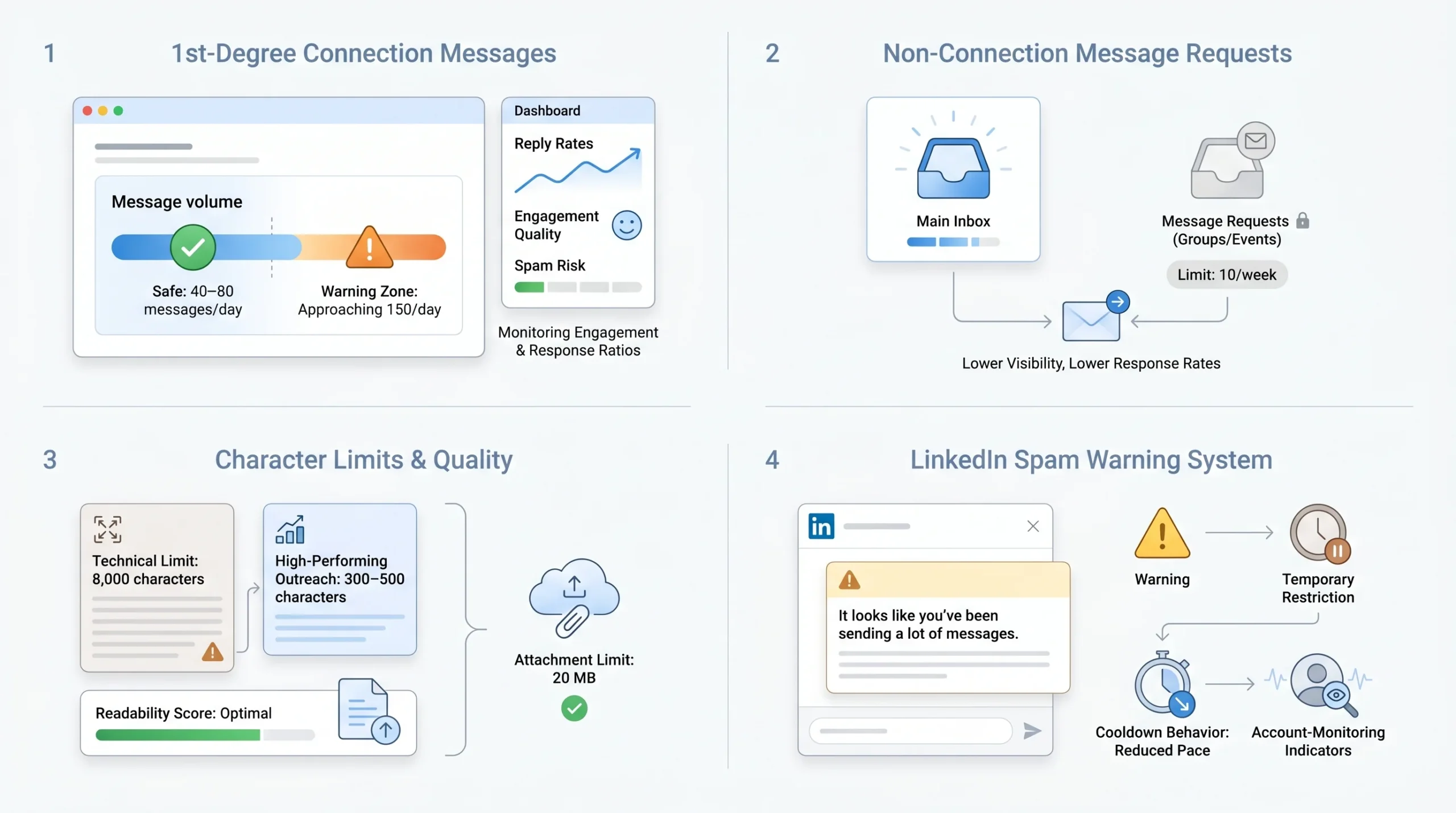
LinkedIn has multiple distinct types of messaging, and each carries its own limit. Treating them as a single category leads to confusion. Here they are, separated clearly.
Messages to 1st-Degree Connections
There is no officially published daily cap on messages sent to people you are already connected with on LinkedIn. Based on observed behavior across accounts, the safe operating range is 40–80 messages per day. Accounts that push toward 150 messages per day consistently begin seeing unusual activity warnings. The 150-per-day threshold functions as a practical hard ceiling for most accounts — exceeding it is the point at which LinkedIn’s system begins flagging the behavior as spam-like, regardless of the content or personalization of the messages.
It is also worth noting that LinkedIn tracks reply rates on your messages. A pattern of high-volume sending with low replies is a negative signal that compounds over time, even if you stay beneath the raw message count threshold.
Message Requests to Non-Connections
If you are a member of the same LinkedIn Group as another person, or if you have both registered for the same LinkedIn Event, you can send them a message request without first connecting. LinkedIn limits this to 10 message requests per week across all account types. These messages do not land in the recipient’s primary inbox — they arrive in a separate “Message Requests” folder that many users check infrequently — which is why response rates on message requests tend to be lower than on standard DMs or InMail.
Character Limits for LinkedIn Messages
When sending a standard LinkedIn direct message, the character limit is 8,000 characters per message. This applies to both direct messages with connections and InMail messages sent to non-connections. File attachments are supported in LinkedIn messages with a maximum file size of 20 MB per attachment.
For practical outreach purposes, the 8,000-character ceiling is rarely a meaningful constraint. Lengthy messages are consistently shown to underperform in terms of response rates, and the professional consensus is that messages in the 300–500 character range outperform longer ones when the goal is a reply.
What LinkedIn’s Spam Warning Looks Like — and What to Do When You See It
LinkedIn displays a specific warning message when it detects that your messaging volume is elevated: “It looks like you’ve been sending a lot of messages.” This warning is an early-stage flag — it is LinkedIn’s system signaling that your account has been placed under closer monitoring. If you see this warning, the correct response is to stop sending messages immediately and reduce your daily volume significantly for the following week. Continuing at the same pace after receiving this warning is the most common path to a temporary messaging restriction (24–48 hours) or, for repeat offenders, a longer account restriction.
LinkedIn InMail Limits in 2026
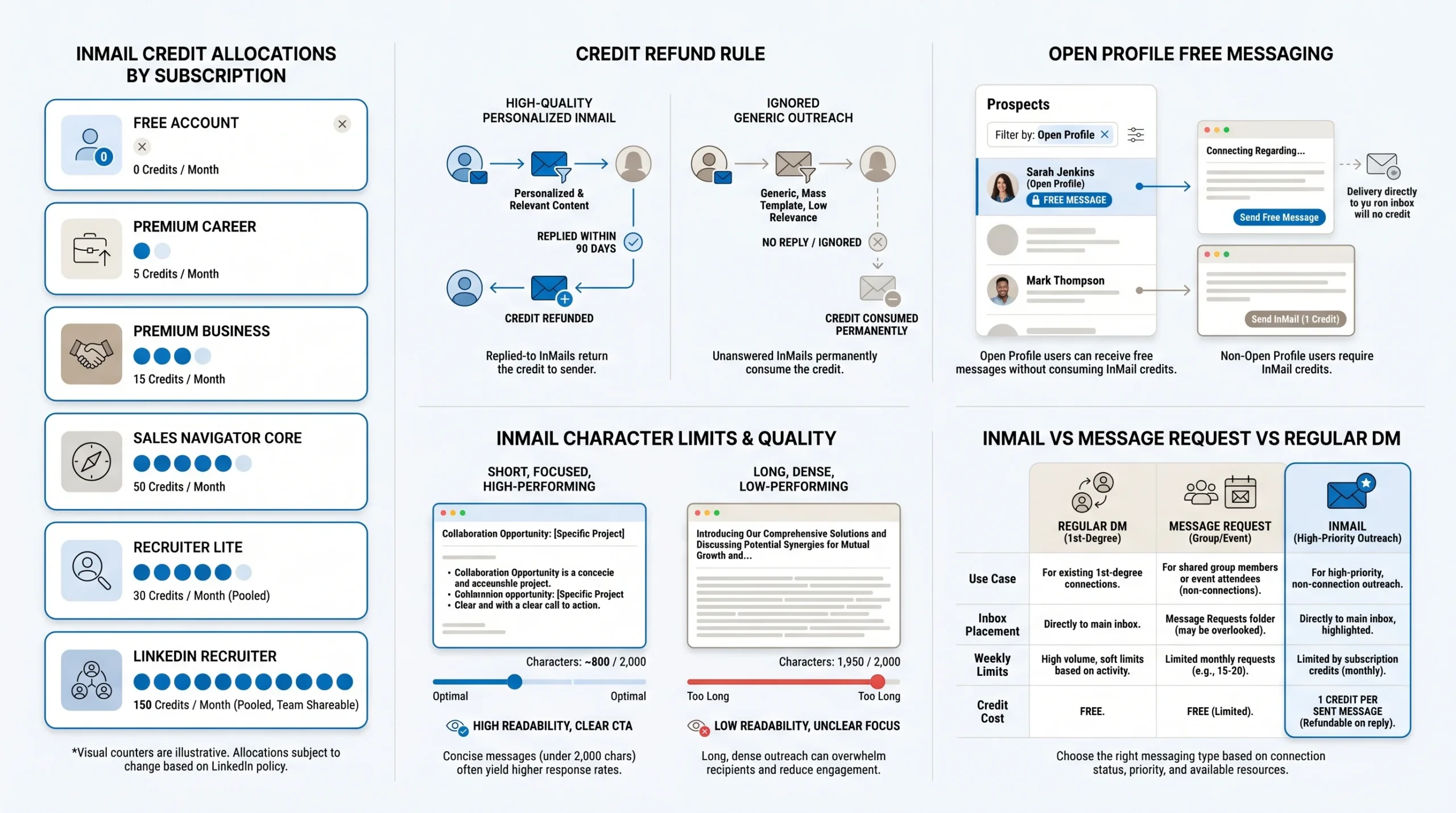
InMail is LinkedIn’s premium paid messaging feature that allows you to contact people outside your network without a connection request. It operates on a monthly credit system, and the credits vary significantly by subscription type.
InMail Credit Allocations by Account Type
The monthly InMail credit allocations across account types are:
- Free LinkedIn account: 5 InMail credits per month
- LinkedIn Premium Career: 5 InMail credits per month
- LinkedIn Premium Business: 15 InMail credits per month
- Sales Navigator Core: 50 InMail credits per month
- Recruiter Lite: approximately 30 InMail credits per month
- LinkedIn Recruiter (full): New seats are limited to 200 InMails in their first week, then scale to up to 1,000 per day after that initial period
These credits are monthly allocations, not rolling windows. They reset on a fixed monthly cycle rather than a rolling 7-day window like connection requests.
The Credit Refund Rule
LinkedIn’s InMail credit refund policy is one of the most practically valuable features in the system: if the recipient responds to your InMail within 90 days of you sending it, you receive that credit back. This creates a meaningful incentive to send high-quality, personalized InMail rather than blasting generic messages — because a well-crafted message that gets a reply is effectively free, while a poorly crafted message that gets ignored permanently consumes your credit.
Open Profiles: The Free InMail Loophole
LinkedIn Premium users can enable a setting on their profile called “Open Profile,” which allows any LinkedIn member — regardless of subscription — to send them a message directly without using InMail credits. These messages are labeled “Free Message” on the recipient’s profile and land directly in their main inbox rather than a message request folder.
Open Profile messages do not count against your monthly InMail credit allocation. For outreach at scale, identifying Open Profile users in your target list first and messaging them before consuming paid InMail credits is one of the most effective ways to extend your reach within the same budget. Open Profiles typically represent approximately 5–10% of any given prospect list.
InMail Character Limits
InMail messages have tighter character restrictions than standard LinkedIn messages:
- InMail subject line: Maximum 200 characters
- InMail message body: Maximum 2,000 characters (compared to 8,000 for standard DMs)
The tighter character ceiling on InMail is worth treating as a feature rather than a limitation. Shorter, more focused InMail messages consistently achieve higher response rates than long-form pitches, and the 2,000-character ceiling enforces the kind of discipline that improves outreach effectiveness.
InMail vs. Message Request vs. Regular DM — Which to Use When
These three message types are not interchangeable, and using the wrong one wastes either credits or opportunity:
- Regular DM is for 1st-degree connections. Use this for follow-up, relationship building, and conversations with people already in your network. No credit cost, no limit except the daily volume threshold.
- Message Request is for non-connections you share a group or event with. Use this when you want to initiate a conversation without using InMail credits, accepting that the message will land in a secondary inbox. Limited to 10 per week.
- InMail is for non-connections you want to reach directly with a high-priority message that lands in their primary inbox. Use credits for high-value prospects where the inbox placement justifies the cost. Check for Open Profile status first to send for free.
LinkedIn Profile View Limits in 2026
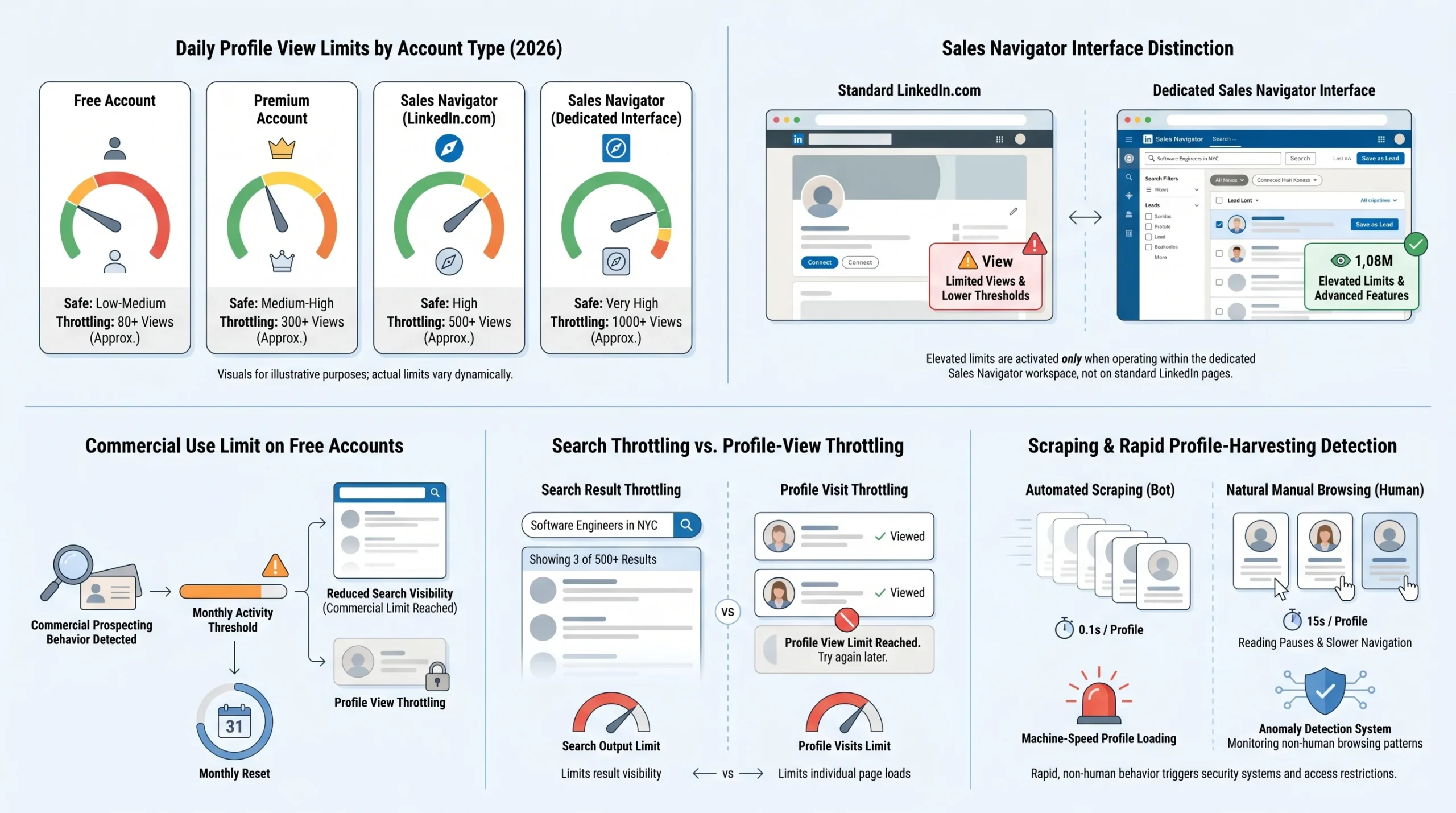
Profile view limits exist primarily to prevent data scraping and automated profile harvesting at scale. They are among the least transparently communicated limits on the platform, which makes them particularly easy to accidentally cross.
Daily Profile View Limits by Account Type
The daily profile view limits vary significantly across subscription tiers:
- Free LinkedIn account: Approximately 80 profiles per day within a safe operating range; can push toward 150 before throttling begins
- LinkedIn Premium (Career or Business): Up to approximately 300 profiles per day
- Sales Navigator — viewed on LinkedIn.com: Approximately 150 profiles per day (the same throttling applies as on a standard account when operating in the LinkedIn.com environment)
- Sales Navigator — viewed within the Sales Navigator interface: 600–800 profiles per day within a safe range; a soft cap of 1,000 profiles per day before search-throttling kicks in
The distinction between viewing profiles on LinkedIn.com versus within the Sales Navigator interface is critical and is one of the most frequently misunderstood nuances in profile view limits. A Sales Navigator subscriber who views profiles through the standard LinkedIn.com interface does not receive the elevated Sales Navigator view limit — they operate under the standard LinkedIn.com cap. To access the higher limits, the activity must occur within the Sales Navigator application itself.
The Commercial Use Limit on Free Accounts
Free LinkedIn accounts face a separate restriction called the “commercial use limit” on profile searches. This limit is not openly published by LinkedIn, but observed behavior indicates it takes effect at approximately 300 profile views per month for accounts that LinkedIn identifies as conducting commercial prospecting activity. When this limit is triggered, LinkedIn restricts what search results show — you see fewer profiles and limited information when you run searches, even if you have not hit the daily view limit. The commercial use limit resets at the start of each calendar month.
Search Result Throttling vs. Profile View Throttling
These are two distinct restrictions that are commonly conflated:
- Profile view throttling limits how many individual profiles you can visit and view in a day. It is triggered by high-volume sequential profile visits, especially when those visits show patterns consistent with scraping (rapid clicks, no dwell time on profiles).
- Search result throttling limits the number of profiles returned in search results, even before you click into individual profiles. It is triggered by the commercial use limit on free accounts or by patterns that suggest automated search activity.
It is possible to be subject to one without the other. An account can have its search results throttled (seeing fewer profiles in results) while still being able to view individual profiles at a normal rate, and vice versa.
Why Scraping Tools Burn Through View Limits Faster Than You Think
Automated scraping tools — including popular options like PhantomBuster, Evaboot, and Wiza — accumulate profile views significantly faster than manual browsing because they typically load profiles in rapid succession with minimal or no dwell time between each one. A user manually browsing profiles spends time reading them; a scraper moves through them at machine speed. For accounts running scrape operations, the practical safe cap is 500–700 profiles per day, spread across the full workday rather than executed in a single burst. Burst patterns — 500 profile views in 30 minutes — are among the clearest behavioral signals that LinkedIn’s detection systems flag as non-human.
The Master Limits Reference Table for 2026
The table below consolidates all major LinkedIn limits by account type for quick reference. These figures represent safe operating ranges based on observed behavior and platform data from late 2025 through 2026. LinkedIn does not officially publish most of these limits, and actual caps vary based on account reputation, SSI score, and activity history.
| Limit Type | Free | Premium (Business) | Sales Navigator Core | LinkedIn Recruiter |
|---|---|---|---|---|
| Weekly connection requests | ~80–100 | ~80–100 | ~80–100 | Higher (varies) |
| Daily messages to 1st-degree | 40–80 safe; 150 max | 40–80 safe; 150 max | 40–80 safe; 150 max | Higher |
| Message requests/week | 10 | 10 | 10 | — |
| InMail credits/month | 5 | 15 | 50 | Up to 1,000/day |
| Profile views/day (LinkedIn.com) | ~80–150 | ~300 | ~150 | Higher |
| Profile views/day (Sales Nav app) | — | — | 600–800 safe; 1,000 soft cap | — |
| Max total connections | 30,000 | 30,000 | 30,000 | 30,000 |
| Pending invitations cap | ~1,500 | ~1,500 | ~1,500 | — |
| Connection note characters | 200 | 300 | 300 | 300 |
| DM character limit | 8,000 | 8,000 | 8,000 | 8,000 |
| InMail subject line | 200 | 200 | 200 | 200 |
| InMail body | 2,000 | 2,000 | 2,000 | 2,000 |
| Message requests/week (groups/events) | 10 | 10 | 10 | 10 |
| EasyApply applications/day | 50 | 50 | 50 | 50 |
How Your SSI Score Directly Controls Your Limits
The Social Selling Index is the single most underutilized lever for LinkedIn users who want to expand their outreach capacity — and it is the factor that most competing guides either ignore or mention only in passing.
What the Social Selling Index (SSI) Is and How to Check It
The Social Selling Index (SSI) is a score from 0 to 100 that LinkedIn calculates daily for every account. It measures how effectively you use LinkedIn as a professional networking and social selling tool. You can check your current SSI score for free at linkedin.com/sales/ssi — the dashboard is accessible to all users, not just Sales Navigator subscribers. Your score updates daily and reflects your activity over the previous 90 days.
The Four SSI Pillars and What Each One Signals to LinkedIn’s Algorithm
LinkedIn calculates your SSI across four equal pillars, each worth up to 25 points:
- Establish your professional brand: This measures the completeness and quality of your profile, the content you publish, and whether your presence positions you as a credible expert. Articles carry more weight than short posts for this pillar.
- Find the right people: This measures how effectively you use LinkedIn’s search tools to identify and reach relevant prospects rather than sending indiscriminate mass requests. Targeted behavior is rewarded; spray-and-pray behavior is penalized.
- Engage with insights: This tracks whether you share content, comment on industry posts, and participate meaningfully in your professional community. Accounts that only send outbound requests without contributing to the content ecosystem are tagged as “takers” by LinkedIn’s algorithm and receive less favorable treatment.
- Build strong relationships: This tracks the depth and quality of your relationships on the platform — response rates, reciprocal engagement, and the quality of conversations you sustain after connecting.
Each of these pillars signals something specific to LinkedIn’s system. An account that scores well across all four is treated as a legitimate, high-quality networker. An account that scores poorly — particularly on “engage with insights” — is treated as a higher-risk actor and monitored more closely.
How SSI Score Translates to Limit Tiers in Practice
SSI score ranges correlate directly with the practical limits LinkedIn applies to your account:
- Below 50: LinkedIn’s behavioral AI monitors your account more aggressively. Automation detection sensitivity is higher, meaning the same activity volume that is acceptable for a high-SSI account will flag faster on a low-SSI account. Limits sit toward the lower end of the range.
- 55–70: Standard operating range for most active B2B professionals. Limits correspond to the published safe ranges in the table above.
- 70 and above: Accounts in this range see 25–30% higher acceptance rates on connection requests, greater flexibility in outreach volume before triggering warnings, and significantly better content visibility — accounts scoring above 70 have been shown to receive 2–3 times higher organic reach on posts compared to lower-scoring accounts following LinkedIn’s Q4 2025 algorithm update.
The B2B sales professional average SSI sits around 58–65. Top performers in revenue generation consistently score 80 and above.
How to Raise Your SSI Score to Unlock Higher Limits
Raising your SSI score does not require a paid subscription:
- Complete your profile fully: Profile completeness adds 5–8 SSI points immediately. This includes a professional photo, a value-focused headline, a detailed “About” section, and accomplishment metrics in each experience entry.
- Post consistently: The optimal posting frequency for SSI impact is 4–5 times per week. LinkedIn research shows consistent posting produces a 2x engagement lift compared to sporadic activity, and the “engage with insights” pillar is updated continuously based on engagement received.
- Comment strategically: Comments on posts from prospects and industry leaders carry approximately 2x the SSI weight of simple likes. Thoughtful, substantive comments that add to the conversation score better than generic “great post” responses.
- Target connection requests carefully: The “find the right people” pillar specifically rewards targeted outreach. Every request sent to someone who ignores or rejects it subtly hurts this pillar. Every request that gets accepted — especially with follow-up conversation — improves it.
- Maintain reply rates on your messages: LinkedIn tracks the rate at which people respond to your messages. Sending personalized, relevant messages that receive replies improves your SSI; sending mass messages that get ignored drags it down.
What Happens When You Cross a LinkedIn Limit
Understanding the consequences of crossing a limit is important both for avoiding it and for recognizing when it has already happened — because LinkedIn does not always announce it clearly.
The Four Stages of LinkedIn Restriction
LinkedIn’s restriction system operates progressively across four distinct stages:
Stage 1 — Shadow Throttling: This is the most insidious stage because LinkedIn provides no notification. Your content receives fewer impressions. Your profile appears lower in search results. Your connection request acceptance rate drops. Your outreach produces fewer replies. None of this is announced. The only indicators are a sudden decline in metrics that had previously been stable. This stage can persist indefinitely if behavior does not change.
Stage 2 — Soft Warning: LinkedIn displays an explicit in-platform warning — for connection requests: “You’ve reached your weekly invitation limit”; for messages: “It looks like you’ve been sending a lot of messages.” These warnings are a formal signal that your account is now under closer monitoring. Your activity history from this point forward weighs more heavily in LinkedIn’s ongoing evaluation of your account.
Stage 3 — Temporary Feature Block: LinkedIn restricts your ability to use specific features — typically the ability to send connection requests or messages — for a defined period. These blocks typically last from 24 hours to a few days for first-time violations. During a feature block, you can still browse LinkedIn but cannot perform the blocked action.
Stage 4 — Account Restriction or Ban: For repeated violations or severe single violations (particularly heavy automation use), LinkedIn restricts the full account — you cannot interact with others or publish content. The most severe penalty is a permanent ban, where your entire profile, network, and content history is removed from the platform. Permanent bans are rarely reversed, though a formal appeal process exists.
The “Fuse Limit” Concept — LinkedIn’s Undocumented Graduated Trust System
LinkedIn operates what practitioners refer to as a “fuse limit” — an undocumented trust-score system that sits beneath the visible limit thresholds. Every LinkedIn account has a cumulative trust score based on its full behavioral history. Every suspicious action — burst of requests, high rejection rate, login from a new IP while simultaneously using automation tools — depletes this trust score. As the trust score drops, LinkedIn’s sensitivity threshold lowers, meaning the same behavior that previously triggered no warning will begin triggering warnings, and then restrictions.
The fuse limit means that a single violation almost never results in a ban. But each violation makes subsequent violations more likely to escalate faster. An account that has received three soft warnings is, effectively, one bad week away from a hard restriction — even if its current activity looks entirely normal.
Warning Signs You’re Being Throttled Before You Get Officially Flagged
Several observable signals indicate that LinkedIn has placed your account under throttling before any official warning appears:
- Your connection request acceptance rate drops noticeably despite no change in your targeting or messaging
- Your post impressions decline suddenly without a change in content quality or posting frequency
- Search results return fewer profiles than expected for searches that previously showed many more
- Verification challenges appear more frequently at login
Two or three of these signals appearing simultaneously is a strong indicator that shadow throttling is active.
How Long Each Type of Restriction Lasts
- Shadow throttling: No defined duration; it persists until sustained behavioral improvement signals are detected
- Soft warning: No duration — the warning itself is not a block, but elevated monitoring continues
- Temporary feature block: Typically 24–48 hours for first-time violations; one to several weeks for repeat violations
- Account restriction: Days to weeks; typically requires active improvement in behavior metrics before lifting
- Permanent ban: Indefinite; appeal is possible but rarely successful
How to Recover a Restricted LinkedIn Account
Account recovery is not simply a matter of waiting out a timer. The recovery period is actively monitored, and what you do during that period determines whether LinkedIn extends the restriction or lifts it.
The Week-by-Week Recovery Protocol
The recovery protocol that consistently produces results follows a staged approach:
Weeks 1–2 — Complete Activity Pause: Stop all automated outreach entirely. Stop sending connection requests. Reduce messaging to replies only — no new cold outreach. Focus entirely on organic engagement: commenting thoughtfully on industry posts, sharing genuinely valuable content, and responding to any messages you have received. The goal during this period is to produce a behavioral signal that looks nothing like the pattern that triggered the restriction.
Weeks 3–4 — Conservative Manual Outreach: Begin sending 3–5 carefully targeted, highly personalized connection requests per day — manually, not through any automation tool. The acceptance rate during this period is the critical variable. Target only people who are very likely to accept — warm contacts, people who have engaged with your content, second-degree connections through mutual relationships. Aim for an acceptance rate above 50% during this phase.
Weeks 5–6 — Gradual Volume Increase: If the acceptance rate from Weeks 3–4 has remained high, gradually increase to 8–10 requests per day. Continue monitoring for any warning signals. This is still a recovery phase — restraint is the priority.
Week 7 and Beyond: Only after consistent positive behavioral signals over the preceding six weeks — high acceptance rates, no warnings, improved SSI trajectory — should you consider returning to normal outreach volumes. If you were previously using automation tools, reintroduce them at the most conservative settings available, with full human-behavior mimicry enabled (randomized timing, natural delays, no weekend activity spikes).
How to Appeal to LinkedIn Support
For account restrictions that do not lift after the expected timeframe, a formal appeal to LinkedIn support is available. Appeals are worth pursuing when a restriction appears to have been triggered by a false positive — for example, if your account was restricted despite you not using automation tools, or if a restriction has exceeded the expected duration without lifting.
When appealing, be specific about the timeline, describe what your normal LinkedIn activity looks like, and request a review of your account activity logs. Generic appeals (“please restore my account”) are far less effective than detailed, factual descriptions of your use of the platform. LinkedIn support response times vary, but most users report initial responses within a few business days.
How to Maximize Your Outreach Within LinkedIn’s Limits
Staying within LinkedIn’s limits does not mean resigning yourself to slow growth. Several specific tactics consistently extract more value from the same weekly allocation of requests, messages, and profile views.
Why Skipping the Connection Note Actually Gets More Acceptances
This finding runs counter to conventional wisdom: connection requests sent without a personalized note achieve an average acceptance rate of approximately 27%, while requests sent with a personalized note achieve approximately 21%. The likely explanation is that personalized notes on cold outreach often read as premature sales pitches, which makes recipients more likely to ignore or decline the request. The note character limit exists, but whether to use it is context-dependent. If you know the person, have a genuine shared connection or context to reference, or are sending a warm request, a note helps. For cold prospecting to strangers, omitting the note frequently outperforms writing one.
The “Posted in Last 30 Days” Filter — How to Get 2–3x Acceptance From the Same 100 Requests
LinkedIn’s Sales Navigator includes a filter that identifies prospects who have posted on LinkedIn within the last 30 days. Targeting this group — people who are actively engaged on the platform — produces connection request acceptance rates that are 2–3 times higher than the average for cold outreach to inactive profiles. This means that applying this single filter can effectively double or triple your pipeline output from the same weekly allocation of 100 connection requests, without increasing your limit or risk exposure at all.
Targeting Open Profiles First to Stretch InMail Credits Further
Before consuming any paid InMail credits on a prospect list, identify which prospects have Open Profile enabled. These individuals can be messaged for free — no InMail credit required, no connection request required — and the message lands in their primary inbox. Open Profiles typically represent 5–10% of any given list. Processing them first preserves your paid InMail credits for the remaining 90–95% of prospects who require them.
Using Group Memberships and Event Attendance to Unlock 10 Free Message Requests Per Week
Joining the same LinkedIn Group as your target prospects, or registering for the same LinkedIn Event, unlocks the ability to send up to 10 message requests per week to those members — without a connection request and without InMail credits. This is a genuinely useful supplementary channel for outreach, and most LinkedIn users do not take advantage of it. The limitation is that these messages land in a secondary inbox, so the subject line and opening are especially important for getting attention.
Account Warming: What It Is and the Right Pace for New or Reactivated Accounts
Account warming is the practice of building a behavioral history on a new or reactivated LinkedIn account before engaging in any significant outreach. LinkedIn’s algorithm treats new accounts with heightened suspicion — a brand-new account that immediately begins sending 80 connection requests per week looks nothing like a real person starting to use the platform. For new accounts, the recommended approach is to spend the first 30 days engaging exclusively in organic activity: completing the profile, posting content, commenting on others’ posts, and accepting connections from people who reach out to you. Only after establishing this baseline of human-looking behavior should you begin active outreach, and even then, the ramp should be gradual.
How to Distribute Activity to Look Human
The behavioral distribution of your activity matters as much as the volume. LinkedIn’s detection system monitors not just how many actions you take, but when and how you take them. The activity patterns that look human — and therefore stay below LinkedIn’s detection threshold — share several characteristics:
- Activity is concentrated during normal business hours in your time zone, not at 2:00 AM
- Activity does not spike dramatically on a single day and then disappear for the rest of the week
- Weekends show little to no outreach activity — a natural pattern for professional networking
- The time between actions varies — humans do not send exactly one connection request every 47 minutes with machine precision
- Activity mix includes more than just outreach — profile views, content engagement, and message replies are part of the natural behavioral fingerprint
LinkedIn Limits and Automation Tools in 2026
Automation tools are widely used in LinkedIn outreach, and LinkedIn is actively working to detect and penalize their use. This section covers what LinkedIn can detect and how to think about automation risk in 2026.
What LinkedIn Detects and How
LinkedIn’s detection system looks for behavioral patterns that are inconsistent with human use of the platform. The specific signals it monitors include: session activity that extends continuously for implausibly long periods without breaks; actions that occur at perfectly regular intervals; activity concentrated outside normal business hours; IP addresses that rotate or appear associated with known automation providers; simultaneous activity on the same account from multiple locations; and sudden spikes in activity volume following periods of inactivity. None of these signals alone triggers a restriction — LinkedIn’s system evaluates them in combination, and an account’s overall trust score (its SSI and restriction history) determines how sensitively each signal is weighted.
Safe Automation Behaviors vs. Patterns That Trigger Flags
Not all automation use carries the same risk. The behaviors that consistently remain below LinkedIn’s detection threshold share a common characteristic: they mimic the natural variation of human activity.
- Lower-risk automation behaviors: Scheduling connection requests to send at staggered intervals throughout the business day; setting daily limits well below the platform maximum; pausing activity on weekends; using randomized delay intervals between actions
- Higher-risk automation behaviors: Sending the maximum allowed volume in a compressed time window; running campaigns 24 hours a day, 7 days a week; using multiple automation tools simultaneously on the same account; deploying automation on accounts less than 30 days old
Why Sales Navigator Does NOT Raise Your Weekly Connection Request Limit
This is one of the most persistent misconceptions about LinkedIn subscriptions. Sales Navigator does not increase the weekly connection request cap. The weekly invitation limit is the same for free accounts, Premium accounts, and Sales Navigator accounts — approximately 80–100 requests per week, with variation based on account reputation and SSI score. What Sales Navigator provides is more advanced search filters, saved lead lists, higher profile view limits within the Sales Navigator interface, and a monthly allocation of 50 InMail credits. If you are purchasing Sales Navigator specifically expecting a higher connection request limit, that expectation is incorrect.
Conclusion
LinkedIn’s limit system in 2026 is no longer a simple set of fixed caps that anyone can look up on a single page. It is a dynamic, reputation-weighted framework that treats every account differently based on its behavioral history, profile quality, and the signals it sends to an AI system that monitors activity continuously.
The practical takeaway from everything covered in this guide is that the quality of your activity matters more than the quantity. An account that sends 60 highly targeted connection requests per week with a 50% acceptance rate will face fewer restrictions, unlock higher limits over time, and build a more valuable network than an account sending 120 requests per week with a 15% acceptance rate. LinkedIn’s algorithm has been deliberately designed to produce exactly this outcome — rewarding genuine professional engagement and penalizing mass outreach.
Understanding your SSI score, respecting the dynamic nature of your limits, distributing your activity like a human, and treating each limit type (connections, messages, InMail, and profile views) as its own distinct system are the foundations of sustainable LinkedIn growth in 2026. The platform will continue to tighten its restrictions on an 18-month cycle. The accounts that survive each tightening will be those that built their presence on genuine engagement — not those that found the current exploitation limit.
Frequently Asked Questions
How many connection requests can I send per week on LinkedIn in 2026?
Most LinkedIn accounts can send approximately 80–100 connection requests per week. This is not a fixed number — it varies based on your account’s SSI score, acceptance rate history, account age, and profile completeness. High-reputation accounts with SSI scores above 65 and sustained acceptance rates above 40% can reach 150–200 per week. Accounts that have received prior restrictions or have low acceptance rates may be limited to as few as 20–30 per week. LinkedIn does not publicly confirm these figures.
When exactly does the LinkedIn weekly connection limit reset?
LinkedIn’s connection request limit operates on a rolling 7-day window, not a fixed weekly reset day. If you sent your first connection request this cycle on a Thursday at 10:00 AM, your limit resets the following Thursday at 10:00 AM. There is no universal Monday reset.
How many messages can I send on LinkedIn per day?
There is no officially published daily message limit for messages to first-degree connections. The safe operating range based on observed behavior is 40–80 messages per day. Pushing toward 150 messages per day is where warning flags consistently begin to appear. For message requests to non-connections (via group or event membership), the limit is 10 per week across all account types.
How many InMail credits do I get, and can I get them back?
InMail credit allocations by account type are: Free — 5 per month; Premium Business — 15 per month; Sales Navigator Core — 50 per month; LinkedIn Recruiter — up to 1,000 per day after the first week. If the recipient responds to your InMail within 90 days of sending, the credit is refunded. Open Profile users can be messaged without using any credits.
How many profiles can I view on LinkedIn per day?
Free accounts can view approximately 80–150 profiles per day before throttling begins. Premium accounts can view approximately 300 per day. Sales Navigator users viewing profiles within the Sales Navigator interface can safely view 600–800 per day, with a soft cap of 1,000 before search throttling activates. Viewing profiles on LinkedIn.com rather than within the Sales Navigator app subjects Sales Navigator subscribers to the lower LinkedIn.com limits.
What is the maximum LinkedIn connection limit?
LinkedIn caps first-degree connections at 30,000 for all account types. Once you reach this ceiling, you cannot send or accept new connection requests, though people can still follow your profile.
What is the character limit for LinkedIn messages and InMails?
Standard LinkedIn direct messages have a limit of 8,000 characters. InMail messages have a body limit of 2,000 characters and a subject line limit of 200 characters. Connection request notes are limited to 200 characters on free accounts and 300 characters on Premium accounts.
How many EasyApply applications can I submit per day?
LinkedIn’s EasyApply feature limits all account types — free and paid — to 50 applications per 24-hour period.
Does Sales Navigator increase my connection request limit?
No. Sales Navigator does not raise the weekly connection request cap. The per-account cap for connection requests is the same across free, Premium, and Sales Navigator accounts, varying dynamically based on account reputation rather than subscription tier. What Sales Navigator provides is advanced search filters, higher profile view limits within its own interface, 50 monthly InMail credits, and saved lead list functionality — not a higher invitation limit.
How do I know if my account is being throttled?
LinkedIn’s shadow throttling produces no official notification. The indicators to watch for are: a sudden and sustained drop in your connection request acceptance rate with no change in targeting; a decline in post impressions despite consistent posting; search results returning noticeably fewer profiles than they previously did for the same searches; and verification challenges appearing more frequently at login. If two or more of these signals appear simultaneously, it is a reliable indicator that shadow throttling is active on your account.