


You send a carefully written LinkedIn message to a recruiter, a prospect, or someone you genuinely want to connect with. Then comes the wait. Minutes turn into hours. You refresh the app, stare at the conversation thread, and wonder: did they even see it? Did it go through? Are they ignoring me, or did the message never arrive?
This experience is more common than most people admit. LinkedIn’s messaging system includes a set of small visual symbols — check marks, icons, and dots — that exist precisely to answer these questions. But because these indicators look different from what people are used to on WhatsApp or iMessage, they often go misread or completely overlooked.
The anxiety around message status on LinkedIn is real. One LinkedIn user described turning off read receipts entirely after receiving a follow-up message that read “Don’t Leave me on Read!” while they were still processing a job layoff. That kind of pressure, built on misunderstood or misused message indicators, is what happens when people don’t fully understand how the system works.
This guide is built to fix that. It will walk you through every LinkedIn message status symbol and what it actually means, explain precisely how read receipts work behind the scenes, show you how to control your own visibility settings, and give you the strategic framework to use this information professionally — whether you’re a job seeker, a sales professional, a recruiter, or simply someone trying to network without the guesswork.
Every LinkedIn Message Status Indicator, Decoded
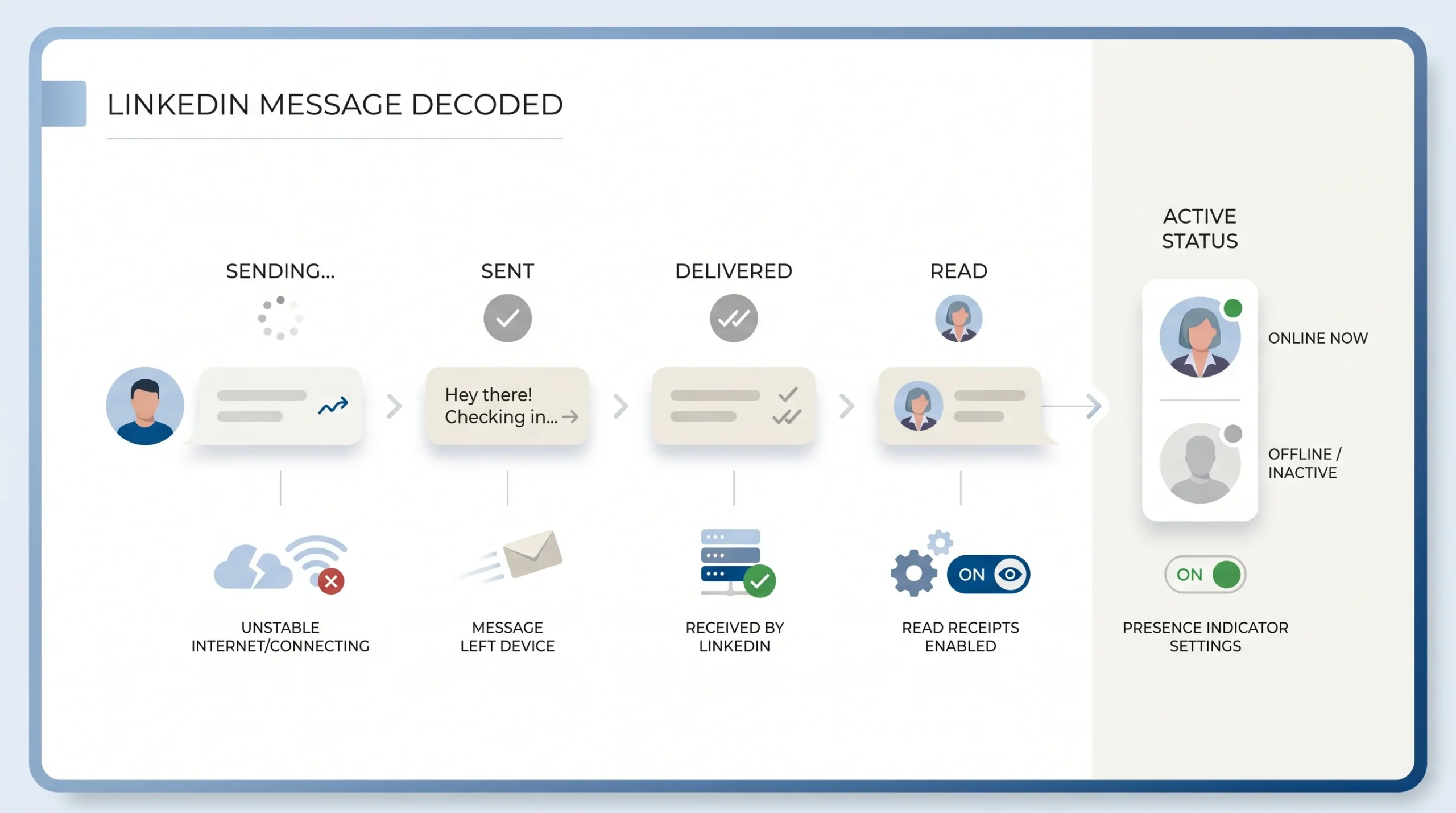
LinkedIn’s messaging interface uses a series of small visual cues to tell you exactly where your message stands at any given moment — from the moment you hit send to the moment the recipient reads it. Understanding each one removes ambiguity from professional conversations and helps you respond appropriately at every stage.
The Sending State — The Grey Circle
When you hit send on a LinkedIn message, the very first thing you see next to your message is a grey circle. This indicates that your message is currently in the process of being sent and has not yet been confirmed as received by LinkedIn’s servers.
Under normal conditions, this grey circle disappears almost immediately and transitions to the next status. However, if you are on an unstable internet connection, the message can get stuck in this grey circle state. According to LinkedIn’s own messaging documentation and multiple platform analyses, a message that remains as a grey circle for an extended period is not yet delivered and may not send at all until connectivity is restored. If you see it persisting, check your network connection before assuming the message went through.
The Grey Check Mark — Sent but Not Delivered
Once LinkedIn’s servers confirm they have received your message, the grey circle transitions to a single grey check mark (✓). This is one of the most commonly misunderstood indicators on the platform.
A single grey check mark means your message has successfully left your device and been received by LinkedIn’s servers. It does not mean the message has been delivered to the recipient’s inbox, and it certainly does not mean it has been opened or read. As described across LinkedIn’s help documentation and third-party platform analyses, this status simply confirms that LinkedIn has your message — the next step is delivery to the recipient.
In some cases, a message can remain at this “sent” stage for a period of time due to server processing or recipient-side conditions. The gap between sent and delivered is usually brief, but it matters to understand that these are two distinct states.
The Double Grey Check Mark — Delivered to Inbox
When your message has been successfully placed into the recipient’s LinkedIn inbox, the single grey check mark upgrades to a double grey check mark (✓✓). This is the delivery confirmation.
The double grey check mark tells you that the message is sitting in the recipient’s inbox and waiting for them to open it. It does not mean they have seen the notification, glanced at the preview, or opened the conversation thread. It means the message has arrived. According to LinkedIn’s platform documentation, this status updates once the message reaches the recipient’s inbox, regardless of whether they have been active on the platform.
It is worth noting that seeing a grey double check for an extended period does not necessarily mean the person is ignoring you — they may simply not have logged into LinkedIn recently, have notifications turned off, or have a busy inbox.
The Profile Picture Icon — Message Has Been Read
This is LinkedIn’s version of a read receipt, and it works differently from every other major messaging platform. Instead of changing the colour of a tick (like WhatsApp’s blue ticks), LinkedIn displays the recipient’s small profile picture directly next to your message once they have opened and read it.
When you see the recipient’s profile photo appear beneath your message in the conversation thread, that is LinkedIn confirming the message has been seen. This system is intentional — using a profile photo rather than a colour-coded tick is more identity-aware, which is particularly useful in group conversations where you can see exactly which participant has read the message.
There is an additional feature that most users are unaware of: on desktop, hovering your cursor over the profile picture icon shows you the exact timestamp of when the message was opened. This means you can see not just that the message was read, but precisely when — a detail that can be valuable for timing follow-ups in sales or recruitment contexts.
It is critical to understand one important limitation here: the profile photo read receipt only appears if both you and the recipient have read receipts enabled in your settings. If either party has turned off this feature, the profile photo will not appear regardless of whether the message has been opened. In that case, the status will simply remain at the double grey check mark (delivered), even after the recipient has read it.
The Red Exclamation Mark — Message Failed to Send
If your message encounters a problem during the sending process, you will see a red exclamation mark (!) appear next to your message. This means the message was not successfully sent and has not reached LinkedIn’s servers or the recipient’s inbox.
There are several reasons a message may fail to send. According to LinkedIn’s support documentation and platform guides, common causes include:
- An unstable or dropped internet connection during the send process
- The recipient’s privacy settings preventing messages from being received (for example, if they have restricted who can message them)
- Technical issues on LinkedIn’s platform side
- Attempting to message someone who has since blocked you or restricted their account
When you see the red exclamation mark, the appropriate action is to check your connection, refresh the page or app, and attempt to resend the message. Do not assume the person received anything — a red exclamation mark means the message definitively did not go through.
The Green Dot — Active Status Indicator
Separate from the message-level status indicators, LinkedIn also shows a green dot next to a user’s profile picture in the messaging interface. This dot is an active presence indicator, not a message delivery confirmation, and the two are frequently confused.
A solid green dot means the user is currently active on LinkedIn — they have the platform open right now, either on desktop or mobile. A green dot with a white circle inside it indicates they are on mobile but available. According to LinkedIn’s help documentation, if someone does not have this feature enabled or has it hidden, you will not see any green indicator.
Here is where confusion often arises: seeing the green dot next to someone’s profile does not mean they have seen your message. They may have LinkedIn open in another tab, be using the mobile app for a different task, or be active in a completely different part of the platform. The green dot and the read receipt (profile photo) are two entirely separate signals and should not be conflated.
How LinkedIn Read Receipts Actually Work — The Full Mechanics
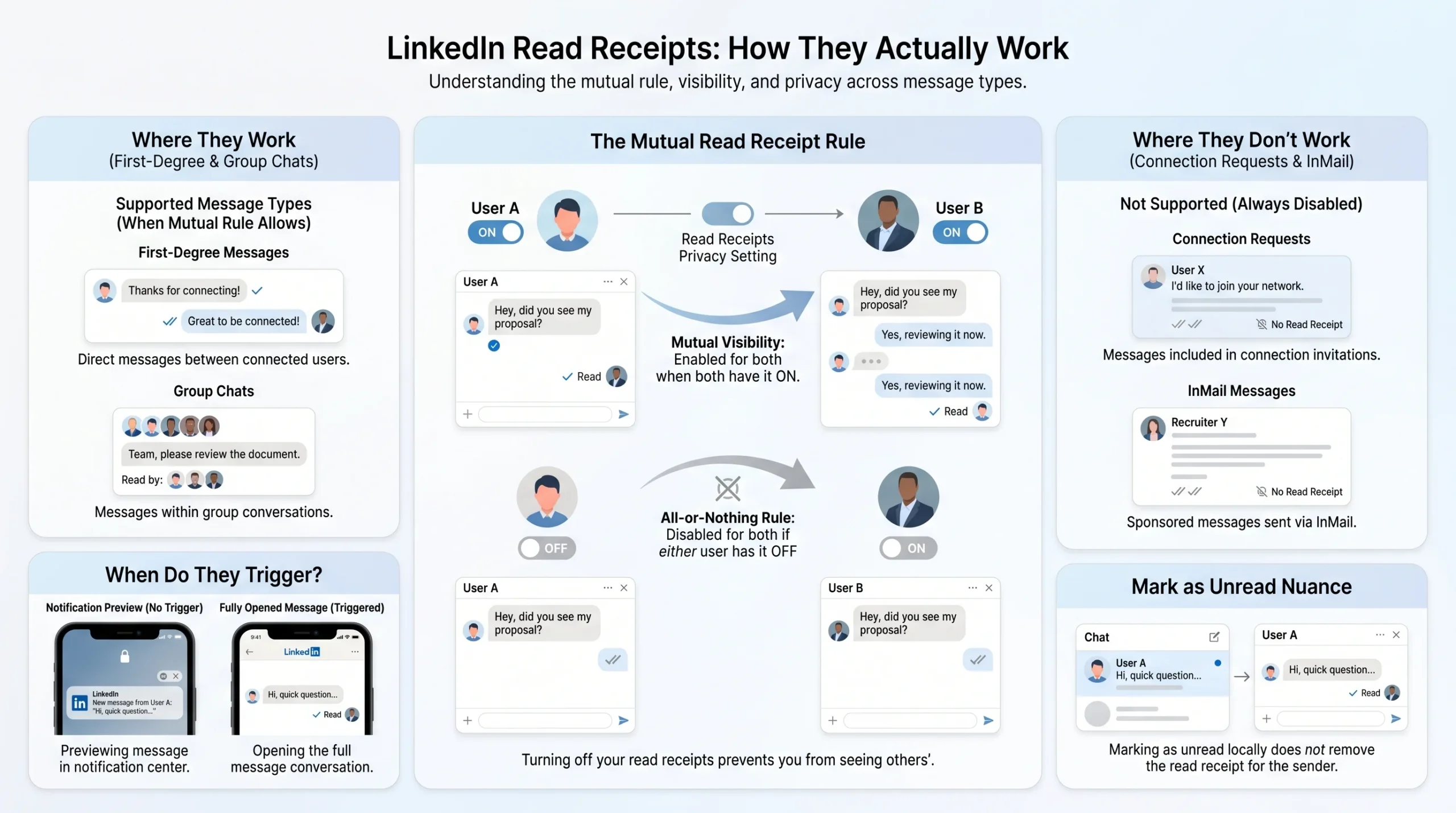
Understanding what each symbol looks like is the first step. Understanding the rules that govern when those symbols appear — and when they don’t — is what separates casual users from people who actually know how to communicate effectively on the platform.
Read Receipts Are Enabled by Default
LinkedIn enables read receipts and typing indicators automatically for all accounts, both free and LinkedIn Premium. You do not need to take any action to start using read receipts — if you have not changed this setting, it is already on.
According to LinkedIn’s official help documentation, when enabled, read receipts and typing indicators show for all messages sent between you and your connections. This means anyone you send a message to, and anyone who sends a message to you, can see the read status of conversations — as long as neither party has turned the feature off.
This default-on behaviour is worth knowing because many users assume read receipts are an opt-in premium feature. They are not. They are available to everyone and active unless deliberately disabled.
The Mutual / All-or-Nothing Rule
This is arguably the most important mechanical rule in LinkedIn’s read receipt system, and it is the one most frequently misunderstood.
LinkedIn’s read receipt and typing indicator settings operate on a mutual, all-or-nothing basis. If you turn off read receipts, the other person cannot see when you have read their messages — but you also lose the ability to see when they have read yours. According to LinkedIn’s official support documentation, this mutual system ensures that if one party opts out, both are protected equally.
There are two critical implications of this rule:
- You cannot selectively hide read receipts from one person. Turning off read receipts applies to all your conversations simultaneously — not to a specific contact or thread.
- Read receipts and typing indicators are controlled by a single toggle. You cannot turn off read receipts while keeping typing indicators active, or vice versa. Disabling one disables both.
This all-or-nothing design is a deliberate privacy protection. It means no one can secretly observe your reading behaviour while hiding their own — the trade-off is always symmetrical.
Read Receipts Only Work Between 1st-Degree Connections
LinkedIn read receipts do not function universally across all message types. There are specific relationship and message-type requirements that must be met for the system to work.
- Direct messages between 1st-degree connections: Read receipts work as described — profile photo appears when the message is opened, provided both parties have the feature enabled.
- Connection request messages: When you send a message alongside a connection request, read receipts are not active for that message. According to LinkedIn’s official help documentation, read receipts for message requests are only enabled once the recipient accepts the connection request. Until then, you will not see any read confirmation, even if they have opened and read the request.
- InMail messages: Read receipts are not available for InMail, regardless of your settings or whether you have LinkedIn Premium. This is confirmed directly in LinkedIn’s help documentation. InMail is a separate communication channel used to reach people outside your immediate network, and it does not support read receipt functionality.
- Group messages: Group message conversations on LinkedIn behave differently from 1:1 conversations. Read indicators in group chats do not track individual reads in the same way as direct messages — you will not see a separate profile photo for each group member who has read the message.
Timing — How Fast Do Read Receipts Appear?
According to multiple platform analyses and LinkedIn’s messaging behaviour documentation, read receipts appear near-instantly on desktop once the recipient opens the message thread. There is essentially no delay between the moment a person clicks on your message and the moment their profile photo appears beneath it on your end.
On mobile, the timing depends on whether the recipient is actively in the app or responding to a push notification. If they tap the LinkedIn notification and it takes them into the message, the read receipt fires at that point. However, if they only see a preview in their notification bar without actually opening the LinkedIn app or conversation thread, the read receipt will not trigger — the message must be genuinely opened within the app to register as read.
This distinction matters: a person can receive a notification preview of your message on their phone without the read receipt firing. Do not assume a lack of read receipt means the message was never seen in any form.
The “Marking as Unread” Nuance Most People Miss
LinkedIn allows users to mark a conversation as “unread” in their own inbox — typically to remind themselves to come back to a message later. Many users assume this action retracts or reverses the read receipt for the sender. It does not.
According to LinkedIn’s platform behaviour, marking a conversation as unread only changes your own inbox view. If you had already opened and read the message before marking it as unread, the sender has already received the read receipt confirmation — your profile photo has already appeared beneath their message on their end. Marking the conversation as unread on your side does not remove or undo that signal.
This is a particularly important nuance for recipients who are trying to manage their inbox without creating false impressions and for senders who might wonder why they see a read receipt but the conversation is now showing as “unread” on the other end.
How to Turn LinkedIn Read Receipts On or Off
LinkedIn gives every user full control over their read receipt and typing indicator settings. The process is straightforward and takes under a minute on both desktop and mobile.
Step-by-Step: Desktop
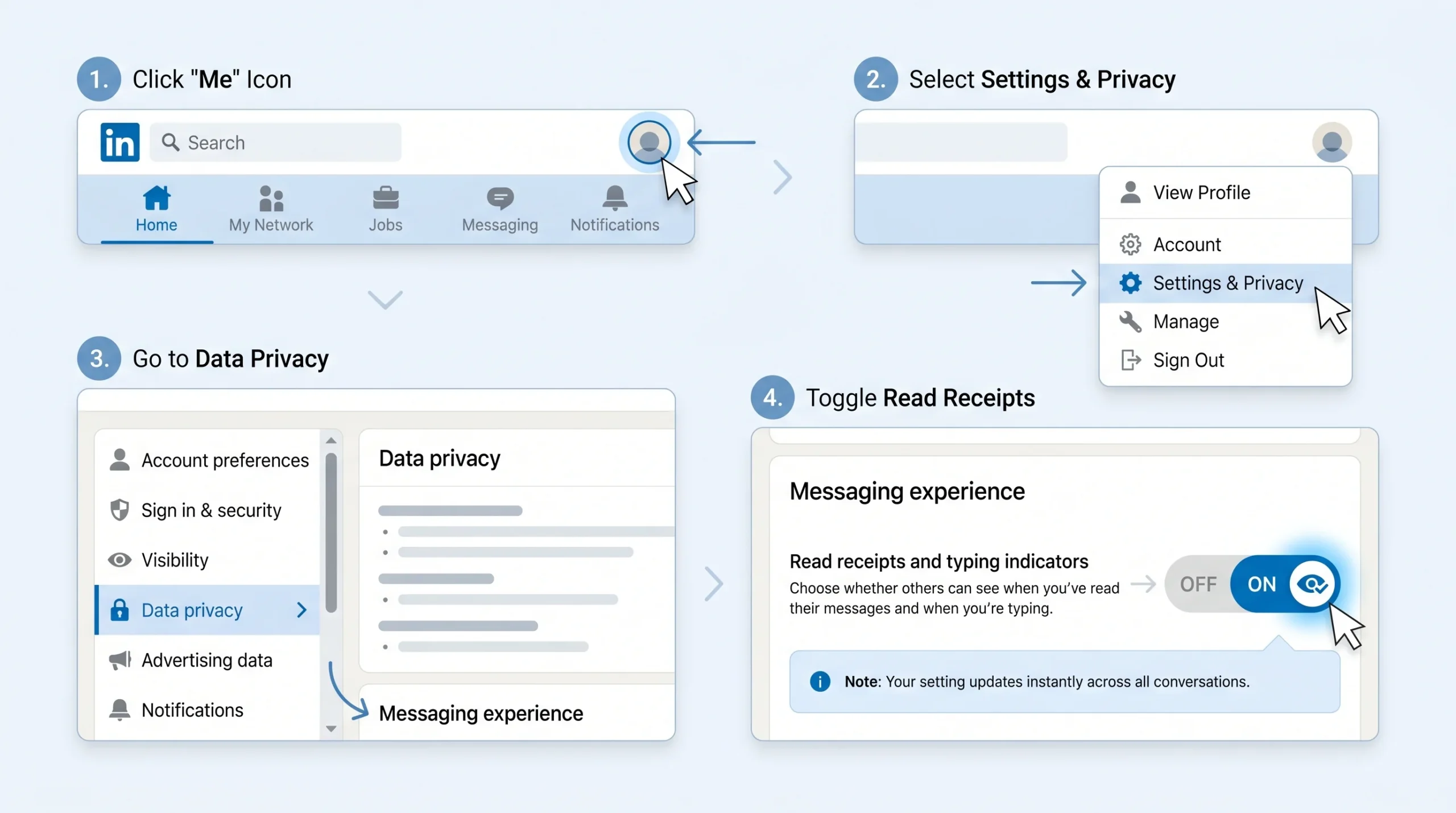
To manage read receipts on LinkedIn using a desktop browser, follow these steps:
- Click the Me icon (your profile photo) at the top right of your LinkedIn homepage
- Select Settings & Privacy from the dropdown menu
- Click Data privacy in the left-hand navigation panel
- Scroll down to the Messaging experience section
- Click on Read receipts and typing indicators
- Use the toggle switch to turn the feature On or Off
The change takes effect immediately. There is no confirmation screen — as soon as you toggle it, the setting is live across all your conversations.
Step-by-Step: Mobile (iOS & Android)
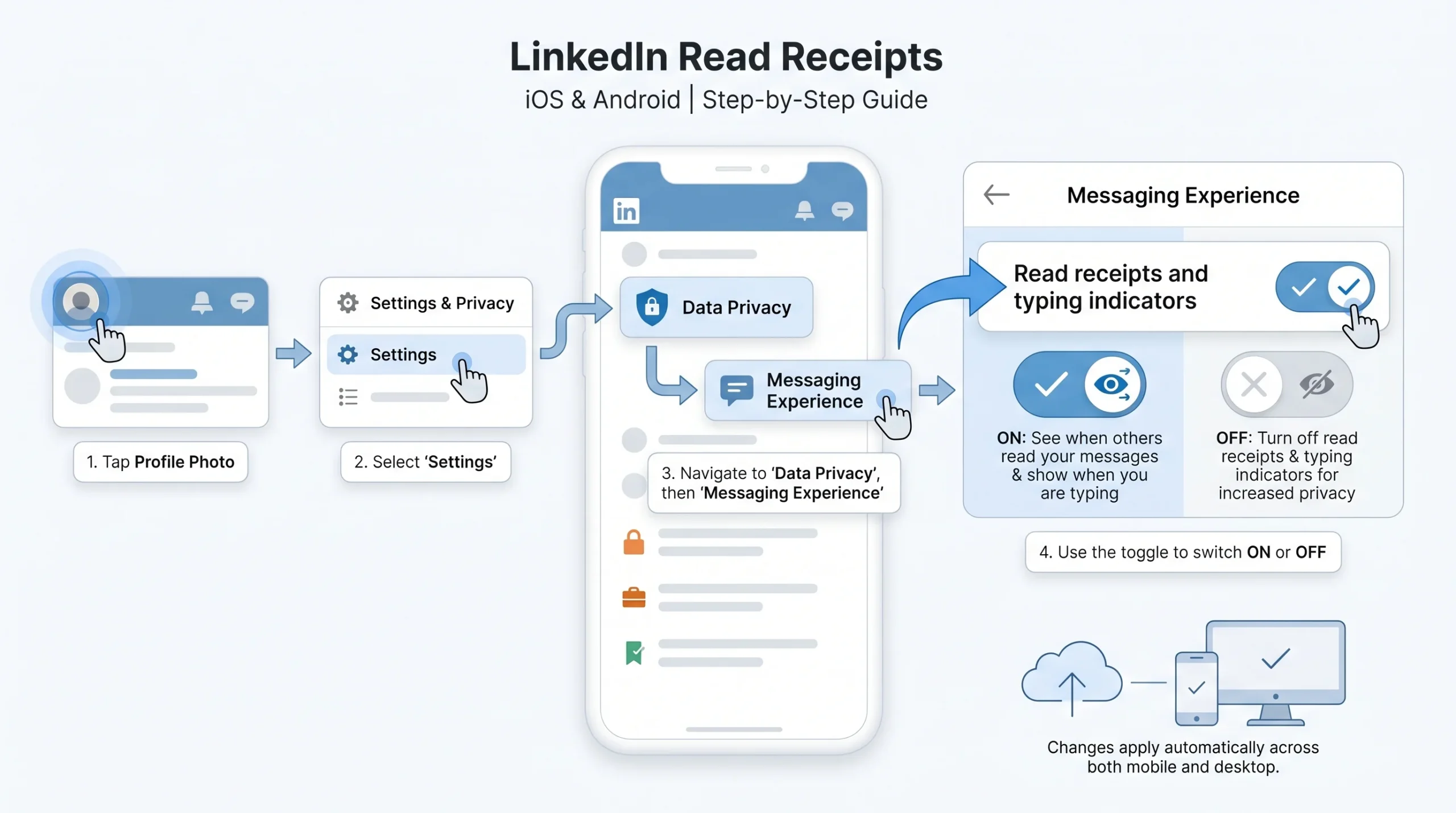
The path on mobile mirrors the desktop settings, with some minor interface differences:
- Tap your profile photo in the top-left corner of the LinkedIn app
- Tap Settings (gear icon)
- Tap Data privacy
- Under the Messaging experience section, tap Read receipts and typing indicators
- Toggle the setting to your preferred state
LinkedIn’s mobile app applies the same setting across devices — if you turn read receipts off on your phone, they are also off on desktop, and vice versa, since it is a single account-level setting.
What Happens When You Turn It Off
Understanding the full consequences of disabling read receipts helps you make an informed decision rather than an impulsive one.
- You lose visibility into your own sent messages. Once read receipts are off, you will no longer see the profile photo appear beneath your sent messages, even if the recipient reads them. Your messages will remain at the double grey check mark (delivered) status indefinitely.
- The other person loses visibility too. Because of the mutual system, disabling your read receipts means the people you message also cannot see when you have read their messages — even if they have their own read receipts enabled.
- Typing indicators are simultaneously disabled. The toggle for read receipts and typing indicators is a single control. Turning one off turns off both.
- The setting is global, not per-conversation. You cannot disable read receipts for one person while keeping them active for another. It applies to all your LinkedIn conversations at once.
When to consider turning it off: if you receive high volumes of outreach messages and feel pressured to respond immediately upon opening them, disabling read receipts gives you privacy and mental breathing room. Similarly, recipients of high-stakes messages (such as those from candidates or clients) may prefer to assess messages privately before deciding how to respond. As noted in LinkedIn user research, the pressure to reply immediately after being seen can be genuinely stressful, and turning off read receipts is a legitimate and widely used solution.
LinkedIn Read Receipts vs. Other Platforms — What’s Different and Why
LinkedIn’s read receipt system looks unfamiliar to most users because it was deliberately designed to work differently from consumer messaging apps. Understanding these differences explains why the system is built the way it is.
LinkedIn vs. WhatsApp
WhatsApp uses a well-known three-state tick system:
- Single grey tick: Message sent
- Double grey tick: Message delivered to the recipient’s device
- Double blue tick: Message has been read
LinkedIn’s system covers similar states but uses different visual language. The grey check mark (sent/delivered) is comparable to WhatsApp’s grey ticks. However, instead of blue ticks for “read,” LinkedIn uses the recipient’s profile photo. This is a meaningful design distinction.
WhatsApp’s blue ticks tell you a message was read — but they don’t tell you who read it in a group setting without additional steps. LinkedIn’s profile photo indicator immediately shows you the identity of the person who read the message, which is especially valuable in group message threads where multiple participants are involved. According to platform comparisons across LinkedIn marketing and messaging guides, this identity-first approach reflects LinkedIn’s professional context — knowing who engaged with your message, not just that someone did, is often the more useful information in a professional setting.
Another key difference: WhatsApp’s read receipt toggle is per-conversation-type and works separately from delivery indicators. LinkedIn’s toggle controls read receipts and typing indicators together and applies mutually across all conversations.
LinkedIn vs. Email Read Receipts
Email read receipts (when available) typically require the recipient to actively approve them — a dialogue box appears asking the recipient if they want to send a read confirmation. This means email read receipts are unreliable; most recipients decline or ignore them.
LinkedIn’s read receipts, by contrast, are automatic and require no approval from the recipient. If both parties have the feature enabled (the default state), the read receipt fires automatically when the message is opened. According to messaging guides from LinkedIn-focused platforms, this makes LinkedIn read receipts significantly more reliable for outreach tracking than email-based alternatives — as long as the recipient hasn’t specifically turned the feature off.
Why LinkedIn’s Approach Suits Professional Communication
LinkedIn’s design choices around read receipts reflect the nature of professional communication. Consumer apps like WhatsApp and iMessage prioritise real-time, casual conversation — blue ticks and immediate read notifications create a sense of urgency and presence. That works for personal chats.
Professional communication operates differently. Messages on LinkedIn are often deliberate — proposals, recruitment outreach, sales introductions, networking requests. The person receiving these messages may need time to consider their response, consult a colleague, or simply fit a reply into a busy calendar. LinkedIn’s profile-photo-based read receipt is visually subtle and identity-affirming rather than accusatory. It tells the sender “this was seen” without creating the same immediate reply pressure that a bright blue tick might generate.
According to analysis from LinkedIn messaging professionals and outreach strategists, this subtlety is intentional — LinkedIn’s system is built to support asynchronous professional exchange rather than to mimic the real-time intensity of a personal chat app.
Strategic Use of Read Receipts for Professionals
Read receipts are not just status symbols — they are data points. When used thoughtfully, they can meaningfully improve how you communicate, follow up, and adjust your outreach strategy. The key is knowing what the information tells you and, equally importantly, what it does not.
For Sales and Business Development Professionals
Read receipts can be one of the most useful signals in a sales professional’s outreach toolkit — if interpreted correctly.
- Read + no reply = the message was seen but not compelling enough to act on. This is feedback about your message content, not a verdict on your timing. If your outreach is consistently being read but not replied to, the issue is the message itself — the hook, the value proposition, or the relevance to that person. Revise the message before assuming follow-up is the answer.
- Use the hover-to-timestamp feature on desktop strategically. If you can see the exact time a message was read, you can begin to identify when a specific contact is most active on LinkedIn. Sending future messages slightly before that window can increase the chances of prompt engagement.
- Read receipt + green dot = the person is active on LinkedIn right now. According to outreach strategy guides from LinkedIn-focused sales platforms, this combination — seeing both a read receipt and a green dot — is the closest LinkedIn gives you to a live engagement signal. A short, direct, non-pushy follow-up in this window can feel timely rather than intrusive.
- Repeated reads without a reply (visible when a contact has read receipts on and you can see the timestamp refreshing) can indicate genuine interest with a barrier to responding — consider simplifying your ask or offering an easier entry point, such as a yes/no question.
- When silence after a read means move on: According to LinkedIn outreach practitioners, if a message has been read and more than two weeks have passed with no response after a single polite follow-up, that is a clear enough signal to remove that contact from active outreach and focus elsewhere.
For Recruiters
Recruiters send high volumes of messages and need to triage engagement efficiently. Read receipts provide a meaningful layer of signal in that process.
- A read receipt without a reply tells you something specific about a passive candidate. If a passive candidate opens your message but does not respond within a week, it may indicate they are not actively interested in moving — but it could also mean the role or package wasn’t detailed enough to prompt action. Adjust your follow-up to add a specific detail (compensation range, flexibility, growth opportunity) rather than simply resending the same message.
- The timing of the read receipt can indicate the candidate’s level of professional engagement. A message opened within hours of being sent suggests an active job-seeker behaviour pattern. A message that sits unread for days before being opened suggests a passive candidate who checks LinkedIn infrequently.
- Unread messages in a bulk outreach campaign — when most messages remain at the double grey check mark — indicate either a poor-fit audience, an unappealing subject line (LinkedIn message preview), or an inactive contact list. Read receipts give recruiters an aggregate engagement signal that email rarely provides with the same reliability.
For Job Seekers and Networkers
For job seekers reaching out to hiring managers, or professionals trying to build genuine network connections, read receipts change the emotional landscape of follow-up decisions.
- Should you follow up after seeing a read receipt? Yes — but not immediately and not with entitlement. Seeing that your message was read is simply confirmation it arrived and was opened. A thoughtful follow-up after five to seven days is generally considered appropriate professional etiquette, according to LinkedIn communication guides. The follow-up should add value — a relevant article, a new detail about your background, or a specific question — rather than simply asking if they saw your message.
- Do not mention the read receipt in your follow-up. Referencing the fact that you can see they read your message (“I noticed you read my message but haven’t replied…”) comes across as surveillance rather than genuine outreach. It puts the recipient on the defensive and undermines the professional tone you are trying to establish.
- Wait the right amount of time. The general professional standard, backed by LinkedIn outreach guides, is five to seven days between an initial message and a first follow-up. If a second follow-up is warranted (after another week with a read receipt and no reply), keep it brief and close with an easy exit — something like “Happy to connect if the timing is ever right.”
For Anyone: Read Receipts Are Signals, Not Verdicts
Regardless of your professional role, the most important reframe around LinkedIn read receipts is this: a read receipt confirms visibility, not interest, availability, or intent.
There are several common context blindspots that prevent a read receipt from being a simple “they saw it and chose not to respond” signal:
- Mobile notification previews: A person may see a preview of your message in their phone’s notification bar without opening the LinkedIn app — the read receipt does not fire in this case, but they still have a general sense of your message.
- Distracted or scanning reading: Someone may open a message during a meeting, on a commute, or in a context where they cannot meaningfully engage with it. The intent may be to reply later, not to ignore it.
- Inbox volume: Senior professionals, executives, and highly active LinkedIn users receive enormous volumes of messages. A read receipt from these contacts may mean your message was briefly opened as part of an inbox triage rather than carefully considered.
- Personal circumstances: As noted by LinkedIn users in public discussions, personal situations (job loss, illness, major life events) can make responding to professional messages genuinely difficult for periods of time, regardless of whether messages are being opened.
Resetting expectations around read receipts — treating them as one useful data point rather than a definitive signal of intent — protects both your professional relationships and your own mental well-being as a communicator.
Common Issues, Misconceptions, and Troubleshooting
Even when you understand the system conceptually, you will encounter situations that seem to contradict the rules. Here are the most common ones, with clear explanations.
“My message has been stuck on a grey check mark for days — what does that mean?”
A message stuck at the single grey check mark (sent, not yet delivered) for an extended period has a few possible explanations:
- The recipient has not been active on LinkedIn recently. Delivery to the inbox requires the platform to process the message on the recipient’s end, which in some implementations is tied to their activity state.
- The recipient has read receipts disabled. While a grey check mark technically reflects delivery status rather than read status, some platform guides note that certain receipt-related settings can affect how status indicators display.
- A technical delay or connectivity issue on your end at the time of sending may have affected delivery. Refreshing the page or app and confirming the message appears in the conversation thread is a good first troubleshooting step.
- The recipient’s privacy settings may be restricting who can message them, which could affect delivery confirmation.
“The read receipt disappeared / I can no longer see when someone read my message”
If a read receipt (profile photo) was visible and then stopped appearing for subsequent messages, the most likely explanations are:
- The recipient toggled off read receipts after your first message was already read. Since the first message was opened before they changed the setting, you saw the receipt. Subsequent messages will not show a receipt because the feature is now disabled on their end.
- You may have inadvertently toggled off your own read receipts, which removes your ability to see receipts from others due to the mutual system.
“Can I read someone’s message without them knowing?”
Yes — with an important caveat about timing. If you turn off read receipts before opening a message, opening that message will not send a read receipt to the sender. According to LinkedIn platform guides, this is a legitimate and commonly used approach for users who want to review messages privately before deciding how to respond.
However, if you open a message before turning off read receipts, the receipt has already been sent the moment you opened it. Changing your settings afterwards does not retroactively remove that signal. The window for private reading is before the message is first opened.
“Do read receipts work in group conversations?”
Group message conversations on LinkedIn do support read receipts and typing indicators in a general sense — if you have the feature enabled, other participants in a group conversation can see when you have read the group message. However, the tracking is not individually broken out the same way as in a 1:1 conversation. According to LinkedIn’s help documentation, when read receipts are disabled by a user, no one in a group conversation can tell when that user has seen or read a message. Conversely, when enabled, general read activity is visible within the group.
“Does LinkedIn Premium give better read receipt features?”
No. Read receipts work identically for free LinkedIn accounts and LinkedIn Premium accounts. The feature is not gated behind a paid subscription. The common confusion arises because InMail — a feature exclusive to Premium accounts — is frequently mentioned alongside read receipts. However, InMail specifically does not support read receipts. According to LinkedIn’s official documentation, read receipts and typing indicators are not visible to senders of InMail messages, regardless of their subscription level. The read receipt feature is available only for regular direct messages between connections.
Key Takeaways
LinkedIn’s messaging system communicates more information than most users realise — but only if you know how to read it. Here is a consolidated summary of everything covered in this guide.
Quick-Reference Status Table:
| Symbol | Meaning | What to Do |
|---|---|---|
| Grey circle | Message is sending | Wait; check connection if it persists |
| Single grey check mark (✓) | Message sent to LinkedIn’s servers | Normal — delivery pending |
| Double grey check mark (✓✓) | Message delivered to recipient’s inbox | Normal — awaiting recipient to open |
| Recipient’s profile photo | Message has been read | Follow up appropriately if no reply after 5–7 days |
| Red exclamation mark (!) | Message failed to send | Check connection and resend |
| Green dot | Recipient is currently active on LinkedIn | Useful timing signal; not a read confirmation |
The mutual toggle rule in plain language: If you turn off read receipts, you stop seeing other people’s, and they stop seeing yours. It is symmetrical, global, and covers typing indicators too. There is no selective mode.
The single most important strategic reminder: A read receipt means your message was opened. It does not mean the person is interested, available, or ready to respond. Treat it as one useful signal among many — a reason to follow up thoughtfully, not a trigger for impatience or alarm.
Conclusion
LinkedIn’s message status indicators — the grey circle, the single check mark, the double check mark, the profile photo, and the red error mark — form a complete, logical system once you understand how each piece fits together. None of these symbols are arbitrary. Each one tells you something specific and actionable about where your message stands in the delivery and engagement process.
The key to using this system well is knowing its rules: read receipts are on by default for everyone, they operate mutually and cannot be applied selectively, they do not work for InMail or unaccepted connection requests, and they confirm visibility rather than intent. The hover-for-timestamp feature on desktop adds a layer of precision that most users never discover, and the “marking as unread” feature changes nothing for the sender — nuances that can save a lot of confusion in high-stakes conversations.
For professionals — whether in sales, recruitment, job searching, or general networking — read receipts are one of the most immediate feedback mechanisms LinkedIn offers. They tell you whether your outreach is reaching people in a way that prompts engagement, and they help you time your follow-ups with more confidence. But they work best when combined with strong message fundamentals: a clear, relevant, personalised message is always going to outperform a strategically timed generic one.
The green dot tells you someone is online. The profile photo tells you your message was opened. What happens next depends entirely on the value you delivered in the message itself.
Frequently Asked Questions
What does the grey check mark on LinkedIn messages mean?
A single grey check mark means your message has been successfully sent and received by LinkedIn’s servers. It does not confirm delivery to the recipient’s inbox and does not indicate whether the message has been opened or read. It is the first confirmation state after the initial “sending” grey circle.
How do I know if someone has read my LinkedIn message?
You can tell a message has been read when the recipient’s small profile picture appears directly beneath your message in the conversation thread. This profile photo is LinkedIn’s read receipt indicator. Note that this only appears if both you and the recipient have read receipts enabled in your settings. If either party has the feature disabled, the message will remain at the double grey check mark (delivered) status even after it has been opened.
Can I turn off read receipts without the other person knowing?
You can turn off read receipts, but the system is mutual — meaning the other person will no longer see receipts from you, and you will no longer see receipts from them. There is no way to disable read receipts silectively for just one person, or to disable your outgoing receipts while still seeing incoming ones. The change applies globally to all your conversations the moment you toggle it.
Do LinkedIn read receipts work for InMail?
No. According to LinkedIn’s official help documentation, read receipts and typing indicators are not available for InMail messages. InMail is a separate messaging channel used to contact people outside your immediate network (typically a Premium feature), and it does not support read receipt functionality regardless of how either party has configured their settings.
What happens if I mark a LinkedIn message as unread — does it undo the read receipt for the sender?
No, it does not. Marking a conversation as unread in your inbox only changes your own view — it re-flags the conversation for your own follow-up purposes. If you had already opened the message before marking it as unread, the sender received the read receipt at the moment you first opened it. Marking the conversation as unread afterwards does not retract or reverse that signal for the sender.
Why don’t I see a read receipt even though I know the person is active on LinkedIn?
Several factors can explain this:
- The recipient has read receipts turned off in their settings — the most common cause
- The person is active on LinkedIn but has not opened your specific conversation thread
- The message is an InMail or an unaccepted connection request message — neither of which support read receipts
- A technical delay on LinkedIn’s platform side, which usually resolves on refresh
- The conversation is a group message, where read tracking behaves differently from 1:1 conversations
Can I see exactly when someone read my LinkedIn message?
Yes — but only on desktop, and only when the read receipt is visible. According to LinkedIn messaging behaviour documented across platform guides, hovering your cursor over the recipient’s profile photo (the read receipt icon) on a desktop browser reveals the exact timestamp of when the message was opened. This feature is not available on mobile — on the app, you can see that the message was read but not the precise time it was opened.