


LinkedIn has more than 1 billion registered members worldwide and 310 million monthly active users. It is the world’s largest professional network, and the ability to find the right person on it can open doors to new jobs, partnerships, clients, and hires. But there is a persistent myth that you need a paid subscription to search effectively. That myth stops a lot of people from getting the most out of a platform they already have access to.
The truth is that a free LinkedIn account, combined with the right techniques, gives you a formidable set of tools to find almost anyone. Google X-ray search, Boolean operators, the Alumni tool, Company Pages, LinkedIn Groups, and private browsing mode all work without paying a single rupee or dollar. The gaps between free and premium are real, but they are far narrower than LinkedIn’s marketing would have you believe.
This guide covers every free search method available in 2026, explains exactly where the limits are, and gives you the honest picture of when upgrading is actually worth it.
What “Without Premium” Actually Means (And What You Can Still Do for Free)
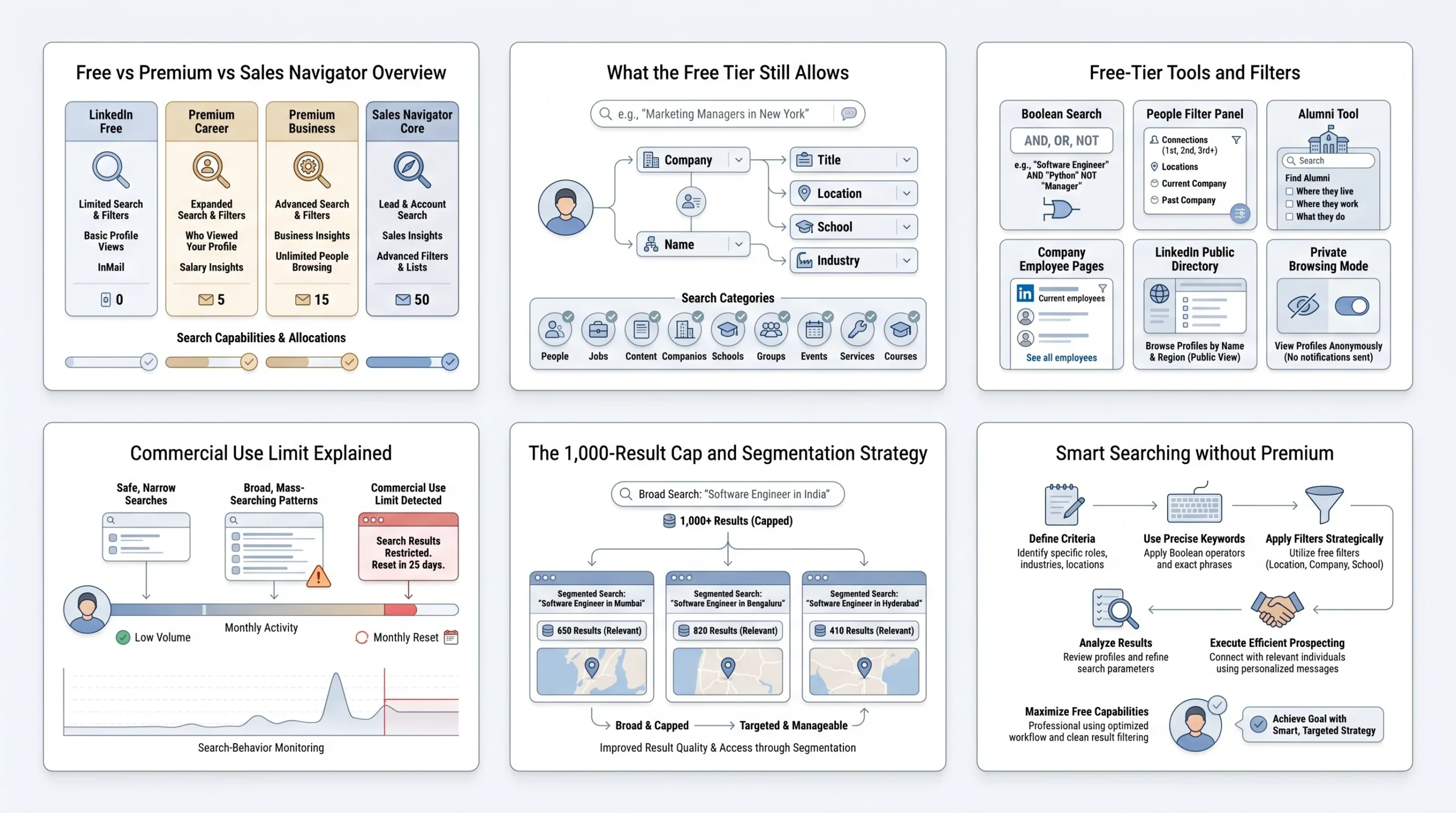
Before diving into methods, it is important to understand what the phrase “without premium” really means. LinkedIn has multiple paid tiers, each with different capabilities. Knowing where the free tier ends and the paid tiers begin lets you search intelligently without wasting time on features you do not have.
Free vs. Premium vs. Sales Navigator — Key Differences at a Glance
LinkedIn offers four main account types in 2026, each aimed at a different use case.
- Free (Basic): Includes the standard search bar, access to all nine search categories, basic filters (location, current company, past company, industry, school, connection degree, connections of, followers of, and profile language), Boolean search in the main search bar, and the ability to view public profiles. Free accounts are capped at roughly 1,000 search results per query and face a monthly commercial use limit.
- Premium Career ($29.99/month): Adds 5 InMail credits per month, Featured Applicant status on job applications, advanced filters like “actively hiring companies” and “jobs with fewer than 10 applicants,” and the ability to see who viewed your profile over the past 90 days. It also allows you to browse in private mode while still seeing your own profile viewers — a feature free accounts do not get.
- Premium Business ($59.99/month): Includes everything in Career plus 15 InMail credits per month, company insights, and broader profile visibility.
- Sales Navigator Core ($119.99/month or $1,079.88/year): This is where search capabilities change dramatically. Sales Navigator unlocks 30+ additional filters including company size in People search, seniority level, function, years of experience, technologies used, and buyer intent signals. It also raises the result limit from 1,000 to 2,500 results per search and allows up to 50 saved searches.
Annual billing for any of these plans saves between 16% and 30% compared to monthly billing.
What LinkedIn’s Free Tier Lets You Search, Filter, and View
The free tier is more capable than most people realize. You can search for people by name, job title, company, school, location, and industry without any subscription. LinkedIn’s updated 2026 search experience understands natural language queries, meaning you can type conversational phrases like “marketing manager at a tech startup in Mumbai” and receive relevant results, not just exact keyword matches. You can also include details like company, role, title, or location directly in the search bar rather than relying only on filters.
Free accounts also provide access to:
- All nine LinkedIn search categories (People, Jobs, Posts, Companies, Groups, Schools, Events, Courses, Products)
- The People filter and the “All Filters” panel with basic sub-filters
- Boolean search operators in the main search bar
- The Alumni tool (accessible at linkedin.com/alumni)
- Company employee pages
- LinkedIn’s public directory at linkedin.com/pub/dir
- Private browsing mode (with a trade-off — explained in a later section)
The Commercial Use Limit: What It Is, When It Hits, and How to Avoid It
The commercial use limit is LinkedIn’s way of discouraging high-volume prospecting on free accounts. When LinkedIn determines that your searching patterns look like commercial activity — repeated People searches at high volume — it restricts your results. You will see a message saying you have reached the end of search results, even though more results exist. This limit resets at the start of each calendar month.
LinkedIn does not publish an exact threshold, but evidence from practitioners in 2026 puts the practical limit at approximately 300 meaningful People searches per month on a free account before the restriction kicks in. The key insight is that the limit is activity-based, not purely count-based. Broad searches that return many results burn through it faster than narrow, specific searches.
The practical way to avoid hitting this limit is to search more precisely from the start. Instead of searching for “Marketing Manager in the United States” — which might return tens of thousands of results — break the search into smaller, geographic or industry-specific chunks. Each narrow search stays within safe behavior thresholds and gives you better-quality results at the same time.
The 1,000-Result Cap on Free Accounts — and How to Work Around It
Even before the commercial use limit applies, free accounts face a hard cap of 1,000 results per search query (100 pages of 10 results each). Sales Navigator raises this to 2,500 results per search. If your search returns a message saying there are no more results when you know more profiles should exist, you have hit the cap.
The correct response to the 1,000-result cap is not to upgrade — it is to segment your search. If a search for “Software Engineer in India” returns 1,000 results and stops, break it into “Software Engineer in Mumbai,” “Software Engineer in Bengaluru,” “Software Engineer in Hyderabad,” and so on. Each individual search stays within the limit. You access the same universe of profiles through multiple smaller windows rather than one large one.
How to Search for People on LinkedIn Using the Basic Search Bar
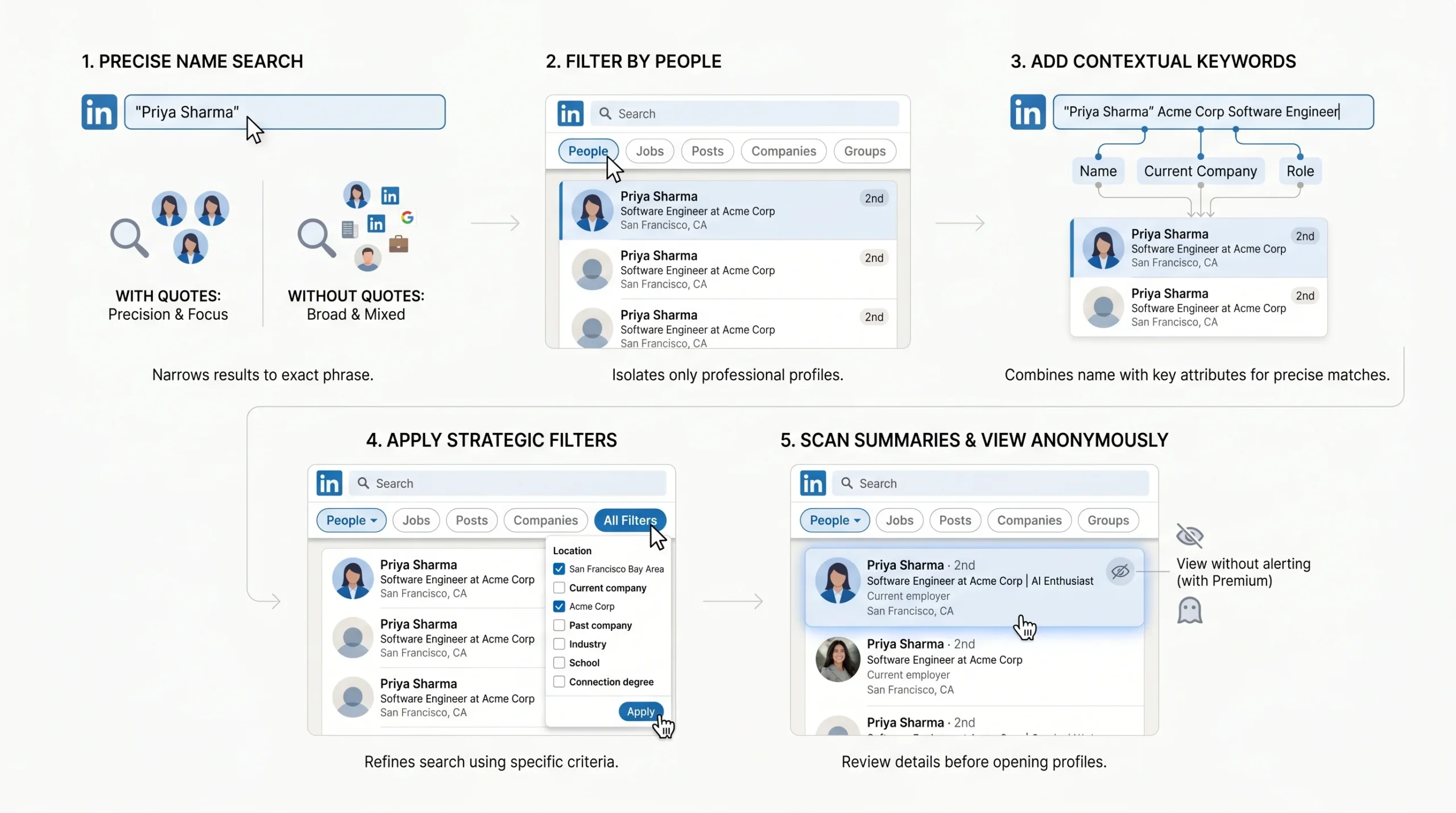
The basic search bar is the starting point for every LinkedIn search. Most people use only a fraction of its capability. A structured five-step approach turns a frustrating name search into a precise result in under two minutes.
Step 1 — Type a Name Into the Search Bar (And Why Quotation Marks Matter)
Type the full name of the person you are looking for into the LinkedIn search bar at the top of any page and press Enter. At this point, LinkedIn will return a mixed set of results across People, Posts, Jobs, Companies, and more.
Quotation marks are the single most important technique for name searches. Without them, LinkedIn treats each word in the name as an independent keyword and returns results where those words appear anywhere in a profile. With quotation marks — for example, "Priya Sharma" — LinkedIn searches for that exact phrase as a unit, dramatically cutting down irrelevant results. For any search involving a specific person’s full name, always use quotation marks first.
Step 2 — Switch to the “People” Tab to Filter Out Noise
After pressing Enter, LinkedIn displays results across all categories by default. Click the “People” tab just below the search bar to restrict results to user profiles only. This eliminates job postings, company pages, articles, and other content that matches the name keywords but has nothing to do with the person you are looking for.
Step 3 — Add Contextual Keywords Directly in the Search Bar
If the People tab still returns a large or mixed result set, the fastest next move is to add contextual details directly into the search bar alongside the name. LinkedIn’s 2026 natural language search can process combined queries like "Rahul Verma" Tata Consultancy Services Mumbai without requiring you to use every formal filter. LinkedIn will prioritize profiles that match both the name and the contextual keywords. This approach is faster than applying filters one by one and works especially well when you know the person’s employer, location, or role.
Step 4 — Use the “All Filters” Panel to Narrow Results
If contextual keywords in the search bar are not enough, click “All Filters” on the results page to open LinkedIn’s full filter panel. Here you can apply structured filters for location, current company, past company, industry, school, and connection degree. Each filter you add narrows the result set further. The important principle is to start with two or three key filters and add more only if you still have too many results. Applying every possible filter at once can accidentally exclude the person you are looking for if any part of their profile does not match your assumptions.
Step 5 — Scan Profile Summaries in Search Results
Before clicking into any individual profile, scan the brief summary that LinkedIn displays for each result in the search list. This summary typically shows the person’s current headline, current employer, location, and connection degree. In many cases, you can confirm you have the right person from this summary alone, saving you a profile view and preserving your anonymity if you prefer not to appear in their “Who viewed your profile” list.
Free Filters That Actually Work — No Premium Required
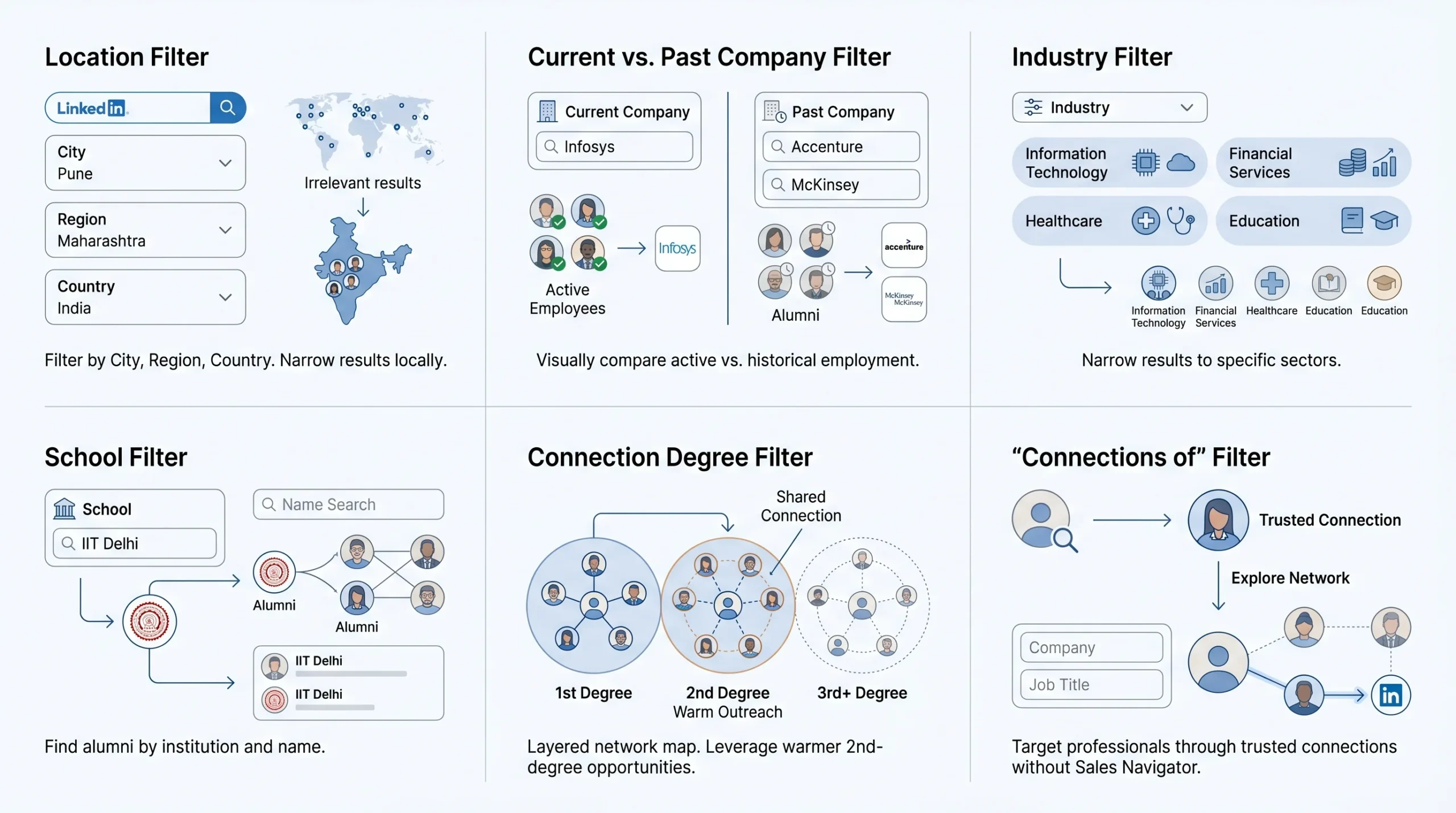
LinkedIn’s basic search filters are available to all users, including those on free accounts. These filters are where most of the practical power in free-tier searching lives.
Location Filter — Target by City, Region, or Country
The Location filter lets you narrow results to professionals based in a specific city, region, or country. This is critical when you are searching for a local contact, a regional hire, or someone you know is based in a particular area. You can search for broad geographies like “India” or narrow ones like “Pune, Maharashtra.” When paired with a name or job title search, the location filter eliminates hundreds of irrelevant profiles from other parts of the world.
Current Company Filter — Find People at Specific Organizations
The Current Company filter restricts results to people who list a specific organization as their current employer. If you are looking for someone who works at Infosys, Accenture, or a specific startup, entering the company name here ensures you only see active employees. This filter is particularly useful for finding a specific department head or team member when you know their employer but do not have their exact name.
Past Company Filter — Trace Career Histories
The Past Company filter works the same way as Current Company but searches historical employment records. If you know that someone previously worked at McKinsey before moving on, entering McKinsey in the Past Company filter surfaces alumni from that organization. This is a useful way to find people who share a specific professional background even if they have moved on to different roles.
Industry Filter — Search Within a Professional Sector
The Industry filter narrows your results to people whose profile lists a specific sector, such as Information Technology, Financial Services, Healthcare, or Education. This filter is most useful when you are trying to find someone by role and are willing to see all practitioners of that role across multiple companies within one industry, rather than at a specific employer.
School Filter — Find Alumni Without LinkedIn Premium
The School filter surfaces people who attended a specific educational institution, whether as the primary filter or combined with other criteria. Searching for "Abhishek Singh" with School set to Indian Institute of Technology Delhi will return only people with that name who list that institution in their education history. This filter works completely on the free tier and is especially useful for reconnecting with former classmates.
Connection Degree Filter — 1st, 2nd, and 3rd+ Connections Explained
LinkedIn’s network is structured in degrees of connection. First-degree connections (1st) are people you are directly connected to. Second-degree connections (2nd) are people connected to your 1st-degree connections. Third-degree connections (3rd+) are everyone else. The Connection Degree filter lets you restrict results to any of these tiers. Filtering for 2nd-degree connections is particularly useful because these people are close enough to share mutual connections with you — which makes outreach feel warmer — but far enough away that you would not already know them.
“Connections of” Filter — Search Through Someone’s Network
The “Connections of” filter is one of the most underused free tools on LinkedIn. It lets you search within the direct network of any specific 1st-degree connection. If you know someone who works in your target industry and has a broad network, you can use “Connections of: [their name]” combined with job title or company filters to surface highly targeted candidates or contacts. This is a legitimate way to use someone else’s network without needing Sales Navigator’s advanced relationship-mapping features.
How to Find People on LinkedIn With Common Names
Common names present a real challenge on LinkedIn. A search for “Amit Kumar” or “John Smith” can return thousands of profiles. The following techniques systematically narrow these results to find the right individual.
Why Common Names Are Harder to Search (And How Bad It Gets)
To put the scale in perspective: a name like “Michael Johnson” in the United States or “Priya Singh” in India can return thousands of profiles on LinkedIn, all with similar headlines and locations. Even after switching to the People tab and applying quotation marks, you are often left with hundreds of results. Scrolling through them one by one is not a viable strategy. The techniques below are specifically designed for this situation.
Combine Name + Company in the Same Search Query
The most effective first move with a common name is to add the employer directly into the search bar alongside the name. The query "Priya Singh" Wipro will return only people named Priya Singh who have Wipro listed somewhere in their profile. If you know the company but are not certain which division or team, this combination alone usually reduces a field of thousands to a handful of candidates. From there, a quick scan of profile summaries typically identifies the right person.
Combine Name + Location for Geographic Precision
If you do not know the employer but do know the city or region, add the location to the search bar or apply the Location filter. The query "Rahul Gupta" Hyderabad in the search bar narrows results to people with that name who have a Hyderabad connection in their profile — either their listed location or their employer’s registered city. This is especially effective in India, where many multinational employers have city-specific campuses.
Use Profile Headlines and Keywords to Disambiguate
When you have a name and approximate role but not a specific employer, add a keyword describing their function directly to the search bar. For example, "David Lee" "product manager" filters for people with that name who list product management in their headline or experience. LinkedIn’s natural language search will weight profiles where both the name and the role keyword appear prominently.
Cross-Reference With Mutual Connections
When the above filters still leave you with multiple candidates, check the mutual connections listed under each search result. If you know that the person you are looking for is in the same professional circle as someone you are already connected with, that shared connection is often the clearest confirmation that you have found the right profile. You do not need to visit the full profile to see the “mutual connections” indicator in the search results list.
Boolean Search on LinkedIn — The Free User’s Superpower
Boolean search is a query technique that uses logical operators to filter search results with precision. It works on LinkedIn’s free tier and does not require any paid upgrade. It is one of the most powerful tools available to a free-account user and one of the most consistently underused.
What Boolean Search Is and Why It Works on LinkedIn’s Free Tier
Instead of typing a single keyword and trusting LinkedIn’s algorithm to interpret your intent, Boolean search tells LinkedIn exactly which terms must appear, which are optional, and which should be excluded. When you type a Boolean string into LinkedIn’s main search bar, LinkedIn searches across multiple profile elements simultaneously — including the headline, current and past job titles, summary, skills, and education sections. This works directly in the free search bar without needing to access any premium filter panel.
The Five Boolean Operators: AND, OR, NOT, Quotes, and Parentheses
LinkedIn’s Boolean search supports five core operators, each serving a distinct purpose:
- AND: Requires both terms to appear in the result. The query
"data engineer" AND Snowflakereturns profiles that mention both a data engineering title and the Snowflake platform. - OR: Returns results that match either term. The query
"CTO" OR "Chief Technology Officer"surfaces both common variations of the same role, catching profiles that use one version but not the other. - NOT (written as a minus sign or the word NOT): Excludes profiles containing the specified term. The query
"product manager" NOT marketingfinds product managers while excluding product marketing managers. - Quotation marks: Search for an exact phrase as a unit rather than individual keywords. Always use quotation marks around multi-word job titles, company names, or names to ensure LinkedIn looks for the complete phrase.
- Parentheses: Group terms to control search logic. The query
("CTO" OR "VP Engineering") AND "SaaS"finds people who hold either title and also have SaaS in their profile.
How to Type Boolean Strings Correctly (Capitalization Rules, Common Mistakes)
Boolean operators must be typed in UPPERCASE to work correctly. If you type “and” or “or” in lowercase, LinkedIn treats them as literal keywords — words you are searching for — rather than logical commands. A search for product manager and SaaS is not the same as "product manager" AND SaaS. The capitalization rule applies to AND, OR, and NOT. Parentheses and quotation marks do not have capitalization requirements.
The most common mistakes are: forgetting to capitalize operators, failing to put multi-word phrases in quotation marks, and applying too many NOT exclusions at once, which can accidentally eliminate valid profiles.
Boolean Search Examples by Use Case
Finding a Person by Name + Role
To find someone named Vikram Mehta who works in finance: "Vikram Mehta" AND ("finance" OR "CFO" OR "financial analyst")
This returns profiles where both the name and at least one finance-related keyword appear, handling the common problem of a person using different title variations on their profile.
Finding Decision-Makers at a Target Company
To find marketing leadership at a specific company: ("Head of Marketing" OR "VP Marketing" OR "Chief Marketing Officer") AND "Unilever"
This covers title variations without requiring you to run three separate searches, and the company name anchors results to one employer.
Excluding Irrelevant Titles With NOT
When searching for engineers and getting too many engineering managers in the results: "software engineer" NOT "engineering manager" NOT "director"
This strips out senior management roles and surfaces individual contributors, which is often the more useful result for technical outreach.
What Boolean Does NOT Support on Free LinkedIn Accounts
It is important to know the limits. LinkedIn’s free search bar does not support the NEAR operator or wildcard symbols like asterisks, which some Boolean search environments allow. LinkedIn’s own help documentation explicitly notes that its natural language search does not support quotes as a constraint in the same way traditional Boolean does in every context. As a practical matter, quotes work effectively for exact-phrase matching in the search bar. However, complex nested Boolean queries with multiple layers of parentheses may not behave as expected. If results seem off, simplify the query first before concluding that LinkedIn is processing it incorrectly.
Google X-Ray Search — Find LinkedIn Profiles Without Hitting Any LinkedIn Limit
Google X-ray search is the most powerful free method for finding LinkedIn profiles in 2026. It works by using Google’s site: operator to search only within LinkedIn’s domain, bypassing LinkedIn’s own search interface — and its limits — entirely.
What Google X-Ray Search Is (And Why It Bypasses LinkedIn’s Walls)
LinkedIn wants users to log in and use its native search. But LinkedIn also wants its profiles indexed by Google, because search engine traffic is how it converts non-members into sign-ups. This tension creates a persistent structural loophole: Google indexes the public-facing portions of most LinkedIn profiles, and you can search those indexed pages directly from Google without ever opening LinkedIn’s search interface. Because this happens on Google’s servers rather than LinkedIn’s, it does not count toward your LinkedIn commercial use limit.
The Basic X-Ray Formula: site:linkedin.com/in + Your Query
The foundation of every X-ray search is Google’s site: operator, which restricts results to a specific domain. The LinkedIn-specific formula looks like this:
site:linkedin.com/in [your search terms]
The /in path is important. LinkedIn profile pages follow the URL structure linkedin.com/in/username, so adding /in ensures Google returns individual profile pages rather than company pages, job listings, or other LinkedIn content. A basic example:
site:linkedin.com/in "Neha Joshi" "product manager"
This returns Google’s index of LinkedIn profiles matching the name Neha Joshi with product manager in the profile.
Adding Boolean Operators to Your X-Ray Search String
Google X-ray search and Boolean search combine naturally. The same AND, OR, NOT logic that works in LinkedIn’s search bar applies in Google with the site: operator. An example of a combined string:
site:linkedin.com/in ("Head of Sales" OR "VP Sales") AND "Bangalore" AND "SaaS"
This finds profiles of senior sales professionals in Bangalore who work in SaaS companies, surfacing results outside your 3rd-degree LinkedIn network that LinkedIn’s own search might hide to encourage a Sales Navigator upgrade.
Using intitle: to Search Job Titles and Company Names
Google’s intitle: operator searches specifically within the page title of indexed results. On LinkedIn, a profile’s page title typically reflects the person’s name and current headline. Using intitle: is therefore an effective way to find people by current job title:
site:linkedin.com/in intitle:"Sales Executive" intitle:"Salesforce"
This returns profiles of people whose LinkedIn page title includes both “Sales Executive” and “Salesforce” — a strong signal that they currently hold that role at that company.
Using Country Codes to Search by Region
LinkedIn uses country-specific subdomains for users in certain countries. You can incorporate these codes into your X-ray search to restrict results geographically:
- India:
site:in.linkedin.com/in - United Kingdom:
site:uk.linkedin.com/in - Canada:
site:ca.linkedin.com/in - Germany:
site:de.linkedin.com/in
For regions without a country-specific subdomain, add the location as a keyword within the search string alongside the main site:linkedin.com/in operator.
Step-by-Step: Find Anyone on LinkedIn via Google in Under 2 Minutes
Here is the complete process from scratch:
- Open Google in any browser — no LinkedIn login required.
- Type
site:linkedin.com/infollowed by the person’s name in quotation marks. - Add any additional context (company name, job title, location) directly after.
- Press Enter and scan the results.
- Click any result to view the public portion of the profile — no LinkedIn account needed for public profiles.
- If a result prompts you to log in to see more, the profile has restricted public visibility; try a different result or log in to your free account for more detail.
Limitations of X-Ray Search (What You Still Can’t See)
X-ray search is powerful but not unlimited. Google only indexes public profile information. If a LinkedIn user has set their profile to private or restricted search engine indexing in their privacy settings, their profile will not appear in Google results at all. Additionally, even for indexed profiles, X-ray search shows only the publicly visible portions of the profile — you cannot see connection lists, contact information, or activity feeds. For full profile detail, you need a LinkedIn account and, in some cases, a connection with the person.
How to Search LinkedIn Without an Account (or Without Logging In)
Searching LinkedIn without any account at all is possible, though it comes with meaningful limitations. Understanding exactly what you can and cannot access without logging in saves you from false starts.
What You Can Access on LinkedIn Without an Account
LinkedIn makes a portion of its content publicly available to encourage non-members to sign up. Without an account, you can access:
- Google X-ray search results for public profiles (the most powerful no-account method)
- LinkedIn’s public directory at linkedin.com/pub/dir
- Publicly visible portions of individual profile pages when you arrive via Google
- LinkedIn’s public job board at linkedin.com/jobs
LinkedIn’s Public Directory at linkedin.com/pub/dir — How to Use It
LinkedIn maintains a public directory where you can search by first name, last name, and optionally add a keyword. Navigate to linkedin.com/pub/dir/ in your browser, enter a name, and LinkedIn will return a list of profiles that match and have public visibility enabled. This directory does not require a login. However, the information displayed is minimal — typically a name, headline, and location — and you cannot apply filters. It functions as a basic name confirmation tool more than a serious search method.
Viewing Public Profiles Without Signing In
When you find a LinkedIn profile URL through Google and click through, you will often see the person’s public profile without being logged in. What you can see depends entirely on that person’s privacy settings. If their profile is set to public, you may see their full headline, current employer, education, skills, and summary. If their profile is semi-public or private, LinkedIn will prompt you to log in and may show only their name and a blurred summary.
Why X-Ray Search Is More Powerful Than LinkedIn’s Guest Search
LinkedIn’s own guest-facing search interface is deliberately limited — it exists to show just enough to make you want to sign up, not to serve as a functional prospecting tool. Google X-ray search, by contrast, searches Google’s index of LinkedIn’s public pages, which is far more comprehensive. Google also surfaces profiles that LinkedIn’s own guest search might not show, particularly older or less active profiles that LinkedIn’s algorithm deprioritizes in its native interface.
What You Cannot Access Without an Account — Honest Limitations
Without a LinkedIn account, you cannot use LinkedIn’s internal search bar with filters, view full profiles that have any privacy restrictions, see who is connected to whom, send connection requests, follow people, or access LinkedIn Groups. You also cannot see real-time activity — posts, comments, or profile updates — which are only visible to logged-in users. For any serious search effort, a free LinkedIn account unlocks significantly better results. Creating one is free and takes under five minutes.
Searching LinkedIn Anonymously — Finding People Without Them Knowing
Privacy on LinkedIn operates on two distinct levels: searching for a name (which is always anonymous) and visiting a profile (which may or may not notify the person, depending on your settings). These two things are commonly confused.
Does LinkedIn Notify Someone When You Search Their Name? (No — Here’s Why)
Searching for a name in the LinkedIn search bar does not notify anyone. This is completely anonymous, regardless of your account type or privacy settings. LinkedIn only triggers notifications through the “Who viewed your profile” feature, which activates when you actually navigate to and view someone’s profile page — not when you type their name into the search bar or scroll through search results. You can search for someone’s name, view their summary in the search results list, and confirm you have found the right person without triggering any notification whatsoever.
When LinkedIn Does Notify Someone (Profile Views vs. Searches)
The notification trigger is a profile visit. When you click through to someone’s full profile page, LinkedIn records that visit. By default, the profile owner can see your full name, headline, and profile picture in their “Who viewed your profile” section. Free account holders can see their five most recent profile visitors. Premium account holders can see up to 90 days of profile visitor history.
This distinction matters practically: you can do extensive name-level research from the search results page without any notification. It is only when you click into someone’s actual profile that the notification mechanism activates.
How to Enable Private Browsing Mode on LinkedIn
LinkedIn’s private mode allows you to visit profiles without your identity being revealed to the person whose profile you view. To enable it:
- Click the “Me” icon at the top of your LinkedIn homepage.
- Select “Settings & Privacy” from the dropdown menu.
- Click “Visibility” on the left-hand menu.
- Find “Profile viewing options” in the “Visibility of your profile & network” section.
- Click “Change” next to Profile viewing options.
- Select “Private mode.”
This change takes effect immediately. From this point, anyone whose profile you visit will see only “LinkedIn Member — This person is viewing profiles in private mode” in their viewer list, with no identifying information about you.
The Trade-Off: What You Lose When You Go Private
Private mode comes with a specific cost on free accounts. When you enable private mode, LinkedIn also removes your ability to see who has viewed your own profile. This is LinkedIn’s built-in reciprocity rule: you cannot hide your own visits while also seeing who visits you. Free account holders therefore face a binary choice — stay public and see your five most recent profile visitors, or go private and lose that visibility entirely.
Notably, LinkedIn Premium subscribers have a different arrangement. According to LinkedIn’s official help documentation, Premium account holders can browse profiles in private mode and still retain access to their list of profile viewers from the past 90 days. This is one of the few genuinely meaningful advantages Premium provides over the free tier for search purposes.
What “Found You Through LinkedIn Search” Means
If you have ever seen the phrase “found you through LinkedIn search” in your notifications, it means someone searched for your name using LinkedIn’s internal search bar and then visited your profile. The notification tells you the search pathway but does not reveal the specific search terms used. It is simply a categorization that LinkedIn uses to describe how a profile view originated — in this case, through a search rather than through a post, a mutual connection, or a LinkedIn recommendation.
Alternative Ways to Find People on LinkedIn Without Premium
Beyond the standard search bar and Boolean methods, LinkedIn offers several structural features that serve as effective people-finding tools. All of them are free.
Search Through LinkedIn Company Pages (Employee Lists)
Every LinkedIn company page includes a count of employees who have linked their current employment to that company. Clicking on the employee count opens a People search filtered to current employees of that organization. This is a reliable way to browse a company’s staff without needing Sales Navigator’s company targeting features. You can then apply additional filters — by job title, location, or connection degree — directly within this employee list. The limitation is that not every employee links their profile to the company page, so the list is representative but not exhaustive.
Search Within LinkedIn Groups in Your Industry
LinkedIn Groups are communities built around professional interests, industries, and topics. Members of the same group can message each other directly without being connected, which makes groups both a search tool and an outreach channel. To find people through groups, search for a relevant group name, join the group, then browse members or search within the member list. This method surfaces professionals you would not easily find through standard search and allows you to reach out to them without InMail credits, because group membership enables direct messaging between members. LinkedIn caps these group-based message requests at 10 per week across groups and events combined.
Use LinkedIn’s Alumni Tool (Free and Underused)
The LinkedIn Alumni tool is a free feature that lets you search for people who attended a specific educational institution. Navigate to linkedin.com/alumni and LinkedIn will recognize your school from your profile and redirect you to its alumni page. From there, you can filter alumni by where they live, where they work, what they do, what they studied, what they are skilled at, and how you are connected. You do not need to be an alumnus to search another school’s page — navigate to any university’s official LinkedIn page, click the “Alumni” tab, and the same tool is available.
The Alumni tool currently covers more than 23,000 colleges and universities worldwide. It is particularly valuable for finding warm connections, because a shared educational background gives you an immediate, genuine reason to reach out that cold outreach lacks.
Look at “People Also Viewed” Sidebar Profiles
When you visit any LinkedIn profile, the right sidebar typically displays a “People also viewed” section listing other profiles that users who visited this page also looked at. This is an algorithmic recommendation that surfaces professionals with similar roles, industries, or networks. If you have found one relevant profile, the “People also viewed” sidebar is a reliable way to discover similar people without running additional searches. This feature works on free accounts and requires no additional configuration.
Check Post Engagement — Find People by the Content They Interact With
Every LinkedIn post that is publicly visible shows the number of reactions and comments. Clicking on the reaction count reveals a list of people who reacted to the post, each with a brief headline and connection indicator. This is a highly targeted way to find professionals who are actively engaged with topics relevant to your interests. If a post about cloud infrastructure has 200 reactions and you are looking for cloud engineers, the reaction list is functionally a curated search result — filtered by genuine interest signal rather than just keyword matching.
Search Commenters and Likers on Relevant Posts
Similar to reactions, the comments section of a high-engagement post reveals professionals who are not only present on LinkedIn but actively participating in your area of interest. Searching for a relevant hashtag or topic, finding a popular post, and then reviewing commenters gives you a list of engaged practitioners who have publicly demonstrated interest in that subject. Unlike passive profiles that have not been updated in years, active commenters are by definition currently using the platform — making them far more likely to respond to outreach.
Searching LinkedIn for Specific Use Cases (Without Premium)
Different search goals call for different combinations of the techniques above. The following subsections map common use cases to the most effective free-tier strategy for each.
How to Find a Recruiter on LinkedIn for Free
Recruiters and talent acquisition professionals are among the most accessible people to find on LinkedIn because their roles are typically clearly stated in their headlines. Search "recruiter" OR "talent acquisition" OR "technical recruiter" in the People search, then apply a Current Company filter for the organization you are targeting. Alternatively, navigate to the company’s employee list and search within it by title. Most recruiter profiles are public and frequently updated, making them reliable targets for the search bar and X-ray methods alike.
How to Find Decision-Makers and Executives at Target Companies
For finding senior leadership at a specific company, combine the company employee list method with Boolean title filtering. Navigate to the company page, click the employee count, and then search within that list using Boolean operators: ("Head of" OR "VP" OR "Director" OR "Chief") AND "marketing". This returns senior marketing decision-makers at that specific company without requiring Sales Navigator’s seniority filter. The trade-off is that LinkedIn’s free filters cannot explicitly restrict by seniority tier, so you will need to scan results for level indicators in the headline.
How to Find Someone When You Only Know Their Job Title or Industry
When you have no name at all — only a role and a company or industry — start with a Boolean search combining the title with any contextual keywords. Use the OR operator generously to catch title variations: ("Head of Growth" OR "Growth Manager" OR "VP Growth") AND "fintech". Then apply the Location filter to the relevant geography. If the result set is still large, add a Current Company filter or a Connection Degree filter to prioritize warm leads.
How to Find a Former Colleague or Classmate
For former colleagues, combine a name search with the Past Company filter. Enter the person’s name in quotation marks, click “All Filters,” and enter your former employer in the Past Company field. This surfaces profiles of people who share that employment history with you. For former classmates, use the School filter the same way, or navigate directly through the Alumni tool to apply that filter in a dedicated interface.
How to Find Candidates as a Recruiter on a Free Account
Recruiters on free accounts are constrained by the commercial use limit, but they can still run effective candidate searches by segmenting. Instead of running a single broad search for “Java Developer in India,” break it by city: search for Java Developers in Bengaluru, then Hyderabad, then Pune as separate queries. Each individual search stays within the free tier’s safe range. Combine this with Boolean title variations ("Java Developer" OR "Java Engineer" OR "Backend Developer") and use the “Open to Work” keyword — searching for profiles that include the phrase “open to work” in their headline or summary — to surface candidates who are actively looking.
What to Do After You Find Someone — Outreach Without InMail
Finding the right person is only the first step. The follow-through determines whether the connection becomes valuable. Free accounts have more outreach options than most people realize.
Sending a Connection Request With a Personalized Note (Free Method)
Connection requests are free on all LinkedIn accounts. When you send a connection request, LinkedIn allows you to include a personalized note. For free accounts, this note is limited to 200 characters. For Premium accounts, the limit is 300 characters. Data from analyses of LinkedIn outreach campaigns shows that personalized connection requests achieve an acceptance rate of around 45% and a positive reply rate of approximately 39%, compared to the 18–25% response rate that InMails typically achieve. This means free connection requests with a well-crafted note outperform paid InMail on both acceptance and response metrics for most audiences.
Keep the note brief, reference a genuine point of commonality — a shared connection, a post they wrote, or a specific reason you are reaching out — and avoid any sales pitch in the initial note. The goal of the connection request is to get accepted, not to close a deal.
Following Someone Before Connecting — Why It Warms Them Up
LinkedIn allows you to follow any public profile as a follower without sending a connection request. Following someone means their public posts will appear in your feed. More importantly, when you follow someone and then engage with their content over a period of days, they begin to recognize your name. When you subsequently send a connection request, it arrives from a familiar name rather than a stranger. Connection requests from a recognizable name convert at two to three times the rate of cold requests. This warm-up sequence — follow, engage, then connect — costs nothing and significantly improves outcomes.
Engaging With Their Content Before Reaching Out
Leaving a thoughtful comment on someone’s post before sending a connection request is the most effective warm-up technique available on the free tier. The comment should add genuine value — a perspective, a follow-up question, or a relevant data point — not a generic “great post” that adds no insight. Meaningful engagement establishes you as a real professional with relevant knowledge, and it ensures that when your connection request arrives, the recipient has a concrete reference point for who you are.
Using Shared Groups to Message Non-Connections for Free
If you share a LinkedIn group with someone, you can send them a direct message without being a 1st-degree connection and without using InMail credits. Navigate to the group, find the person, and use the group’s messaging feature. LinkedIn limits these group-based direct messages to 10 per week across all groups and events combined, but within that limit, it is a genuine InMail alternative. The shared group membership also gives you a natural, credible opening for the message — you are reaching out as a fellow member of a professional community, which is inherently warmer than a cold outreach.
When to Consider Upgrading to Premium for Outreach
The honest answer is that most individuals and small teams do not need Premium for outreach. The free-tier combination of personalized connection requests, content engagement, and group messaging covers the majority of professional outreach scenarios. Upgrading becomes genuinely worthwhile when you need to reach senior executives who have restricted their connection requests to people they know (InMail bypasses this restriction), when you are running high-volume recruiting campaigns that exhaust the free-tier limits, or when you need more than five InMail credits per month for consistent outreach to people outside your network.
Free vs. Premium LinkedIn Search — Is Upgrading Worth It?
The decision to upgrade should be based on specific, concrete gaps in your current workflow — not on general anxiety about being on the free tier.
What You Get With LinkedIn Premium Career, Business, and Recruiter Lite
Premium Career ($29.99/month) adds 5 InMail credits, Featured Applicant status, and the ability to browse profiles privately while still seeing who has viewed your own profile. This last feature is the most search-relevant perk: free users must choose between anonymous browsing and seeing their viewers, while Premium Career users can have both.
Premium Business ($59.99/month) adds 15 InMail credits and company insights, making it more appropriate for sales or business development professionals than job seekers.
Recruiter Lite adds access to LinkedIn’s sourcing-specific filter set and a higher InMail allocation, appropriate for full-time recruiters who need volume.
What Sales Navigator Adds That Free Accounts Can’t Match
Sales Navigator is a different product category, not just an upgrade. Its 30+ additional search filters include company size, seniority level, years in current position, years in current company, technologies used, and buyer intent signals — none of which are available on any free or basic Premium tier. It also raises the search result cap from 1,000 to 2,500 per query and allows up to 50 saved searches with automated alerts. For professionals doing systematic lead generation at scale, these capabilities represent a genuine operational difference. According to a Forrester study, Sales Navigator users generated a 312% return on investment over three years, primarily attributed to more efficient prospecting and higher-quality leads.
Honest Verdict: Who Needs Premium and Who Doesn’t
For most individuals — job seekers, students, professionals looking to expand their network, occasional recruiters, and people wanting to reconnect with former colleagues — the free tier combined with the methods in this guide covers virtually every search need without any cost.
The cases where upgrading genuinely pays off are: full-time recruiters running 50+ targeted candidate searches per week, sales professionals who consistently exhaust the commercial use limit and need seniority and company size filters, and anyone who specifically needs InMail access to reach decision-makers who have locked down their connection requests.
If you are unsure whether you need Premium, do not buy it first and test later. Use the free methods in this guide for a full month. If you consistently hit the commercial use limit, exhaust your search options, and find yourself unable to reach key people without InMail, that is the moment to upgrade — not before.
How to Trial Premium for 30 Days Without Committing
All LinkedIn paid subscriptions, including Sales Navigator, offer a free 30-day trial. You can cancel before the trial period ends and pay nothing. During the trial period, you can use the full premium filter set to conduct high-volume prospecting, save searches, and send InMails. This allows you to test whether the premium capabilities genuinely improve your results before committing to a monthly fee. If you start a trial, set a calendar reminder for day 27 to evaluate whether the premium features produced meaningfully better results than the free methods described in this guide.
FAQs
Can I find someone on LinkedIn without a Premium account?
Yes. The free tier gives you access to the search bar, all nine search categories, basic filters including location, current company, past company, industry, school, and connection degree, Boolean search operators, the Alumni tool, company employee pages, and private browsing mode. Google X-ray search works entirely outside LinkedIn’s platform without any account at all. Premium unlocks additional filters, higher result limits, and InMail credits, but the vast majority of individual searches can be completed effectively on the free tier.
Does LinkedIn notify someone when I search for their name?
No. Typing someone’s name into LinkedIn’s search bar does not send any notification to that person. LinkedIn only notifies users through the “Who viewed your profile” feature, which is triggered when you actually visit and view someone’s profile page — not when you type their name into the search bar or scroll through search results. If you want to visit a profile without appearing in their viewer list, enable private mode in Settings & Privacy before clicking through to the profile page.
How do I find someone on LinkedIn if I don’t know their full name?
Use the filters available in the “All Filters” panel as your primary identifiers instead of a name. Apply the Current Company filter if you know their employer, the Industry filter if you know their sector, the Location filter if you know their city, and the School filter if you know where they studied. Combine these filters with a job title keyword in the search bar. You can also navigate to the employer’s company page, click the employee count, and browse staff directly. If all else fails, try Google X-ray search with the details you do have: site:linkedin.com/in "Tata Consultancy Services" "project manager" "Delhi" will surface profiles of project managers at TCS in Delhi without requiring any name at all.
What is LinkedIn’s commercial use limit and how do I avoid it?
The commercial use limit is a monthly restriction LinkedIn places on free accounts that show high-volume People search behavior, consistent with commercial prospecting. When you hit it, search results become restricted until the month resets. The best way to avoid it is to search precisely from the start — always pair your primary keyword with a narrowing filter like location or company before executing the search, rather than running broad searches and scrolling through pages of results. Google X-ray search is the most reliable way to bypass this limit entirely, because it operates through Google’s servers and does not count against LinkedIn’s monthly threshold.
How does Google X-ray search work for finding LinkedIn profiles?
Google X-ray search uses Google’s site: operator to restrict search results to a specific website. The basic formula is site:linkedin.com/in [your search terms]. Google has indexed the public-facing portions of most LinkedIn profiles, so searching this way returns LinkedIn profile pages directly from Google without ever going through LinkedIn’s search interface. Because the search happens on Google, it does not count toward LinkedIn’s commercial use limit, and it often surfaces profiles that LinkedIn’s own search deprioritizes — particularly profiles outside your third-degree network.
Can I search LinkedIn without creating an account?
Yes, with limitations. Google X-ray search (site:linkedin.com/in "Name") works entirely without a LinkedIn account. LinkedIn’s public directory at linkedin.com/pub/dir also allows name searches without logging in. LinkedIn’s public job board is accessible without an account. However, without an account you cannot use LinkedIn’s internal search bar with filters, view profiles with any privacy restrictions, send connection requests, follow people, or access Groups. A free LinkedIn account, which costs nothing to create, unlocks significantly better search capabilities than the no-account approach.