


Most people have spent real time on their LinkedIn profile. Updated the headline after a promotion, added a new role, maybe even written out actual bullet points for each job. And yet, when it’s time to apply somewhere, they start the resume from a blank Google Doc.
That’s backwards. Everything you need is already sitting in LinkedIn. The problem isn’t having the data. The problem is that LinkedIn’s built-in export is genuinely bad at turning that data into something a recruiter or an ATS system will take seriously. So you end up with two options: use the LinkedIn PDF and hope for the best, or build the resume from scratch and ignore the work you’ve already done.
There’s a third option. Download the LinkedIn PDF the right way, pull out what actually matters, and build a clean, ATS-ready resume in under 30 minutes. That’s what this guide covers, step by step, no filler.
How to Download Your LinkedIn Profile as a PDF
This sounds simple. It mostly is. But LinkedIn has moved things around in its UI more than once, and a lot of tutorials online still show screenshots from the old layout. Here’s where things actually live right now.
On desktop:
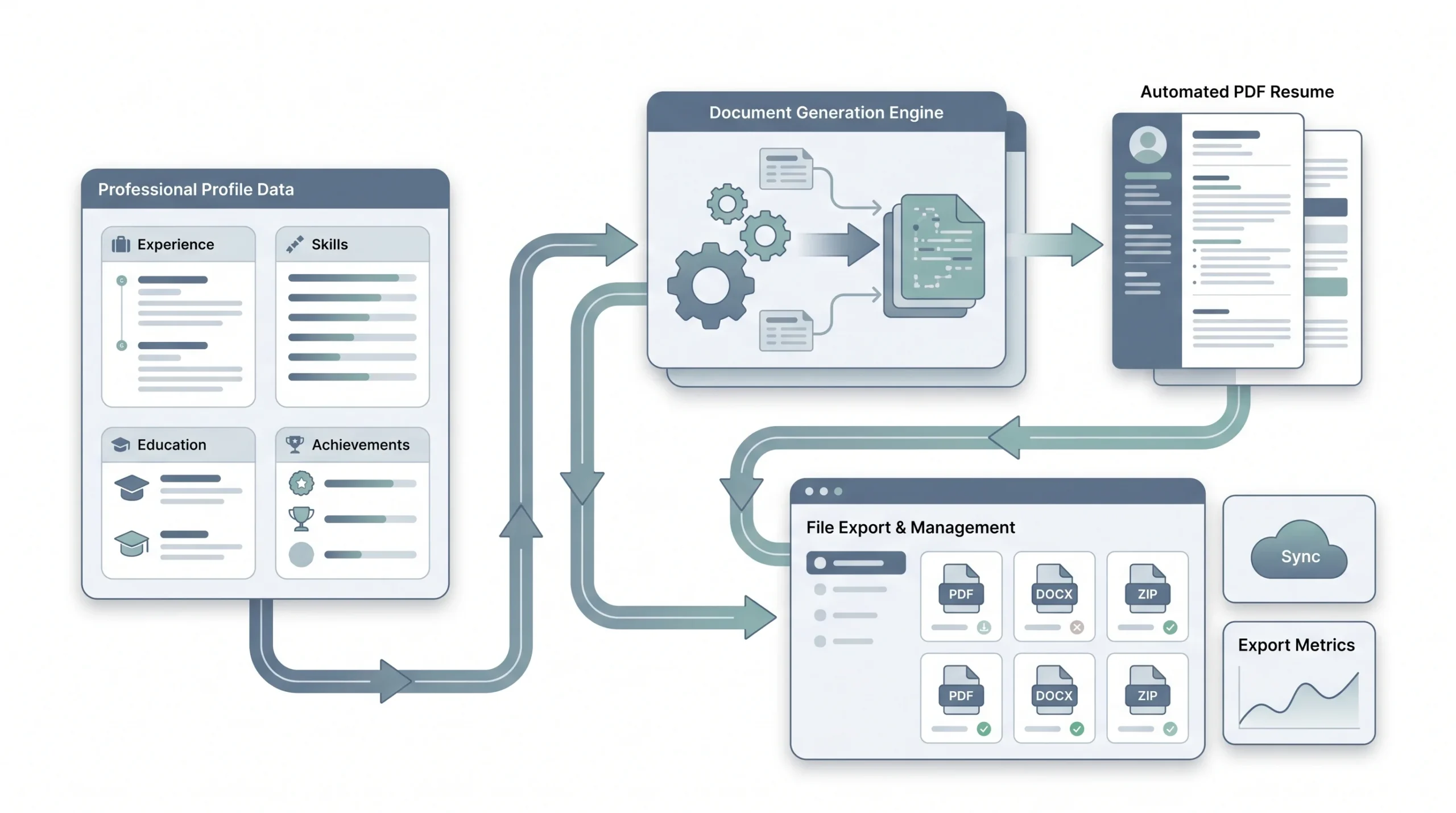
- Go to your LinkedIn profile page (click your profile photo in the top nav, then “View Profile”)
- Look for the “More” button sitting just below your profile photo and headline, right next to the “Open to” and “Add profile section” buttons
- Click “More” and you’ll see a dropdown. Select “Save to PDF”
- LinkedIn will generate the PDF in your browser and trigger a download automatically
That’s it. No settings, no customisation. LinkedIn decides what goes in and what doesn’t. The file usually downloads as something like “Profile.pdf” so rename it immediately or you’ll end up with six files called “Profile.pdf” in your downloads folder by next Tuesday.
On mobile (iOS and Android):
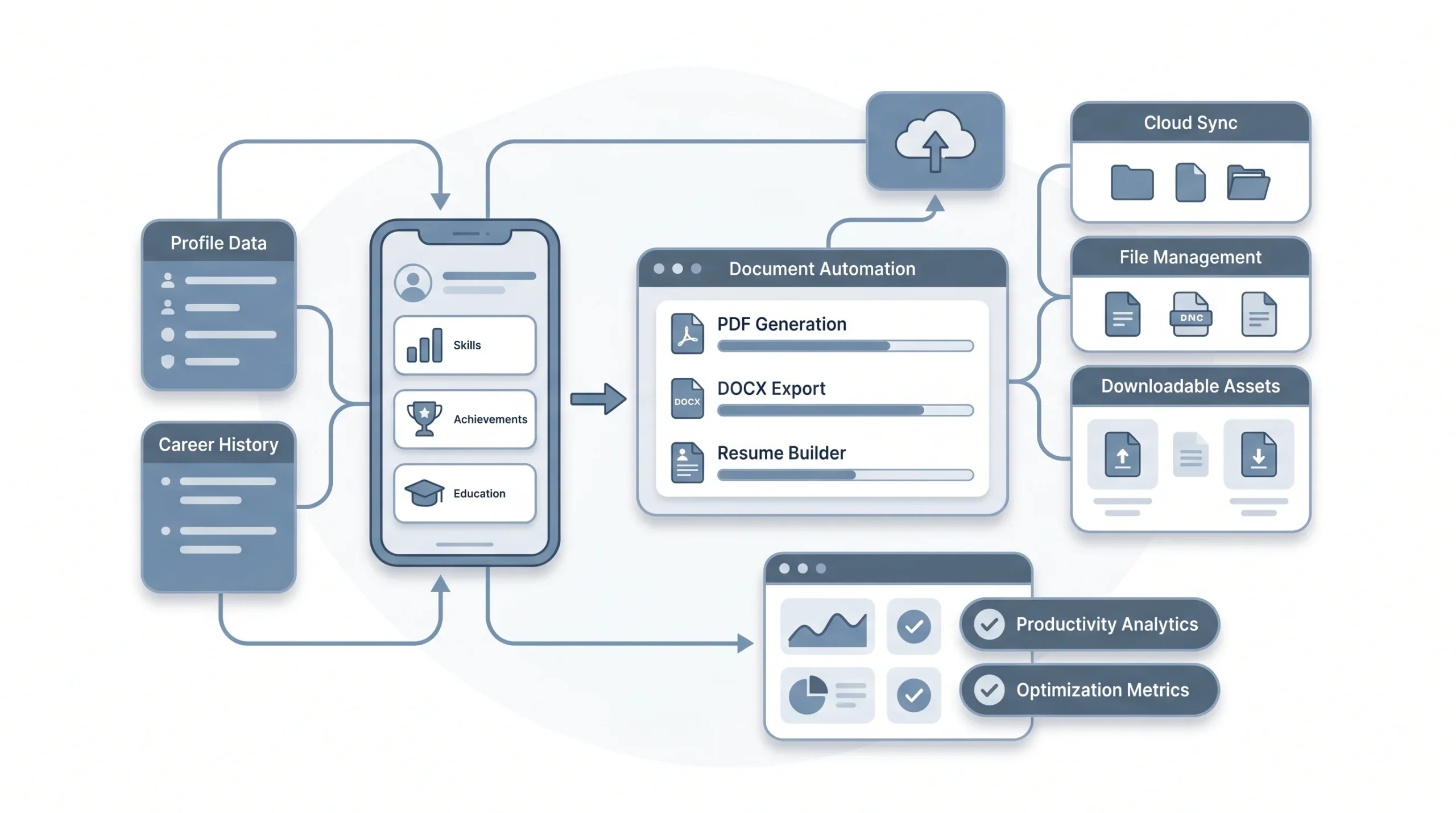
The mobile app handles this differently. There’s no direct “Save to PDF” button in the same spot.
- Open the LinkedIn app and go to your profile
- Tap the three dots (“…”) in the top right of your profile header
- On iOS, tap “Save to PDF” from the menu that appears
- On Android, the option may appear as “Export to PDF” depending on your app version
If you don’t see it on Android, try accessing your profile through the mobile browser (Chrome or Safari) rather than the app. LinkedIn’s mobile app version sometimes lags behind the desktop in features.
What LinkedIn actually includes in the PDF:
This is where things get interesting. The export includes your name, headline, contact info, work experience with descriptions, education, skills (the list, not the endorsement counts), certifications, and any publications or courses you’ve added. Recommendations text does appear. What doesn’t make it: your profile photo, banner image, media attachments (PDFs, links, portfolio files), endorsement counts, follower numbers, and connection count.
Quick note before you move forward: This PDF is not a resume. It looks like one, vaguely, but it will cause you real problems if you submit it as one. The next section explains exactly why.
Why LinkedIn’s PDF Export Fails as a Resume
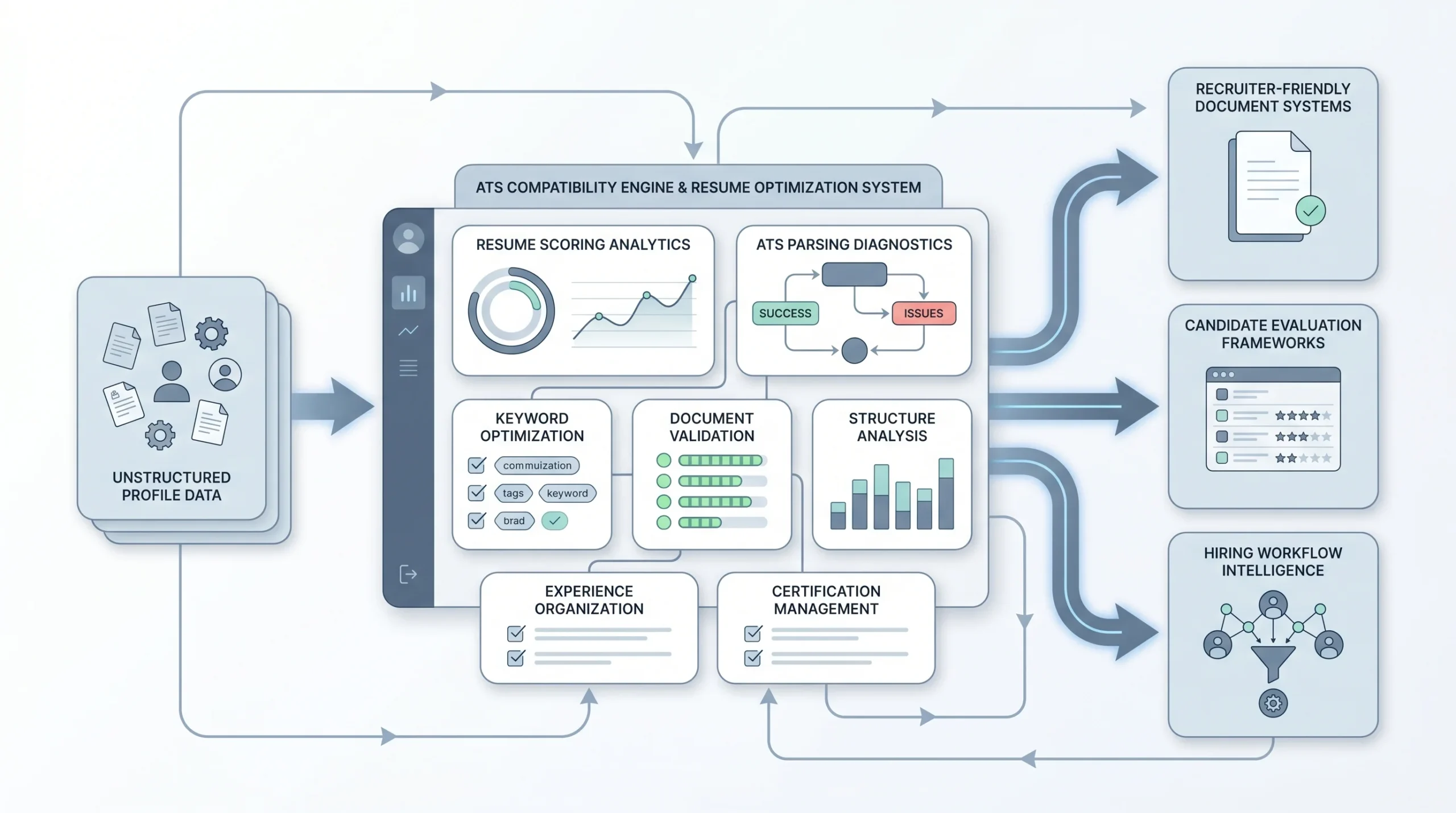
Nope, it’s not just a formatting issue. The problems go deeper than that.
ATS incompatibility:
About 98% of Fortune 500 companies and a large proportion of mid-size employers run every application through an Applicant Tracking System before a human sees it. ATS software parses your resume into structured data: name, contact info, job titles, companies, dates, skills. LinkedIn’s PDF uses two-column layouts, custom section headers styled as images, and table-based formatting that most ATS parsers simply can’t read cleanly. The result is scrambled data, missing fields, or outright rejection before your application reaches a recruiter’s screen.
Design clutter that doesn’t belong on a resume:
LinkedIn’s export carries visual branding: the LinkedIn logo, blue section headers, a profile photo placeholder. Recruiters screening 200 applications in a morning do not want any of that. They want to find your most recent role in under five seconds. Anything decorative is friction.
Missing resume sections:
The LinkedIn PDF has no dedicated professional summary at the top, no keyword-optimised skills section formatted for ATS matching, and no easy way to surface certifications or awards prominently. LinkedIn buries these sections toward the bottom. On a resume, placement is everything.
Content length is completely wrong:
LinkedIn rewards completeness. Every endorsement, every side project, every volunteer role. That’s by design: LinkedIn uses all of it for search. But a resume rewards ruthless conciseness. A LinkedIn PDF often runs four to six pages. A resume should run one page for under 10 years of experience, two pages max for senior roles. Nobody is reading six pages.
Here’s a quick side-by-side to make the gap concrete:
| LinkedIn PDF | ATS-Ready Resume | |
|---|---|---|
| Layout | Two-column | Single column |
| Font/headers | LinkedIn-branded | Standard (Calibri, Garamond) |
| Professional summary | Missing | Top of page |
| Skills section | Long unformatted list | Curated, categorised, scannable |
| Length | 4-6 pages | 1-2 pages |
| ATS parsing | Frequently fails | Designed to pass |
| Media/links | Sometimes embedded | Plain text only |
So yeah, the LinkedIn PDF is useful as a data source. It’s not a resume.
What to Extract From Your LinkedIn PDF (The Raw Material)
Think of this step as mining. You’re pulling the raw data out of LinkedIn’s format before you reshape it into something a hiring manager will actually respond to.
Open your LinkedIn PDF and work through it section by section. Here’s what to keep and what to cut.
Contact information:
- Full name (obviously)
- Professional email address
- Your LinkedIn profile URL (the custom one, not the long default string)
- City and state/region only. No street address. Nobody needs your street address on a resume in 2025.
- Phone number, if you want to include it (some people leave it off and list it only in the cover letter)
Headline → professional summary:
Your LinkedIn headline is a search optimisation tool. “Senior Product Manager | SaaS | B2B | Growth” works well on LinkedIn because it’s full of keywords LinkedIn’s algorithm indexes. On a resume, it reads like a keyword dump. Take the themes from your headline and rewrite them as a 2-3 sentence narrative. What do you do, how long have you done it, and what result do you reliably produce? That’s your summary.
Work experience:
Pull company name, job title, and employment dates. Then look at your LinkedIn descriptions. They were probably written to be comprehensive, maybe even conversational. Strip them down. You want 3-5 tight bullet points per role, not paragraphs. More on how to rewrite them properly in Section 5.
Education:
Degree, institution, and graduation year. Add your GPA only if you graduated in the last 3 years and it’s above 3.5. After that, nobody cares.
Skills:
LinkedIn lets you list 50 skills. Your resume should not have 50 skills. Go through the list and pick 8-12 that are genuinely relevant to the roles you’re targeting. Group them loosely: technical skills, tools, languages, soft skills. An unorganised wall of skills is nearly as bad as no skills section.
Certifications, awards, publications:
Include selectively. Each one should answer a question the hiring manager has about you, or add credibility to a claim you’re making elsewhere in the resume. A Google Analytics certification belongs on a marketing resume. The same certification on a software engineering resume is noise.
What to leave behind entirely:
Recommendations (useful for interview prep, not for the resume), endorsement counts, connection count, your profile photo, and anything LinkedIn added automatically that you didn’t write yourself.
Building a Resume From Your LinkedIn Data — Step by Step
Now you have the raw material. This is where it becomes an actual resume.
Step 1: Choose your tool
There are three real options here and each has a different trade-off.
- Word or Google Docs: Best option if you want full control over formatting. Look for a clean, single-column ATS-safe template. Microsoft’s own template library has decent starting points, or search “ATS resume template Google Docs” and pick one with no text boxes, no tables, and no header/footer tricks.
- Dedicated resume builders: Tools like Teal, Rezi, and Resume.io are built specifically for ATS compatibility and offer LinkedIn import features that can pull your data in automatically. Teal’s free tier is genuinely solid. Rezi has built-in ATS scoring that shows you in real time how well your resume will parse. These are worth trying if you want a guided process.
- AI-assisted tools: Resume Worded and Enhancv can take your LinkedIn URL or the PDF you just downloaded and suggest rewrites. They’re not perfect, but they’re useful for identifying gaps and suggesting quantification you might have missed.
Step 2: Format for ATS
Before you write a single word, get the format right. ATS systems are picky in boring, avoidable ways.
- Single column only. Two-column layouts confuse parsers into reading across columns instead of down, which scrambles the content.
- Standard fonts: Calibri, Garamond, Georgia. Nothing decorative.
- No text boxes, no tables, no headers or footers containing contact info (some ATS systems ignore headers and footers entirely).
- Save as .docx when submitting through an ATS portal. PDF can work, but .docx is safer because it gives the parser direct access to the text layer.
- Font size: 10-12pt for body, 14-16pt for your name, 11-12pt for job titles.
Step 3: Rewrite LinkedIn bullets into resume bullets
This is the most important and most skipped step. LinkedIn descriptions and resume bullets are completely different things.
The formula for a good resume bullet: Action verb + Task or project + Quantified result.
Here’s what the difference looks like:
LinkedIn version: “Responsible for managing a team of developers working across multiple product areas, collaborating with stakeholders to ensure timely delivery of features and maintaining communication across departments.”
Resume version: “Led a 6-person engineering team to ship 3 major product features on schedule, reducing customer-reported bugs by 40% over two quarters.”
Same person, same job, completely different impact. The LinkedIn version describes a role. The resume version describes results. Go through every bullet in your LinkedIn experience and ask: what actually happened, and can it be measured?
Numbers don’t have to be exact. Ranges work. “Managed a $200K-$400K quarterly budget” is honest. “Reduced onboarding time from 3 weeks to 6 days” is memorable. Even softer roles have numbers if you look: team size, client count, project timelines, satisfaction scores, revenue influenced.
Step 4: Tailor for each job
Your LinkedIn data is the starting point. The final resume should be tailored to the specific job posting. Run the job description through a simple keyword match: what skills, tools, and phrases appear repeatedly? Make sure your resume uses those exact words where they honestly apply. ATS systems often filter for keyword density before scoring anything else.
This doesn’t mean fabricating experience. It means choosing which of your real experiences to foreground, and using the language the employer already uses.
Step 5: Get length right
One page if you have under 10 years of experience. Two pages if you’re senior and have genuinely relevant content to fill both. Never go to a third page. If you’re hitting three pages, you haven’t edited, you’ve just copy-pasted LinkedIn.
Step 6: Export correctly
Save the file as both .docx and .pdf. Name it: FirstName-LastName-Resume.pdf. Not “Resume-Final.pdf”. Not “CV-Updated-v4.pdf”. Recruiters manage hundreds of files and yours needs to be findable in their downloads folder by your name.
Pro Tips to Make Your Resume Better Than Your LinkedIn Profile
Getting to this point means you have a clean, ATS-friendly resume. These tips take it from functional to competitive.
Add a Core Competencies bar:
LinkedIn has no equivalent to this, but recruiters and ATS systems love it. Right below your professional summary, add a single row or two-column block with 6-8 hard skills or keywords. Something like: Product Strategy | Agile / Scrum | SQL | Stakeholder Management | B2B SaaS | Data Analysis. It gives ATS systems an easy keyword hit and gives human readers a 3-second orientation to who you are.
Write a targeted summary, not your headline:
Your LinkedIn headline is written for LinkedIn’s search algorithm. Your resume summary should speak to one specific role. If you’re applying for a Senior Marketing Manager position, your summary should address that reader’s likely questions: how long have you been in marketing, what type of companies, what results have you produced? Two or three sentences, no fluff.
Go back and quantify everything you can:
When you were filling out LinkedIn, you probably wrote “increased engagement” or “improved team performance” because it felt awkward to put numbers on things. Now is the time to fix that. Think back through each role. What was the team size? What was the budget you managed? What did the pipeline look like before and after your contribution? What was the retention rate? Even rough numbers beat vague adjectives. “Increased engagement 37% in Q3 2023” is a completely different sentence than “increased engagement.”
Keep LinkedIn and your resume in sync but not identical:
It’s fine for them to differ slightly. Your resume is tailored; LinkedIn is broad. But they can’t contradict each other on facts. Job titles, company names, employment dates, and the general shape of your experience should match. Recruiters routinely cross-reference LinkedIn against the resume they’re holding. A discrepancy in a job title or a date gap that appears on one and not the other is an immediate red flag.
Use recommendations as interview prep, not resume content:
The recommendations in your LinkedIn profile are gold, but they don’t belong on the resume. What they’re useful for is understanding how people who’ve worked with you describe your work. Read them and look for patterns. If three people mention “calm under pressure” or “drives results without drama,” that’s a theme you can weave into your resume summary and elaborate on in interviews. The recommendations are data about your professional reputation. Use them that way.
Conclusion
So that’s the full picture. Download the LinkedIn PDF, understand what it’s actually good for (raw material, not a finished product), extract the right sections, rebuild with clean formatting and tight bullet points, and tailor before every application.
The 30-minute challenge is real. If you’ve kept LinkedIn reasonably updated, you can go from “I need a resume” to a complete draft in half an hour using this process. Download your PDF right now. Open a clean template. Start with contact info and a summary. Work down. By the time you’ve gone through your last two roles with properly rewritten bullets, you’ll have something that’s better than what most applicants submit.
One last thing worth remembering: your LinkedIn profile and your resume are not competing. They’re two different tools. LinkedIn is for being found. The resume is for getting past the filter. Both need to be good. Neither one replaces the other. The work you’ve already put into LinkedIn isn’t wasted. It just needed a different format.
Frequently Asked Questions
Can I use my LinkedIn PDF as a resume?
Technically yes, practically no. LinkedIn’s PDF export uses a layout format that most ATS systems struggle to parse correctly. Submitting it directly risks having your application scored poorly or dropped before a recruiter sees it.
Is the LinkedIn PDF ATS-friendly?
No. The two-column layout, branded headers, and table-based formatting are the main culprits. ATS parsers are designed for clean single-column documents with standard formatting, not LinkedIn’s branded output.
How do I convert my LinkedIn to a resume for free?
Download your LinkedIn PDF using the “Save to PDF” option under the “More” button on your profile. Then use Google Docs with a free ATS-safe template, or Teal’s free tier, to rebuild the resume using the extracted data. The process in this guide costs nothing except 30 minutes.
Do recruiters compare my resume to my LinkedIn profile?
Yes, regularly. Most recruiters will pull up your LinkedIn while reviewing your resume. Make sure job titles, company names, and employment dates are consistent across both.