


Most people are using LinkedIn incorrectly. Not because it’s hard, but because they picked up habits from 2019 and never changed them. They fill out their profile once, hit Easy Apply on 40 listings in a weekend, and then wait. Nothing happens. They blame the market.
The market is not the problem. The approach is.
LinkedIn in 2026 is genuinely different. There’s a built-in Job Tracker now. The “Open to Work” feature has a setting most job seekers miss. AI-filtered hiring means a generic application almost never makes it to a human. And the platform’s algorithm is doing a lot of sorting before a recruiter ever sees your name.
This guide covers the whole loop: getting your profile into shape so recruiters actually find you, finding jobs worth applying to, applying in a way that doesn’t get ignored, and tracking everything so you’re not losing threads. No fluff, no generic advice.
Set Up Your LinkedIn Profile to Be Found First
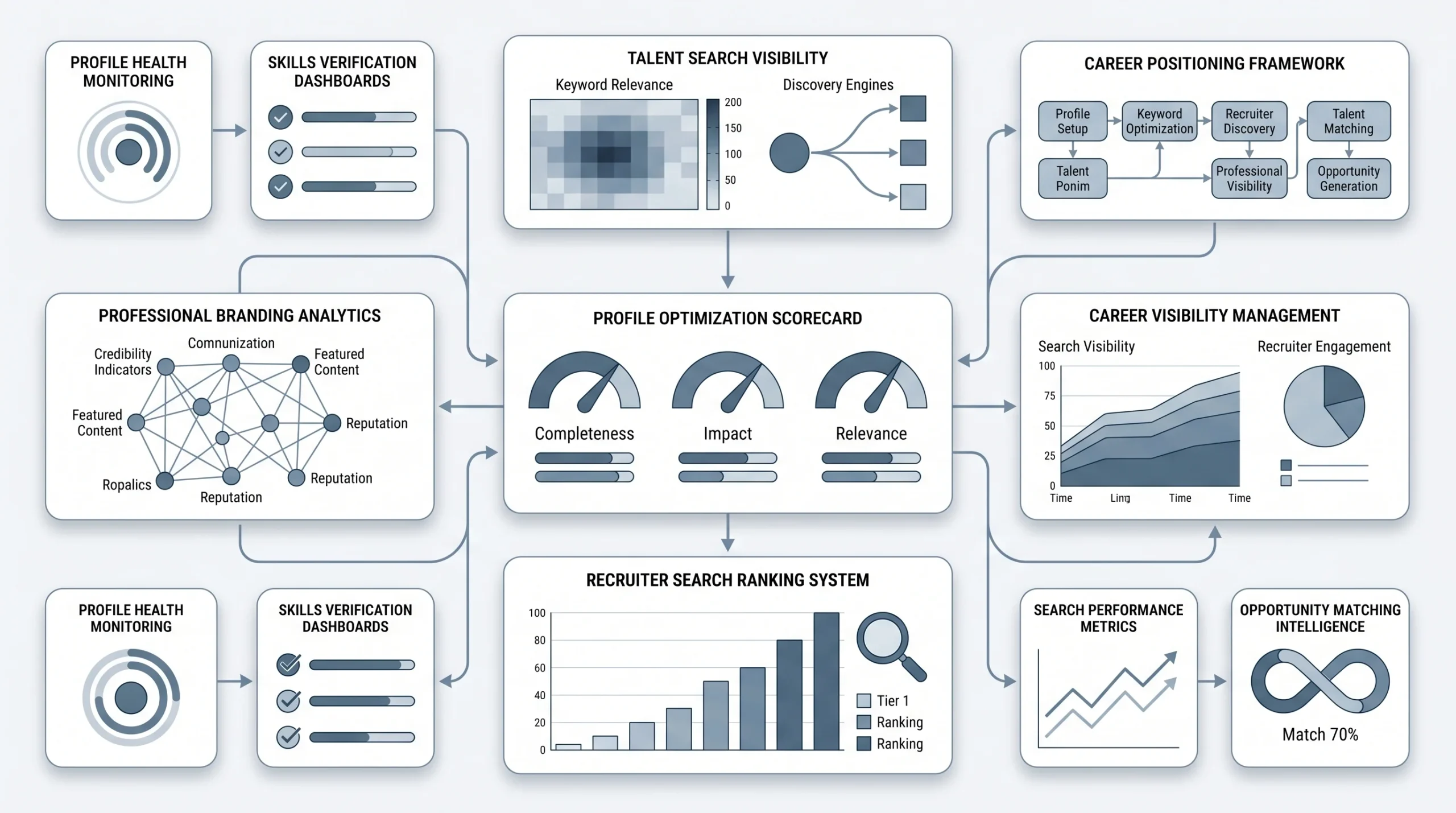
Here’s the thing most people don’t get: recruiters don’t browse LinkedIn the way job seekers do. They run searches. And LinkedIn’s search algorithm weighs certain fields way more than others. If those fields aren’t right, you just don’t show up, no matter how solid your experience is.
Optimize your headline for searchability
Your headline is the single most weighted field in LinkedIn’s recruiter search. Most people put their current job title there. That’s fine if you’re not looking. If you are, it’s a waste of space. Put the title you’re targeting, add one or two hard skills next to it, and keep it readable. Something like “Product Manager | B2B SaaS | GTM Strategy” is infinitely better than “Product Manager at Company X.”
Turn on Open to Work correctly
This is the one almost everyone gets wrong. The green “Open to Work” banner on your photo is visible to everyone, including your current employer. There’s a hidden option that almost nobody uses: set it to “Recruiters Only.” That makes you visible only to people with LinkedIn Recruiter licenses, which is around 900,000 recruiters globally, while keeping it invisible to colleagues and managers. To find it: Profile > Open to > Finding a new job > choose your audience before saving.
Fill the About section with keywords, not a biography
LinkedIn only shows the first two lines of your About section before cutting it off with “See more.” Those two lines need to include the role titles you’re targeting and the industries you operate in. The rest of the section can have more detail, but front-load it. Think of it as a search-optimized pitch, not a personal statement.
Skills section: don’t ignore it
LinkedIn’s matching system uses your listed skills to surface your profile to the right recruiters. It’s not decoration. Add every relevant tool, platform, methodology, and domain you actually have experience with. Then pin your top three. Those show up first and shape how you’re categorized.
Quick profile audit checklist
- Professional profile photo (not a crop from someone’s wedding)
- Custom LinkedIn URL (linkedin.com/in/yourname, not a string of numbers)
- Location set to where you want to work, not necessarily where you live
- Education and work history dates filled in completely
- At least one piece of featured content (even a post you wrote does the job)
How to Find the Right Jobs on LinkedIn in 2026
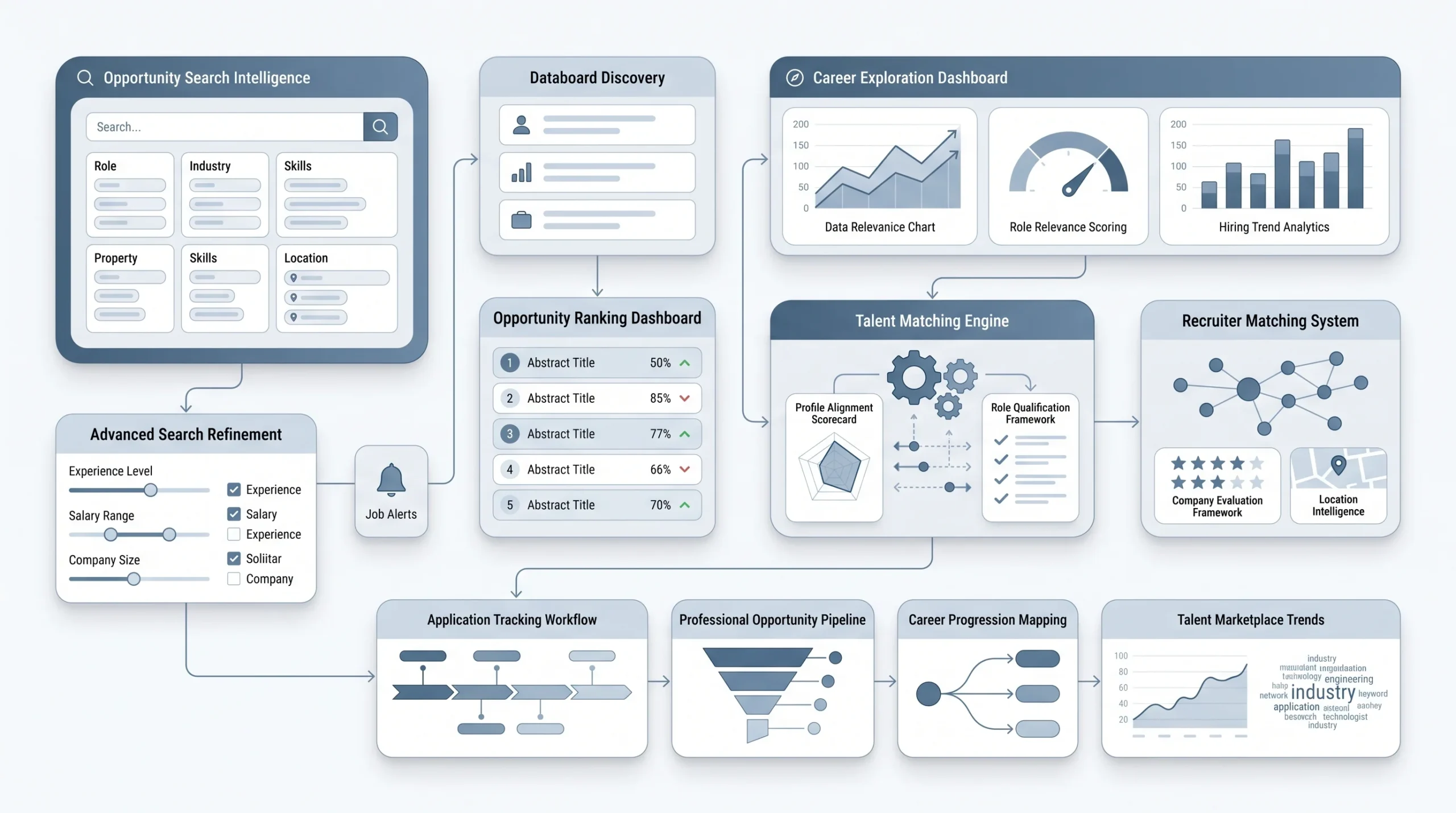
The Jobs tab and the search bar are two different tools. The Jobs tab is curated by LinkedIn’s algorithm based on your profile and behaviour. It’s useful, but you’re at the mercy of what LinkedIn thinks you want. The search bar with filters is where you actually hunt.
Master LinkedIn’s job search filters
There are more filters than most people use. The ones that actually matter:
- Date posted: Always filter to “Past week” for competitive roles. Jobs listed recently signal an active hiring process, and applying early in a posting’s life genuinely increases your odds. A listing that’s been up for 45 days is usually either already filled or stuck in some internal process.
- Experience level: Obvious, but worth setting. LinkedIn’s interpretation of “mid-level” versus “senior” is inconsistent, so check what’s inside the filter rather than trusting the label.
- Job type: Full-time, contract, remote. Pick what you actually want, not everything.
- Easy Apply toggle: Filters to only listings that let you apply through LinkedIn directly. Useful if you’re doing high-volume outreach, but beware, high volume means everyone else is doing the same thing.
Boolean search for jobs
This is the feature most job seekers completely skip. You can type Boolean operators directly into LinkedIn’s job search bar. Quotes for exact phrases, AND to connect terms, OR to expand, and a minus sign to exclude things you don’t want. For example: “Marketing Manager” AND (startup OR “early stage”) pulls up listings where both terms appear. Or (“Software Engineer” OR “Developer”) AND Python AND -Senior to find engineering roles without the experience requirements you don’t yet have. It takes five minutes to learn and immediately improves results.
Set up job alerts the right way
LinkedIn lets you create up to 50 active job alerts at once. That’s not a suggestion to create 50. Broad alerts are noise. One alert per specific role title plus location works better. “Product Manager, Remote” as one alert, “Product Manager, San Francisco” as another. Each alert delivers new matching jobs to your inbox daily. Check them, don’t let them pile up.
The AI Job Search tool (Premium)
LinkedIn’s AI Job Search tool, available on Premium plans, lets you describe the kind of role you’re looking for in plain language and then surfaces relevant listings, updates your profile recommendations, and flags skills that could improve your visibility in recruiter searches. It’s genuinely useful if you’re on Premium. It’s not a reason to upgrade on its own.
Company research before you apply
Before applying anywhere, check three things: who works there (use the People tab and filter by job title), what the company has been posting recently (look at their company page feed), and whether you’re already connected to anyone there. A warm connection beats a cold application almost every time. If you find someone you know, reach out before applying. Even a brief conversation improves your odds.
How to Apply to Jobs on LinkedIn Without Wasting Applications
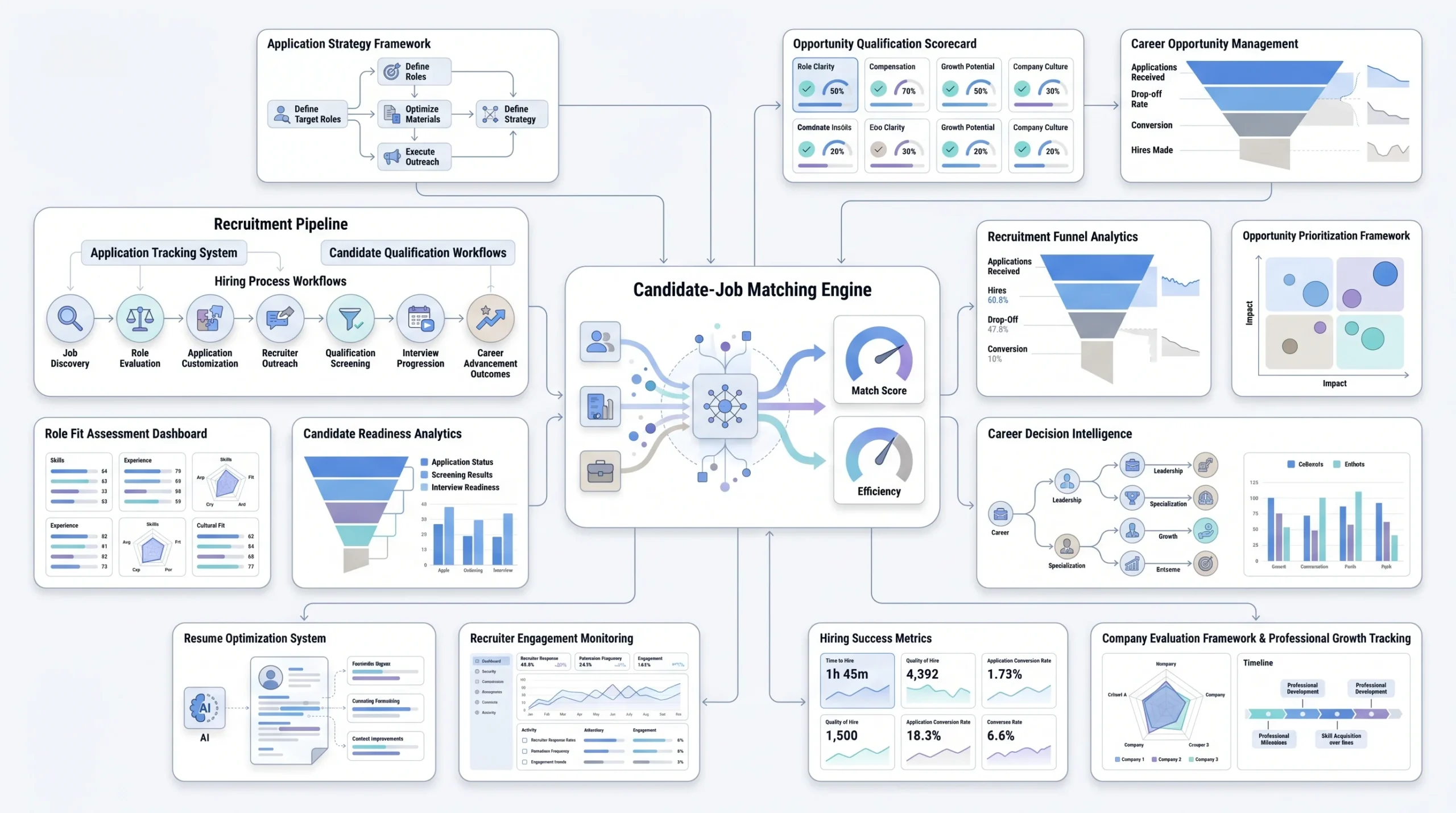
Easy Apply is a double-edged feature. It lets you apply in under 60 seconds, which sounds good until you realize every other candidate is doing the same thing. Generic applications get filtered by ATS systems before a human ever reads them, and that’s the honest reality of how most hiring pipelines work in 2026.
Easy Apply vs. external apply
Easy Apply makes sense for mid-fit roles where you match 70-80% of the requirements and the company isn’t your first choice. It also makes sense for high-volume roles like sales, BDR, and customer success where recruiters expect a lot of inbound. External apply takes more effort but signals intent. For roles you really want, especially senior ones, going through the company’s own application portal and writing a tailored response is worth the extra 15 minutes.
When to use Easy Apply
- Roles you match strongly on paper and want to test the market
- Companies you’re curious about but not committed to
- High-volume application campaigns where speed matters more than depth
When to skip Easy Apply and go external
- Roles where the job description is very specific and you can address it directly
- Senior or director-level positions where competition is thinner but scrutiny is higher
- Companies you’d genuinely drop everything to join
How to customize before you hit apply
LinkedIn stores a default resume on your profile. A lot of people don’t realize that Easy Apply is often submitting that default, unchanged. Before you apply anywhere, confirm which resume is attached and whether it actually fits that role. Answer screening questions specifically: if they ask about a particular tool or scenario, name-drop your actual experience, not a generic “yes, I have experience with that.” And if there’s a cover letter field, fill it. Most applicants skip it, which means you instantly stand out if you don’t.
The “Top Choice” job feature (Premium)
Premium Career users can flag a listing as a “Top Choice” job while applying. LinkedIn says Premium subscribers who use this are on average 43% more likely to receive a message back from a recruiter. It’s a simple thing that most people ignore. If you’re paying for Premium and applying to roles you actually want, use it.
The follow-up move most applicants ignore
After applying, find the hiring manager or recruiter on LinkedIn and send a short connection note. Not a pitch, not a summary of your resume. Just a one-line acknowledgment: “Just applied for the [Role] position, wanted to connect directly.” Most people won’t do this because it feels awkward. That’s exactly why it works. For teams running LinkedIn outreach at scale, tools like Dealsflow’s Arlo AI handle post-connect reply conversations automatically, so the follow-up doesn’t die after the first message. Worth knowing about if you’re on the sales side and want to use the same playbook for prospecting.
What not to do
- Don’t apply to 80 roles in 48 hours. LinkedIn’s own behavior patterns flag this and it can affect your visibility. Recruiters on the other end also notice spray-and-pray volume.
- Don’t use the same resume for every role. Even small adjustments to match the language in a job description help.
- Don’t leave screening questions blank or fill them with one-word answers. That’s an instant filter.
How to Track Your Job Applications on LinkedIn
This part gets messy fast if you don’t have a system. Applying to 15 roles and trying to remember their status in your head doesn’t work. LinkedIn actually built something for this.
The LinkedIn Job Tracker
Go to the Jobs tab, then look for Job Tracker in the left menu. It shows all your application statuses in one place: saved, applied, interviewing, archived. The intent is to give you a pipeline view of your search. It works reasonably well for applications you made through LinkedIn. For external applications, you have to add them manually by clicking “+ Add” and filling in the company and role details. Annoying, but worth doing if you want everything in one place.
Understanding application status labels
LinkedIn shows a handful of statuses: Applied, Viewed, Under Review, Interviewed, Not Selected. The “Viewed” status means someone opened your application. Not that they liked it, not that you’re shortlisted. Just that it was opened. Worth noting because a lot of people read “Viewed” as a green light and get ahead of themselves. Also worth noting: not all companies update these statuses. Some applications sit as “Applied” for months because the hiring team isn’t updating LinkedIn on the backend. Don’t read the silence as rejection.
What “Viewed by Recruiter” actually means
This is a signal, not a verdict. When an application moves from Applied to Viewed, it’s a reasonable trigger to follow up. After 7 days in “Viewed” status with no other movement, sending a short message or sharing a relevant portfolio piece can keep you on the radar. It’s a light touch, not a desperate check-in.
Tracking external applications
LinkedIn’s tracker only auto-captures applications made through Easy Apply. Everything else, roles you applied to through a company’s own site, through a job board, through a referral, has to be added manually. If you’re running 20+ applications across multiple platforms, that manual process gets exhausting. Which is why third-party tools exist.
Third-party tracking tools worth using
- Teal HQ: Free, has a solid resume builder built in, and lets you track across platforms. Most job seekers don’t need more than this.
- Huntr: Kanban-style board. Good if you think visually and want to drag cards across columns.
- Scale.jobs: Built for high-volume applicants. More features, slightly steeper learning curve.
- Google Sheets: Honestly underrated. Build a simple table with columns for company, role, date applied, date to follow up, and status. It’s flexible and you can add whatever context you want.
Building a follow-up cadence
The standard advice is to follow up 7-10 days after applying, then again at 14 and 21 days if there’s no response. That structure works. Keep follow-ups short: one sentence of context (“I applied for the [Role] on [Date] and wanted to follow up”), one clear ask (“Is there any update on timeline?”). Three messages with no response after 21 days means move on.
LinkedIn Premium — Is It Worth It for Job Seekers?
Direct answer: it depends on what stage of your search you’re in.
What you actually get with Premium Career
The Career plan is $29.99 per month or $239.88 annually. It gives you InMail credits for messaging people you’re not connected to, full profile viewer history going back 90 days (so you can see who’s been looking at you), advanced search filters, and access to LinkedIn Learning’s library of over 16,000 courses. The annual plan saves around 33% versus monthly.
When it’s worth it
If you’re actively job hunting and want to reach recruiters directly without waiting for a connection to accept, the InMail credits are the most tangible value. The profile viewer data is genuinely useful too. Knowing that a recruiter from a company you applied to viewed your profile three times in one week is information you can act on. For senior roles where competition is tight and you need to be proactive, Premium pays for itself fast.
When it’s not worth it
If your profile is half-filled and your headline still says your 2021 job title, Premium won’t fix that. The platform surfaces you based on profile quality first. No amount of InMail credits overcome a weak profile. Same goes for passive browsers: if you’re not actively searching, the monthly cost adds up without much return.
The honest take
Premium Career’s most practical features are InMail and profile views. The AI job tools are useful but not yet good enough to be the reason to upgrade. The Learning library is genuinely valuable if you’re trying to skill up during your search. Everything else — featured applicant status, Top Choice jobs — is nice to have, not necessary. Try one month, see if the InMails you send get responses, and decide from there.
Conclusion
The job search on LinkedIn in 2026 is not complicated. But it does require treating it like a system rather than a series of one-off applications.
Profile first, because without that nothing else works. Then find roles using filters and Boolean search instead of scrolling. Apply with actual thought, not just volume. Track everything so you don’t lose threads or miss follow-up windows. And follow up like a professional, not like someone who’s desperate.
The one thing almost nobody does: outreach to the actual human involved in hiring. A short, direct message after applying is still the highest-leverage move on the platform. Most people are too hesitant to send it. That hesitation is why it works when you do.
If you’re in sales or business development and want to run that same playbook at scale across LinkedIn outreach and prospecting, Dealsflow’s Arlo AI handles the reply conversations after connections accept so the pipeline doesn’t go cold. Worth exploring if you’re trying to build pipeline, not just find a job.
The job market rewards people who treat the search like a job. Put in the structure, stay consistent, and the results follow.
FAQs
Q1. How do I check my LinkedIn job application status?
Go to the Jobs tab, then click Job Tracker in the left menu. Under “My Jobs,” switch to the Applied tab. Each application shows its current status: Applied, Viewed, Under Review, Interviewed, or Not Selected. Keep in mind that Easy Apply applications update automatically, but anything you applied to externally won’t show up unless you add it manually.
Q2. What does “Viewed by Recruiter” mean on LinkedIn?
It means someone opened your application. That’s it. Not that you’re shortlisted, not that they liked what they saw. It’s a signal worth acting on though. If your application has been sitting on Viewed for more than 7 days with no movement, send a short follow-up message or share a relevant work sample. Light touch, not a check-in.
Q3. Is LinkedIn Premium worth it for job seekers in 2026?
If you’re actively hunting and plan to use InMail to reach recruiters directly, yes. Premium Career costs $29.99/month and the most practical features are InMail credits and the ability to see who viewed your profile over the past 90 days. If your profile isn’t fully filled out yet, Premium won’t fix that. Start there first.
Q4. What is the difference between Easy Apply and external apply on LinkedIn?
Easy Apply lets you submit your LinkedIn profile and an attached resume without leaving the platform, usually in under a minute. External apply redirects you to the company’s own application portal. Easy Apply works for high-volume outreach and mid-fit roles. For senior positions or companies you really want, the external route lets you tailor your materials and signals more intent.
Q5. Can you search for jobs on LinkedIn without Premium?
Yeah, most of the core job search is free. You can use filters like date posted, job type, experience level, and location without a Premium account. Boolean search in the job bar is also free. What Premium adds is advanced filters, full profile viewer data, InMail credits, and the AI job search tool. Advanced saved people searches and some company filters have moved to paid tiers, but the actual job search functionality is still largely accessible for free.
Q6. How many job alerts can you set up on LinkedIn?
LinkedIn lets you create up to 50 active job alerts at once. Don’t use all 50 with broad terms. One specific alert per role title and location combination works better than a few wide ones that flood your inbox with irrelevant listings.
Q7. How long does it take to hear back after applying on LinkedIn?
With a fully optimized profile and consistent outreach, many job seekers start getting recruiter messages within 2 to 4 weeks and secure interviews within 6 to 8 weeks. Passive applicants who apply and wait tend to take 3 to 6 months. The difference is almost always how actively they’re following up and reaching out alongside their applications.
Q8. What is the “Open to Work” feature on LinkedIn and should you use it?
Open to Work is a setting on your profile that signals you’re looking for a job. The public version adds a green banner to your photo that everyone can see, including your current employer. The smarter version is setting it to “Recruiters Only,” which makes your availability visible only to people with LinkedIn Recruiter licenses. To set it: Profile > Open to > Finding a new job > choose “Recruiters only” before saving.