


If you’ve ever tried to integrate your LinkedIn profile with a CRM, needed to track someone’s profile for outreach automation, or wanted to set up a multi-account dashboard for team collaboration, you’ve probably hit the same wall: where the hell do you find your LinkedIn ID? The frustration is real. You’re staring at your profile, scrolling through settings, checking every corner of the interface, and there’s no obvious button that says “Click here for your ID.” Most people resort to Google, find three different answers that contradict each other, and waste 20 minutes on something that should take 60 seconds. I’ve watched sales teams, agency owners, and SDR leads burn through their onboarding time because nobody told them upfront where to look.
Here’s what most people don’t realize: LinkedIn gives you multiple identifiers, and they’re not all the same. Your profile URL has one number. Your API token pulls a different one. Your member ID for integrations looks nothing like your profile ID. Even LinkedIn’s own help center glosses over this difference, which is why so many teams fumble around, grab the wrong number from the wrong place, and then their integration breaks the second they try to authenticate. I’ve spent the last decade working with LinkedIn automation systems, and this confusion is one of the most common friction points I see. People get frustrated, panic, and start questioning whether the integration tool itself is broken, when really they just grabbed the wrong identifier.
The good news: it takes about three minutes once you know exactly where to look. And this guide walks through every single method. The direct URL method works for 90 percent of people and takes literally 30 seconds. The developer tools method works when the URL alone isn’t enough. The API approach handles technical integrations and custom setups. By the time you’re done reading, you won’t just know how to find your LinkedIn ID, you’ll understand why LinkedIn has multiple formats in the first place, which identifier to use in which situation, and how to validate that you’ve grabbed the right one before submitting it to a platform.
This isn’t a vague “check your settings” guide that leaves you hanging. Every method here includes step-by-step instructions, real examples, screenshots context, and a validation checklist so you can confirm you’ve got the right number before moving forward. Whether you’re setting up a single CRM integration, managing multiple LinkedIn accounts for your agency, or building custom automation sequences, you’ll find your ID and verify it works. The confusion ends today.
How to Find LinkedIn ID Using Your Profile URL
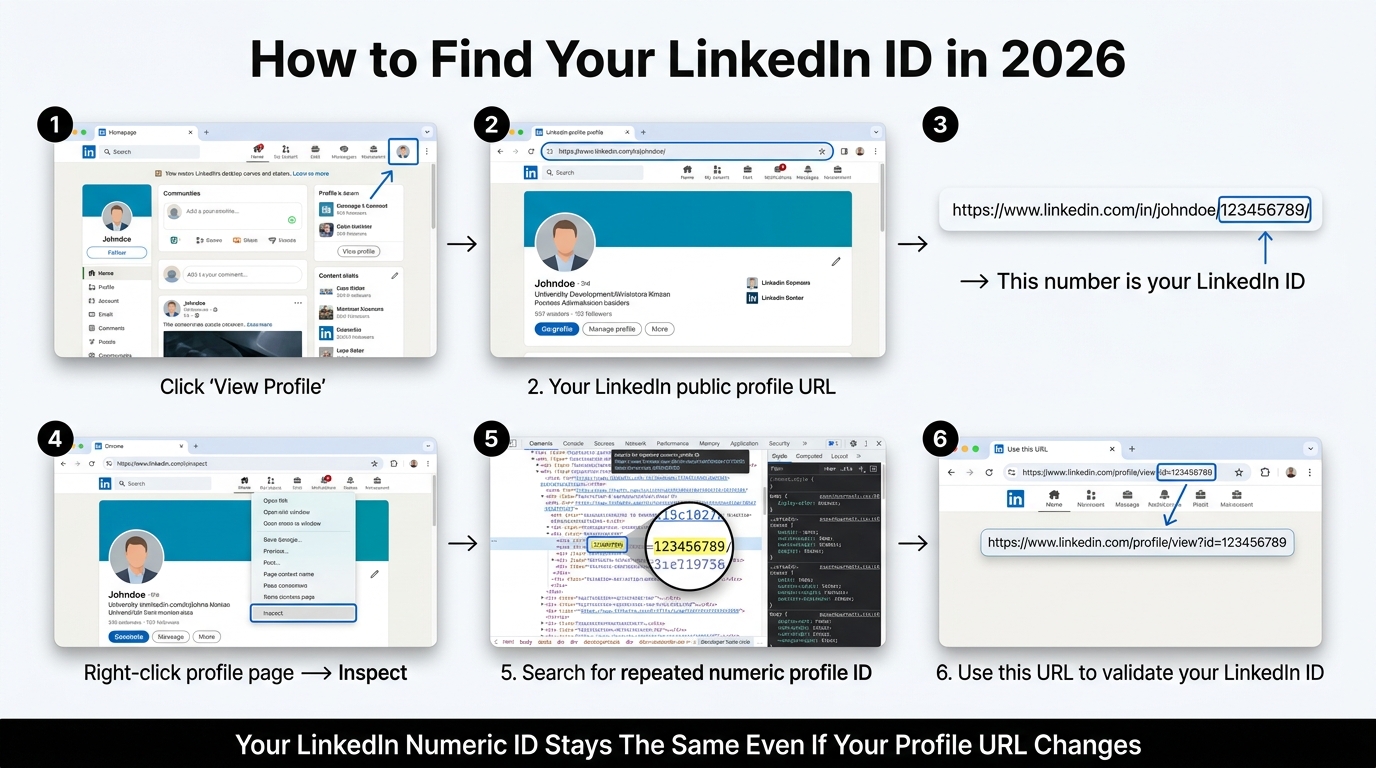
The fastest way to find your LinkedIn ID is hidden in plain sight on your profile URL. Every LinkedIn profile has a public URL structure, and buried in that URL is your numeric identifier. This is the method you’ll use most often, especially if you’re building outreach sequences, setting up CRM integrations, or just need to reference your profile in a spreadsheet.
Here’s exactly what to do:
First, go to LinkedIn and click on your profile photo at the top right. Select “View Profile” from the dropdown menu. Once you’re on your profile page, look at the URL in your browser’s address bar.
Your profile URL will look one of two ways:
Format 1 (Most common for standard profiles): https://www.linkedin.com/in/yourname/
Format 2 (Legacy or older profiles): https://www.linkedin.com/in/yourname/123456789/
The number at the end of the second format is your LinkedIn ID. If your URL ends with just your name (Format 1), you need to dig slightly deeper.
Here’s the critical step that most guides skip: even if you only see your name in the URL, LinkedIn has assigned you a numeric ID. To uncover it, right-click on any part of your profile header and select “Inspect” (on Chrome) or “Inspect Element” (on Firefox). This opens the developer console.
Search for the number that appears repeatedly in the HTML. You’re looking for a string of numbers between 8 and 10 digits. You’ll see it appear multiple times. That’s your LinkedIn numeric ID. Screenshot it. Write it down. You’ll use this number when connecting your profile to automation tools, CRM systems, or API integrations.
Why this matters: This ID is tied to your actual profile, not your vanity URL. If you change your profile URL (your name in the LinkedIn URL), your numeric ID stays the same. This is why automation platforms care about the number, not the name.
Quick validation check: Once you have your ID, visit https://www.linkedin.com/profile/view?id=YOURLINKEDIDNUMBER in a new browser tab, replacing YOURLINKEDIDNUMBER with your actual numeric ID. If it takes you to your profile, you’ve got the right one.
Understanding LinkedIn Member ID vs. Profile ID: What’s the Difference
This is where most people get confused, and I’m going to break down why LinkedIn actually has multiple identifier systems.
LinkedIn Member ID is a numeric identifier assigned to your account when you create it. It’s permanent, doesn’t change if you modify your name or profile URL, and is what LinkedIn’s backend uses to track your account across all systems. This is the number you see in your profile URL, and it’s what automation platforms request when you give them profile access.
LinkedIn Profile Identifier is slightly different in context, though in practice many people use the terms interchangeably. When LinkedIn API integrations refer to your “profile ID,” they’re usually asking for your Member ID. The terminology comes from LinkedIn’s legacy API structure, which distinguished between the profile object and the account object. Most modern integrations have collapsed these into a single numeric field.
Here’s a table to clarify the different LinkedIn identifiers and when you’d use each:
| Identifier Type | Format | Example | When You Use It | Permanence |
|---|---|---|---|---|
| LinkedIn Member ID | 8-10 digit number | 123456789 | CRM integrations, API calls, automation tools | Permanent, never changes |
| Vanity URL / Profile URL | Text-based name | /in/yourname/ | Creating a professional profile link, social media bios | Can be customized, changeable |
| Public Profile URL | Full web address | linkedin.com/in/yourname/ | Sharing profile with recruiters, in email signatures | Stays consistent with vanity URL |
| LinkedIn URN | Encoded identifier | urn:li:member:123456789 | LinkedIn API v2, developer integrations | Permanent, backend format |
| Email-based ID | Email address | yourname@company.com | LinkedIn Recruiter, Sales Navigator | Associated with account |
How to Find LinkedIn ID Through Your Browser’s Developer Tools: Detailed Explanation
If the direct URL method didn’t work for you (or if you want a backup verification method), you can grab your LinkedIn ID directly from your browser’s developer console in about 60 seconds. This method is invaluable when your profile URL doesn’t display the numeric ID openly, or when you need a foolproof way to confirm you have the correct identifier before submitting it to an integration platform. The developer tools built into every modern browser give you access to the raw HTML code that powers LinkedIn’s interface, and your LinkedIn ID is embedded somewhere in that code. Once you know where to look and what to search for, extracting it becomes a straightforward process that even non-technical users can master.
Step 1: Open Your Profile (Detailed Explanation)
Go to LinkedIn, click your profile photo, and select “View Profile.”
Start by logging into your LinkedIn account. Make sure you’re actually logged in and not just on the login page. Once you’re authenticated, look at the top right corner of the screen. You’ll see a circular profile photo or avatar (usually a small thumbnail image of your face or the default LinkedIn silhouette if you haven’t uploaded a photo yet). Click on that profile photo. A dropdown menu will appear with several options, including “View Profile,” “Settings,” “Sign out,” and other account-related links.
Click on “View Profile.” This takes you to your full public LinkedIn profile page, the same page that other people see when they visit your profile. You’re now on the page where your headline, experience, education, and connection count are all displayed. This is the landing page where you need to be before you access the developer tools. Don’t navigate to other pages like your messages or your feed. Stay on your actual profile page, because that’s where the profile ID is embedded in the HTML code.
Why this matters: You need to be on your own profile page (not someone else’s profile, not your settings page, not your feed) because the developer tools will search through the HTML code of whatever page you’re currently viewing. If you’re on the wrong page, the search won’t find your ID. Your profile page is the one place where your complete profile information is rendered, including all the hidden code that contains your numeric identifier.
Common mistake to avoid: People sometimes go to their settings page thinking their ID will be displayed there. LinkedIn’s settings don’t show you your numeric ID directly. The ID is only accessible through the URL structure or the HTML code on your profile page. Stick with “View Profile” and you’ll be in exactly the right place.
Step 2: Open Developer Tools (Detailed Explanation)
Right-click anywhere on the page and select “Inspect” (Chrome, Edge, Firefox) or “Inspect Element” (Safari). This opens the developer panel at the bottom or side of your browser.
Once you’re on your profile page, right-click anywhere on the visible content. You can right-click on your name, your headline, your profile photo, or any blank space on the page. A context menu will pop up with several options. The exact wording varies slightly depending on your browser, but you’re looking for an option that says “Inspect,” “Inspect Element,” or “Inspect This” (depending on whether you’re using Chrome, Firefox, Safari, or Edge).
When you click on “Inspect” or “Inspect Element,” the developer panel opens. For most browsers, this panel appears at the bottom of your screen and takes up about one-third to one-half of the vertical space. Your LinkedIn profile remains visible in the upper portion, and the developer panel opens below it. In Safari, the developer panel might appear on the right side instead of the bottom. The exact layout depends on your browser, but regardless of where it appears, you’ll see a lot of code displayed in that panel. This is the HTML code that makes up the LinkedIn page.
What you’re looking at: The developer panel shows you the raw HTML structure of the web page. It’s the underlying code that your browser interprets and displays as the visual profile you see. Don’t be intimidated by the code. You don’t need to understand HTML or programming. You just need to search through it for a specific string of text (your LinkedIn ID).
Browser-specific steps:
- Chrome: Right-click, select “Inspect” (or press F12 or Ctrl+Shift+I on Windows, Cmd+Option+I on Mac)
- Firefox: Right-click, select “Inspect Element” (or press F12 or Ctrl+Shift+I on Windows, Cmd+Option+I on Mac)
- Safari: Right-click, select “Inspect Element” (you may need to enable developer tools first in Safari preferences)
- Edge: Right-click, select “Inspect” (or press F12)
All of these browser options do the same thing: they open the HTML inspector where you can search for your LinkedIn ID.
Don’t panic if the panel looks overwhelming: The HTML code displayed in the developer panel can look chaotic if you’ve never seen it before. There are hundreds of lines of code, nested tags, attributes, and values. But you’re not going to read through all of it manually. You’re going to use the search function to find exactly what you need, which is the next step.
Step 3: Search for Your ID (Detailed Explanation)
In the developer panel, use Ctrl+F (Windows) or Cmd+F (Mac) to open the search box. Search for “profileId” or “memberID”. You’ll see your numeric ID pop up in the HTML.
Now that the developer panel is open, you need to search through all that HTML code for your LinkedIn ID. You do this using the browser’s built-in search function. Press Ctrl+F if you’re on Windows, or Cmd+F if you’re on Mac. A small search box will appear in the developer panel (usually in the top right or bottom right corner, depending on your browser).
Type “profileId” into the search box. This is the term that LinkedIn uses in its HTML code to label your profile ID. As soon as you type it, the browser will search through all the visible HTML code and highlight any matches. You’ll typically see one or more results highlighted in yellow or with a colored background. The code line containing “profileId” will light up, and the search box will show you something like “1 of 3” or “1 of 5,” indicating how many times that term appears on the page.
Alternative search term: If “profileId” doesn’t yield results, try searching for “memberID” instead. LinkedIn uses both terms in different parts of its code, and one of them will definitely appear. Sometimes LinkedIn also uses “memberId” (with a lowercase ‘d’). If the first search doesn’t work, try the alternative.
What the highlighted code looks like: When the search finds your ID, the relevant line of HTML code will be highlighted. The code line will typically look something like this:
"profileId":"123456789"
or
"memberId":"123456789"
You’re looking for a long string of numbers (usually 8 to 10 digits) right after the “profileId” or “memberId” label. That string of numbers is your LinkedIn ID. It will be enclosed in quotation marks and surrounded by colons and other symbols, but ignore all the extra formatting. Your actual ID is just the number sequence itself.
Why this method works: LinkedIn embeds your numeric ID in the HTML code of your profile page because that information is used by the browser to load your profile data, handle interactions, and maintain your session. The HTML code is transmitted to your browser so it can render the page. By inspecting the HTML, you’re seeing exactly what the browser is using to identify you and your profile.
Multiple results: The search might show you several instances of “profileId” or “memberId” appearing multiple times on the page. This is normal. LinkedIn’s code references your ID in multiple places for different purposes. All of those instances contain the same number, so any of them will give you the correct ID. Pick the first highlighted result and move on.
Step 4: Verify and Copy (Detailed Explanation)
The ID you’re looking for is typically 8 to 10 digits long. It usually appears in a context like: "profileId":"123456789" or "memberId":"123456789". Copy that number and paste it into a notes file.
Once you’ve found the highlighted “profileId” or “memberId” in the HTML code, you need to extract the actual numeric value. Look at the code line carefully. You’ll see something like:
"profileId":"123456789"
The number between the quotation marks (in this example, “123456789”) is your LinkedIn ID. This number is what you need. Don’t copy the quotation marks, the colons, or the “profileId” label. Just select and copy the numeric portion.
How to copy it: Triple-click on the number to select the entire numeric string, or manually click and drag to highlight just the numbers. Once the number is highlighted, press Ctrl+C (Windows) or Cmd+C (Mac) to copy it. Then open a text editor, notes app, or a blank document, and paste it there (Ctrl+V or Cmd+V). This gives you a clean copy of your ID that you can reference later.
Validation checklist before you proceed:
- Length check: Your LinkedIn ID should be exactly 8 to 10 digits long. Not longer, not shorter. If you copied something with 5 digits or 15 digits, you grabbed the wrong value.
- All numbers: Your ID should contain only numeric characters (0-9). No letters, no special symbols, no hyphens, no slashes. If your copied value has letters mixed in, you grabbed something else.
- No extra characters: Make sure you didn’t accidentally copy any quotation marks, colons, spaces, or HTML tags. Your ID should be a clean, standalone number.
- Context check: Look at the HTML code around your ID. Does it say “profileId” or “memberId” right before it? If so, you have the right context. If the number appears in a section labeled something completely different (like “connectionCount” or “postCount”), you grabbed the wrong number.
Example of correct vs. incorrect copies:
Correct: 123456789
Incorrect: "123456789" (includes quotation marks)
Incorrect: profileId:123456789 (includes the label)
Incorrect: 123456789abc (includes letters)
Incorrect: 12345 (too few digits)
How to Find Your LinkedIn Member ID Using LinkedIn’s Own API Tools
If you’re integrating your LinkedIn account with a CRM, marketing automation platform, or building custom outreach sequences, you may need to retrieve your ID through LinkedIn’s API structure. This is more technical, but it’s the most reliable method if you’re working with developers or setting up integrations.
LinkedIn’s API v2 uses something called a URN (Uniform Resource Name) for profile identification. Your URN looks like this: urn:li:member:123456789. That string of numbers at the end is your Member ID.
Here’s how to find your ID through the API approach:
If your integration tool connects to LinkedIn via OAuth (a secure, permission-based connection), it automatically pulls your Member ID during authentication. You don’t have to do anything manually. The tool stores it in the background and uses it for all API calls.
If you need to manually pull your ID through LinkedIn’s API, you’d use the /me endpoint after authenticating. This requires basic technical knowledge, but the process is straightforward:
- Navigate to LinkedIn’s Developer Portal at
https://www.linkedin.com/developers - Sign in with your LinkedIn account
- Create an app (if you haven’t already)
- Generate an access token
- Use that token to call the
/meendpoint in an API client like Postman - The response will include your numeric Member ID
If that process sounds like too much friction, don’t worry. Most tools that integrate with LinkedIn handle this automatically. You authorize the connection, and they pull your Member ID behind the scenes.
Why this matters for automation: Tools like Arlo AI or HeyReach request your Member ID because they need it to authenticate API calls on your behalf. This is how they’re able to send messages, track responses, and manage your outreach sequences. The Member ID proves to LinkedIn’s servers that you’ve authorized them to use your account. Without it, nothing works.
Finding LinkedIn ID on Mobile: iOS and Android Step-by-Step
A lot of people try to manage their LinkedIn accounts on mobile, and the process for finding your ID is slightly different on phone than on desktop. Here’s how to do it right.
On iPhone (iOS):
- Open the LinkedIn app (not the browser version, the native app)
- Tap your profile photo at the bottom of the screen
- Tap “View Profile”
- Look at your profile. The easiest way to grab your ID on mobile is to tap “Edit Public URL” in your profile summary section
- Your public URL will be displayed. If it shows a numeric ID at the end, write it down. If it only shows your name, you’ll need to complete the developer tools method on desktop (switching to desktop is faster here than trying to access browser tools on mobile)
On Android:
The process is nearly identical:
- Open LinkedIn app
- Tap your profile picture (usually in the top left)
- Tap “View Profile”
- Scroll to the top and look for the “Edit public URL” or “Open to Work” section
- Your profile URL is displayed there
- Extract your numeric ID (if it’s visible) or note your vanity URL
Why mobile is clunkier: LinkedIn’s mobile app doesn’t show you the developer tools that the desktop browser does. This is why most integrations require you to complete setup on desktop. The platform is built around the assumption that serious account work happens on a computer, and honestly, that’s where most integrations expect to be configured anyway.
Pro tip: Even if you’re primarily a mobile user, do yourself a favor and find your LinkedIn ID on desktop once, then save it somewhere secure. Write it down in a password manager or a private note in your CRM. Once you have the number, you won’t need to dig for it again.
How to Find Someone Else’s LinkedIn ID: Tracking Prospects and Connections
This is where things get interesting. You might need to find someone else’s LinkedIn ID for a few reasons: you’re building a prospect list for outreach, you want to verify a connection’s profile in your CRM, or you’re setting up a multi-account tracking system.
The public URL method works for anyone:
If someone’s profile is public (which most LinkedIn profiles are, unless they’ve toggled on privacy restrictions), you can find their ID exactly the same way you’d find yours. Click on their profile, grab their numeric ID from the URL.
For profiles with vanity URLs only:
If their URL is https://www.linkedin.com/in/samanthasmith/ with no number at the end, use the developer tools inspect method on their profile. Open developer tools, search for “profileId,” and grab the number.
For tracking across platforms:
If you’re building an outreach sequence and need to match LinkedIn profiles to other data sources, the Member ID is your reliable bridge. Email addresses change. Names are duplicated. But LinkedIn Member IDs are globally unique and permanent. This is why CRM systems ask for the numeric ID when integrating with LinkedIn.
Here’s a practical scenario: You’re running an outbound campaign and you want to track which prospects have visited your website. You export your LinkedIn connection list, which includes names and profile URLs. You extract their numeric IDs from the URLs. Then you can match those IDs to website visitor data from your analytics platform. The ID becomes your unique key across systems.
Important caveat: LinkedIn’s terms of service restrict scraping profiles at scale. If you’re building a tool that mass-extracts profile IDs, you’re likely violating their terms. There’s a difference between manually finding one person’s ID and automatically extracting thousands. Stay on the right side of that line.
Mistakes When Finding Your LinkedIn ID (And How to Avoid Them)
I’ve seen these errors more times than I can count, and they all cost people time in the middle of integrating their LinkedIn account with a tool.
Mistake 1: Grabbing your connection count instead of your ID
Your profile displays how many connections you have in big numbers at the top. Don’t confuse “500+ connections” with your LinkedIn ID. Your ID is in the URL, not on your profile card.
Mistake 2: Using your email address as your ID
Some integrations ask for an “identifier,” and people assume they want your email. LinkedIn doesn’t work that way. Always use your numeric ID for integrations.
Mistake 3: Including extra characters or hyphens
When you copy your ID from the URL, make sure you’re only grabbing the numbers. No slashes, no hyphens. Just 123456789. This is a surprisingly common copy-paste error.
Mistake 4: Confusing your profile URL with your profile ID
Your URL (/in/yourname/) and your numeric ID (123456789) are different things. Always use the numeric version for integrations.
Mistake 5: Using an old or cached version of your URL
If you’ve changed your profile URL name in the past, don’t use the old vanity URL. Go to your current profile and grab the current ID from there. LinkedIn’s system maps old URLs to new ones, but for integrations, always use the current, active number.
Quick quality check before submitting to an integration:
Your LinkedIn ID should be:
- All numbers (no letters or special characters)
- Between 8 and 10 digits
- Not your connection count, follower count, or any other metric displayed on your profile
- Verified by visiting
https://www.linkedin.com/profile/view?id=YOURLINKEDIDNUMBERsuccessfully
If any of those fail, you’ve grabbed the wrong number. Go back and recheck using the developer tools method.
Integrations That Require Your LinkedIn ID
Knowing where you need your LinkedIn ID helps you understand why you’re collecting it in the first place.
CRM Systems:
Salesforce, HubSpot, Pipedrive, and other CRMs connect to LinkedIn to enrich contact data. When you authenticate your LinkedIn account with your CRM, it asks for your Member ID so it can pull your data and match it to your contact records.
LinkedIn Outreach Automation Tools:
Platforms like Arlo AI, HeyReach, Expandi, and Dripify request your Member ID during setup. They use it to send connection requests, messages, and track responses on your behalf. Without your ID, the tool can’t authenticate to LinkedIn’s API.
Email Finders and Prospect Databases:
Tools like Apollo, Hunter, RocketReach, and Clay use LinkedIn IDs as unique identifiers to pull additional data about people. If you’re exporting a prospect list from one of these tools, they often include LinkedIn Member IDs so you can match records across platforms.
Analytics and Tracking Platforms:
If you’re measuring the ROI of your LinkedIn outreach campaigns, analytics tools use your Member ID to attribute actions back to your account.
Multi-Account Management Dashboards:
If you’re managing several LinkedIn accounts (common for agencies, SDR teams, and growth-focused startups), the dashboard uses Member IDs to distinguish between accounts. Each account gets its own ID, and that’s how the system knows which messages came from which profile.
How to Keep Your LinkedIn ID Secure (Without Losing It)
Here’s the paranoia question nobody asks: if your LinkedIn ID is sensitive information (because it’s tied to your account access), where should you store it?
Short answer: it depends on how serious your integrations are.
For casual use: Write it down in a sticky note on your monitor. Seriously, if you’re just setting up one CRM connection, the risk is minimal.
For agency or team use: Store your LinkedIn ID in your company password manager (Notion, 1Password, LastPass, Dashlane). Make it searchable so you can find it when you need it, but restrict access to the specific team members who need it.
For API development or custom integrations: Use environment variables in your code. Never hardcode your Member ID directly in application files. If you’re writing code that uses LinkedIn’s API, store the ID as an environment variable that gets loaded at runtime.
What not to do:
- Don’t share your Member ID in Slack messages or public GitHub repositories
- Don’t email it to yourself
- Don’t post it on social media or forums
- Don’t include it in shared documents or spreadsheets that get passed around
The actual risk level: Here’s the honest take. Your LinkedIn Member ID alone isn’t enough to hijack your account. LinkedIn uses OAuth for authentication, which means the tool needs your explicit permission to do anything. The ID is like your public username, not your password. It’s not secret, but it’s something you should treat like professional information (because it is).
LinkedIn ID for API Calls and Developer Integration
If you’re working with a developer or building custom integrations, this section explains how your LinkedIn ID gets used in actual API calls.
LinkedIn’s API v2 uses your Member ID in the URN format: urn:li:member:123456789. When a developer makes an API call to retrieve your profile data, it looks something like this:
GET https://api.linkedin.com/v2/me
Authorization: Bearer [access_token]
The access token is what actually authenticates you. Your Member ID appears in the response, not in the request. But the developer might ask for your ID upfront so they know which profile they’re working with.
Common API calls that reference your Member ID:
/v2/emailAddress– Retrieves your email/v2/firstNameand/v2/lastName– Gets your name/v2/profilePicture– Pulls your profile photo/v2/headline– Fetches your job title and company
All of these calls require OAuth authentication, meaning you’re the one authorizing the developer’s app to access your LinkedIn data. Your Member ID is just the unique identifier that tells LinkedIn whose data to return.
If you’re a developer: You don’t need to ask your users for their Member ID manually. The OAuth flow provides it automatically. When your app receives the access token, you call the /me endpoint, LinkedIn returns the Member ID (among other profile data), and you store it in your database for future reference.
Validating Your LinkedIn ID: Triple-Check Method
Before you submit your LinkedIn ID to any integration, use this three-step validation method to make sure you have the right one.
Validation Step 1: The URL Visit Test
Take your LinkedIn ID and visit: https://www.linkedin.com/profile/view?id=YOURIDNUMBER
Replace YOURIDNUMBER with your actual numeric ID. If the page loads and shows your profile, you’ve passed validation. If it shows an error or redirects you away, the ID is incorrect.
Validation Step 2: The Format Check
Your LinkedIn ID should:
- Be 8 to 10 digits long
- Contain only numbers
- Not include any spaces, hyphens, or special characters
- Not be your vanity URL name or email address
If any of these are wrong, you’ve grabbed the wrong identifier.
Validation Step 3: The Integration Preview
Most tools show you a preview of your profile information before the final setup step. Look at that preview. Does it show your correct name, profile photo, and headline? If yes, the ID is right. If it shows someone else’s information, the ID is wrong.
Conclusion
Your LinkedIn Member ID is a simple 8 to 10 digit number that never changes and uniquely identifies your account. Finding it takes three minutes using the methods in this guide. The URL method works for most people. The developer tools method works when the URL alone isn’t enough. The API method is for integrations and technical setups.
Stop here if you just needed the ID for a single integration. You’ve got what you need. But here’s what most guides miss: understanding why you need your ID in the first place. Your Member ID is the bridge between LinkedIn and every other platform you use. It’s what your CRM uses to enrich contact data. It’s what outreach automation tools use to send messages on your behalf. It’s what tracking systems use to attribute meetings and pipeline back to your LinkedIn activity.
The broader lesson: LinkedIn uses multiple identifier formats because it has to. Your profile URL is for humans. Your Member ID is for machines. Your URN is for developers. Knowing which identifier goes where turns a confusing integration process into a straightforward, three-minute setup.
Right now, the best next step is this: grab your LinkedIn ID using whichever method felt easiest to you, write it down somewhere secure, and verify it using the validation test. Then, whether you’re setting up your first CRM integration or managing a team of LinkedIn accounts, you’ll have that number ready to go.
Frequently Asked Questions
Q: Is my LinkedIn ID the same as my LinkedIn URN?
A: Your LinkedIn URN includes your Member ID. Your URN looks like urn:li:member:123456789. The 123456789 is your Member ID. They’re related but not identical. When integrations ask for your “ID,” they usually mean the Member ID (the numeric part), not the full URN.
Q: Can I change my LinkedIn ID?
A: No. Your LinkedIn ID is permanent and assigned when you create your account. It never changes, even if you change your name, profile URL, or email address. This is by design, so your account data remains consistent.
Q: What’s the difference between my profile URL and my Member ID?
A: Your profile URL is https://www.linkedin.com/in/yourname/. Your Member ID is a numeric identifier. You can change your profile URL (the “yourname” part), but your Member ID stays the same forever. Integrations use the Member ID because it’s stable.
Q: Can someone else see my LinkedIn Member ID?
A: Yes. Your Member ID is embedded in your public profile data. Anyone who visits your profile can technically find it using the developer tools method. It’s not secret information, but it’s not something most people would casually know.
Q: What if I can’t find my LinkedIn ID?
A: The most reliable fallback is the developer tools method. Open your profile, right-click, select Inspect, search for “profileId” or “memberId” in the HTML, and grab the number. If that still doesn’t work, contact LinkedIn support.
Q: Do I need a different ID for LinkedIn Recruiter or Sales Navigator?
A: No. Your Member ID is the same across all LinkedIn tools and features. Whether you’re using standard LinkedIn, Recruiter, or Sales Navigator, your underlying account ID doesn’t change.
Q: Should I share my LinkedIn ID with third-party tools?
A: Yes, if you’re setting up legitimate integrations. CRMs, outreach tools, and data enrichment platforms need your Member ID to function. Just make sure you’re authorizing the connection through LinkedIn’s official OAuth flow, not pasting your ID into random websites.
Q: Can I use my LinkedIn ID to look up someone else’s profile?
A: You can manually find someone else’s ID using the same methods (checking their URL or using developer tools), but you’d need OAuth permission to access their data through an API. You can’t use their ID alone to pull private information.
Q: What happens if I give the wrong LinkedIn ID to an integration?
A: The integration will fail or pull data from the wrong profile. When you try to connect, you’ll get an error message. This is actually good because it prevents you from accidentally connecting the wrong account to a tool.
Q: How often does LinkedIn change the format of Member IDs?
A: LinkedIn has used the same numeric Member ID format since the platform’s early days. There are no plans to change it, and it’s stable enough to build long-term integrations around. If you grab your ID today, it will work the same way in 2030.
Q: Can I have multiple LinkedIn IDs?
A: Only if you have multiple LinkedIn accounts. Each account gets a unique Member ID. Most people and professionals use one account, so one ID. Agencies and SDR teams managing client accounts have one ID per client account.