
There’s a moment every LinkedIn user eventually hits. You see someone’s profile with that little blue checkmark, and you think: “Wait, how did they get that?” Then you click around for 10 minutes, find nothing useful, and give up. Sound familiar? Yeah. LinkedIn’s verification system is weirdly underdocumented for something that directly affects how much people trust your profile.
Here’s the deal: LinkedIn rolled out a proper identity verification system that actually checks who you are, not just whether you have a phone number. We’re talking government ID verification through third-party partners like CLEAR and Persona, plus workplace verification tied to your actual company email. The blue badge that shows up after verification tells anyone who lands on your profile that LinkedIn has confirmed you’re a real person with a real identity. That’s not nothing. On a platform stuffed with fake recruiters, ghost profiles, and impersonators, it genuinely matters.
This guide walks through how to verify your LinkedIn account step by step, what each verification type actually does, where the badge appears, what LinkedIn does with your data, and whether the whole thing is actually worth the effort. No fluff. Just what you need to know to get it done.
How to Verify Your LinkedIn Account: Step-by-Step for 2026
Knowing how to verify your LinkedIn account is easier than most people expect. The whole process sits inside LinkedIn’s “Verifications” section, and depending on which verification type you’re going for, it takes between 2 and 10 minutes.
There are two distinct paths. First is identity verification, which confirms you’re a real human using a government-issued ID. Second is workplace verification, which confirms you actually work at the company listed on your profile. You can do both. They show up as separate badges. Let’s go through each one.
How to Start Identity Verification on LinkedIn
Go to your LinkedIn profile. Click the “More” button just below your profile photo, right next to “Open to” and “Add profile section.” In the dropdown, look for “Verifications.” If you don’t see it from the profile page, go to your profile settings directly by clicking your profile picture in the top right, then “View Profile,” then scrolling to the “Verifications” card.
Once you’re in the Verifications section, click “Get verified” under the Identity verification option. LinkedIn will ask you to choose a verification partner. In most English-speaking markets, the options are CLEAR (the biometric identity company, same one used at airports) and Persona (an identity verification API company). If you’re outside the US, UK, Canada, or Australia, partner availability may vary. LinkedIn has been expanding coverage, but it’s not fully global yet as of mid-2026.
Select your partner. You’ll leave LinkedIn briefly and land on that partner’s verification flow. Here’s what CLEAR’s flow actually looks like: it asks you to take a selfie using your phone camera, then scan your government ID (passport or driver’s license). The system compares your face to the ID photo. Takes maybe 90 seconds. Persona runs a similar process. Neither system keeps your raw biometric data after verification, and LinkedIn explicitly says it does not receive or store your ID image.
Once the check passes, you get redirected back to LinkedIn and the blue badge shows up on your profile almost immediately. Sometimes there’s a short delay of a few minutes, but usually it’s instant.
How to Complete Workplace Verification on LinkedIn
Workplace verification works differently. This one confirms you work at the company on your profile. LinkedIn sends a one-time code to your work email, you enter it on LinkedIn, and that’s it. It’s basically the same “verify your email” flow you’ve done a hundred times on other platforms.
Go back to the Verifications section on your profile. You’ll see a separate option for “Workplace” verification. Click it, and LinkedIn will show you the work email it has on file (if you’ve added one) or ask you to add one. The email domain needs to match a company currently listed in your profile’s Experience section. So if your profile shows you work at Acme Corp, your email needs to end in @acmecorp.com or whatever the real domain is.
LinkedIn sends a 6-digit code to that email. Open your work inbox, grab the code, enter it on LinkedIn within 15 minutes. Done. Your profile now shows a verified workplace badge alongside or combined with your identity badge.
One thing worth knowing: if your company uses a shared inbox tool or an email alias system, make sure the verification email doesn’t get routed somewhere weird. It happens. Check spam too, because LinkedIn’s verification emails sometimes get filtered by corporate email security tools.
What the Verified Badge Actually Looks Like
The badge is a small blue circle with a white checkmark inside it. It shows up right next to your name, both on your profile and in search results. If you hover over it (on desktop), a tooltip explains what was verified. It tells viewers whether your identity was confirmed, your workplace was confirmed, or both.
People who message you can also see the badge in the chat window. So when you’re cold messaging a potential client or recruiter and they see that blue checkmark, they know they’re talking to a verified real person. That context matters more than most people realize.
How to Get Verified on LinkedIn: What Each Badge Type Actually Proves
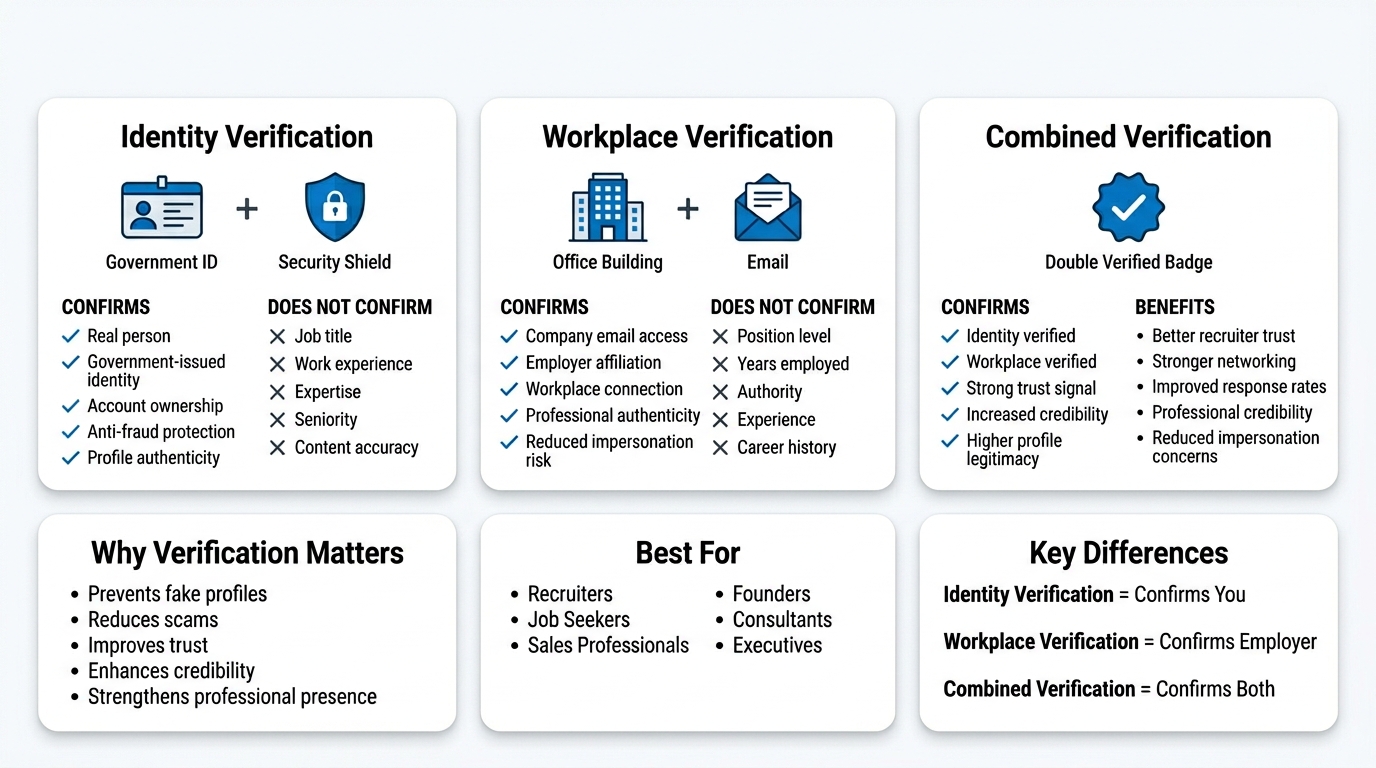
The question a lot of people skip past is: what does the verification actually confirm? The badge looks the same to a viewer, but the two verification types prove two totally different things.
Identity Verification: What It Confirms (and What It Doesn’t)
Identity verification confirms that the person who created the LinkedIn account matches the person on a specific government ID. It does not confirm your job title, your seniority, your follower count, or whether your content is accurate. LinkedIn is not auditing your resume. They’re just confirming you’re a real human with a real government identity document.
This matters because a huge chunk of LinkedIn fraud involves fake personas. People create accounts using stock photos or AI-generated faces, add a plausible work history, and then run scams: fake job offers, phishing messages, investment pitches. The ID verification directly cuts against that. A scammer can’t pass a live selfie check with a fake identity.
For regular users, the benefit is simpler. Your profile just looks more legitimate. Recruiters specifically have mentioned that verified profiles get opened more often during sourcing sessions because there’s less risk of wasting time on a fake account.
Workplace Verification: What It Confirms (and Its Limits)
Workplace verification confirms that you have access to a specific company’s email domain. That’s it. It doesn’t confirm your actual job title, how long you’ve worked there, or whether the role listed on your profile is accurate. If your company’s IT department handed you an email address, LinkedIn will verify you as an employee of that company.
Still useful though. A lot of impersonation on LinkedIn involves people claiming to be employees of major companies, usually as a way to build credibility before running a scam. “I’m the Head of Partnerships at Google” is a lot less convincing when Google employees have verified badges and you don’t.
The limitation worth knowing: contractors and consultants who work with a company but don’t have that company’s email domain can’t get workplace-verified for that employer. You can still get identity-verified, but the specific workplace badge will only work for companies where you have a matching email.
The Combined Badge: When Both Show Up Together
If you complete both identity and workplace verification, LinkedIn shows them together on your profile. Some users see a single badge that references both, others see them listed separately under a “Verified” section that appears below the profile intro. The display varies slightly depending on when your account completed verification and which interface version LinkedIn is running in your region.
The combined signal is the strongest. Identity plus workplace means LinkedIn has confirmed both who you are and where you work. For people in sales, recruiting, or any role where trust matters on first contact, this combination carries real weight.
Why LinkedIn Verification Matters More Than You Think in 2026
Look, a lot of people treat LinkedIn verification as a vanity feature. A badge you get to feel official. That’s wrong, and the numbers back it up.
LinkedIn’s own platform data from late 2025 showed that verified profiles received 60% more profile views on average compared to unverified profiles with similar connection counts and content activity. That’s a massive gap. Not because the algorithm necessarily boosts verified profiles in rankings, but because when a real human sees the badge in search results, they’re more likely to click.
The Trust Problem LinkedIn Was Trying to Solve
LinkedIn has had a bot and fake profile problem for years. In 2022, LinkedIn removed 21.4 million fake accounts in the first half of the year alone. 2023 and 2024 saw similar purges. By 2025, LinkedIn started leaning harder on verification as a way to reduce fake account prevalence on the live platform rather than just scrubbing them out after the fact.
From a user’s perspective, this created a weird environment where you couldn’t always tell if the “Senior Director at Microsoft” messaging you was real. Verification doesn’t solve that entirely. Verified accounts can still post misleading content, run bad-faith outreach, or lie about things LinkedIn can’t check. But it does raise the floor. Getting verified requires a real government ID. That’s a meaningful friction point for bad actors.
Verification and LinkedIn’s Connections to Recruiting
Recruiters, specifically talent acquisition professionals using LinkedIn Recruiter (the paid tool), have started filtering candidate searches by verification status. This isn’t a widely advertised feature, but within Recruiter, there are profile quality filters that factor in signal completeness, and verification status shows up as one of those signals.
What this means practically: if you’re job hunting in 2026 and competing against other candidates with similar experience, having a verified profile can edge you higher in a recruiter’s sourced shortlist. Not guaranteed, but it’s a real variable. Takes 5 minutes to get. Makes no sense not to do it.
Does Verification Affect LinkedIn’s Algorithm?
Honestly, LinkedIn hasn’t published a clear statement confirming that verification directly boosts content distribution or profile ranking. What they’ve said is that verification contributes to “profile completeness” signals, which are documented factors in LinkedIn’s search algorithm.
The practical reality seems to be that verification has a stronger effect on human click-through behavior than on algorithmic ranking. People see the badge and click more. That increased engagement then feeds back into the algorithm because your profile gets more views, more connections from those views, and more signal activity overall. So the algorithm lift is real, but it’s probably indirect rather than a direct “verified = ranked higher” rule.
Problems When Trying to Get Verified on LinkedIn (and How to Fix Them)
Things go wrong. Here’s what actually causes verification failures and how to get past them.
ID Verification Failing at the Selfie Step
This is the most common issue. The selfie check runs a liveness detection algorithm, meaning it’s looking for a real face in real-time, not a photo of a photo. If you’re in a dark room, wearing glasses with heavy glare, or holding the camera at an odd angle, it fails.
Fix: use your phone in a well-lit space, remove glasses, hold the camera at eye level, and make sure your full face is in frame. CLEAR’s system is pretty good but it doesn’t tolerate bad lighting. If you fail twice, wait an hour before trying again. Repeated rapid failures can trigger a temporary lockout.
Work Email Verification Code Not Arriving
This almost always comes down to corporate email filtering. A lot of companies run spam filters or email security tools (like Mimecast or Proofpoint) that block transactional emails from unfamiliar senders. LinkedIn’s verification emails come from a verify@ or noreply@ type address that some filters flag.
Fix: check your spam folder first. If it’s not there, ask your IT department to whitelist LinkedIn’s sending domains for verification emails. If that’s not possible, try requesting the verification from a different device or network. Sometimes the issue is temporary and a second request 10 minutes later goes through clean.
Your Work Email Domain Isn’t Recognized
LinkedIn cross-references your work email domain against a database of company domains. If your company recently rebranded, was acquired, or uses a custom domain that LinkedIn hasn’t indexed, it might not match your Experience section correctly.
Fix: make sure the company name in your Experience section exactly matches how the company appears on LinkedIn’s company page. If your company has a LinkedIn company page, link your role to it. LinkedIn uses that link to map domains. If the company page is missing or outdated, you may need to contact LinkedIn support to manually update the domain association.
The Verifications Section Doesn’t Show Up on Your Profile
Some users, particularly those using LinkedIn in certain countries or on older app versions, don’t see the Verifications section at all. This usually means the feature hasn’t rolled out to your region yet, or you need to update your app.
Fix: update your LinkedIn app to the latest version. If it still doesn’t appear, check LinkedIn’s Help Center for your country’s verification availability. Some regions are still on a phased rollout schedule.
LinkedIn Verification vs. Other Platform Verifications: How It Actually Compares
Worth comparing this to what verification means elsewhere, because the differences are significant.
LinkedIn vs. X (Twitter) Verification
X’s blue checkmark is available for roughly $8 per month via X Premium. It does not require any ID verification. You pay, you get the check. That’s why X verification has largely lost its trust signal; anyone willing to spend $8 a month can get it, including bots and fake accounts that have a credit card attached.
LinkedIn’s verification is free and requires a real government ID. Those are fundamentally different things. The LinkedIn badge is a stronger trust signal precisely because it can’t be bought.
LinkedIn vs. Instagram/Facebook Verification
Meta’s verification (Meta Verified) runs $11.99/month on Instagram and Facebook. It does include some identity verification steps and requires a government ID, which is closer to LinkedIn’s model. But Meta’s check is primarily for public figures and businesses, and the review process is less standardized.
LinkedIn’s verification is available to any member, not just public figures, and the third-party partner system (CLEAR, Persona) is more rigorous than Meta’s internal review.
LinkedIn vs. GitHub or Microsoft Verifications
LinkedIn and Microsoft are closely connected (Microsoft acquired LinkedIn in 2016), and LinkedIn has started integrating with Microsoft’s identity infrastructure. Some enterprise LinkedIn users can verify through their Microsoft 365 organizational accounts. This isn’t widely discussed but it’s real. If your company uses Microsoft 365 and your IT setup supports it, check whether your workplace verification can be completed through the Microsoft integration rather than the standard email flow.
Conclusion
Look, the LinkedIn verification process is one of those rare things that takes almost no time, costs nothing, and has a measurable upside with essentially no downside. Five minutes of effort to look more legitimate to every recruiter, prospect, or collaborator who lands on your profile. The ID verification is about as painless as airport security, and the workplace verification is literally just checking your email.
If you’ve been putting off getting verified because it seemed complicated or unclear, now you know exactly how to verify your LinkedIn account. Go do it today. Update your profile while you’re in there too, because a verified badge on a half-finished profile is still a half-finished profile.
Frequently Asked Questions
What does the blue checkmark on LinkedIn mean?
The blue checkmark on LinkedIn means LinkedIn has verified at least one aspect of that person’s identity, either through a government ID check via a third-party partner like CLEAR or Persona, or through a workplace email verification confirming they work at the company listed on their profile. It doesn’t verify job title accuracy, seniority, or the content of their posts. It specifically means the account belongs to a real, identifiable person.
Is LinkedIn verification free?
Yes. LinkedIn’s identity verification and workplace verification are both free for all LinkedIn members. You don’t need a Premium subscription to get verified. The only cost might be indirect: if you use CLEAR’s paid membership for airport access and happen to use it for LinkedIn verification too, that’s a separate CLEAR fee, but LinkedIn itself charges nothing for the process.
How long does LinkedIn verification take?
Identity verification through CLEAR or Persona typically takes 2 to 5 minutes from start to finish. Workplace email verification takes about 2 minutes including waiting for the code to arrive. If you complete both, you’re looking at under 10 minutes total.
Does LinkedIn store my government ID after verification?
No. LinkedIn’s stated policy is that they do not receive or store your government ID image. The verification check is handled entirely by the third-party partner (CLEAR or Persona), and LinkedIn only receives a pass/fail confirmation. The partner’s data retention policies vary, so if that concerns you, check CLEAR’s or Persona’s privacy policy directly.
Can I get verified on LinkedIn without a government ID?
Not for identity verification. That process specifically requires a government-issued photo ID like a passport or driver’s license. You can still complete workplace verification using just your work email, and that will show a different verified badge on your profile. But the full identity verification badge requires a valid government ID.
Why can’t I find the Verifications section on my LinkedIn profile?
The most likely reasons are: your LinkedIn app is outdated and needs an update, or the feature hasn’t rolled out to your country yet. LinkedIn has been rolling out verification regionally and it’s not uniformly available everywhere. Try updating the app first. If it still doesn’t appear, check LinkedIn’s Help Center to confirm whether verification is available in your region.
Does LinkedIn verification improve my visibility in search results?
LinkedIn hasn’t confirmed a direct algorithmic boost from verification. What the data shows is that verified profiles get more clicks in search results because people trust them more. More clicks lead to more profile engagement, which does feed into LinkedIn’s relevance signals. So there’s likely an indirect SEO benefit on the platform, but it’s not the same as LinkedIn explicitly ranking verified profiles higher.
Can a business or company page get verified on LinkedIn?
As of mid-2026, LinkedIn’s verification features are primarily built for individual member profiles, not company pages. LinkedIn does have a separate system for company page verification, but it works through different mechanisms, typically tied to the company’s official domain and admin controls. If you manage a company page, check the admin settings for any available verification options, but it’s a separate flow from personal profile verification.
What happens to my badge if I leave my current employer?
If you change jobs and update your LinkedIn profile to reflect the new company, your previous workplace verification badge will be removed. LinkedIn re-checks workplace verification against your current Experience section. Your identity verification badge stays put because that’s tied to you as a person, not to your employer. You’d need to complete a new workplace verification after updating your profile to show the new company.
Is the LinkedIn blue badge the same as being an “influencer” or creator?
No. The blue verification badge is purely about identity confirmation. LinkedIn has a separate “Creator Mode” feature and occasionally surfaces top creators with different kinds of recognition, but those are totally different from the verification badge. Anyone can get the blue badge regardless of follower count, post frequency, or content type. A brand new account with 50 connections can get the same verification badge as someone with 50,000 followers.
Can someone with a verified profile still run scams or post misinformation?
Yes, unfortunately. Verification confirms identity, not intent or accuracy. A verified person can still post false information, run misleading outreach, or behave badly. What verification does is make them accountable. If someone with a verified profile scams you, there’s a government ID attached to that account, which makes reporting and legal action more feasible. It raises the stakes for bad actors, but it doesn’t eliminate bad behavior entirely.