


LinkedIn is one of the most powerful platforms for B2B outreach — but its InMail credit system creates a hard ceiling on how many prospects you can reach every month. If you’ve ever burned through your credits in the first two weeks of the month and watched your pipeline stall while waiting for the reset, you already know the frustration. The good news: there’s a completely legitimate, platform-native way to keep messaging non-connections without touching a single credit. It’s called Open Profiles — and most sales professionals, recruiters, and marketers are either unaware of it or dramatically underusing it.
This guide covers everything you need to know: what open profiles are, why they exist, how to find them manually and at scale, what to write when you message them, and how to combine them with other free channels to build an outreach system that doesn’t depend on your credit balance.
TL;DR
- Open profiles are LinkedIn Premium accounts that have enabled a setting allowing anyone to message them for free, regardless of connection status.
- Messaging an open profile does not consume an InMail credit — it’s a genuinely free direct message.
- You can find open profiles manually on desktop or mobile, or at scale using LinkedIn Sales Navigator’s filter and lead-export tools like Evaboot.
- LinkedIn Premium accounts can access up to 800 free open profile messages per month — compared to just 15–50 standard InMail credits.
- Message quality matters just as much as volume — personalized, concise messages under 150 words consistently outperform generic templates.
- Stay within safe activity limits. Automation tools help, but aggressive or generic outreach risks account restrictions.
The InMail Credit Problem Nobody Talks About
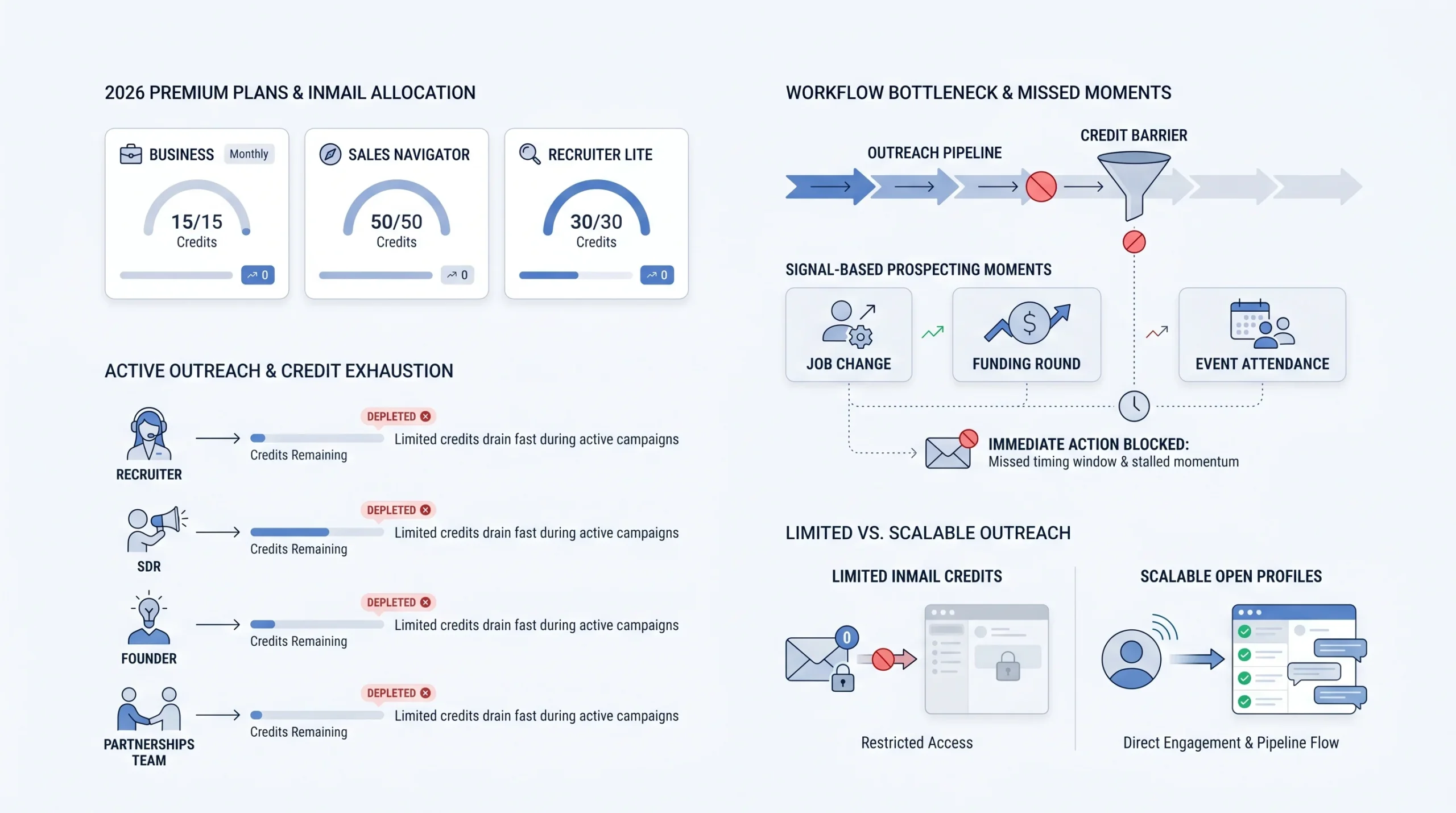
LinkedIn’s InMail system is marketed as a premium benefit — a direct line to anyone on the platform, no connection required. And it is genuinely useful. But the credit model creates a structural problem for anyone doing consistent outreach, and it rarely gets the attention it deserves.
How LinkedIn InMail Credits Work (and Why They Run Out Fast)
Every LinkedIn paid plan comes with a monthly InMail credit allocation. LinkedIn Premium Career gives you 5 credits per month. Premium Business gives you 15. Sales Navigator Core gives you 50. Those credits reset monthly, and unused ones roll over — but only for up to 90 days, after which LinkedIn removes them from your account automatically.
For an individual contributor doing light, occasional outreach, 15 or 50 credits might feel like enough. But for anyone running structured lead generation, talent sourcing, or partnership outreach, those numbers evaporate quickly. A recruiter filling three roles simultaneously, an SDR working a target account list, or a founder doing their own business development will burn through 50 credits in a single week of serious prospecting.
When you exhaust your allocation, your options are limited: wait for the monthly reset, buy additional credits individually (which can cost $10–$15 per message when purchased outside a subscription), or upgrade your plan. None of those options are ideal when you have pipeline to build right now.
Why Running Out of Credits Kills Your Outreach Pipeline
The deeper problem isn’t just the cost — it’s the momentum loss. Outreach campaigns work through consistency and timing. When a prospect changes roles, posts about a pain point, or attends a relevant event, the window to reach out with relevance is short. If your credits are depleted when that signal appears, you either spend money you didn’t budget for or you miss the moment entirely.
For sales teams with multiple SDRs working the same account territory, the credit bottleneck compounds across headcount. Each rep gets their own allocation, but the combined ceiling is still far lower than the volume required to work a serious mid-market or enterprise pipeline. This is the structural problem that open profiles solve — not partially, but completely.
What Is an Open Profile on LinkedIn? (And Why It Changes Everything)
Before you can use open profiles strategically, you need to understand exactly what they are, how they differ from other profile types, and why they represent a fundamentally different messaging channel.
The Core Definition
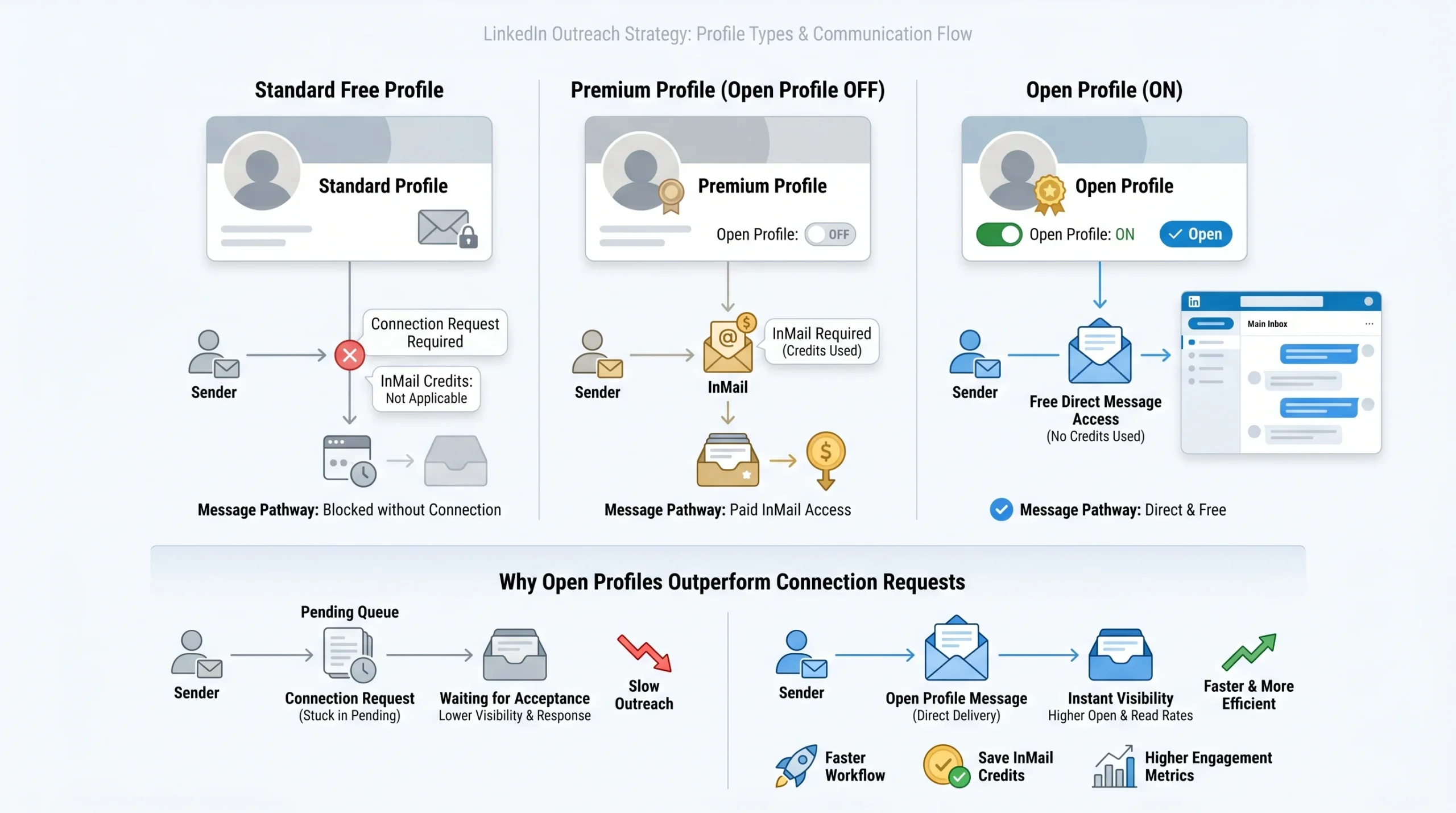
Open Profile is a LinkedIn Premium feature that, when enabled by a Premium member, allows any LinkedIn user — regardless of connection status or their own account type — to send that person a direct message for free, without consuming any InMail credits. The key distinction: only LinkedIn Premium members can turn on the open profile setting, but anyone — including free LinkedIn users — can send messages to those who have it enabled.
When you message an open profile, the message lands in that person’s main LinkedIn inbox, not in a filtered “message requests” folder. This is a critical detail. It means your message receives the same visibility as a message from a direct connection, giving it the best possible chance of being seen and read.
Open Profile vs. Standard Profile vs. Premium Profile: Key Differences
Understanding what you’re dealing with at each type of profile prevents wasted time and misdirected credits.
- Standard (Free) Profile: Can only receive direct messages from 1st-degree connections. Any non-connection who wants to reach them must send an InMail using a credit.
- Premium Profile (Open setting OFF): The user has a Premium account and a gold badge, but has disabled or never enabled the Open Profile setting. Reaching them still costs an InMail credit.
- Open Profile (Open setting ON): The user has a Premium account and has actively enabled the Open Profile feature. Anyone can message them for free.
This distinction matters enormously in practice. A gold LinkedIn badge on a profile does not automatically mean that profile is open. The user must have explicitly enabled the Open setting — and many premium users either don’t know it exists as a separate toggle, or have deliberately turned it off for privacy reasons. You cannot assume from the badge alone that the message will be free.
Why Open Profiles Are More Valuable Than Connection Requests
Connection requests are free, but they come with their own constraints: a weekly sending limit, the requirement for the recipient to accept before you can message them, and the fact that a generic connection request with a pitch attached is one of the most ignored formats on the platform. Open profile messages sidestep all of that.
Because the message lands directly in the main inbox — not in a pending connection queue — it gets seen faster. InMail messages have an open rate of 57.5%, compared to email marketing at just 21.6%. That performance advantage applies to open profile messages since they use the same inbox pathway. You’re not waiting for an acceptance decision. You’re starting the conversation directly, immediately.
How to Identify an Open Profile on LinkedIn
Knowing a profile is open before you message it saves you from accidentally burning a credit. Here’s how to check at each level of LinkedIn access.
The Manual Method (Desktop)
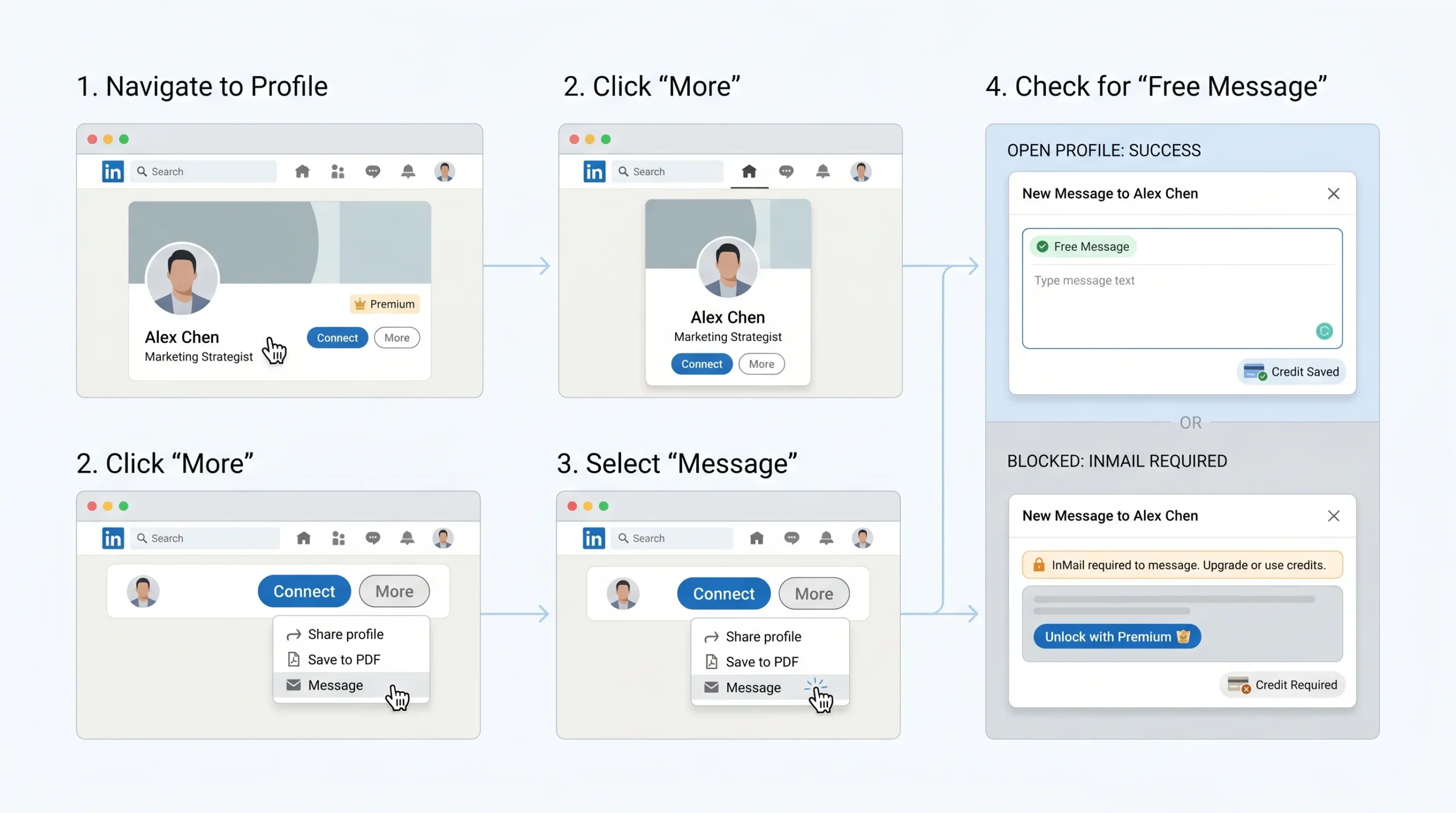
The simplest check on desktop requires no tools and takes about five seconds per profile.
- Navigate to the prospect’s LinkedIn profile.
- Click the “More” button in their profile header (next to “Connect” or “Follow”).
- Select “Message” from the dropdown.
- If a message compose window appears with the label “Free Message” at the top, the profile is open and you can write freely without using a credit.
- If the compose window shows an InMail prompt or asks you to use a credit, the profile is not open.
The “Free Message” label is the definitive indicator. No label means a credit is required.
The Manual Method (Mobile)
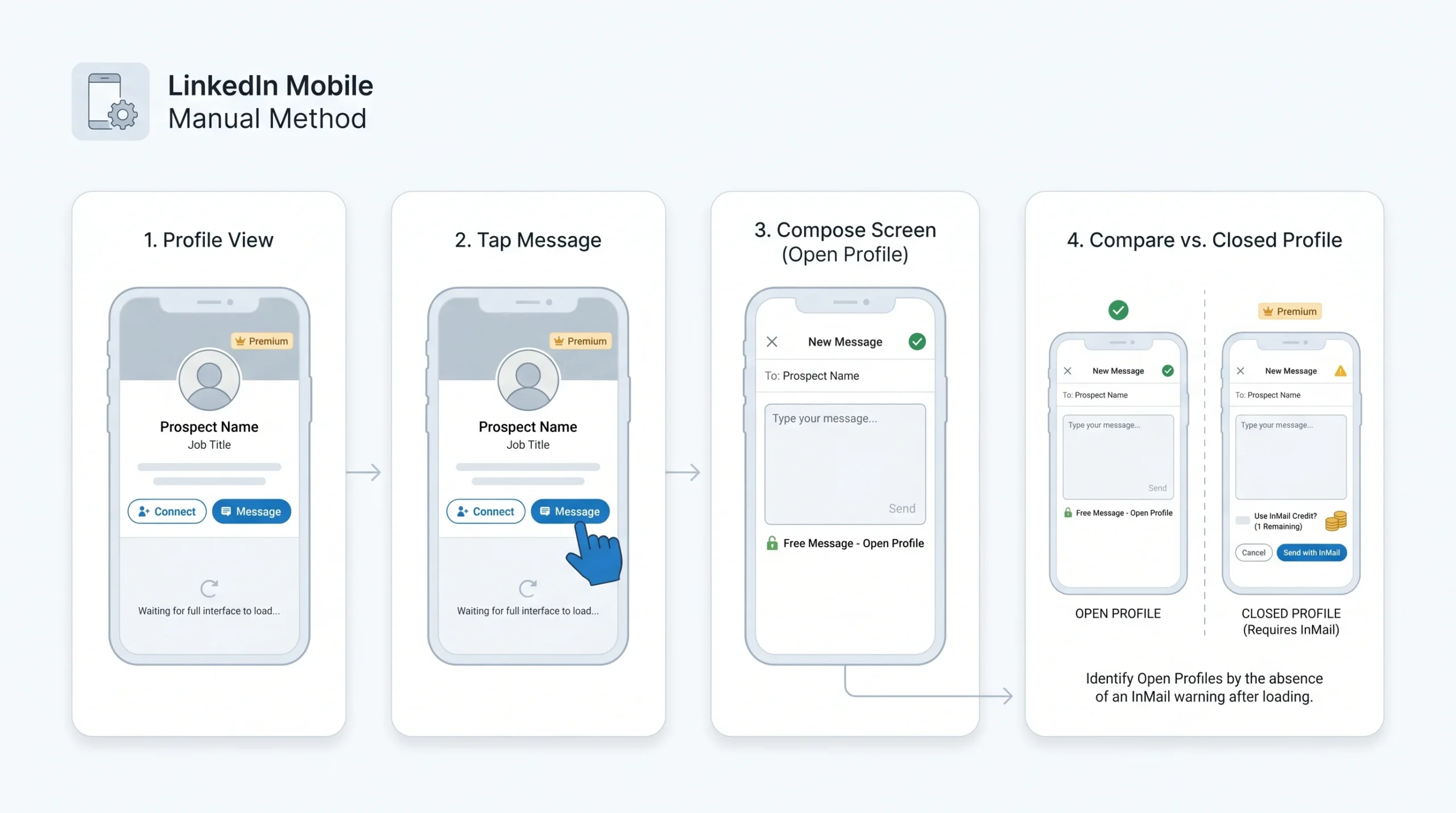
The mobile check follows a similar but slightly different flow.
- Open the prospect’s profile in the LinkedIn mobile app.
- Tap the “Message” button (if it appears directly on their profile).
- If the message composer opens without an InMail warning or credit deduction notice, the profile is open.
- If LinkedIn prompts you to confirm use of an InMail credit, stop — the profile is not open.
On mobile, the interface sometimes loads slower, so wait for the compose screen to fully render before assuming the message type.
Why the UI Sometimes Lies (Interface Quirks to Know)
Even when a profile is open, you might see the “Use InMail” prompt. This is a known LinkedIn interface issue, not a sign that the profile is actually closed. It can happen due to interface quirks or UI differences depending on how you landed on the profile — through a search result, a CRM integration, or a LinkedIn extension — each of which can affect which messaging buttons appear. LinkedIn’s A/B testing of different UI versions also causes inconsistent behavior between users or sessions.
If the interface is pushing you toward InMail even though you believe the profile is open, try these workarounds:
- Paste the profile’s direct URL into a clean browser tab instead of navigating to it through search results or a third-party tool.
- Try opening the profile in an incognito window with browser extensions disabled.
- Clear your cache and reload.
- Switch from desktop to mobile or vice versa.
If it still shows InMail after all of those steps, the profile is most likely genuinely closed.
The Free Account Limitation
Users on a free LinkedIn account face a significant constraint: there is no way to search for open profiles using filters or dedicated tooling. The only option is to send an InMail to a Premium-badged prospect and hope the profile is open — but free accounts don’t have InMail credits to begin with, creating a circular problem. The open profile method is most powerful for users on at least LinkedIn Premium or Sales Navigator, where filtering and tooling unlock systematic identification at scale.
How to Find Open Profiles at Scale
Manual checks work for a handful of prospects. But if you’re running structured outreach across hundreds or thousands of leads, you need methods that surface open profiles automatically — without checking each one by hand.
Method 1 — LinkedIn Sales Navigator’s Open Profile Filter
Sales Navigator is the most reliable native tool for finding open profiles at scale.
- Build your search using Sales Navigator’s standard lead filters: title, industry, geography, company size, seniority level, etc.
- Once you have your filtered list, look for the “LinkedIn member filter” section.
- Enable the “Open Profile” toggle to restrict results to only leads whose profiles are open.
- Save the search to receive automatic notifications when new prospects matching your criteria appear with open profiles.
As long as your pipeline of new open profile leads continues to be refreshed — which the Sales Navigator filter makes easy — you have a genuinely unlimited free messaging channel. This is the most important operational insight in this entire guide. It means the “unlimited” isn’t theoretical; it’s a systematic outcome of keeping your search saved and your outreach cadence consistent.
Method 2 — Using Lead Export Tools (Evaboot, Apollo, etc.)
For teams that want to work outside LinkedIn’s native interface, CSV-based lead export tools add another layer of open profile detection.
Tools like Evaboot connect to your Sales Navigator account and export your lead lists as CSV files. Within that export, a dedicated column — typically labeled something like “Prospect is Open Profile” — flags each lead as TRUE or FALSE. You then filter the CSV to isolate only the rows where the value is TRUE, giving you a clean list of open profile leads ready for outreach.
This approach is particularly useful for:
- Feeding leads into a CRM with open profile status already tagged.
- Running outreach sequences in third-party automation tools that require a pre-built lead list.
- Splitting a large Sales Navigator search into open profile vs. standard profile segments, so you can prioritize credit-free outreach first and use InMail credits only for the remainder.
Method 3 — LinkedIn Automation Tools (DealsFlow, Dux-Soup, etc.)
LinkedIn automation tools go one step further by not only identifying open profiles but automatically messaging them without requiring manual action for each prospect.
When building a campaign in Dux-Soup, you have the option to target only Open Profiles, which bypasses the InMail limits and makes your credits last longer. The campaign visits the profile, detects whether it’s open, and sends the message only if it’s free — preserving credits for profiles where they’re genuinely needed.
SalesRobot takes a similar approach: it can automatically send a free InMail instead of a connection request whenever it detects an open profile among your lead list. You configure the message template and targeting rules once, and the tool handles the detection and sending.
Safety note: LinkedIn does not officially support automation tools, and aggressive use can trigger account restrictions. To use these tools safely:
- Keep daily sending volumes within human-like ranges (no more than 50–80 messages per day across all types).
- Warm up new accounts gradually over several weeks before scaling activity.
- Use genuine personalization in your templates — not just a first name token, but references to role, industry, or recent activity.
- Avoid running automation continuously; build in natural pauses and weekend breaks.
How Many Open Profiles Can You Realistically Expect?
This is a practical question that most guides don’t answer concretely. The actual percentage of open profiles in any given audience varies by industry, seniority, and how actively the population is networking or recruiting. However, the scale potential is well-documented.
LinkedIn Premium accounts can access up to 800 free InMail messages per month to Open Profiles, compared to just 50 standard InMail credits on Sales Navigator Core. That is a 16x capacity difference — and it transforms Premium subscriptions from a marginal upgrade to an essential outreach infrastructure tool for anyone doing serious volume.
In typical B2B audiences, a meaningful percentage of decision-makers — particularly those who are actively networking, hiring, or positioning themselves as thought leaders — will have Open Profiles enabled. Senior professionals who want inbound opportunities, recruiters, consultants, and business development leads tend to leave Open Profile on because it serves their own interests too.
How to Send Open Profile Messages That Actually Get Replies
Finding open profiles at scale is only half the equation. The other half — the half that most outreach guides skip over — is what you actually write. Volume without quality produces noise, not pipeline.
The Anatomy of a High-Converting Open Profile Message
There is a clear, research-backed structure for open profile messages that consistently outperforms generic templates.
- Subject line: Write something specific to the recipient. Reference their company, a recent post, a mutual connection, or a shared professional context. Generic subject lines like “Quick question” or “Opportunity for you” are instant ignore signals. Even one specific detail in the subject line dramatically improves open rates.
- Opening line: The first sentence should demonstrate that you’ve done at least thirty seconds of research. Mention a role change, a recent achievement, a post they wrote, or a challenge common to their industry. Avoid starting with “I” or “We.”
- Who you are and why it’s relevant: One line. Not your company history — just the single most relevant thing about you that explains why you’re reaching out to this specific person.
- The ask: Make it frictionless. “Would it be worth a 10-minute call this week?” generates far more replies than “Schedule a 30-minute demo here.” The lower the commitment implied by the ask, the higher the response rate.
- Length: Keep the entire body under 150 words. Long messages signal that a pitch is coming. Short messages feel like a real conversation.
3 Open Profile Message Templates (Sales, Recruiting, Partnerships)
Template 1: Sales Prospecting
Subject: [Company name] + [your company’s relevant outcome]
Hi [First Name],
Noticed you’re leading [specific team or function] at [Company] — and from your recent post about [specific topic], it sounds like [relevant challenge] is front of mind right now.
We work with [similar companies or roles] to [specific, concrete outcome — not “drive growth” but “cut onboarding time by 40%”].
Not sure if it’s relevant to what you’re working on, but would a 10-minute call this week be worth it to find out?
[Your name]
Why it works: The subject line is specific, the opener shows research, the value claim is concrete, and the CTA is low-friction.
Template 2: Recruiting Outreach
Subject: [Role title] opportunity — thought of you
Hi [First Name],
Your background in [specific skill or domain] at [Current/Recent Company] caught my attention — we’re building out a [team or function] at [Your Company] and the fit looked worth exploring.
The role focuses on [one or two specific responsibilities], and the team is [a genuinely differentiating detail — stage, mission, team structure].
Would you be open to a brief conversation, even just to hear the details?
[Your name]
Why it works: It flatters with specificity, not flattery. The role description is concrete. The ask is explicitly low-commitment.
Template 3: Partnership / Collaboration
Subject: Potential collaboration — [shared audience or context]
Hi [First Name],
I’ve been following your work on [specific topic] — your piece on [specific post or project] was one of the clearest takes I’ve read on the subject.
I lead [function] at [Company], and we serve a very similar audience: [describe the overlap]. I think there could be a natural fit for [co-content, referral partnership, joint webinar — be specific].
Would it make sense to spend 15 minutes exploring whether there’s something worth building together?
[Your name]
Why it works: Opens with genuine acknowledgment of their work, positions the ask as mutual rather than extractive, and frames it as exploration rather than a pitch.
The Credit Refund Hack That Multiplies Your Budget
Even when you do need to send a standard InMail to a closed profile, there’s an underused LinkedIn policy that effectively reduces the credit cost of well-crafted campaigns. LinkedIn refunds an InMail credit any time the recipient responds within 90 days — regardless of whether they say yes, no, or anything in between. Any reply counts.
This means a campaign achieving a 30–40% reply rate effectively runs at 30–40% of its nominal credit cost. A 50% reply rate means every two InMails sent costs one credit net. Teams that achieve 60–70% reply rates — which is possible with strong personalization and precise targeting — approach effectively unlimited InMail capacity from their existing monthly allocation.
The practical strategy: use open profile outreach to test your messaging before spending credits on closed profiles. Send your template to a batch of open profiles first. Measure the reply rate. Refine the message. Once you have a version that’s generating consistent responses, then commit credits to your closed-profile targets — where the refund policy means a high-performing message pays for itself.
Mistakes That Get Your Messages Ignored (or Your Account Flagged)
The open profile channel is only as good as the messages you send through it. These are the most common failures:
- Generic openers: Starting with “Hope this finds you well” or “I came across your profile and was impressed” signals immediately that you haven’t read anything about this person. Using a personalized message — mentioning their company name or a recent post — can raise your response rate by up to 32%.
- Leading with a pitch: The first message is not the place to describe your product in detail. It’s the place to establish relevance and earn a reply.
- Messages over 150 words: Long messages read as walls of text on mobile, where most LinkedIn messages are first seen. They also signal that a lengthy sales process is coming.
- Multiple CTAs: Asking someone to “check out our website, book a demo, or reply if interested” is three asks in one. Pick one low-friction ask and commit to it.
- Sending thousands of identical messages: Sending thousands of generic messages has a near-zero response rate and frequently gets flagged as spam, leading to temporary or even permanent account restrictions. LinkedIn’s spam detection looks at patterns of repeated identical content, high send volumes, and low response or engagement rates.
Combining Open Profiles with Other Free Outreach Channels
Open profiles are the most powerful free channel on LinkedIn, but they’re not the only one. Layering them with two other native LinkedIn features — group messaging and event attendee messaging — creates an outreach system that reaches significantly more prospects without spending a single additional credit.
Messaging LinkedIn Group Members for Free
LinkedIn allows members of the same group to message each other directly, without a connection request and without using InMail credits. This applies to any group you’ve joined, regardless of whether the other member has a Premium account.
Messages sent to LinkedIn group members allow you to contact 2nd and 3rd degree connections without a connection request, though they land in message requests rather than the main inbox — which is a meaningful difference in visibility compared to open profile messages.
The approach:
- Identify LinkedIn Groups where your ideal prospects are active members. Industry associations, professional communities, and event-specific groups are good starting points.
- Submit a join request and wait to be accepted (some groups are moderated, others auto-approve).
- Once inside, you can initiate messages to any other member.
- Frame the opening message around the group context — “I saw your comment in [Group Name] on [topic]” — to differentiate from cold outreach.
One important limit to know: LinkedIn caps group and event message requests at 10 per week combined across both channels. This makes group messaging a supplemental channel, not a replacement for open profile outreach at scale.
Messaging LinkedIn Event Attendees
LinkedIn Events are an underused lead generation tool. When you register for a public LinkedIn Event, you gain the ability to message other attendees directly, even without a connection — and these messages do not cost InMail credits.
- Find upcoming events relevant to your industry using LinkedIn’s Events search or by monitoring what events your target accounts or thought leaders are hosting.
- Register as an attendee.
- Browse the attendee list and identify prospects who match your ICP.
- Message them with an opener that references the shared event context: “I’m also registered for [Event Name] next week — your work on [topic] caught my eye in the attendee list.”
The shared event context provides a natural, non-intrusive reason to reach out, which meaningfully improves open and response rates compared to fully cold messages. Just keep the 10-per-week cap in mind when planning event-based outreach.
Building a Multi-Channel Sequence Around Open Profiles
The most effective outreach systems treat LinkedIn as one channel within a broader sequence, not the only channel. A multi-channel approach using both LinkedIn and email bypasses LinkedIn’s volume limits, provides a backup communication channel, and allows you to reach a higher percentage of your target list.
Here is a practical sequence that layers open profile outreach with complementary touchpoints:
- Day 1: Send an open profile message (personalized, under 150 words, single CTA).
- Day 3: Visit their profile (creates a notification that puts your name back in front of them) and like or comment on a recent post if one is relevant.
- Day 7: Send a brief follow-up message in the same thread: “Just wanted to make sure this didn’t get buried — happy to keep it short if you have 10 minutes.”
- Day 10: If you have their email (sourced via an email finder tool from their profile), send a short email that references the LinkedIn message: “I reached out on LinkedIn last week — thought I’d try here too.”
- Day 14: Final LinkedIn follow-up or move to a nurture sequence.
This structure means you’re creating multiple touchpoints across a two-week window without being aggressive or repetitive. Each step adds context rather than simply repeating the same ask.
Staying Safe: LinkedIn’s Rules and How Not to Get Banned
The open profile strategy only works long-term if your account stays in good standing. LinkedIn’s enforcement of its terms of service has become more sophisticated, and the cost of an account restriction or ban — losing your network, your history, and your pipeline visibility — is significant.
What LinkedIn Considers Acceptable Automation
LinkedIn’s official position is that automation tools violate its Terms of Service. In practice, LinkedIn takes a behavior-based enforcement approach: accounts that exhibit bot-like patterns get flagged, while accounts that use automation responsibly and stay within human-like activity ranges generally don’t.
The safest way to automate LinkedIn outreach is to stay within human-like activity limits, warm up your account gradually, and prioritize personalization to avoid sounding like a bot. For new or recently warmed accounts, start with low daily volumes — 10–20 messages per day — and increase gradually over several weeks.
Never use multiple accounts from the same device or IP address, and avoid VPN rotation if you’re also running automation, as LinkedIn’s detection systems track device fingerprints and behavioral patterns beyond simple IP addresses.
Daily and Monthly Sending Limits to Know (2025–2026)
These are the practical limits to stay within for a healthy, unrestricted account:
- Connection requests: Stay under 20 per day for accounts that aren’t fully warmed; up to 100 per week maximum for well-established accounts with high acceptance rates.
- Messages to 1st-degree connections: Soft cap around 80–100 per day, but aggressive templated blasting will trigger throttling long before that ceiling.
- Standard InMail credits: Fixed by plan — 5, 15, or 50 per month depending on subscription tier.
- Open profile messages: No hard LinkedIn-imposed cap, but self-imposed quality limits (50–80 per day maximum) are strongly recommended to avoid behavioral flags.
- Group and event messages: 10 per week combined.
Warning Signs That LinkedIn Is Flagging Your Account
If any of the following appear, stop high-volume activity immediately and let your account rest for several days before resuming at lower volumes:
- A warning notification from LinkedIn about unusual account activity.
- A sudden, unexplained drop in your message delivery rate or profile views.
- The “message” button disappearing or becoming unavailable on profiles that should be accessible.
- A temporary restriction on sending connection requests.
- A CAPTCHA prompt when performing normal browsing actions.
These are early signals. Catching them early and reducing activity usually prevents escalation to a full account restriction.
Conclusion
LinkedIn’s InMail credit system creates a real constraint for anyone doing consistent outreach — but it’s a constraint that open profiles largely eliminate. By understanding the difference between a Premium badge and a genuinely open profile, learning how to identify them manually and at scale, and writing messages that are personal, concise, and low-friction, you can build an outreach system that isn’t paced by your credit balance.
The 16x capacity difference between standard InMail credits and open profile messages available to Premium users isn’t a loophole — it’s a documented, platform-native feature that LinkedIn built for exactly this purpose: to help Premium members and those reaching out to them connect more freely. The teams and individuals who treat it as a systematic part of their outreach infrastructure, rather than an occasional workaround, are the ones who consistently outperform their peers on LinkedIn without consistently outspending them.
Start by saving an Open Profile filter in Sales Navigator, export your first batch of leads, and send five personalized messages today. Measure the replies. Refine the template. Then scale.
Frequently Asked Questions
Is Open Profile free or part of LinkedIn Premium?
Open Profile is a feature that only LinkedIn Premium members can enable on their own profile. However, once a Premium member has turned it on, anyone — including free LinkedIn users — can send them a message without using InMail credits. So the feature itself requires Premium to activate, but using it to send messages does not.
Can I send open profile messages on a free LinkedIn account?
Yes — but only if you can identify open profiles to begin with. Free accounts cannot use Sales Navigator’s Open Profile filter or most lead export tools, making it difficult to find open profiles systematically. You can manually check individual profiles using the “More > Message > Free Message” method described above, but scaling this manually is extremely time-consuming.
How do I know if my own profile is set to open?
Go to your LinkedIn profile, click on “Me” in the top navigation bar, then go to Settings & Privacy > Visibility > Open Profile. If the toggle is on, your profile is open and anyone can message you for free. LinkedIn Premium members can toggle this setting on or off at any time.
Do open profile messages count toward any sending limit?
LinkedIn does not impose a hard monthly cap on open profile messages the way it does for InMail credits. However, they do count toward behavioral volume thresholds that LinkedIn monitors for spam-like activity. Staying under 50–80 open profile messages per day is the generally accepted safe range for maintaining account health.
What’s the difference between a free message and an InMail?
A free message to an open profile is delivered directly to the recipient’s main inbox, costs nothing, and is not subject to any monthly credit limit. An InMail costs one credit from your monthly allocation, can be sent to any non-connection (not just open profiles), and is also delivered to the main inbox. The experience for the recipient is similar — the difference is entirely on the sender’s side in terms of cost and access.
Can I automate open profile outreach safely?
Yes, with the right tools and within safe activity limits. Tools like Dux-Soup, SalesRobot, and similar platforms can detect open profiles within a lead list and send messages automatically. The key safety rules are: keep volumes human-like (under 50–80 per day), warm up accounts gradually, use genuine personalization in your templates, and avoid identical messages sent to large batches at high speed.
What happens if I message an open profile and they don’t reply?
Nothing negative — the message simply sits unread or unresponded to. Unlike InMail credits, there is no credit to lose if the recipient doesn’t reply. This is one of the reasons open profile outreach is so valuable: you can test, iterate, and follow up without any financial cost per send. If your reply rates are consistently low, treat it as a signal to revisit your targeting or message quality rather than a cost problem.